Communication Technology 11 · Week 1 · Part 2

Build the launch graphic

Class 2 · 0–50 min · Follow every step in order. Do not skip the expected-result check.

Before you begin: Open the student ZIP, place it in a named course folder, preserve the originals, and save a versioned working file before editing.
Linear build

Do → inspect → repair

Every visible outcome is taught below. A step is not finished until your screen or evidence matches the expected result.

Photoshop procedure support for Construct the wordmark
Current Photoshop 2026 or supplied production screenshot. Match the named tool/path; minor panel placement may differ.
Step 6

Construct the wordmark

Editable type plus one shape

Hotkey: No required shortcut — use the named menu or panel.

Expected result
Simple original mark remains readable small and one-colour
Why this matters
Week 1 rewards control over illustration complexity
Warning — common failure
Tracing an existing logo
Repair it
Use the client name and one original geometric move

Photoshop procedure support for Save and capture the style tile
Current Photoshop 2026 or supplied production screenshot. Match the named tool/path; minor panel placement may differ.
Step 7

Save and capture the style tile

02_working and 04_evidence

Hotkey: Cmd/Ctrl Shift S

Expected result
Named PSD and screenshot show palette, type roles, wordmark and guides
Why this matters
The system must be inspectable before application
Warning — common failure
Saving only a screenshot
Repair it
Keep the editable PSD
Photoshop procedure support for Create the delivery document
Current Photoshop 2026 or supplied production screenshot. Match the named tool/path; minor panel placement may differ.
Step 8

Create the delivery document

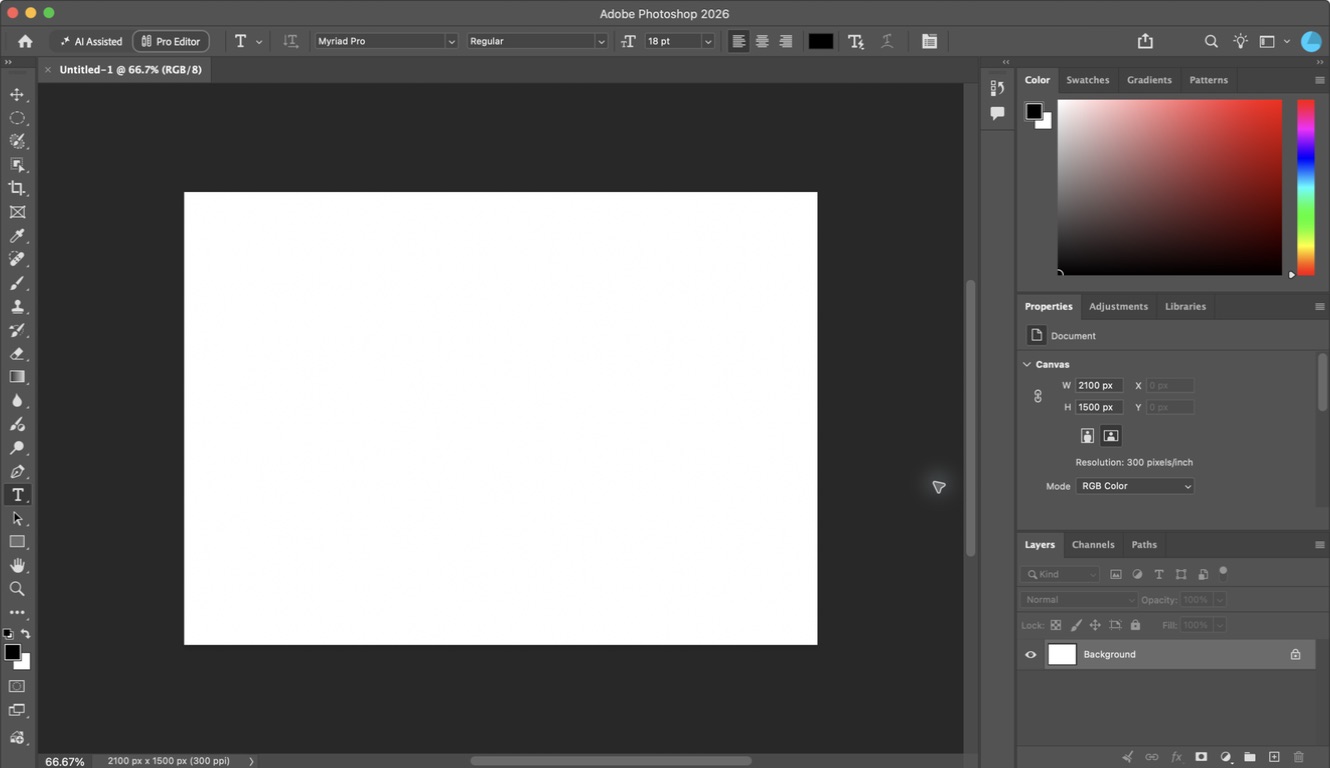
File > New; 1080 x 1080; RGB; sRGB

Hotkey: Cmd/Ctrl N

Expected result
Correct square canvas opens with guides
Why this matters
Format shapes layout decisions from the start
Warning — common failure
Designing inside the style tile
Repair it
Create a separate launch document
Photoshop procedure support for Place and crop the photograph
Current Photoshop 2026 or supplied production screenshot. Match the named tool/path; minor panel placement may differ.
Step 9

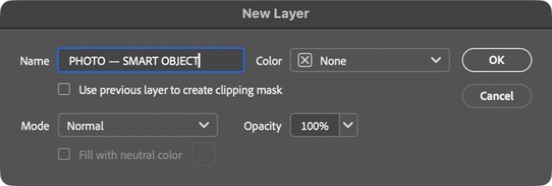
Place and crop the photograph

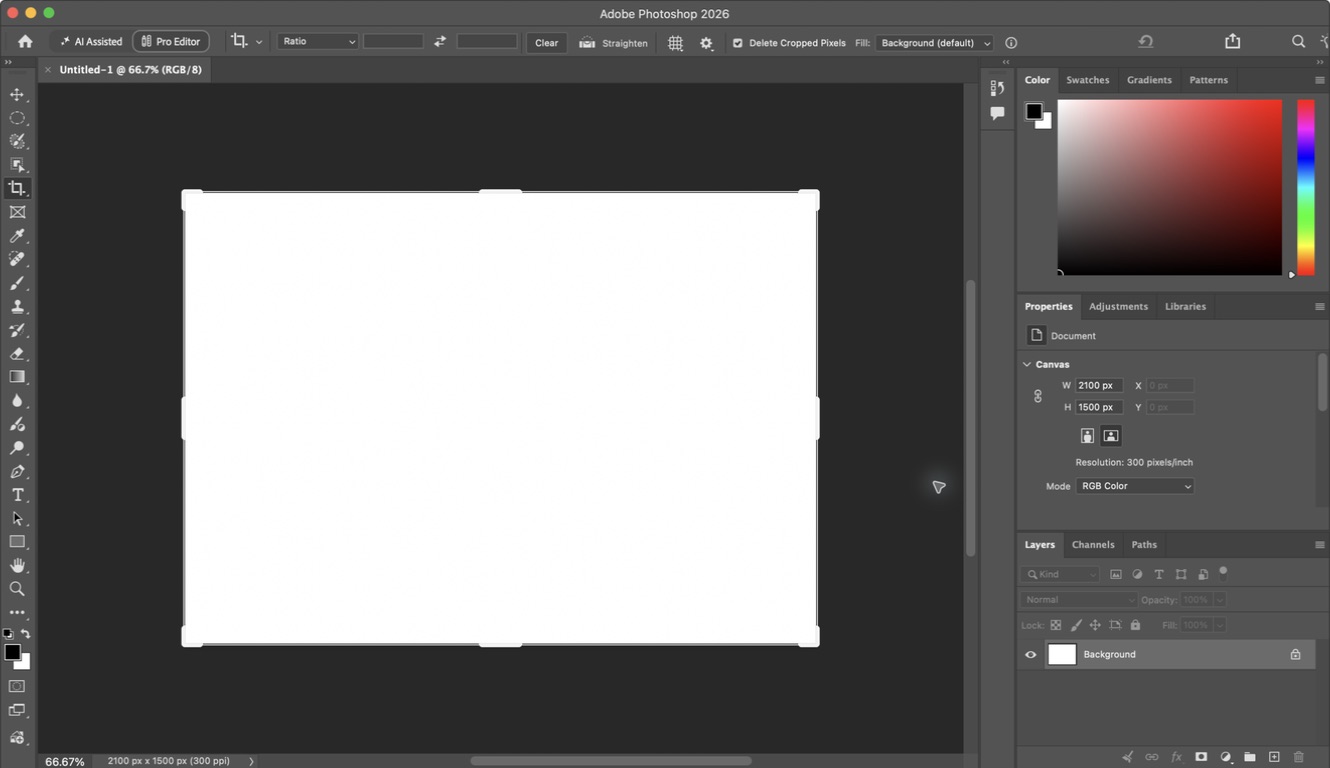
File > Place Embedded > Free Transform

Hotkey: Cmd/Ctrl T

Expected result
Subject is clear and a calm type zone remains
Why this matters
Composition must make room for language
Warning — common failure
Covering the busiest detail with text
Repair it
Move or crop the image before adding boxes
Photoshop procedure support for Control the text-safe value
Current Photoshop 2026 or supplied production screenshot. Match the named tool/path; minor panel placement may differ.
Step 10

Control the text-safe value

Clipped Curves with mask

Hotkey: No required shortcut — use the named menu or panel.

Expected result
Type zone gains contrast without flattening the whole image
Why this matters
Local value is more controlled than global opacity
Warning — common failure
Darkening everything
Repair it
Clip and mask the adjustment
Photoshop procedure support for Transfer the type system
Current Photoshop 2026 or supplied production screenshot. Match the named tool/path; minor panel placement may differ.
Step 11

Transfer the type system

Named editable text layers

Hotkey: T

Expected result
Headline, essential detail and action match the style tile
Why this matters
Repetition creates recognition
Warning — common failure
Changing fonts to fit gaps
Repair it
Change size and line breaks first
Student check

Answer before moving on

Checkpoint: A peer can identify the headline, key detail and action in five seconds; all image, type and mark roles remain editable.
Support

Use the supplied safe-area guides and recommended crop for the selected client.

Transfer

Create a second crop with a different focal relationship while preserving the same brand system.

← PreviousNext part →