PS 01 · Foundations
Communication Technology 11 + Multimedia 12

Decode the impossible.

Look behind polished ads, learn the six moves that make a composite believable, and build a phone portal. Then make the illusion break its frame with the classic out-of-bounds effect.
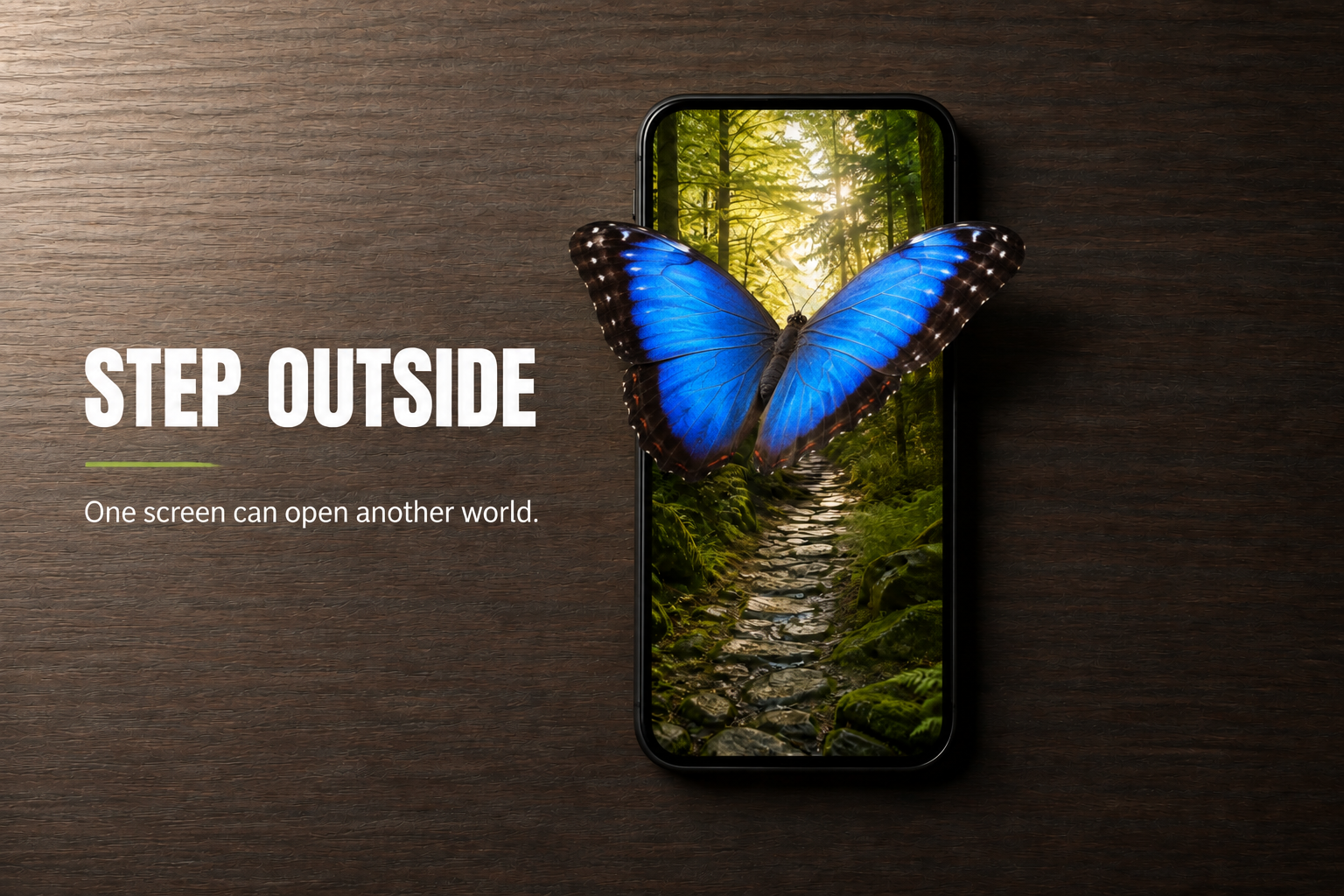
Finished Step Outside composite with a blue butterfly emerging from the forest and crossing the phone bezel.

Two-stage target: Tier 1 builds the portal. Tier 2 adds the butterfly with a refined, editable mask.

75–120minutes
8gallery images
10 + 7linear steps

Big question: When is photo manipulation creative communication—and when can it become deception?

Launch: Project the gallery full-screen before students open Photoshop. Ask for silent noticing first, then pair talk. Do not explain the tools until students have made guesses.
Part 0 · Get the files

Download exactly what you need.

The three student source images are bundled with this lesson. Download the ZIP once, unzip it, and place the images inside your project’s 01_assets folder. No image search or account is required.

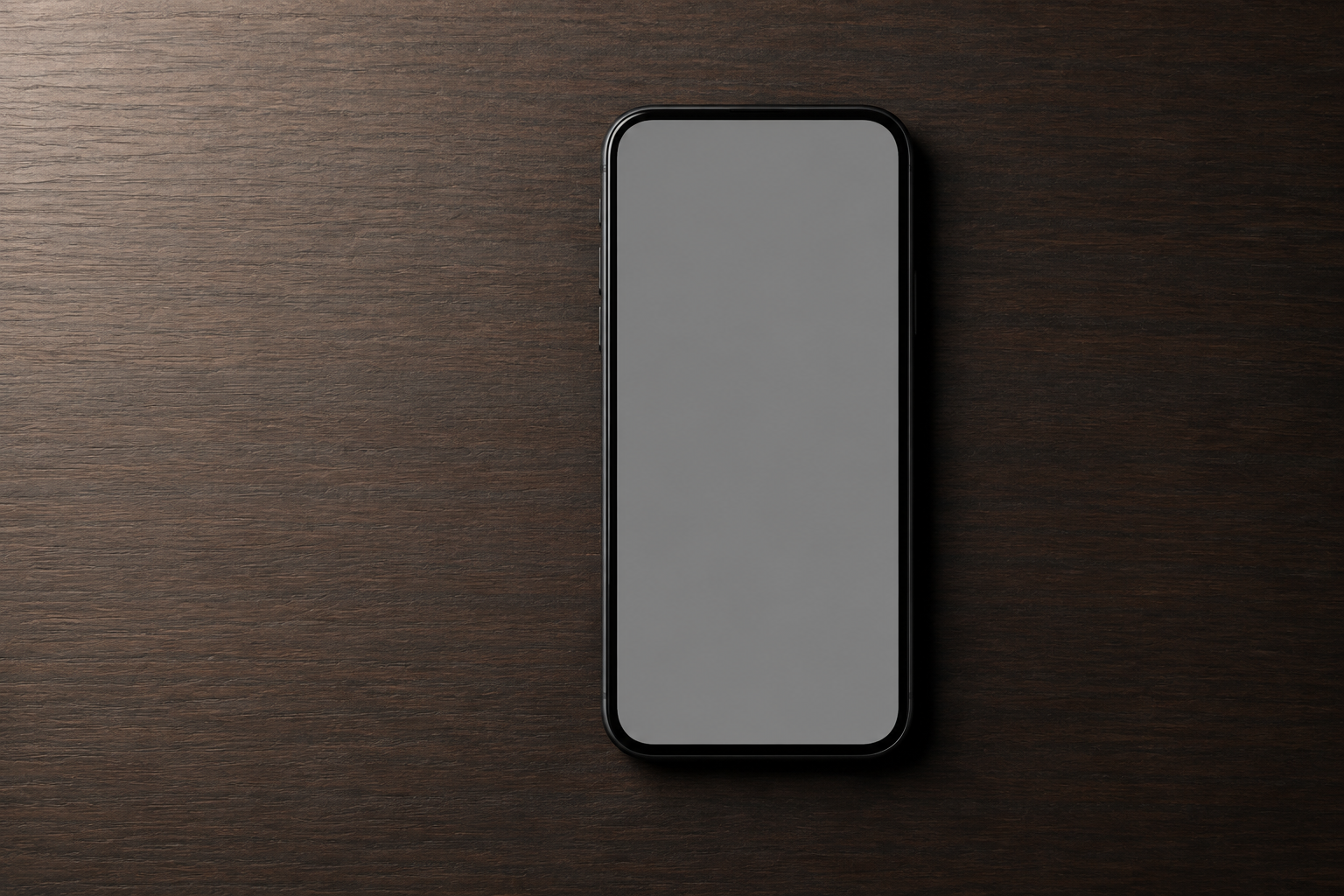
Phone on a dark wooden desk with a blank gray screen

01 · Phone base

The background and frame for both tiers.

Download phone

Green forest trail leading toward sunlight

02 · Forest insert

Placed and masked inside the phone screen in Tier 1.

Download forest
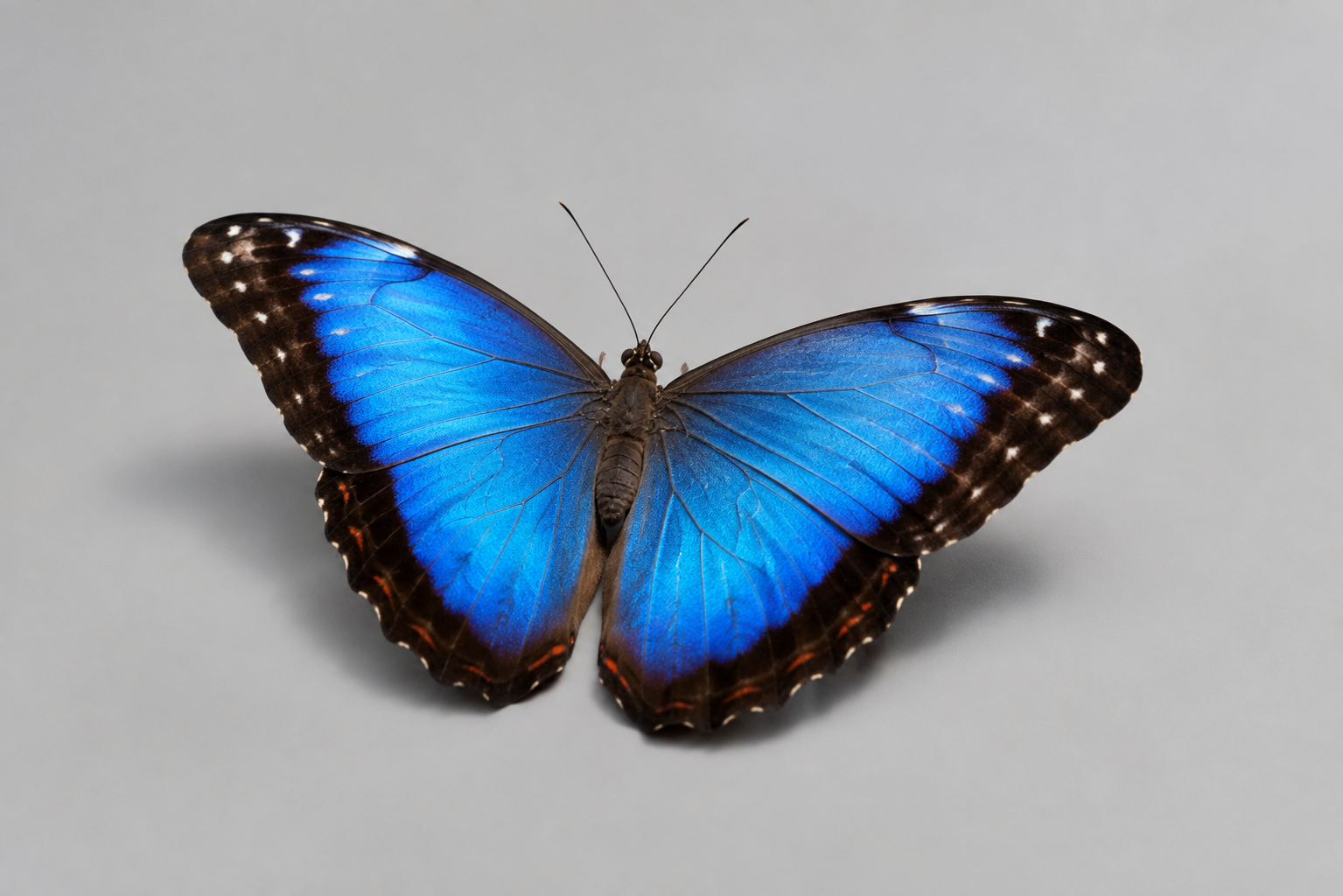
Blue butterfly on a plain light-gray background

03 · Butterfly source

Selected, refined, and masked for the Tier 2 out-of-bounds effect.

Download butterfly
Teacher distribution: Put the ZIP in Google Classroom, your LMS, a shared drive, or the student common folder. Students should not use butterfly-cutout-demo.png; that pre-cut file exists only to power the simulator.
Today’s route

See it. Name it. Make it.

01Gallery walk
10–12 min
02Technique decode
8 min
03Workspace tour
7 min
04Layer simulator
8 min
05Tier 1 portal
35–45 min
06Tier 2 OOB
25–35 min
07Check + exit
10 min
Part 2 · Technique decoder

Six moves behind most composites.

Photoshop has many tools, but beginners can read a surprising amount of professional work by looking for the same small set of decisions.

The composite formula

LAYERS
separate pieces
+
MASKS
hide, don’t erase
+
MATCH
light, scale, colour

Believability test: edges + perspective + light direction + shadow softness + colour temperature.

V

Move

Positions a selected layer. If the wrong thing moves, select the correct layer first.

L / W

Select

Defines where an edit can happen. Marching ants are a boundary, not content.

mask

Layer mask

White reveals; black conceals. Reversible beats deleting pixels.

⌘/Ctrl T

Transform

Scales, rotates, or distorts one layer. Hold the corner and watch proportion.

T / U

Type + shape

Adds editable words and graphic accents that build hierarchy.

adj.

Adjust

Changes tone and colour non-destructively, often clipped to one layer.

Photoshop workspace mapThe Tools panel is left, Options bar is top, canvas is center, Layers panel is right, and Contextual Task Bar is below the canvas.OPTIONS BAR — changes with the active toolTOOLS — choose an actionCANVAS — the imageLAYERS PANELT STEP OUTSIDE▣ Forest + mask▧ Phone baseCONTEXTUAL TASK BAR — next useful actions
Part 3 · Layer simulator

Turn the idea on and off.

Use the checkboxes like eye icons in the Layers panel. Then drag the mask slider. Notice that a mask controls visibility without destroying the forest image.

Phone base imageForest layer placed in phone screen
STEP OUTSIDE
One screen can open another world.

Layers (top to bottom)

0% hides the forest; 100% reveals it.

CHECKPOINT
Which layer must be selected before you move the forest?
Answer: the Forest layer—not its mask thumbnail if students intend to transform the pixels. Ask students to predict before each toggle.
Part 4 · Tier 1 foundations

Build the phone portal.

TIER 1 · REQUIRED FOUNDATION Work in order and stop at every checkpoint. Menu names match current desktop Photoshop; screenshots may differ slightly by workspace or operating system.

0

Prepare the project folder

Files / Finder → New Folder

Create Photoshop_Foundations_YourName with 01_assets, 02_working, 03_exports, and 04_evidence. Copy 01-phone-base.png and 02-forest-insert.png into 01_assets.

WHY THIS MATTERSA repeatable file structure prevents missing links and lost work.
WATCH OUTDo not edit files directly in Downloads. Copy first.
CHECKPOINT Both asset filenames are visible inside 01_assets.
01_assets
✓ phone base
✓ forest insert
1

Open the base image

File → Open → 01-phone-base.png

Choose the phone image. Press F if you want to cycle screen modes, and Ctrl/Cmd + 0 to fit the image on screen.

EXPECTED RESULTA phone on a wood desk fills the canvas.
IF YOUR SCREEN DOESN’T LOOK LIKE THISUse Window → Workspace → Essentials (Default), then Reset Essentials.
CHECKPOINT Layers panel shows one Background layer.
FILE → OPEN
Canvas + one layer
2

Save an editable working file

File → Save As → Photoshop (.PSD)

Save as 02_working/Step_Outside_YourName_v01.psd. Keep Layers enabled.

HOTKEYCtrl/Cmd + Shift + S opens Save As.
WATCH OUTA JPEG cannot preserve your editable layers.
CHECKPOINT The document tab ends in .psd.
FORMAT: Photoshop
Layers: ✓
3

Place the forest as a new layer

File → Place Embedded → 02-forest-insert.png

Choose Place. Photoshop adds the forest as a Smart Object with transform handles. Press Enter/Return once to confirm.

WHY THIS MATTERSPlaced Smart Objects can be resized repeatedly with less quality loss.
COMMON MISTAKE + FIXNo handles? Select Forest, then Ctrl/Cmd + T.
CHECKPOINT Forest sits above Background in Layers.
LAYERS
▣ Forest
▧ Background
4

Transform the forest to cover the screen

Edit → Free Transform · Ctrl/Cmd + T

Lower Forest opacity to about 60% so you can see the phone. Drag a corner to scale; move the forest until the bright path sits inside the phone. It must cover the entire gray screen. Press Enter, then restore opacity to 100%.

TIPAlt/Option-drag a corner to scale around the centre.
WATCH OUTDo not leave empty bands inside the screen.
CHECKPOINT Forest covers the screen and its path reads vertically.
□ TRANSFORM BOX □
forest covers screen
5

Select the screen opening

Hide Forest → select Background → Polygonal Lasso (L)

Zoom in. Click carefully around the inside edge of the gray screen. Use several points to follow each rounded corner. Click the first point to close. Choose Select → Modify → Feather → 1 px.

WHY THIS MATTERSThe selection tells Photoshop exactly where the forest may appear.
COMMON MISTAKE + FIXWrong click? Press Backspace/Delete to remove the latest lasso point.
CHECKPOINT Marching ants surround only the inner screen—not the black bezel.
POLYGONAL LASSO
screen edge → closed loop
6

Turn the selection into a layer mask

Show + select Forest → Layers panel → Add Layer Mask

Click the Forest layer’s eye, then its image thumbnail. At the bottom of Layers, click the rectangle-with-circle Add Layer Mask icon. Press Ctrl/Cmd + D to deselect.

MASK RULEWhite reveals. Black conceals. Gray partly reveals.
COMMON MISTAKE + FIXForest disappears? Undo, select the screen—not its outside—or invert with Ctrl/Cmd + Shift + I.
CHECKPOINT Forest appears only inside the phone screen; a black/white mask thumbnail is beside it.
▣ Forest | ◐ mask
▧ Background
7

Match the colour and contrast

Layer → New Adjustment Layer → Curves

Create Curves above Forest. In Layers, right-click the Curves layer and choose Create Clipping Mask. Make a gentle S-curve: slightly lower shadows and slightly lift highlights. Optional: add Vibrance +10.

WHY THIS MATTERSMatching tone helps separate photographs feel like one scene.
WATCH OUTIf the desk changes, the adjustment is not clipped.
CHECKPOINT The adjustment layer shows a downward arrow and affects only Forest.
↳ Curves
▣ Forest | ◐
▧ Background
8

Add the headline and subline

Type Tool (T) → click once on left side

Type STEP OUTSIDE in a bold sans serif, white, large enough to lead the page. Create a second text layer: One screen can open another world. Keep it smaller and left-aligned.

DESIGN IDEAContrast in scale creates hierarchy: headline first, subline second, image third.
COMMON MISTAKE + FIXText is tiny? Select it with Ctrl/Cmd + A while editing, then change size in the Options bar.
CHECKPOINT Two separate Type layers sit above all image layers.
T STEP OUTSIDE
T subline
9

Add one graphic accent

Eyedropper (I) → sample green · Rectangle Tool (U)

Sample a bright green from the forest. Choose Rectangle Tool, set Shape mode, and draw a short thin rule between the headline and subline.

WHY THIS MATTERSRepeating the forest colour makes the layout feel connected.
WATCH OUTIf you paint pixels instead, undo and set the U tool to Shape in the Options bar.
CHECKPOINT A green Shape layer appears; the accent supports rather than dominates.
■ SHAPE · green rule
Mode: Shape
10

Save, export, and capture evidence

Ctrl/Cmd + S · File → Export → Export As

Save the PSD. Export 03_exports/Step_Outside_YourName.jpg at JPG quality 80–90, sRGB, same pixel size. Take one screenshot showing the full canvas and Layers panel; save it in 04_evidence.

PRODUCTJPG for viewing + PSD for editing.
PROCESS EVIDENCELayer-stack screenshot proves how the work was built.
FINAL CHECKPOINT Open the JPG; confirm clean screen edges, readable type, and no accidental selections or transform handles.
✓ PSD
✓ JPG
✓ layer screenshot

Where do you finish today?

Tier 1 · Foundations

Complete Steps 0–10. Match the portal exemplar and prove that phone, forest, mask, adjustments, type, and accent remain editable.

Tier 2 · Out of Bounds

Continue to Steps 11–17. Cut out the butterfly, refine its mask, and place part of it beyond the phone’s edge.

Tier 3 · Transfer

After Tier 2, replace the butterfly with your own rights-safe subject. Keep every layer editable and defend the placement, edge, and shadow choices.

Pacing checkpoint: At the halfway mark, everyone should have a forest layer above the phone. Pair students by checkpoint rather than by speed. If selection time expands, provide Tier 1 with permission to use a simple rectangular screen selection and continue—the learning target is the mask workflow.
Part 5 · Tier 2 extension

Break the frame.

TIER 2 · OUT OF BOUNDS The illusion works because the butterfly is cut out on its own layer, placed above the phone, and partly concealed with a layer mask. You are controlling what is in front, what is behind, and what remains editable.

Your browser needs canvas support for this masking lab.
Loading simulator…Drag on the image during Step 4

Build the effect one decision at a time

Loading the source images…

White revealsBlack conceals
Live mask thumbnail
Compare this with the artwork while you paint.
Tier 2 target showing a butterfly crossing the phone bezel

Target read: the body begins in the forest, the wings cross the bezel, and a small hidden edge suggests that the phone frame sits between parts of the subject.

Demonstration sequence: Do not click through silently. Before each stage, ask students to predict the next visual change. At Paint, hide a small wing edge and repair it with white. At Layers, toggle one eye at a time, then move Butterfly below Base and have students explain why it disappears.
11

Place the butterfly source

Copy asset → File → Place Embedded → 03-butterfly-source.png

Copy the butterfly into 01_assets, place it above all current image layers, and press Enter/Return. Rename the layer Butterfly.

EXPECTED RESULTThe full gray-background butterfly covers part of the composition.
WHY THIS MATTERSA separate named layer can move, mask, and change without damaging Tier 1.
CHECKPOINT Butterfly is the top image layer and the Tier 1 layers are still present.
▣ Butterfly
T Headline
▣ Forest | ◐
▧ Phone
12

Select the subject and add a mask

Butterfly selected → Select → Subject → Add Layer Mask

With the Butterfly image thumbnail selected, choose Select Subject. Inspect the marching ants, then click Add Layer Mask. Do not erase the gray background.

MASK RULEWhite keeps the butterfly visible; black hides the studio background.
COMMON MISTAKE + FIXNothing changes? Confirm that the Butterfly layer—not Forest—is selected.
CHECKPOINT The gray background is hidden and a black/white mask thumbnail appears beside Butterfly.
SELECT SUBJECT
Butterfly | ◐ mask
13

Refine the detailed edges

Select mask thumbnail → Select and Mask

Choose On Black or On White view. Use the Refine Edge Brush only around antennae and tricky wing edges. Start with Radius 1–2 px and Decontaminate Colors off. Output to Layer Mask.

EXPECTED RESULTAntennae stay visible; the gray halo is reduced without chewing into the wings.
WATCH OUTLarge repeated strokes can create mushy edges. Undo and use a smaller brush.
CHECKPOINT At 100% zoom, the silhouette is clean on both a light and dark area.
SELECT AND MASK
Refine Edge Brush
Output: Layer Mask
14

Cross the phone boundary

Select image thumbnail → Ctrl/Cmd + T

Scale and move the butterfly so its body begins inside the upper half of the forest while at least one wing clearly crosses a phone bezel. Keep the phone, headline, and forest readable.

DESIGN TESTThe subject must be both inside and outside the frame.
COMMON MISTAKE + FIXMask stretches oddly? Click the image thumbnail before transforming.
CHECKPOINT A partner can point to the exact boundary the butterfly crosses.
body: inside screen
wing: beyond bezel
Enter ✓
15

Tuck one edge behind the bezel

Select mask thumbnail → Brush (B) → black foreground

Zoom to 100–200%. With a small firm brush, paint black on the mask over one tiny lower section that should pass behind the phone frame. Press X to switch to white and restore anything you hide by mistake.

DEPTH CUEA small, purposeful overlap is more believable than hiding half the subject.
WATCH OUTBlack pixels appearing on the art means the image thumbnail—not the mask—is selected. Undo.
CHECKPOINT One edge looks tucked behind the bezel; the main wings still break outside it.
B · MASK selected
black = conceal
white = restore
16

Check order, scale, light, and shadow

Layers panel → Butterfly above Phone · optional fx → Drop Shadow

Confirm Butterfly sits above the phone and forest layers. If needed, add one subtle Drop Shadow: match the existing down-right direction, keep opacity low, and use a soft edge. Toggle the eye icon to decide whether it improves depth.

BELIEVABILITY TESTEdge + scale + light direction + shadow softness + colour.
RESTRAINTA visible “special effect” shadow is usually too strong.
CHECKPOINT Layer names and order tell another person how the illusion was built.
Butterfly | ◐ | fx
Type + accent
Forest | ◐
Phone
17

Save a new version and prove the process

File → Save As → v02.psd · Export As → JPG

Save Step_Outside_YourName_v02.psd so Tier 1 remains recoverable. Export Step_Outside_OOB_YourName.jpg. Capture a screenshot with the canvas, Butterfly layer, and its mask visible.

PROCESSPSD + mask screenshot prove a non-destructive build.
DEFENCEComplete: “The out-of-bounds effect works because ___.”
FINAL CHECKPOINT A partner identifies the crossing edge, the tucked edge, and the masked Butterfly layer.
✓ v02 PSD
✓ OOB JPG
✓ mask screenshot
✓ one-sentence defence
Timing: Treat Tier 2 as a 25–35 minute extension or next-class bridge. Do not rush Select and Mask. Students who finish early move to Tier 3 by substituting a rights-safe subject—not by piling on filters.
Part 6 · Retrieval check

Can you explain the build?

Answer without looking back first. Then check your score and repair any gaps.

1. Which feature hides pixels without deleting them?

Answer: Layer mask. White reveals; black conceals.

2. The wrong object moves when you press V. What should you check first?

Answer: The selected layer. Most “wrong thing moved” problems are layer-selection problems.

3. Why save a PSD before exporting a JPG?

Answer: PSD preserves layers, masks, type, shapes, and adjustments for revision.

4. Which pair most strongly affects whether a composite feels believable?

Answer: Perspective and lighting. Edges, shadows, and colour also matter.

5. What does a clipping mask on Curves accomplish here?

Answer: It limits Curves to the forest rather than changing the whole composite.

6. When can photo manipulation become deceptive?

Answer: Manipulation becomes ethically risky when it misrepresents subjects, products, evidence, or context.

7. Which action makes one butterfly edge appear to pass behind the phone bezel?

Answer: Black on the subject’s layer mask conceals only that small section and reveals the phone underneath.

8. The butterfly disappears when its layer is moved below the phone. What principle explains this?

Answer: Higher layers appear in front of lower layers; the phone can cover a subject placed beneath it.

No score yet.

Exit ticket

NOTICE
Name one visual clue that helped you detect manipulation in the gallery.
EXPLAIN
Why is a layer mask usually safer than the Eraser for a composite?
Collect evidence: observation at mask checkpoint; conversation during gallery/exit ticket; product = PSD + JPG + layer screenshot. Today is formative. Suggested quick record: Ready / Developing / Needs a restart.
Curriculum connections

Same experience, separate outcomes.

Communication Technology 11

1.4 Create persuasive/entertaining solutions with electronic tools.
1.5 Social impacts of communication technology.
4.1 Principles/elements of design.
4.3 Typography for graphic design.
4.4 Communicate through manipulated images and words.
4.5 Output settings for web images.

Open official outcomes PDF

Multimedia 12

1.1 Apply image/text manipulation techniques.
1.2 Examine cultural, historical, emotional impact.
1.3 Understand image-production procedures.
1.4 Apply art/design principles.
1.5 Construct images that communicate ideas.
4.2 Examine form, content, audience, and purpose.

Open official outcomes PDF

Evidence today

Tier 1: portal PSD, JPG, layer screenshot.
Tier 2: refined subject mask, crossing/tucked edges, v02 PSD, defence.
Conversation: gallery claims + exit explanation.
Assessment: workflow and explanation before polish.

Keep learning

Official help, when you want it.

Hotkey cheat sheet

V
Move
W
Selection tools
B
Brush
X
Swap black/white
L
Lasso group
T
Type
U
Shape
I
Eyedropper
⌘/Ctrl T
Transform
⌘/Ctrl D
Deselect
⌘/Ctrl S
Save
Space
Pan
⌘/Ctrl 0
Fit screen
Source update: The provided 2026 books emphasize current workspace, layers, selections, masks, Smart Objects, adjustment layers, and non-destructive compositing. This lesson intentionally postpones generative features: students first need to understand what Photoshop is doing and be able to defend their own technical decisions.