Blender · Multimedia 12 · Sprint 6 · Lessons 1–9 · animation and virtual production, part 1
BLENDER BOOTCAMP.
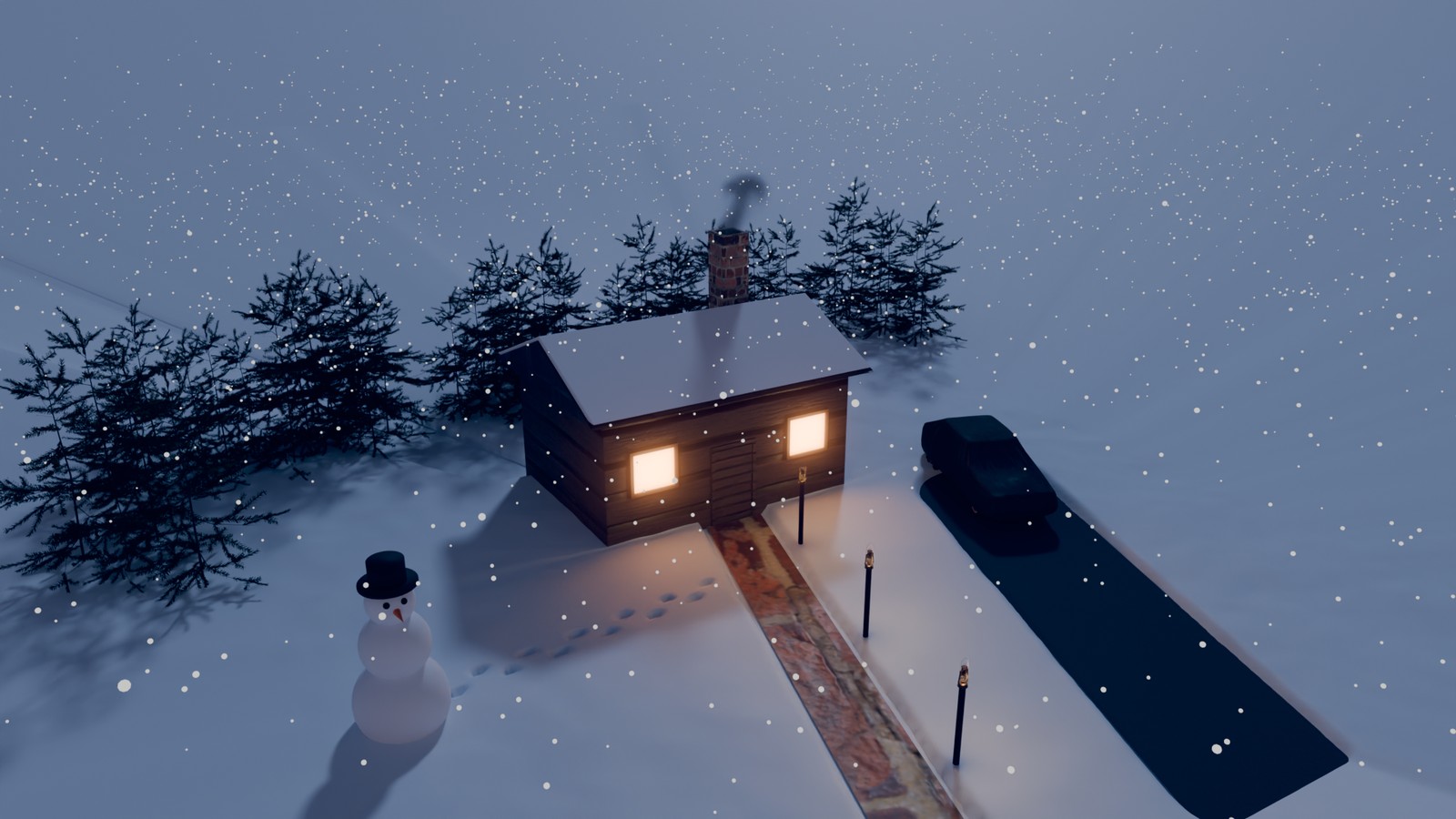
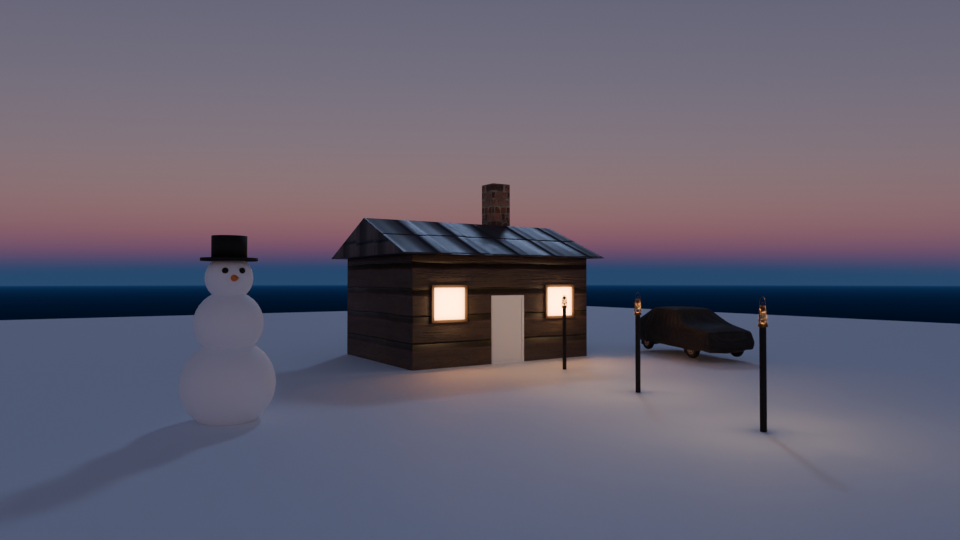
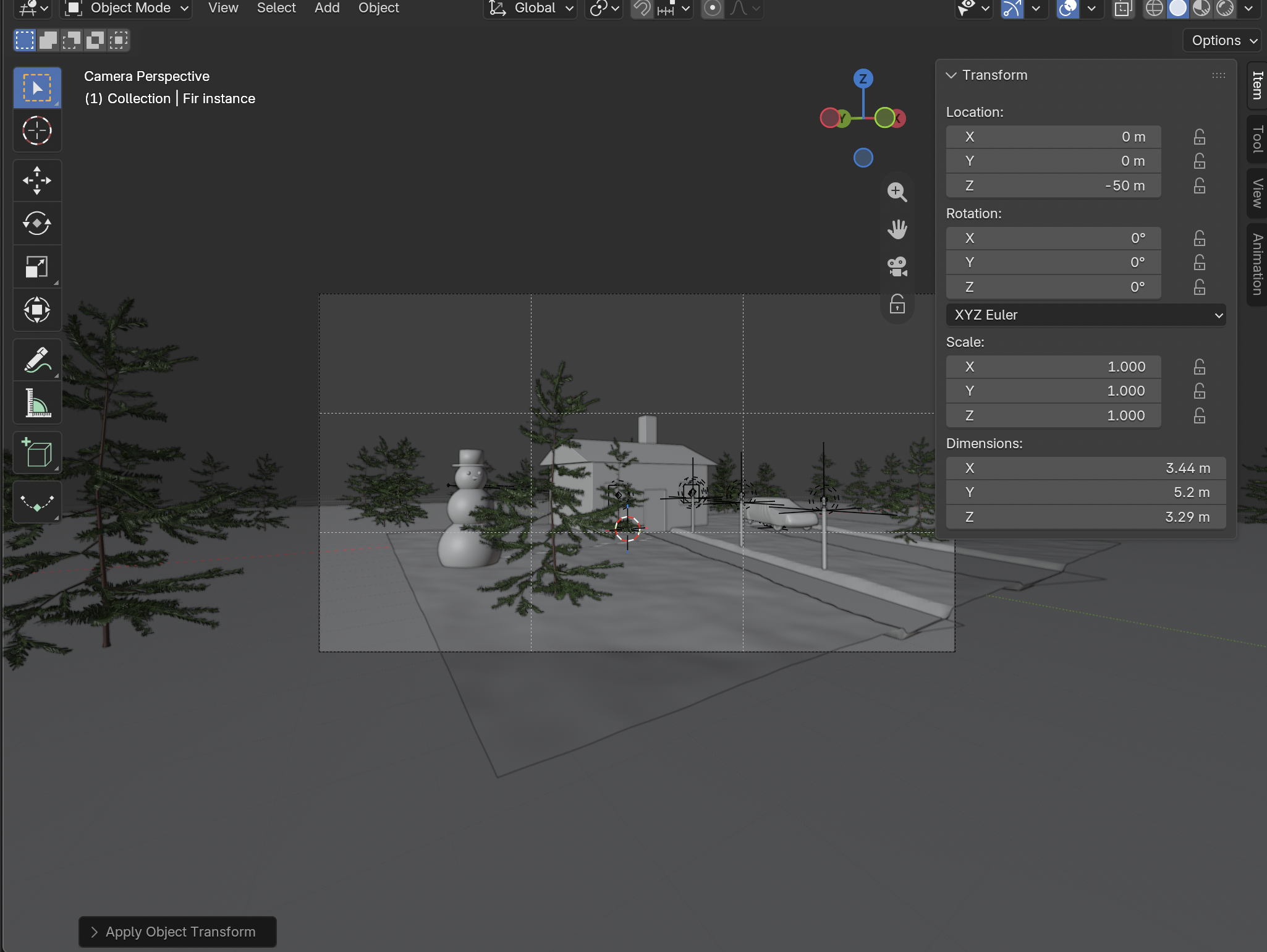
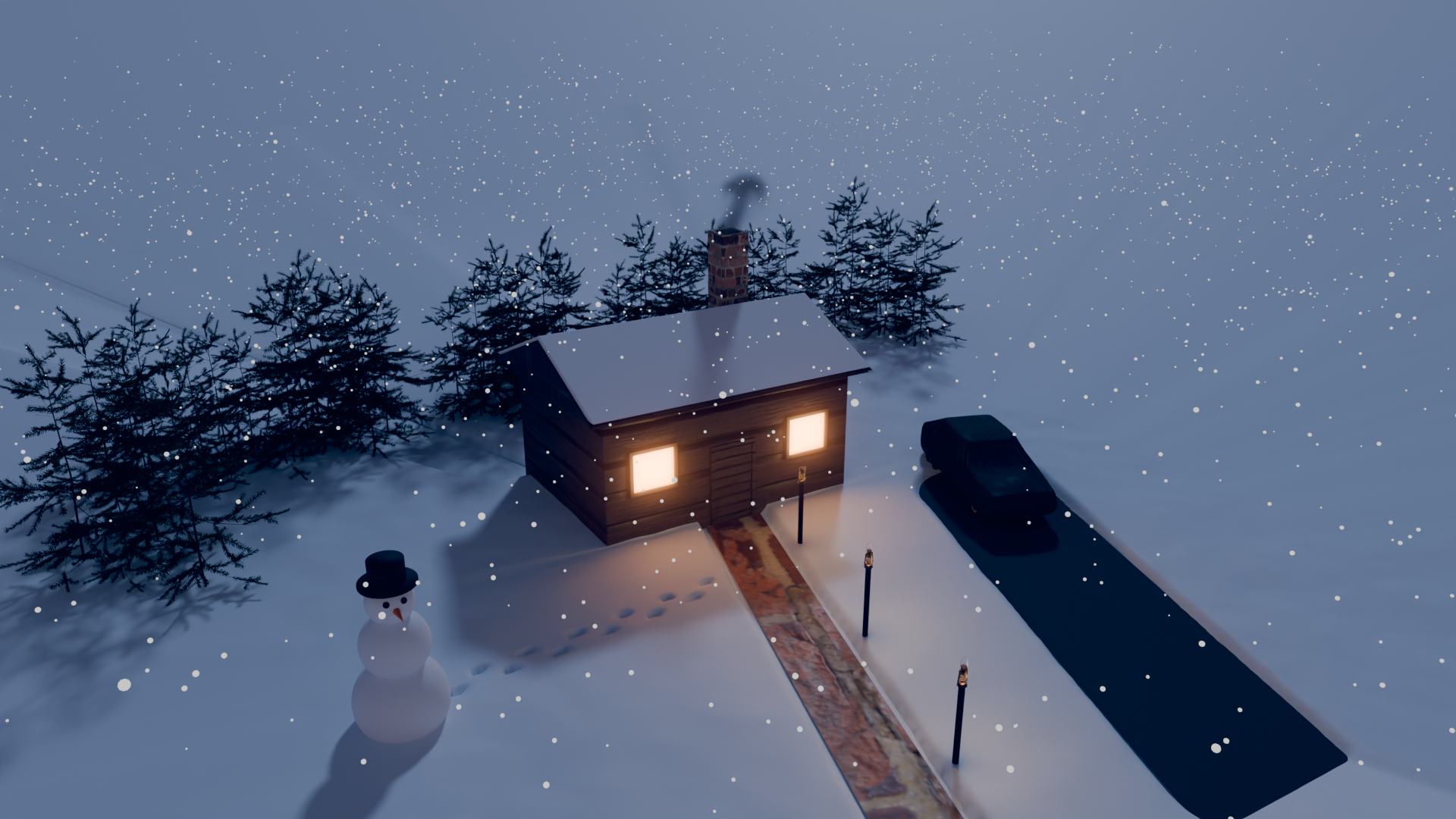
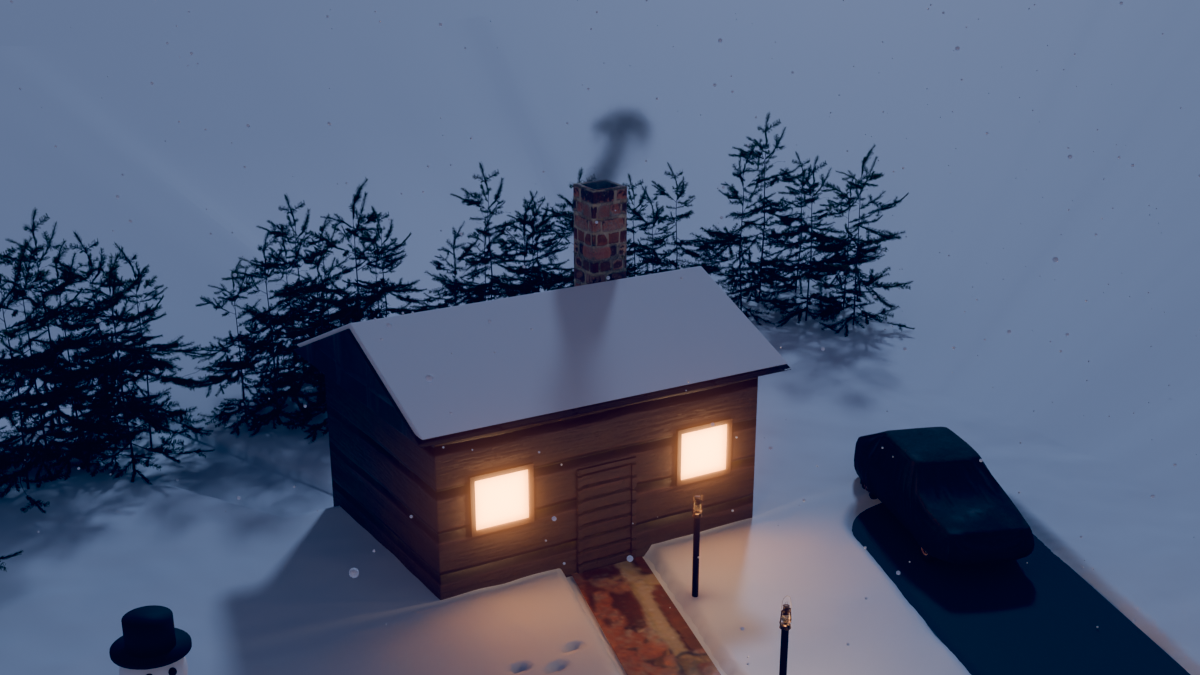
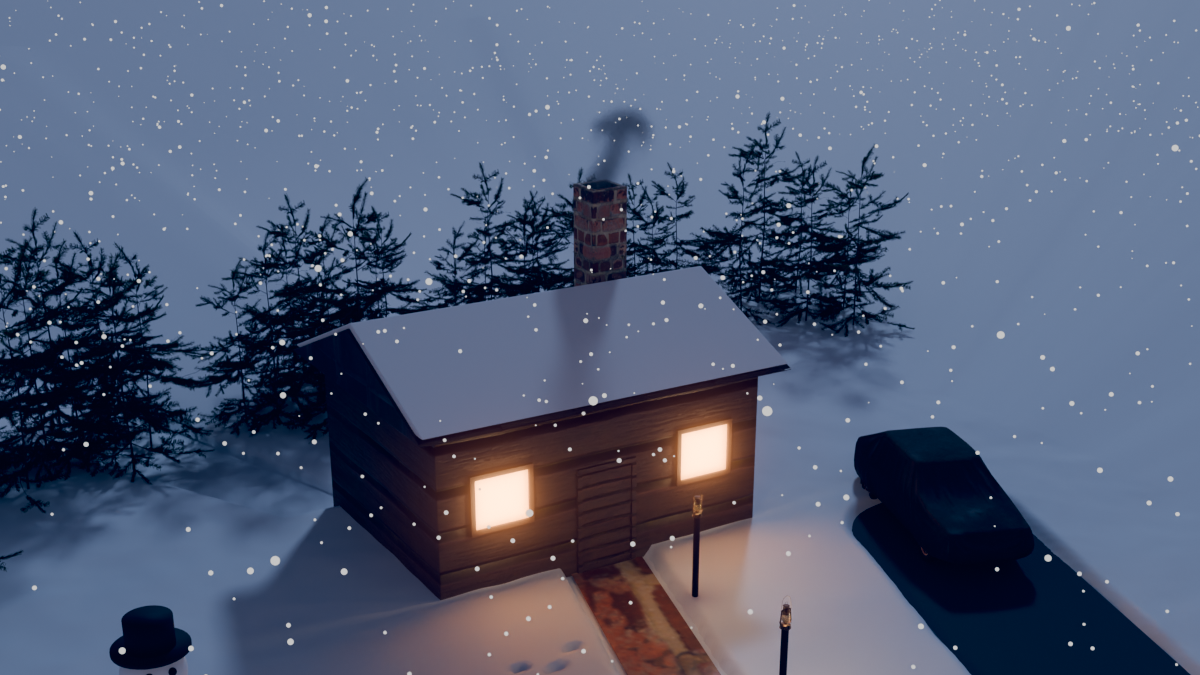
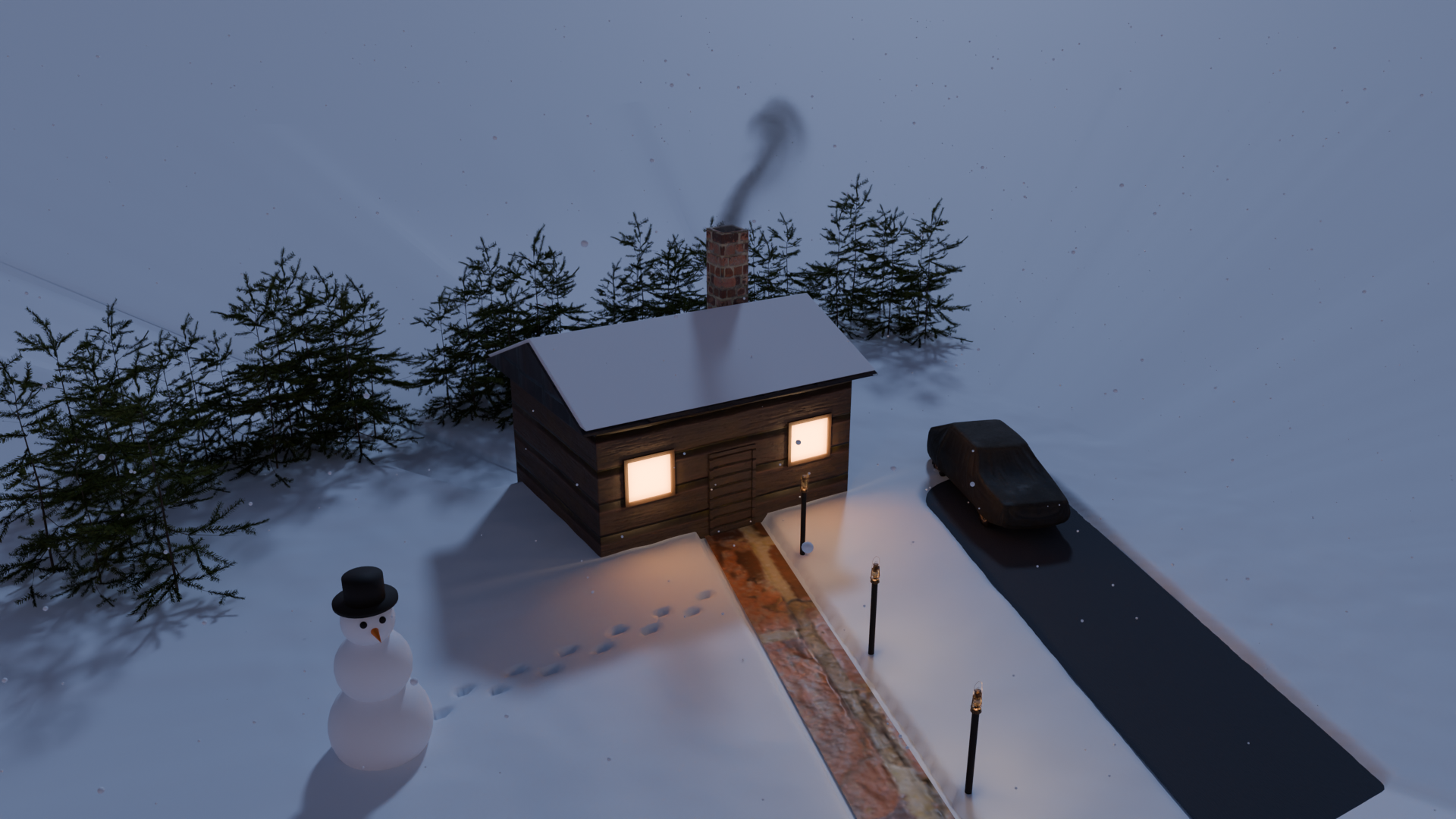
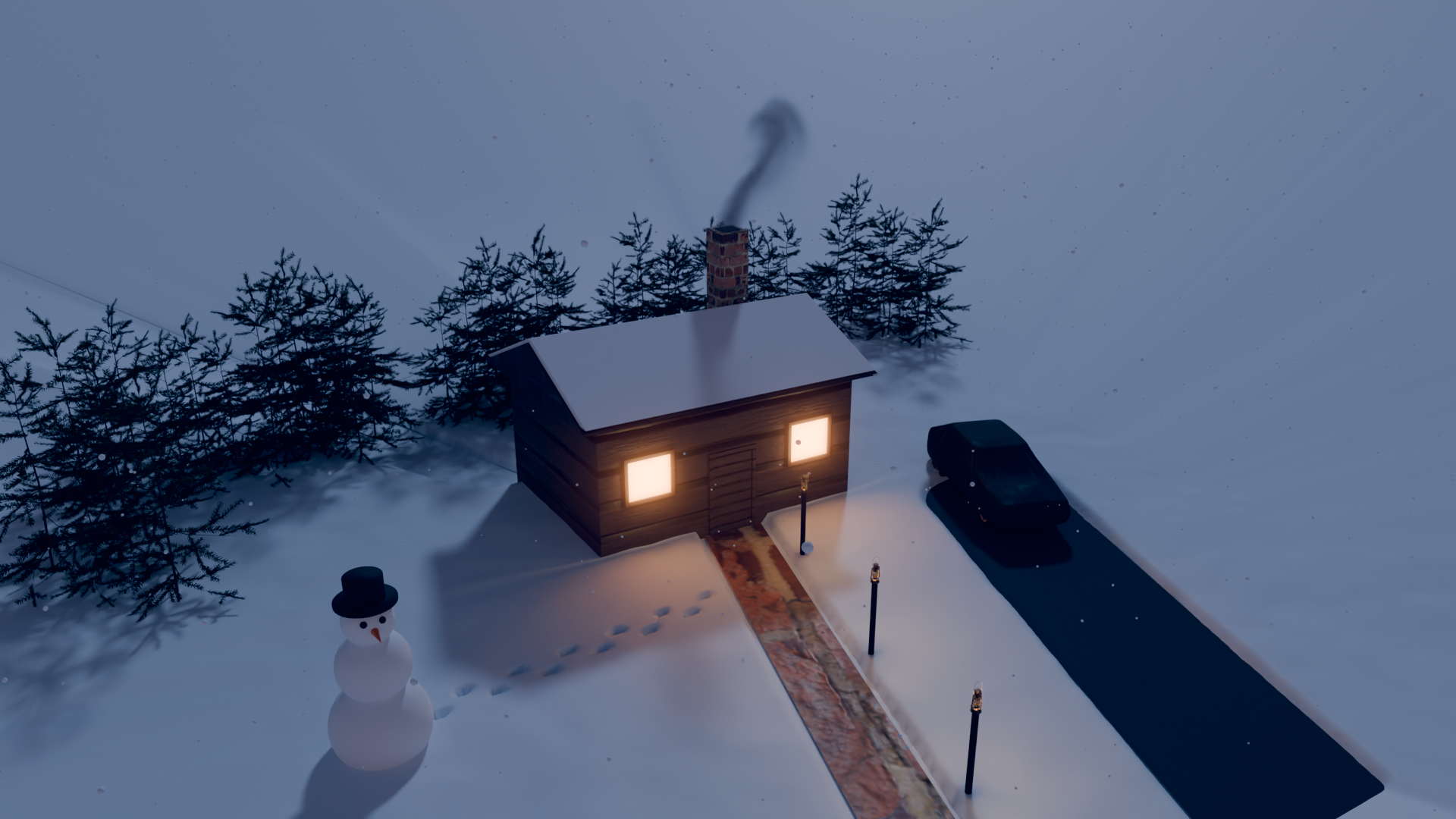
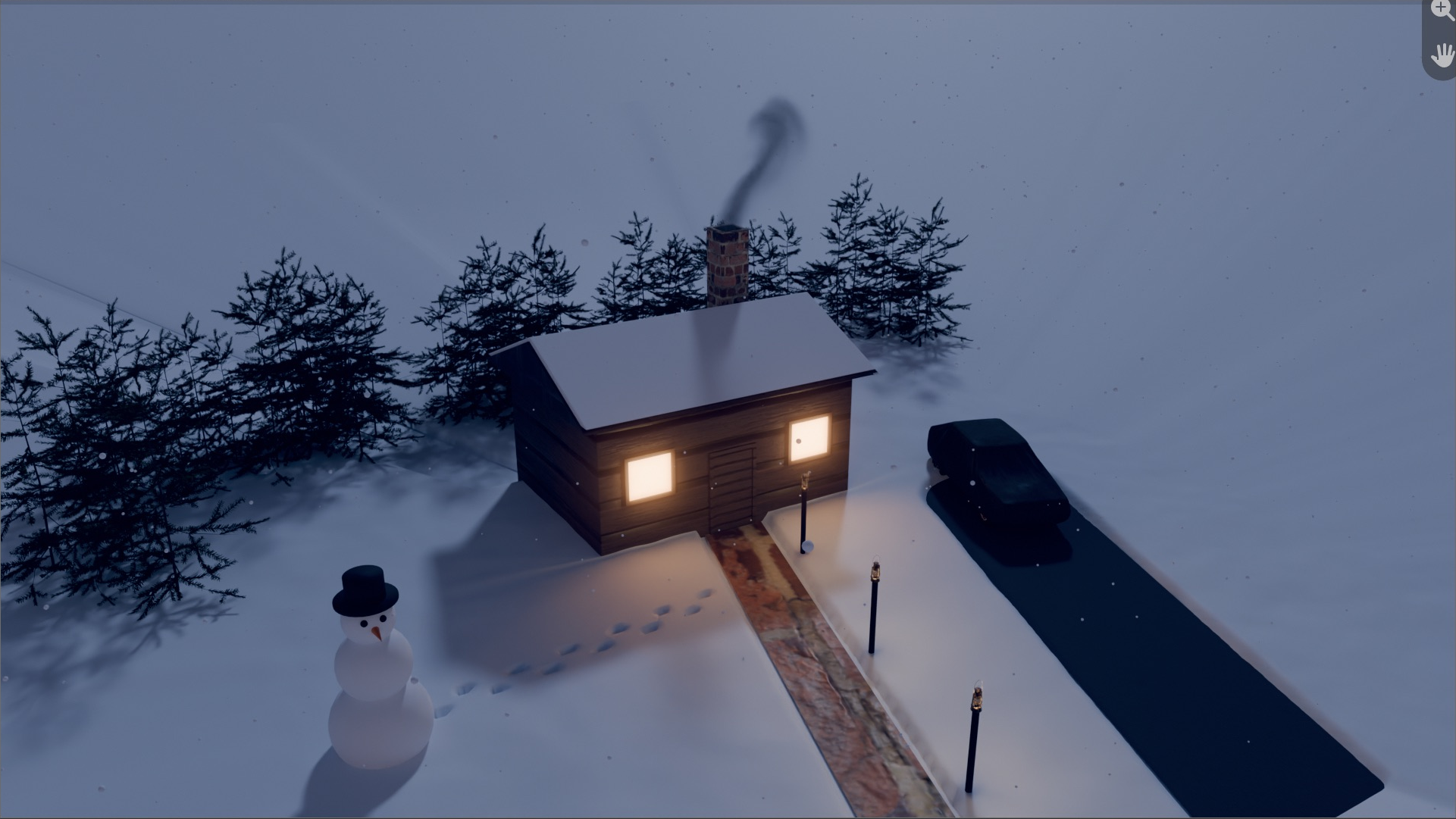
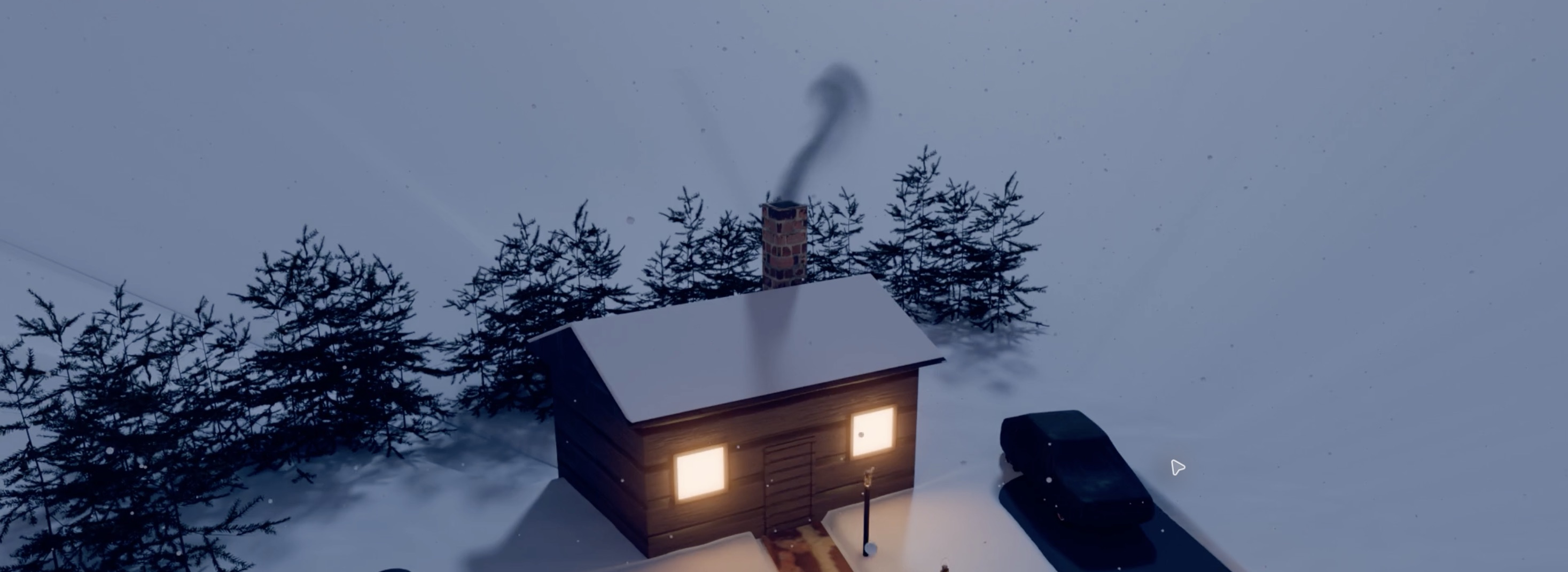
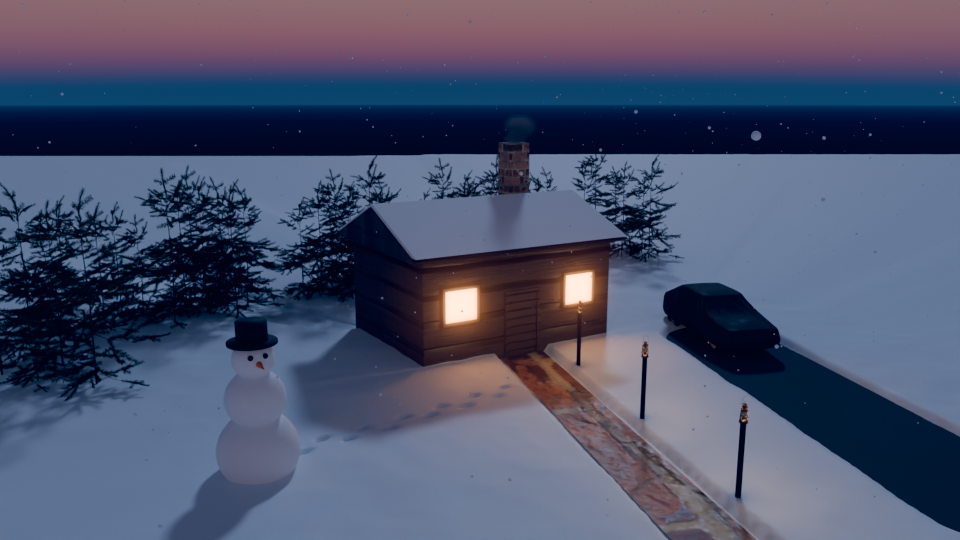
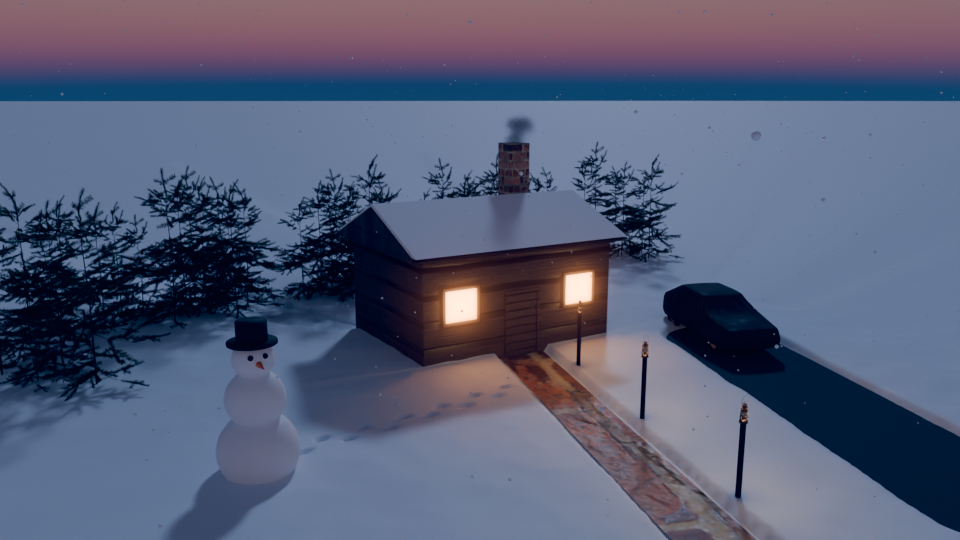
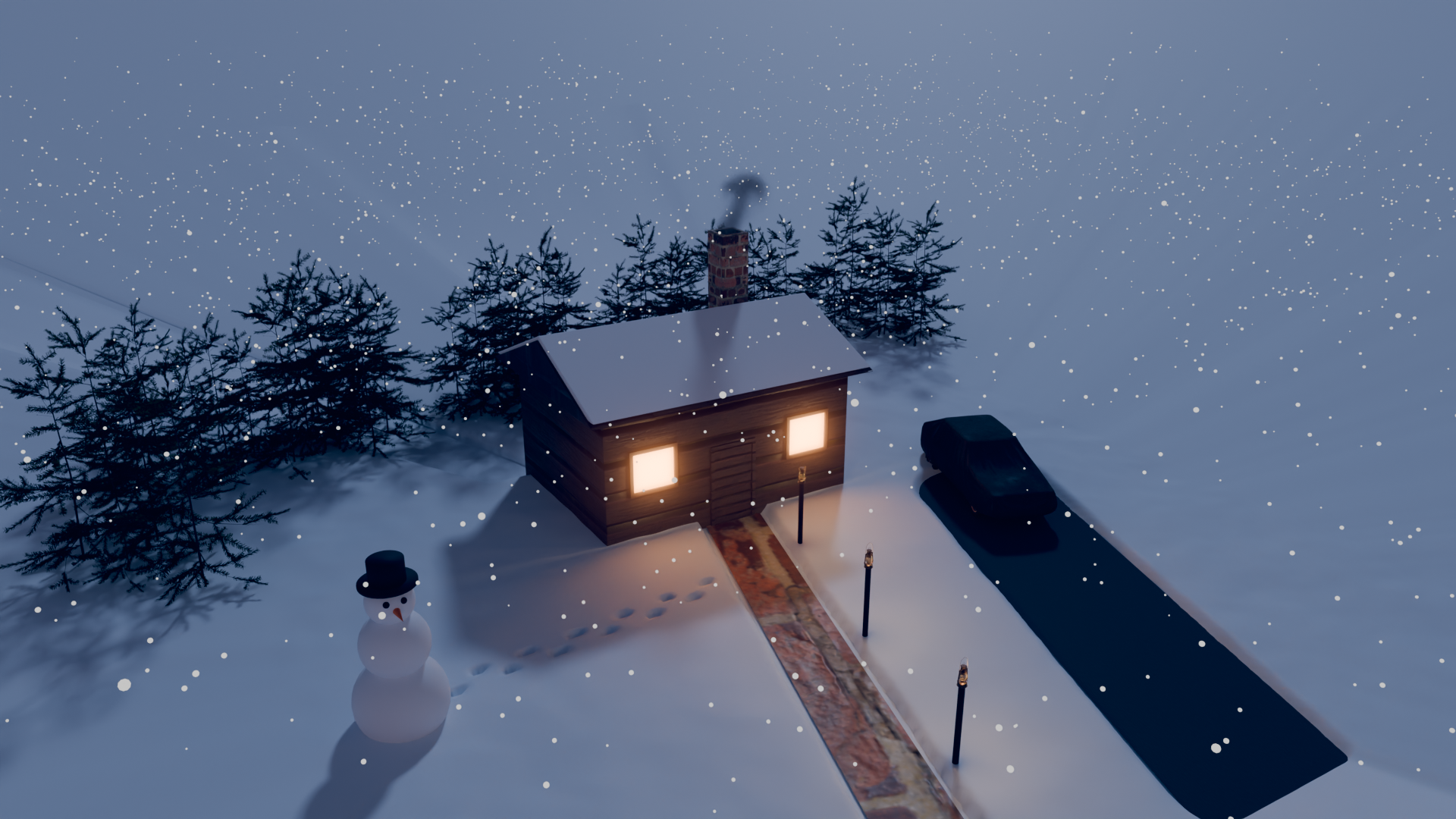
Build one complete winter scene from an empty file: a cottage with smoke from the chimney, snow falling, a shovelled walkway lit by lanterns, a car on a ploughed drive and footprints to a snowman. Then animate it, finish it and render it.
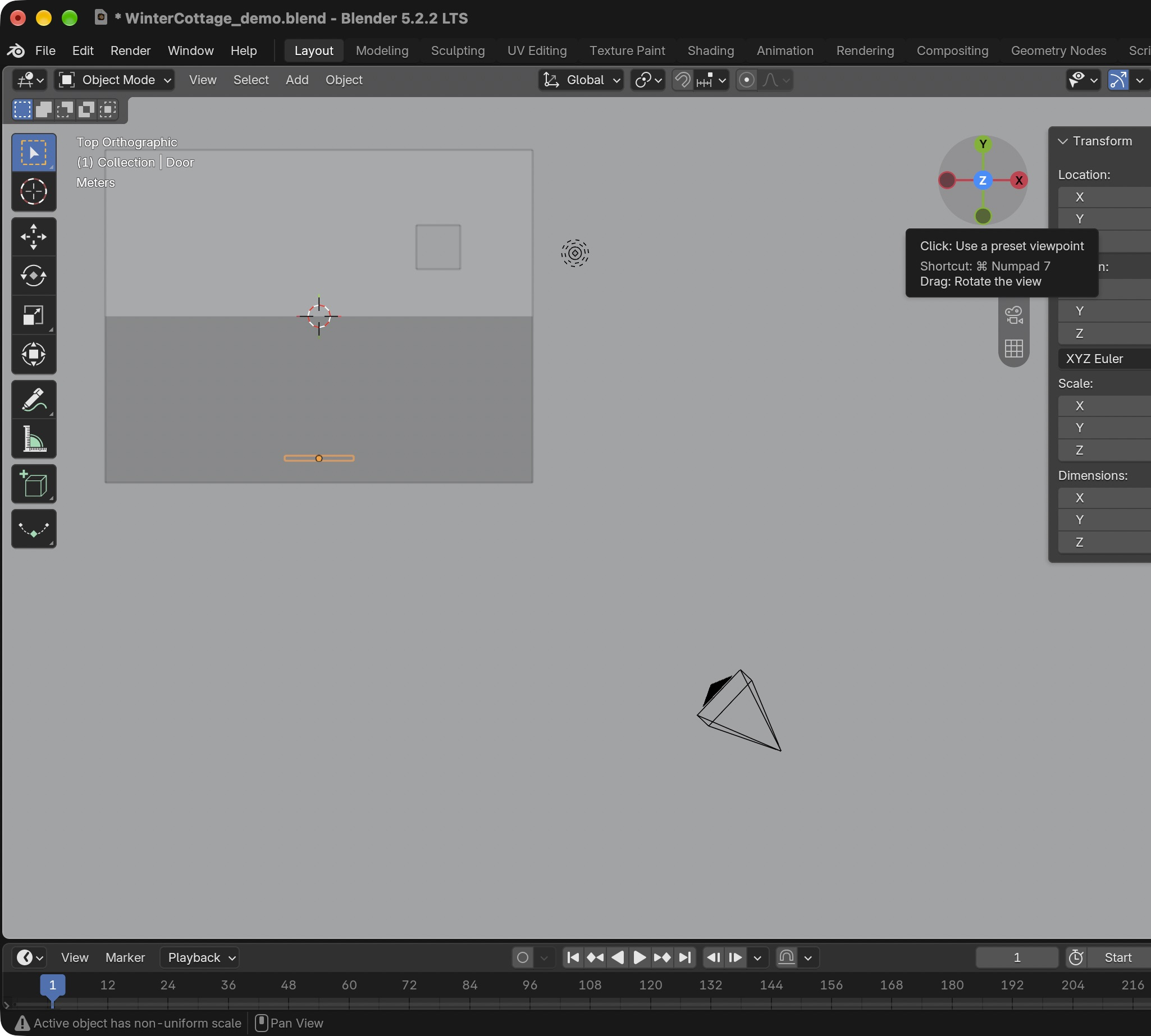
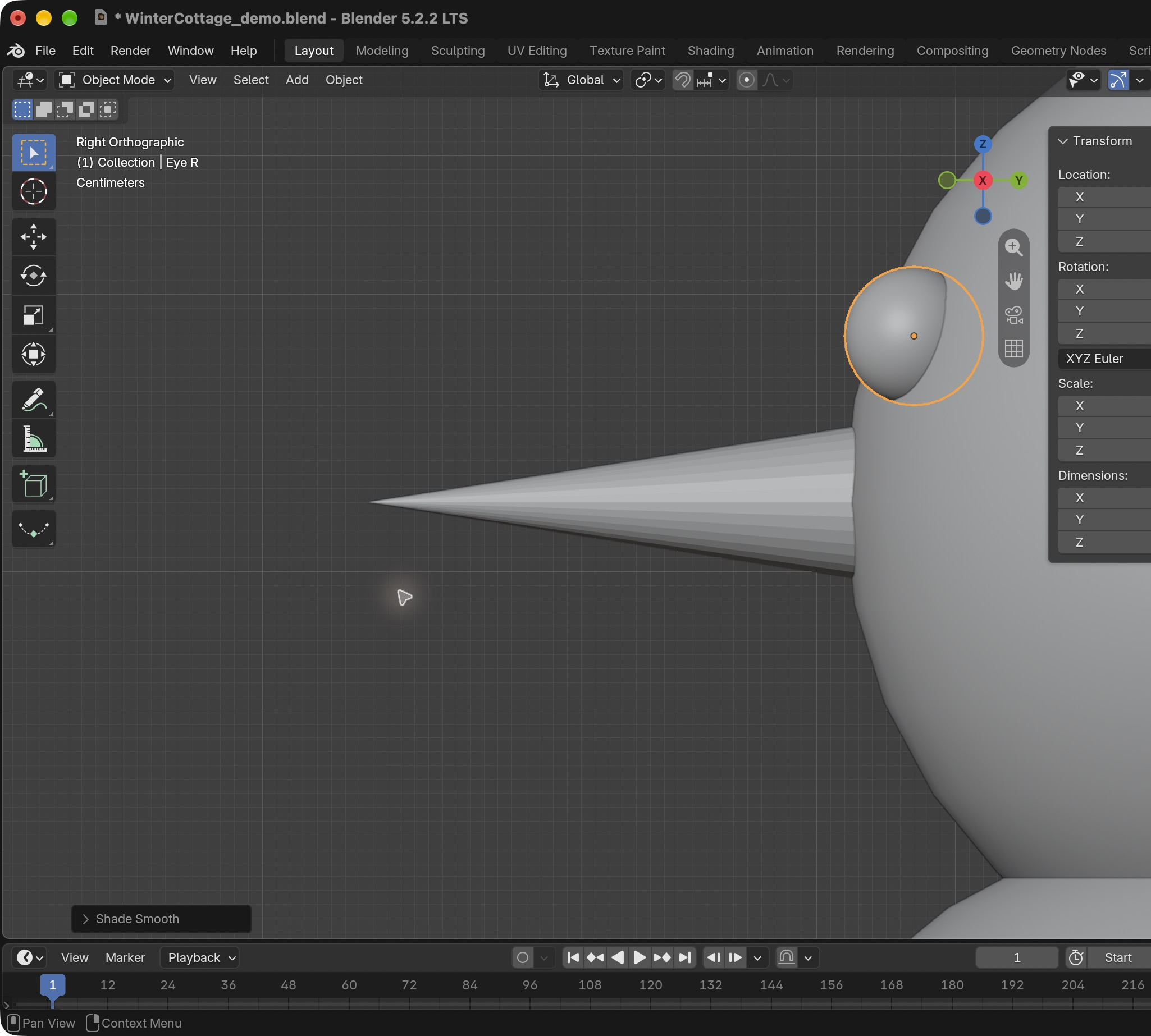
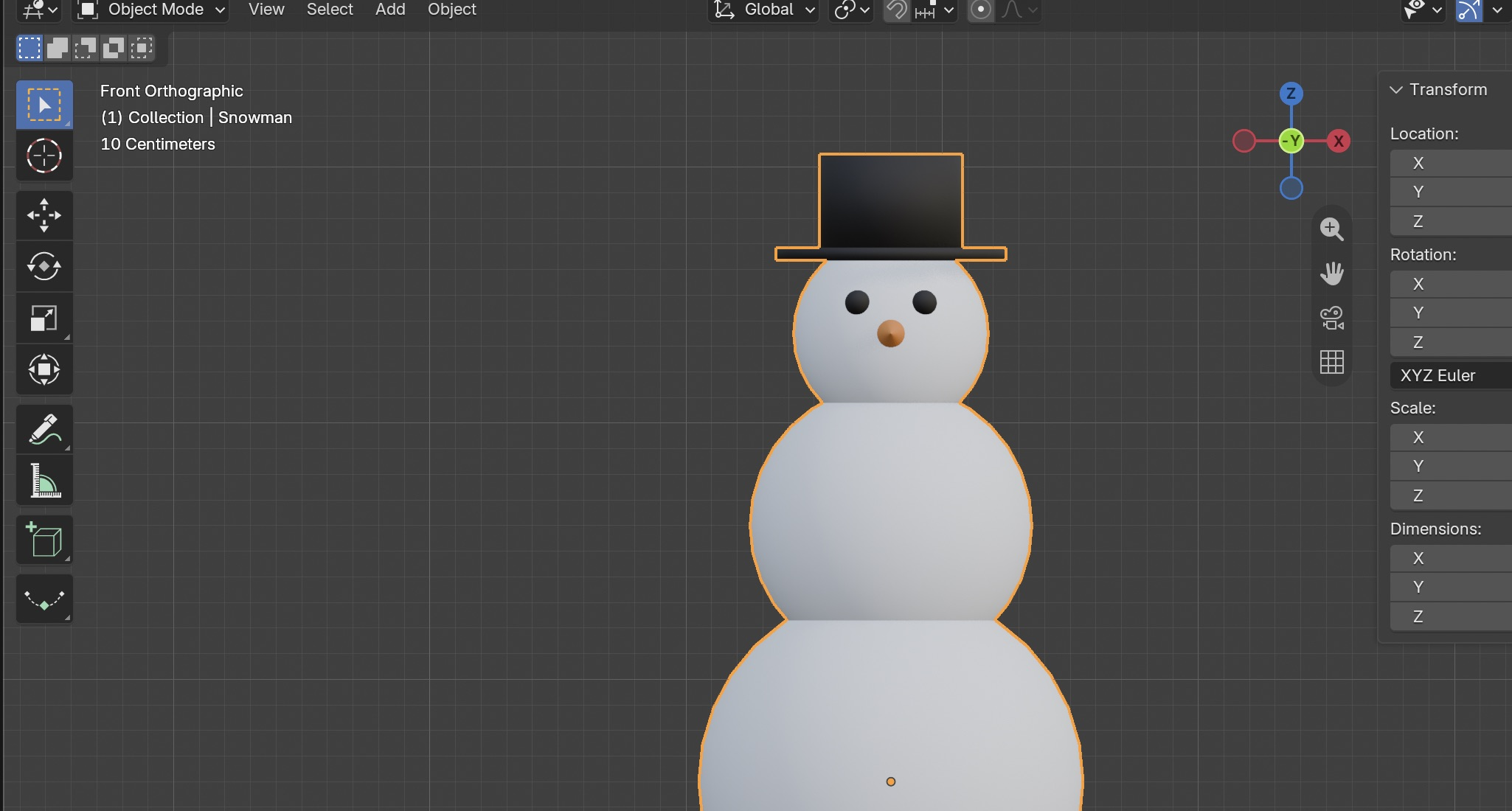
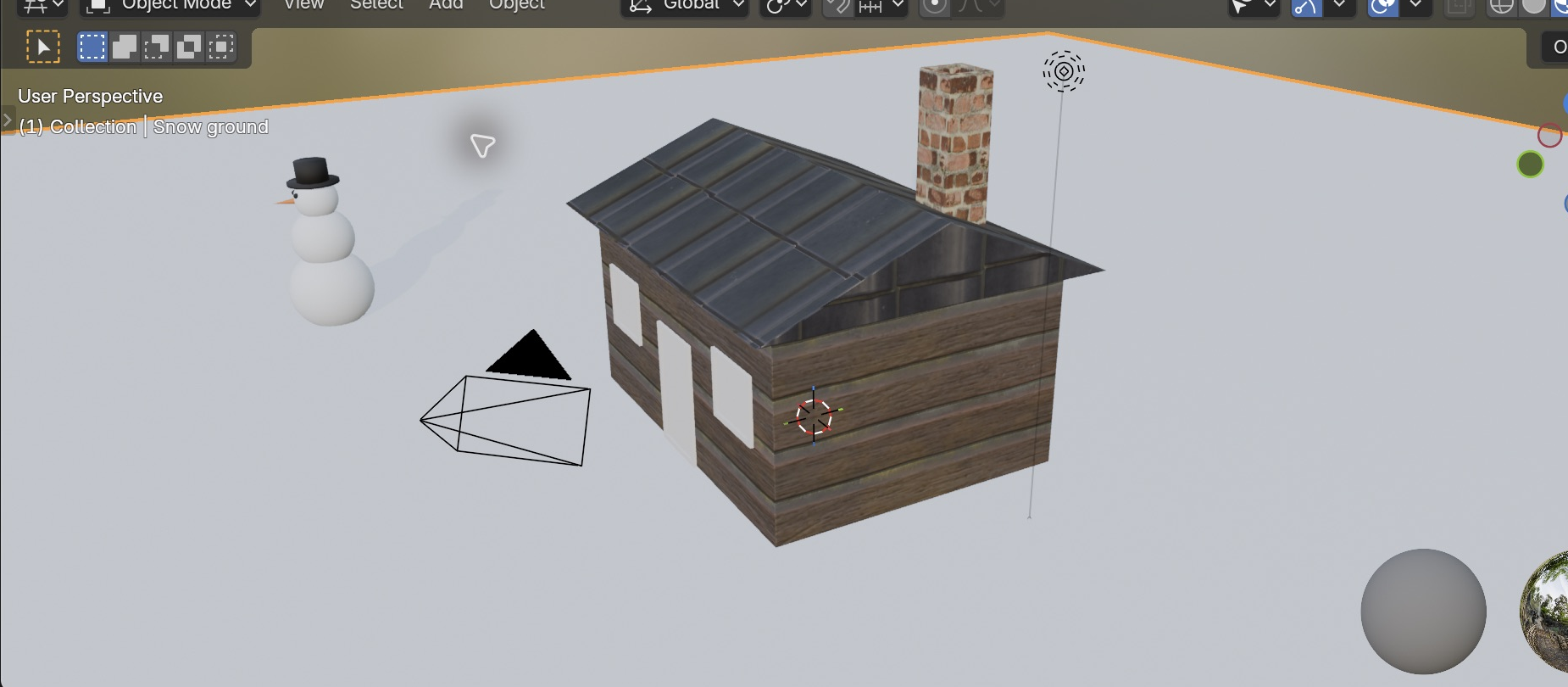
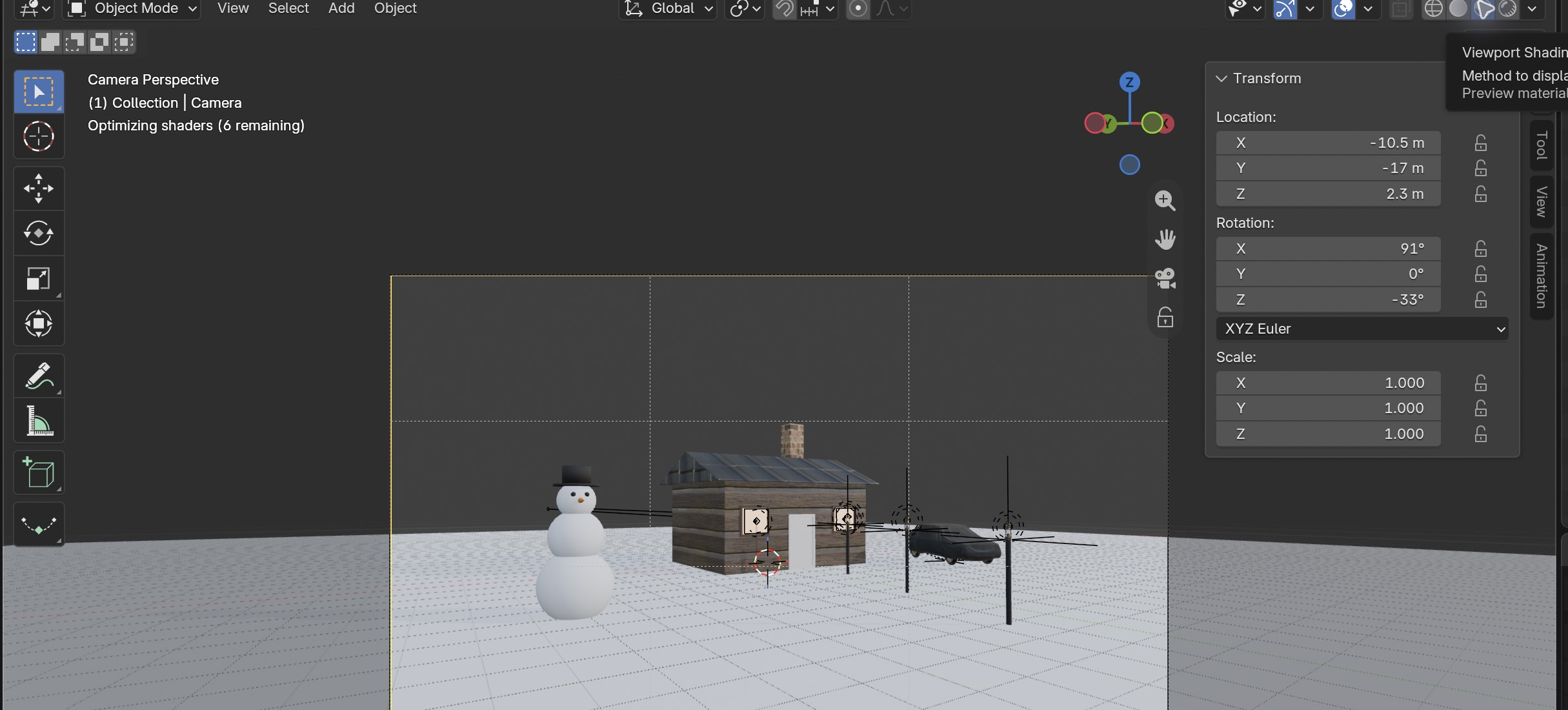
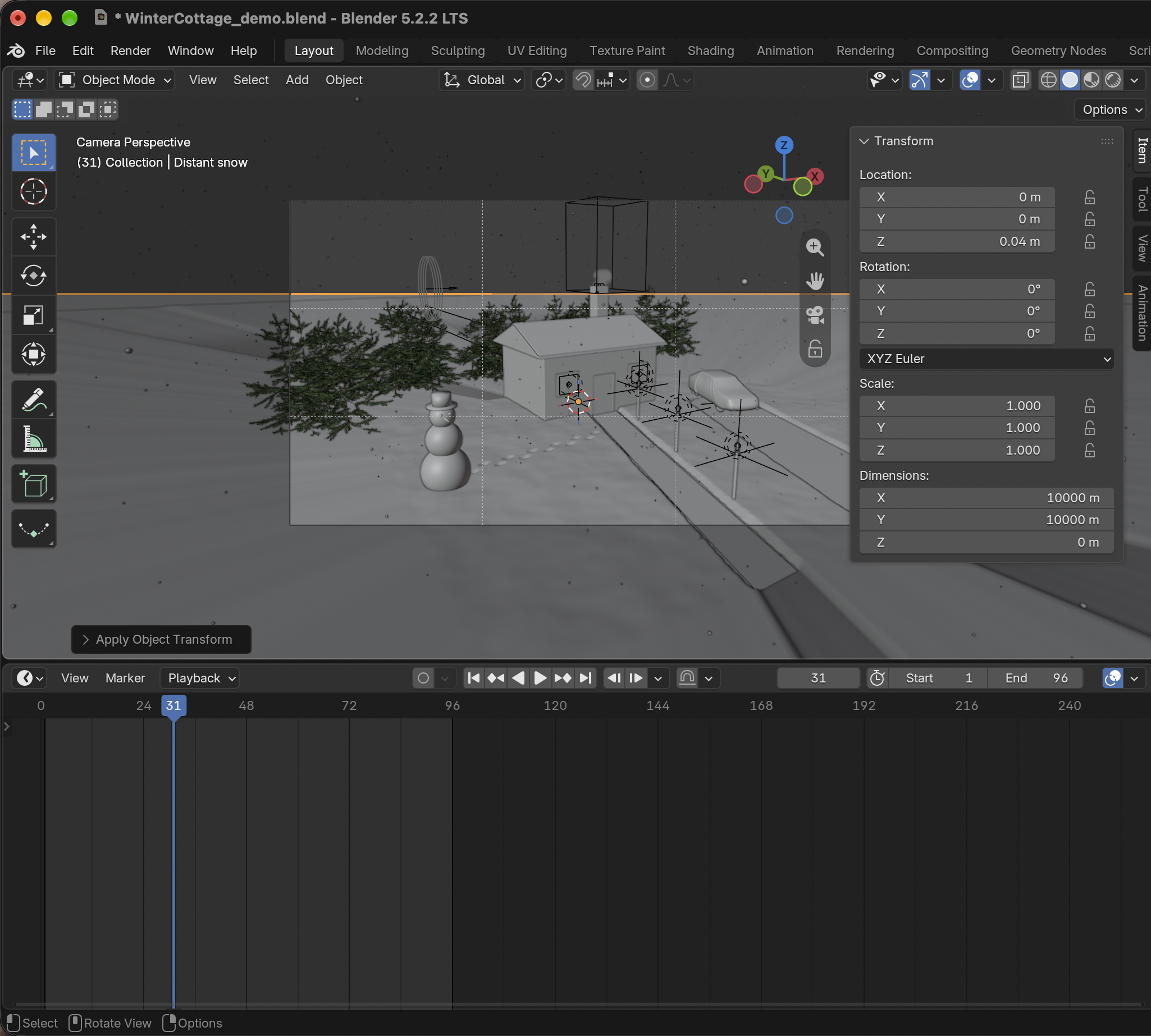
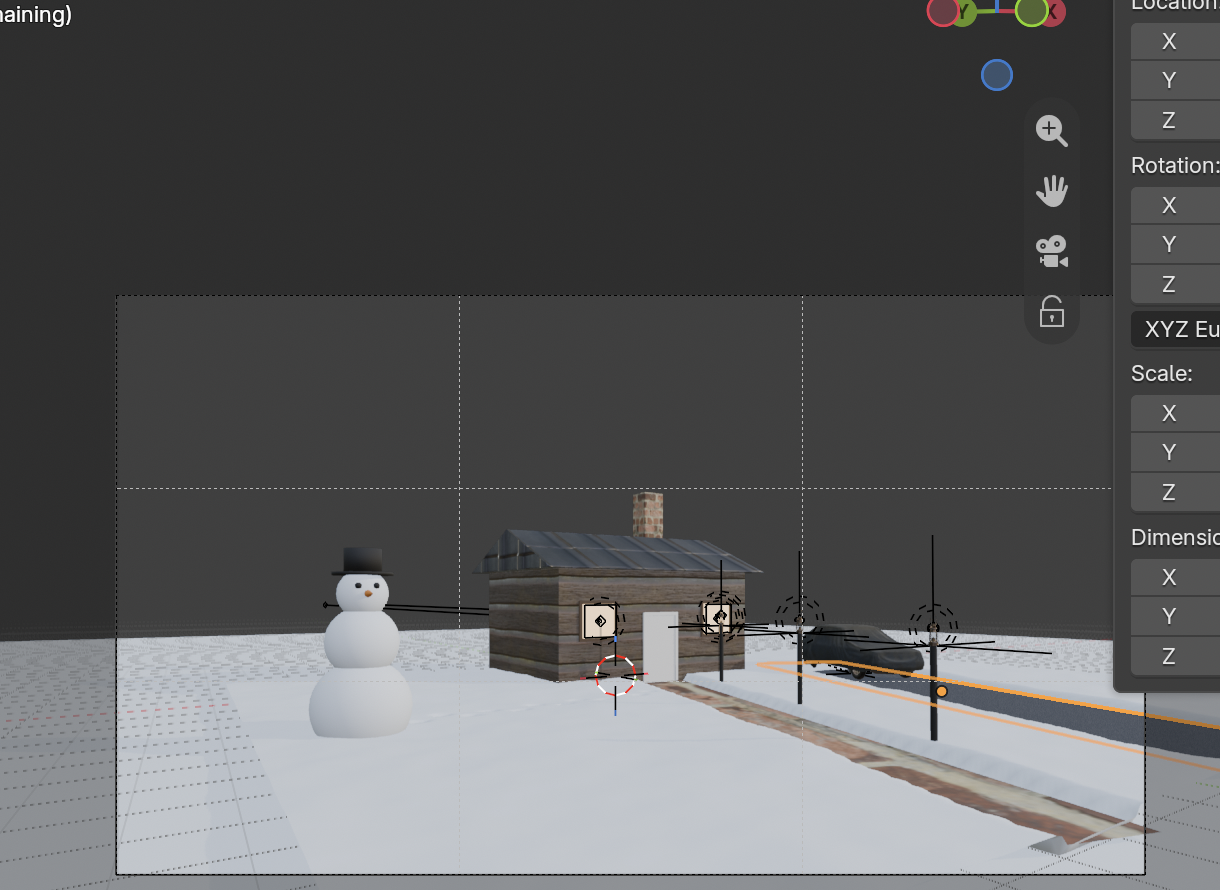
The guided house and snowman built through the native Blender 5.2.2 interface. The footer distinguishes application tests and the render automation shortcut.
One scene. Every core skill.
Each lesson adds a new layer to the same file: shapes, detail, textures, light, models, snow, forest, particles, smoke, motion and finish. Earn your Blender Licence as you go.
My supports
Turn on any help you want. Your teacher may have set some for you. They change how the guide helps, not what is assessed.
Studio brief
Lantern Lane’s winter opening shot.
The studio needs a 4-second opening shot for its winter showreel: a cottage at dusk, smoke from the chimney, snow falling, footprints leading to a snowman, lanterns along the path, a car in the drive. You build it from an empty file, one layer per lesson, then the producer changes the brief.
You will hand in
WinterCottage_YourName.blend and _v2.blend
A still render (Licence 2)
A 4-second MP4 (Licence 3)
Two plans, test/revision evidence, asset credits and a defence of your choices
What’s next
Sprint 7: Grease Pencil 2D and character animation with Mixamo and motion capture, plus After Effects motion graphics. Sprint 8: put yourself into a 3D world on the green screen.
Animation and VFX studios build scenes in layers exactly like this: block-out, modelling, texturing (often with free libraries like ambientCG and Poly Haven), lighting, effects (particles and fluids), animation and compositing. Each layer can be handed to a different artist, which is why clean names and a tidy project folder matter.
Blender is free and used by independent studios, YouTube creators and on award-winning films. Solo creators like Ian Hubert and Drifting Walnut make whole shots alone with these same tools, which is where this unit is heading.
Knowledge first
What each layer of a scene does.
3D space and modelling
Objects have location, rotation and scale on X (red), Y (green) and Z (blue). Edit Mode shapes vertices, edges and faces; modifiers (Bevel, Subdivision, Displace) add detail without destroying the original.
Materials, UVs and textures
A UV map unfolds a model flat so an image can wrap onto it. Colour, roughness and normal maps together make a surface read as wood, brick or tile. Emission makes a surface glow.
Weight painting and particles
Weights (0 blue to 1 red) stored on vertices can control where particles grow, and later how a character bends. Particle systems create thousands of copies (trees, snowflakes) from one setting.
Simulation
Smoke is a fluid simulation inside a domain box, calculated (baked) once and then played back.
Animation and finishing
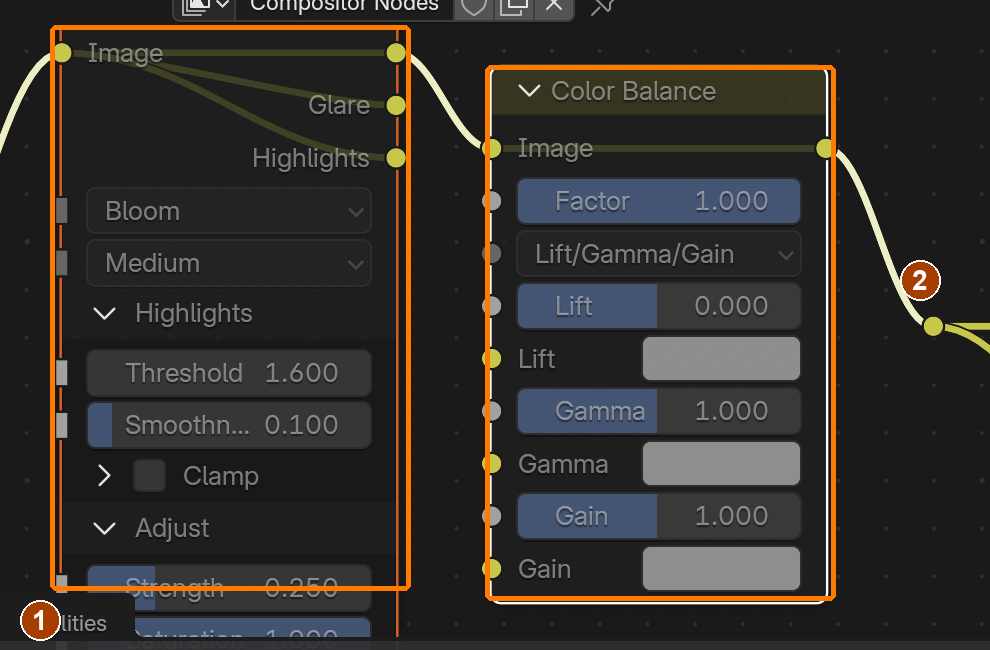
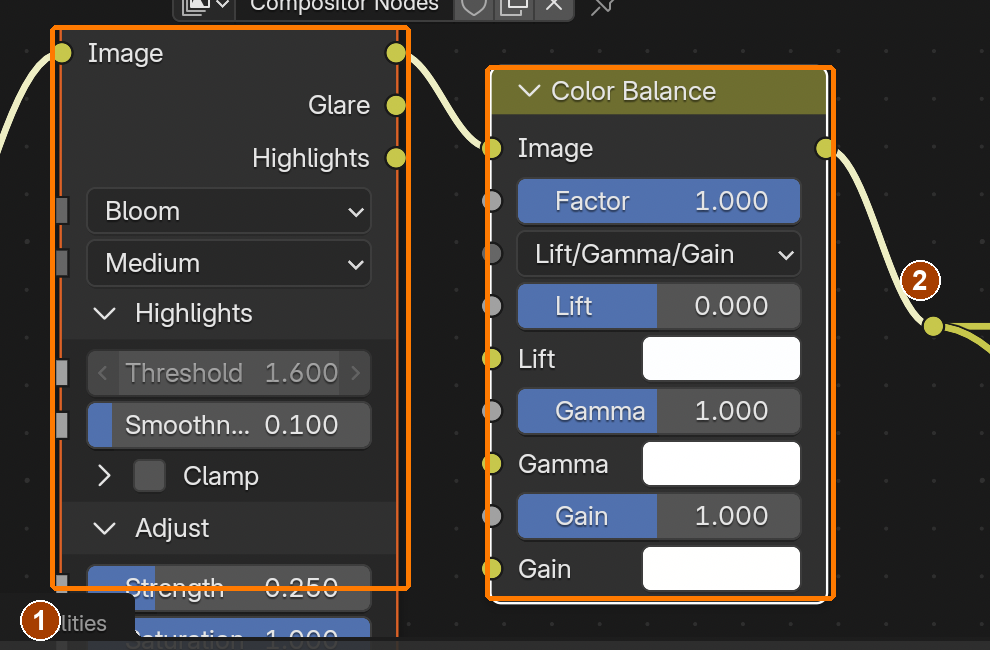
Keyframes save values at moments in time; the Graph Editor controls easing. The compositor adds glow and colour after rendering.
Design principles in the shot
Emphasis: the warm windows are the brightest thing. Contrast: warm light against cool snow and sky. Balance and thirds: cottage and snowman on opposite thirds. Movement: smoke rising and snow falling lead the eye through the frame.
What this assesses
Skills you will show.
Skill (sprint skill ID)
Where you show it
Navigation · BL-NAV-01 · Transforms · BL-TRN-01
Steps 1–3 (Licence 1); modelling in steps 4–5
Lighting · BL-LGT-01 · Match light and colour · PS-LGT-02
Steps 7, 8 and 15
Camera · BL-CAM-01 · Hierarchy · GD-HIE-01
Step 9 (Licence 2)
Render · BL-RND-01
Steps 9 and 17 (Licence 2 and 3)
Effects and animation (weight paint, particles, smoke, keyframes, compositing)
Steps 10–15 and the practical check
Primary achievement evidence: the changed brief (step 16), plus the Licence 3 observation. Guided steps, supports and licence practice are recorded separately from achievement. Sprint mm12-26-s06; outcomes 2.1–2.5.
Session A · Lesson 1 · mm12-26-s06-d01
Start the scene. Earn Licence 1.
You are a new junior artist at Lantern Lane, a small animation studio. Over nine lessons you build one winter scene from an empty file: a cottage with smoke, snow falling, a snowman, lanterns and a car in the drive.
TODAYSet up (15 min), navigate (20 min), block out the cottage (30 min). Licence 1 check.
01
Set up the project and learn the layout
Your scene and your workspace
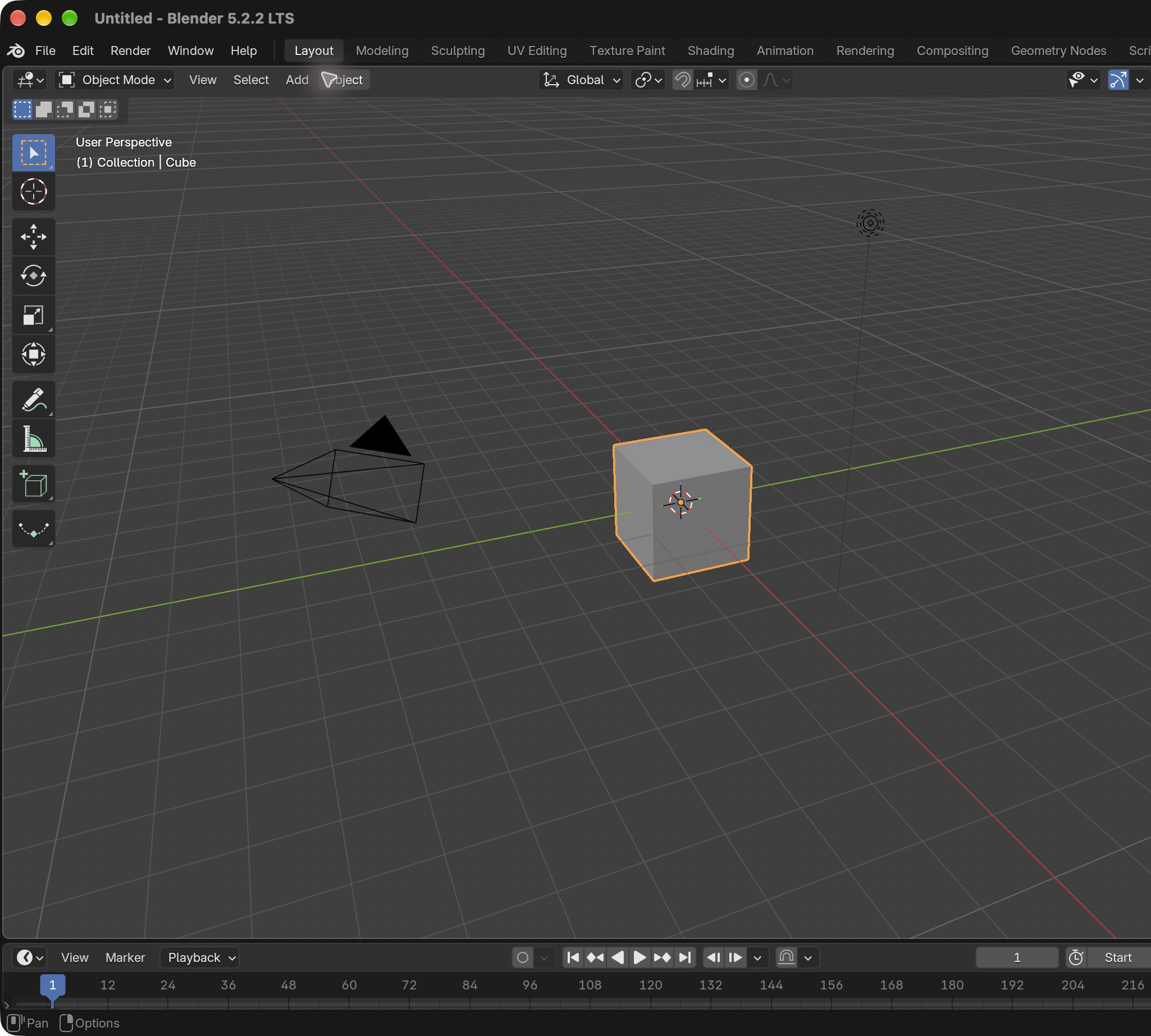
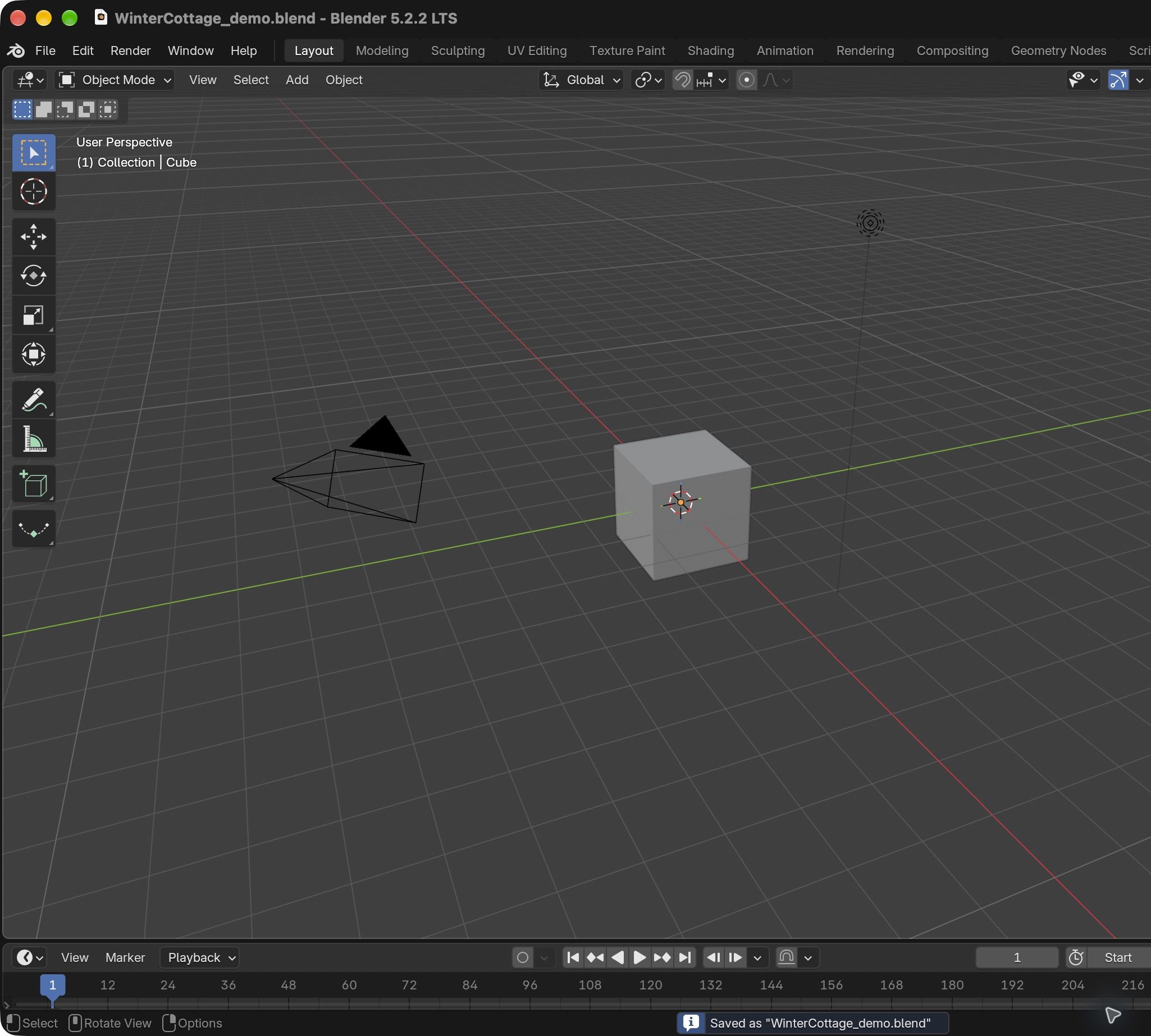
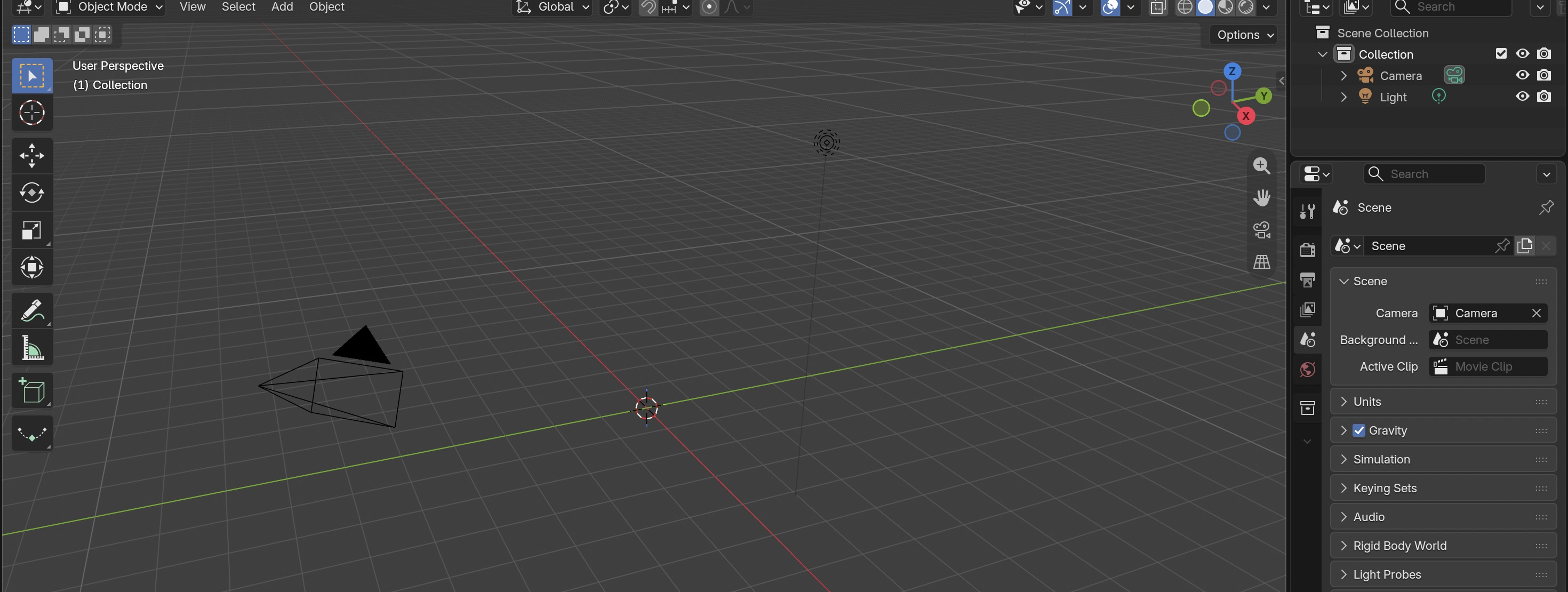
A scene contains objects, cameras and lights. The 3D Viewport shows the scene; the Outliner lists its objects; Properties holds settings for the selected object or scene; the Timeline controls time. A workspace rearranges these editors for a task. It does not create a different scene. A .blend file saves the editable project. Reopening checks what was actually saved.
Application verification incomplete: actions 3, 4, 5, 6, 7 still need their complete run/capture/result evidence checked. Unproven procedures remain not yet run.
IN SHORTTheory first; make the project folder; identify the editors; delete only Cube; save and reopen.
READ ALOUD
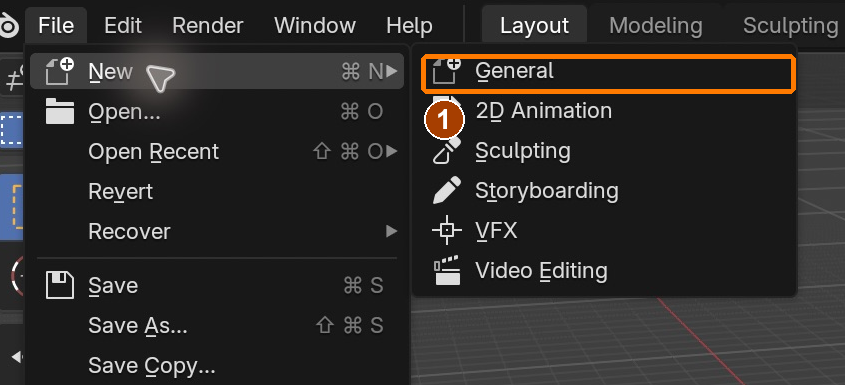
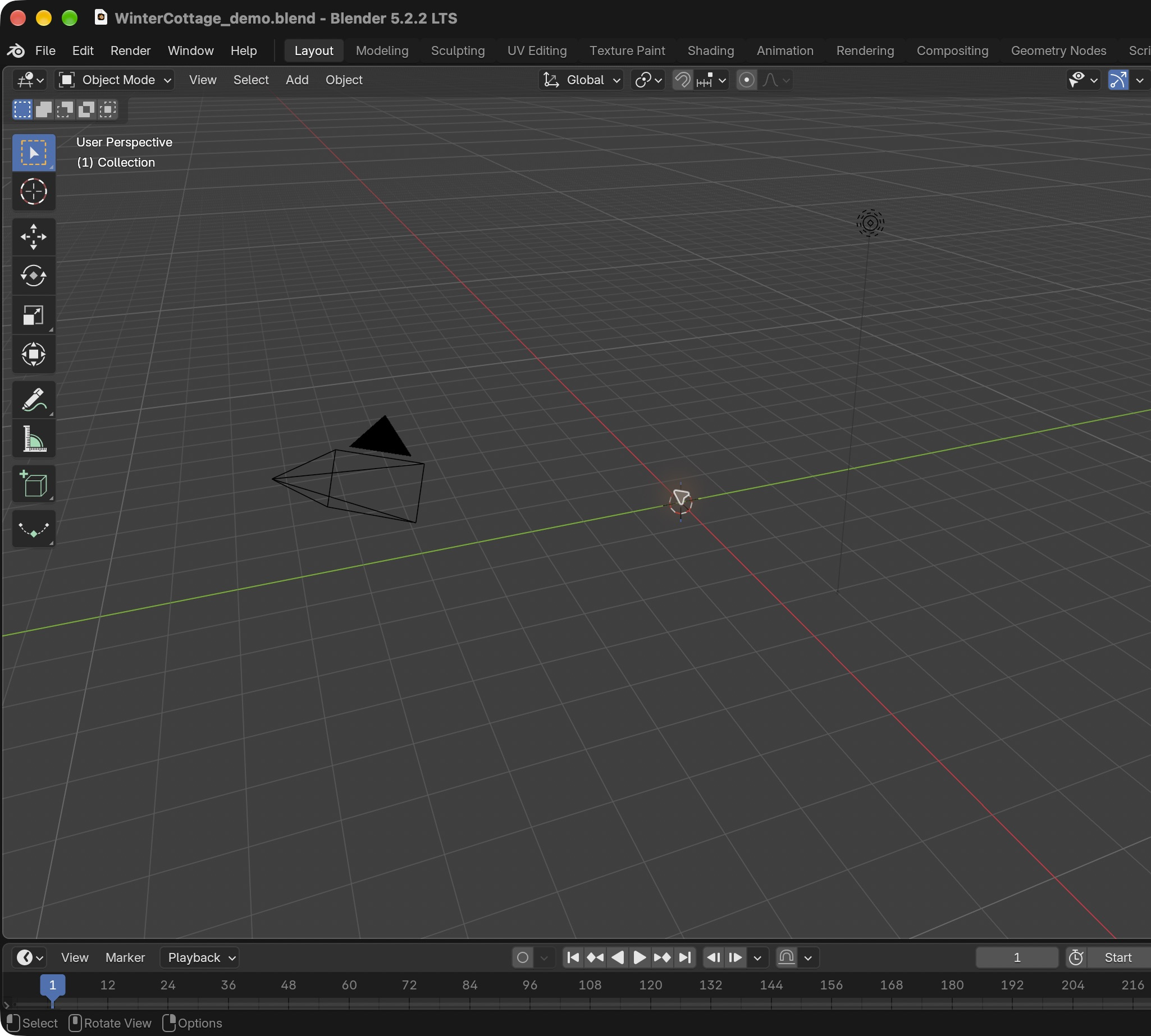
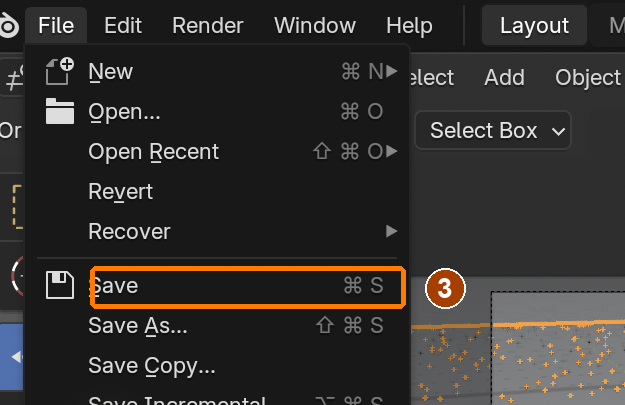
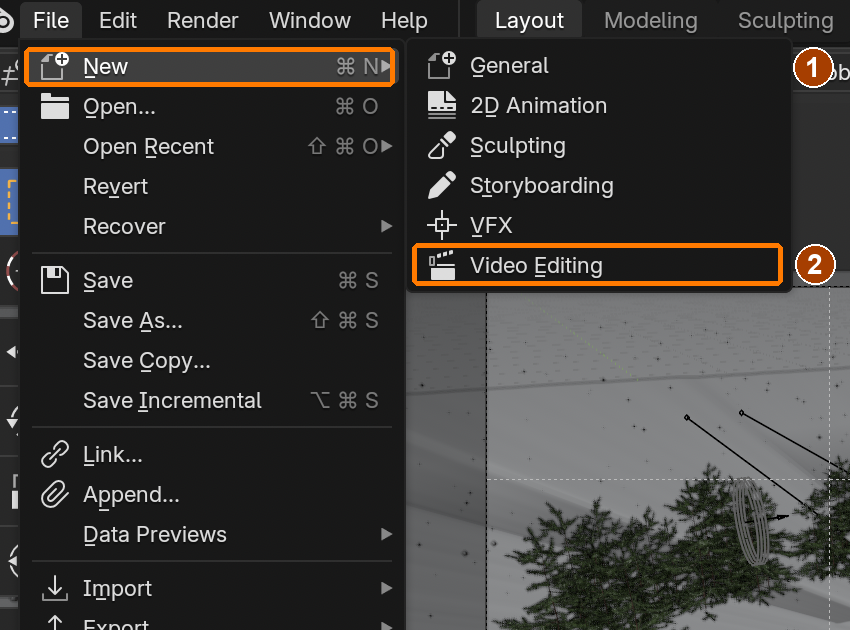
DOCUMENT: Blender 5.2 · WinterCottage_YourName.blend SELECT: The default Layout workspace TOOLS / ROUTE: File › New › General · File › Save As
File > New > GeneralResult in the native demonstration. Check the selected object, state and values against this view.
The workspace tabs arrange editors for a job. Layout is selected; later work uses UV Editing, Texture Paint and Shading.Result in the native demonstration. Check the selected object, state and values against this view.
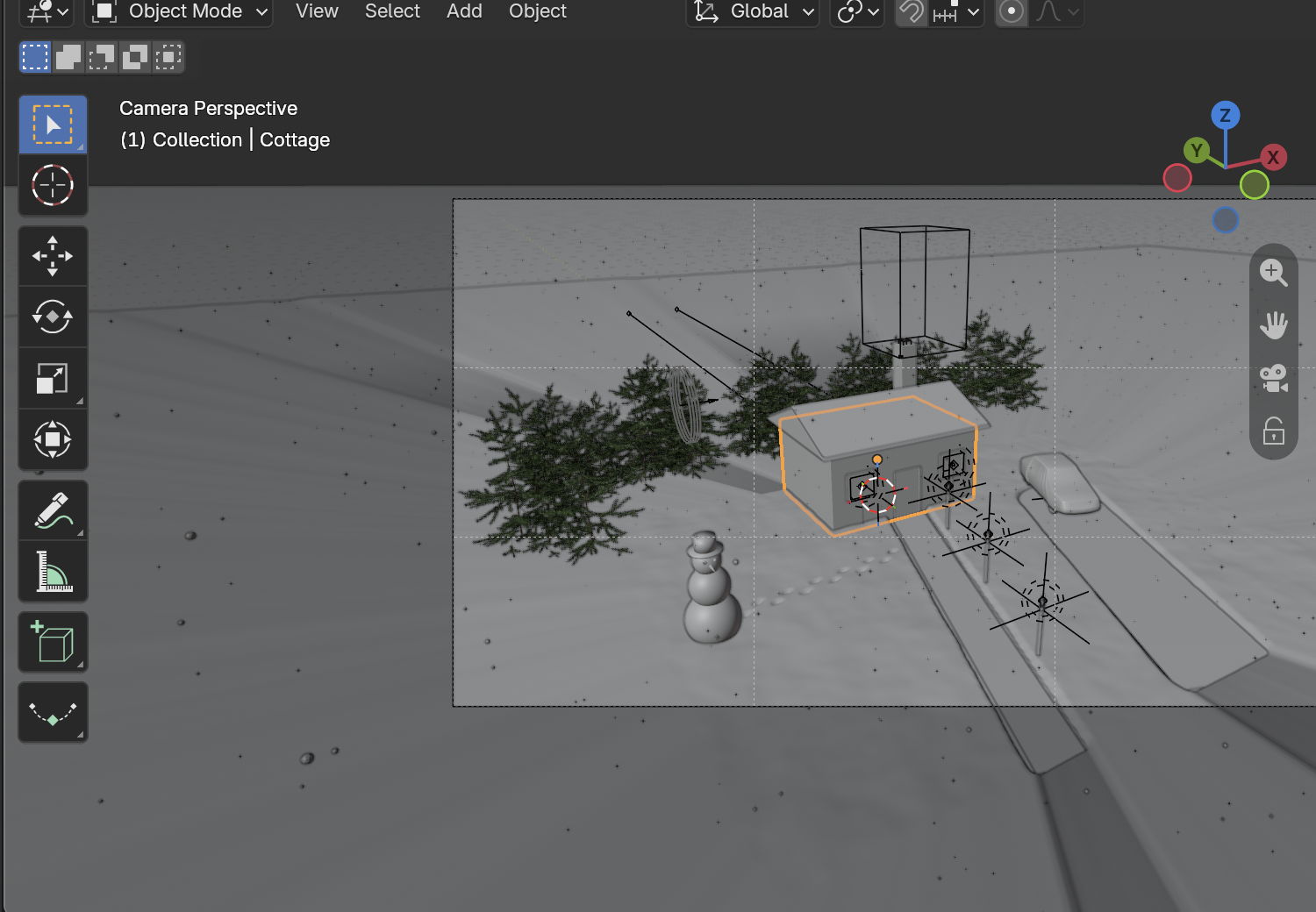
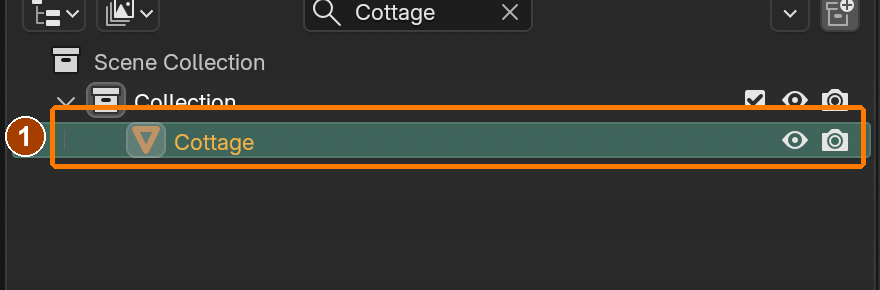
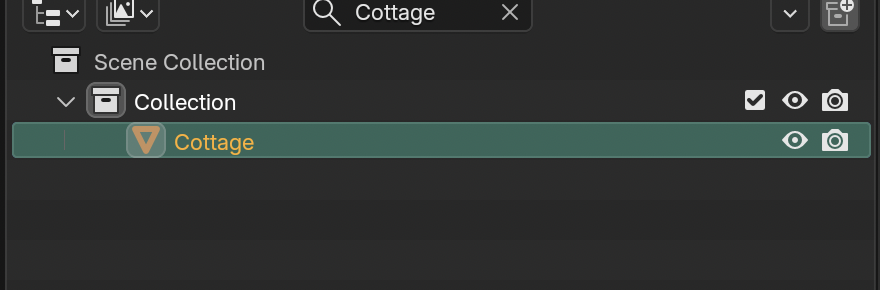
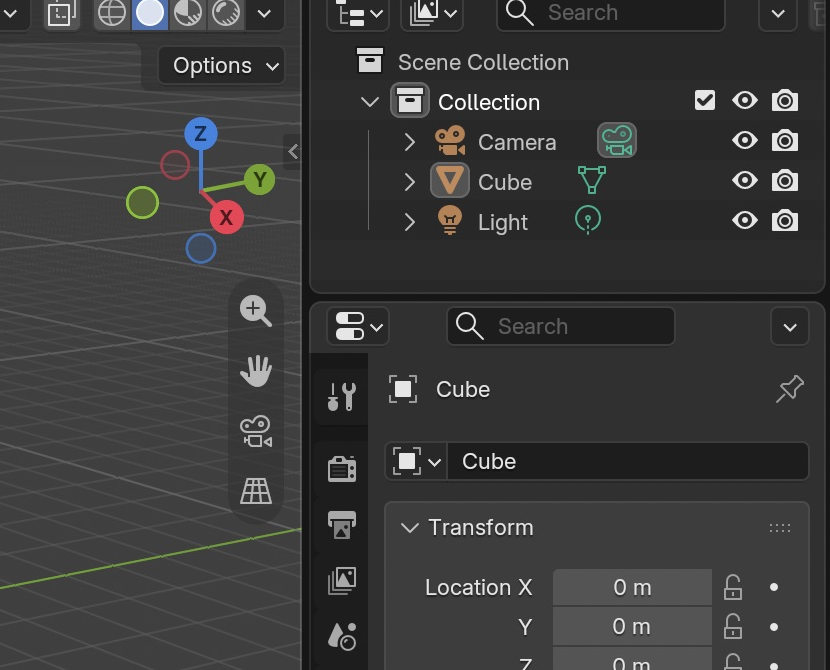
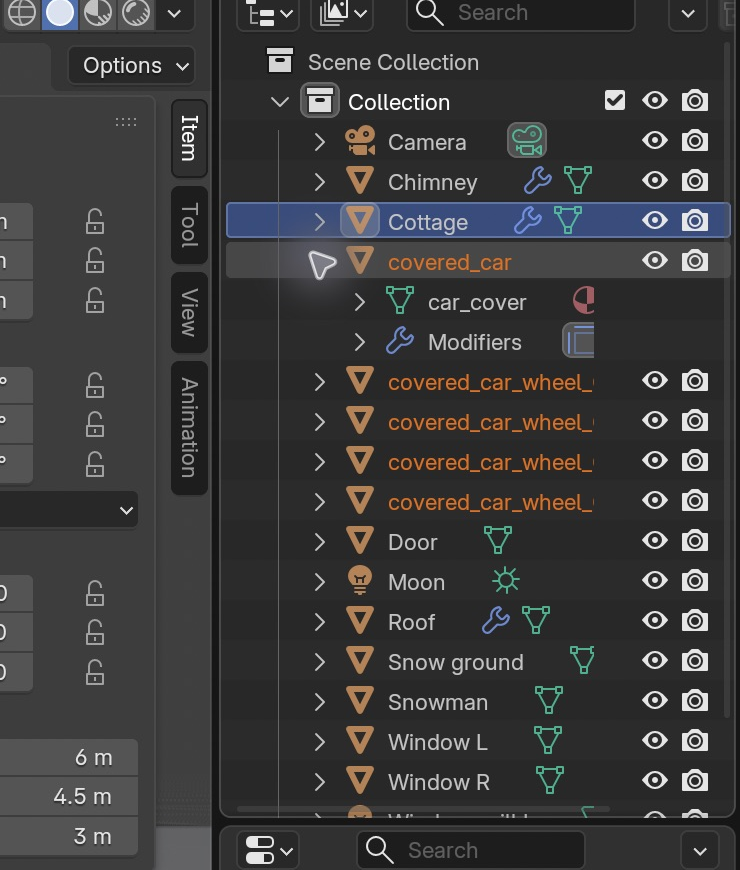
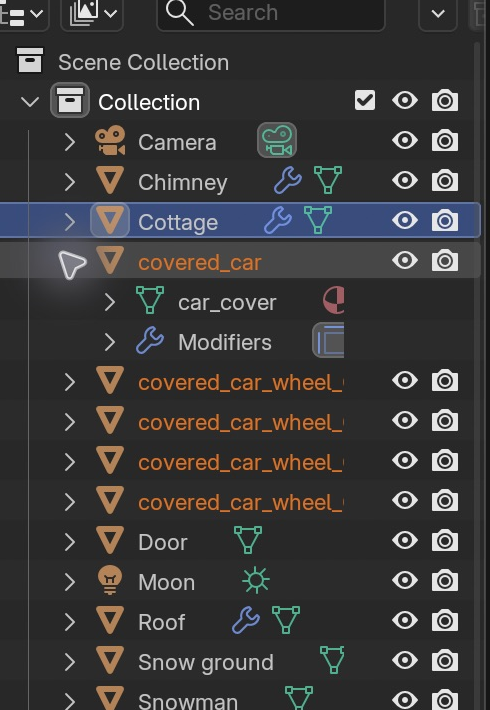
The Outliner identifies the selected Cottage. This is the later example scene; select an object here before editing its settings.Result in the native demonstration. Check the selected object, state and values against this view.
The Timeline below the viewport controls the current frame and playback. The scene view changes as animation plays.Result in the native demonstration. Check the selected object, state and values against this view.
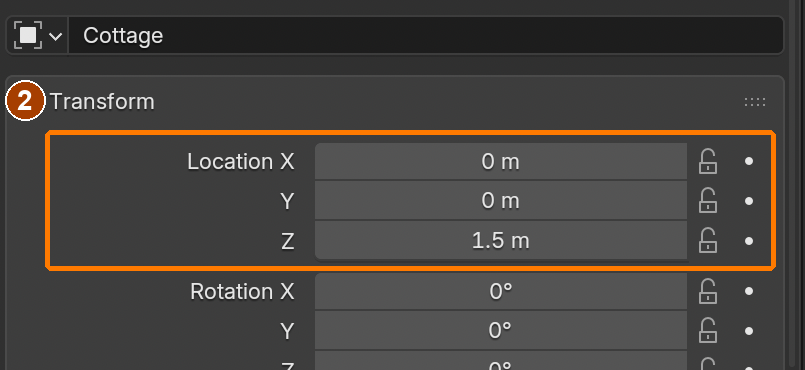
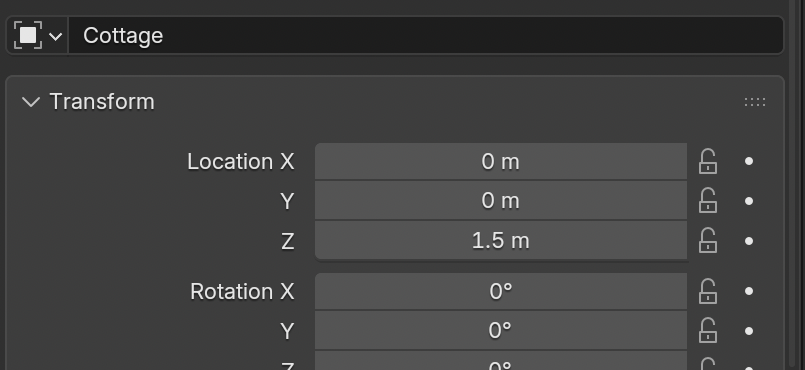
Properties holds settings for the selected object. In this later example, the Cottage transform is displayed.Result in the native demonstration. Check the selected object, state and values against this view.
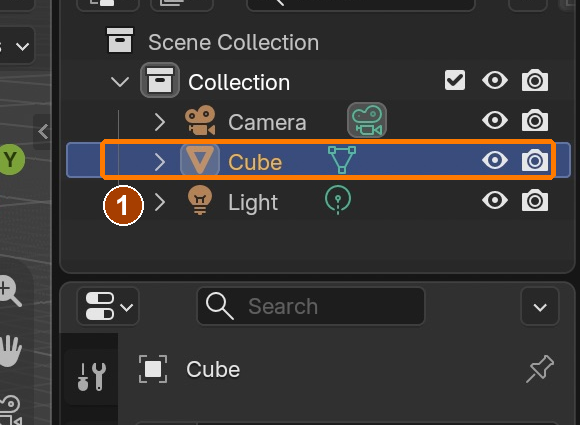
Select default Cube in the OutlinerResult in the native demonstration. Check the selected object, state and values against this view.
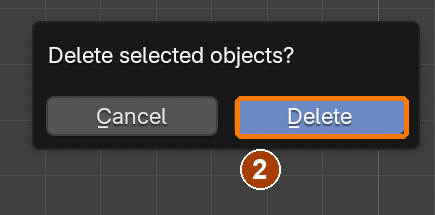
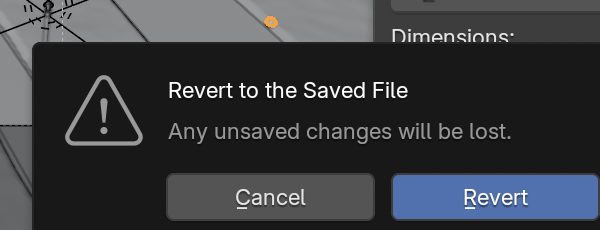
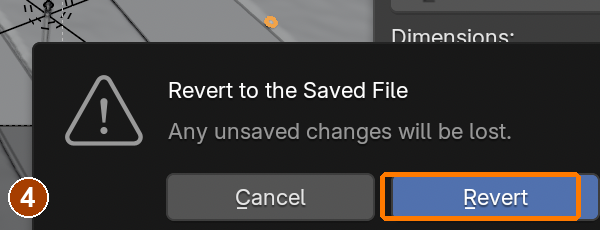
With Cube selected, X opens this confirmation. Click Delete. Native replay in the separate navigation practice file.Result in the native demonstration. Check the selected object, state and values against this view.
Filename and Save As buttonResult in the native demonstration. Check the selected object, state and values against this view.
Filename and Open buttonResult in the native demonstration. Check the selected object, state and values against this view.
EXPLANATION FRAMESMy reopened file contains ___. I know it was saved because ___.
STEP CHECKLIST
Tick each action beside its instruction after checking the result. Ticks record progress on this device; they do not establish achievement.
GLOSSARY
Workspace: A saved screen layout for a job, such as Modeling or Shading
Outliner: The list of every object in the scene
WHYStudio projects live in one folder with their textures and models, so files never go missing when you move them.
CHECKA saved .blend and the unzipped starter pack in one project folder, and you can name all six areas.
FIXA panel is wrong? Return to the Layout workspace or choose the needed editor type. Save before any File › New command; a new scene is not a layout repair.
WORKED EXAMPLE · DIFFERENT OBJECTDifferent project: a ProductShot folder contains ProductShot.blend and textures/. After saving, reopening shows the same two objects. A file name alone is not a backup; the reopen proves that the saved document is usable.
STRETCH (AFTER THE CHECK PASSES)Make collections in the Outliner: SET, PROPS, LIGHTS, FX.
Method basis: B1 · U1. Values and sequence are authored for this project.
02
Navigate the viewport
Looking versus moving
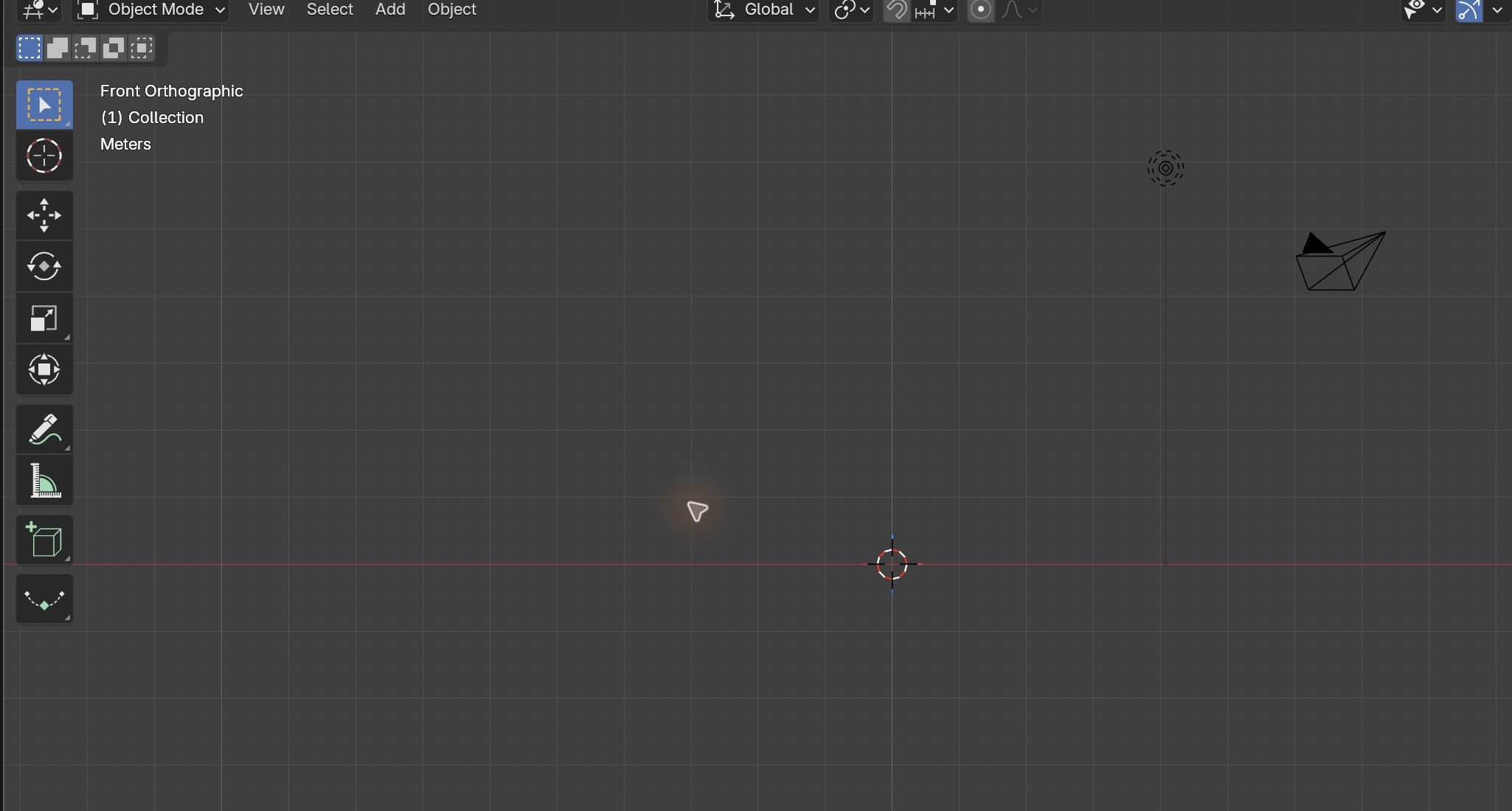
Orbit, pan and zoom change your view of the scene. Move, rotate and scale change an object. X, Y and Z are the three directions in 3D space; Z is up in this project. Perspective makes distant objects appear smaller. Orthographic removes that size change, helping you align vertices. The viewport view is separate from the camera that renders the final image.
Application verification incomplete: actions 1, 2, 3, 4 still need their complete run/capture/result evidence checked. Unproven procedures remain not yet run.
IN SHORTChange the view with Front/Right/Top, orbit, pan, zoom and Frame Selected; leave object transforms unchanged.
READ ALOUD
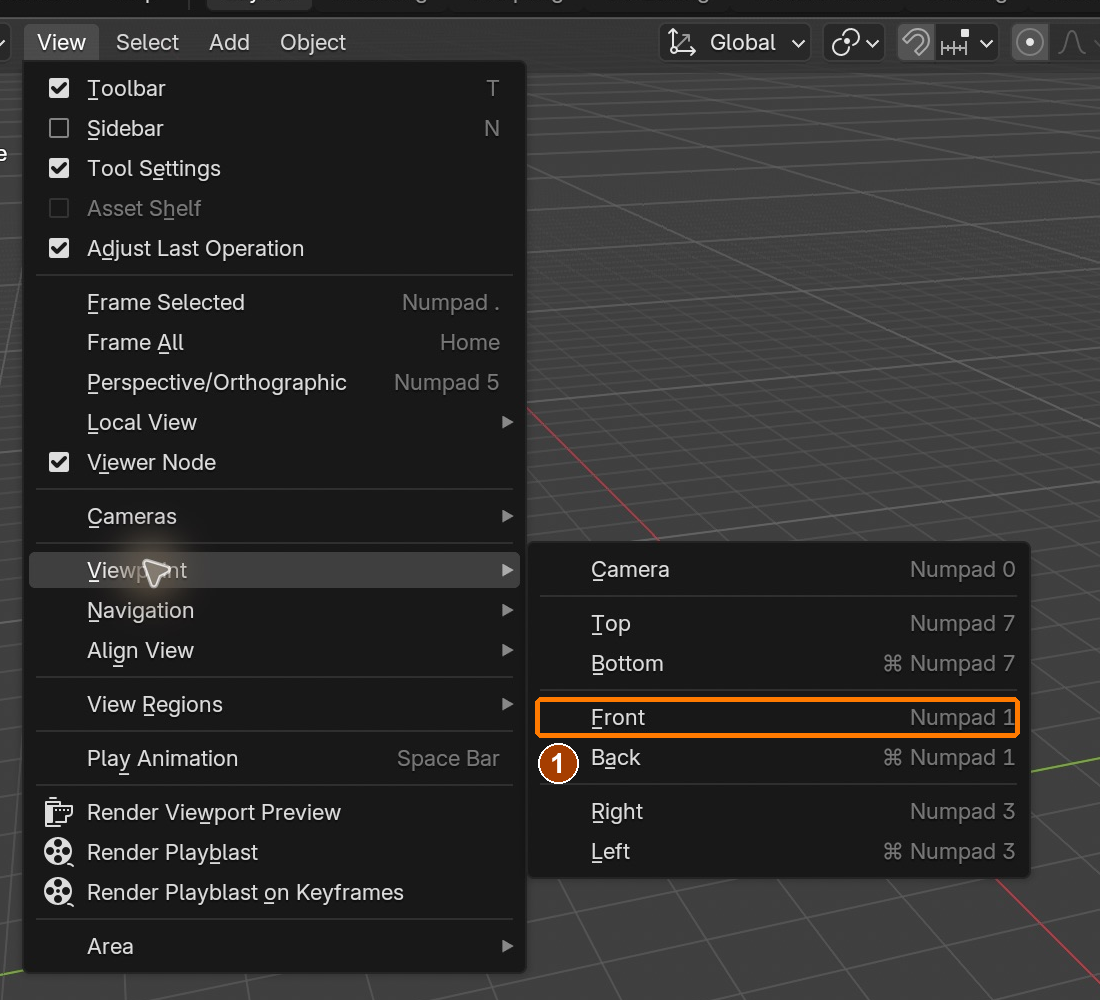
DOCUMENT: WinterCottage_YourName.blend SELECT: The view, not the objects TOOLS / ROUTE: Middle mouse · Shift+middle · scroll · Numpad 1/3/7/5 · Numpad . · Home
View > Viewpoint > FrontResult in the native demonstration. Check the selected object, state and values against this view.
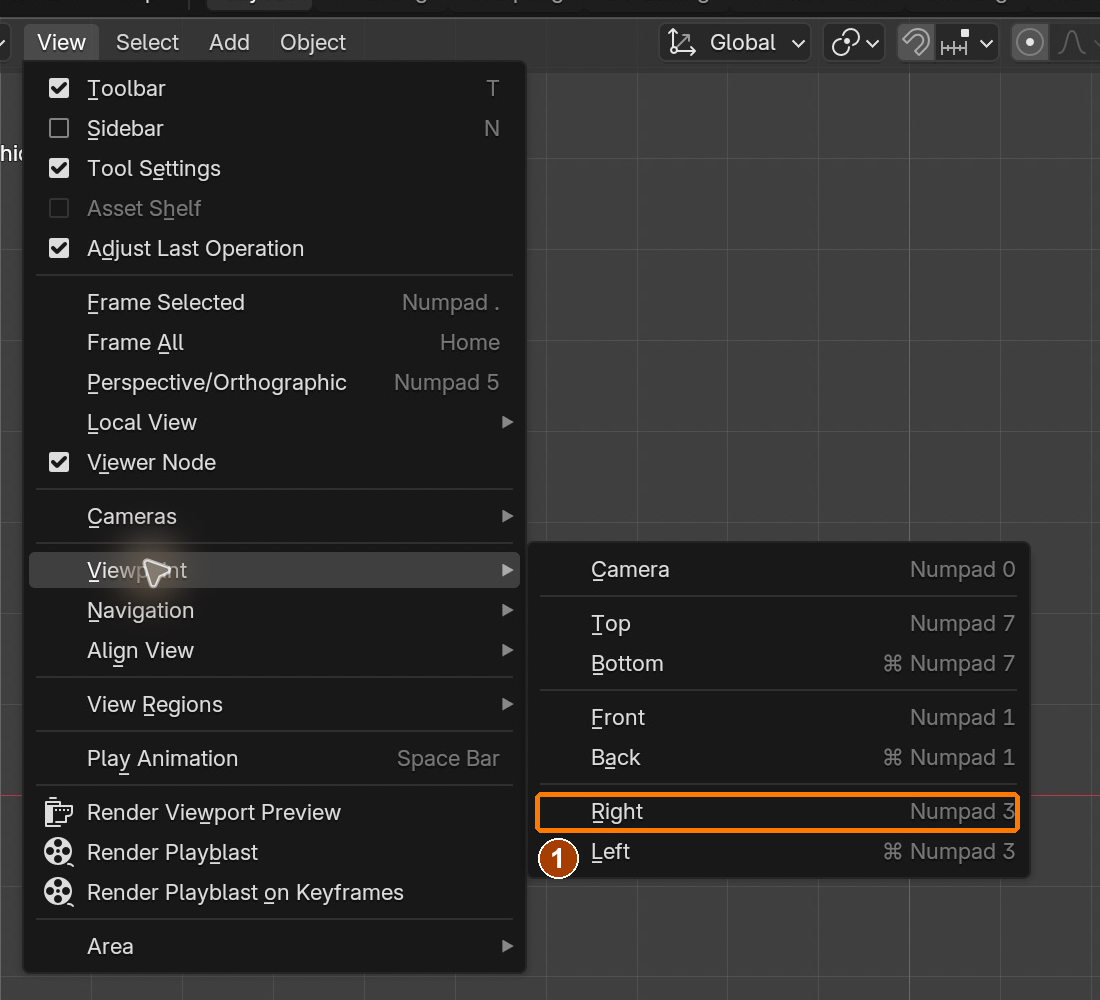
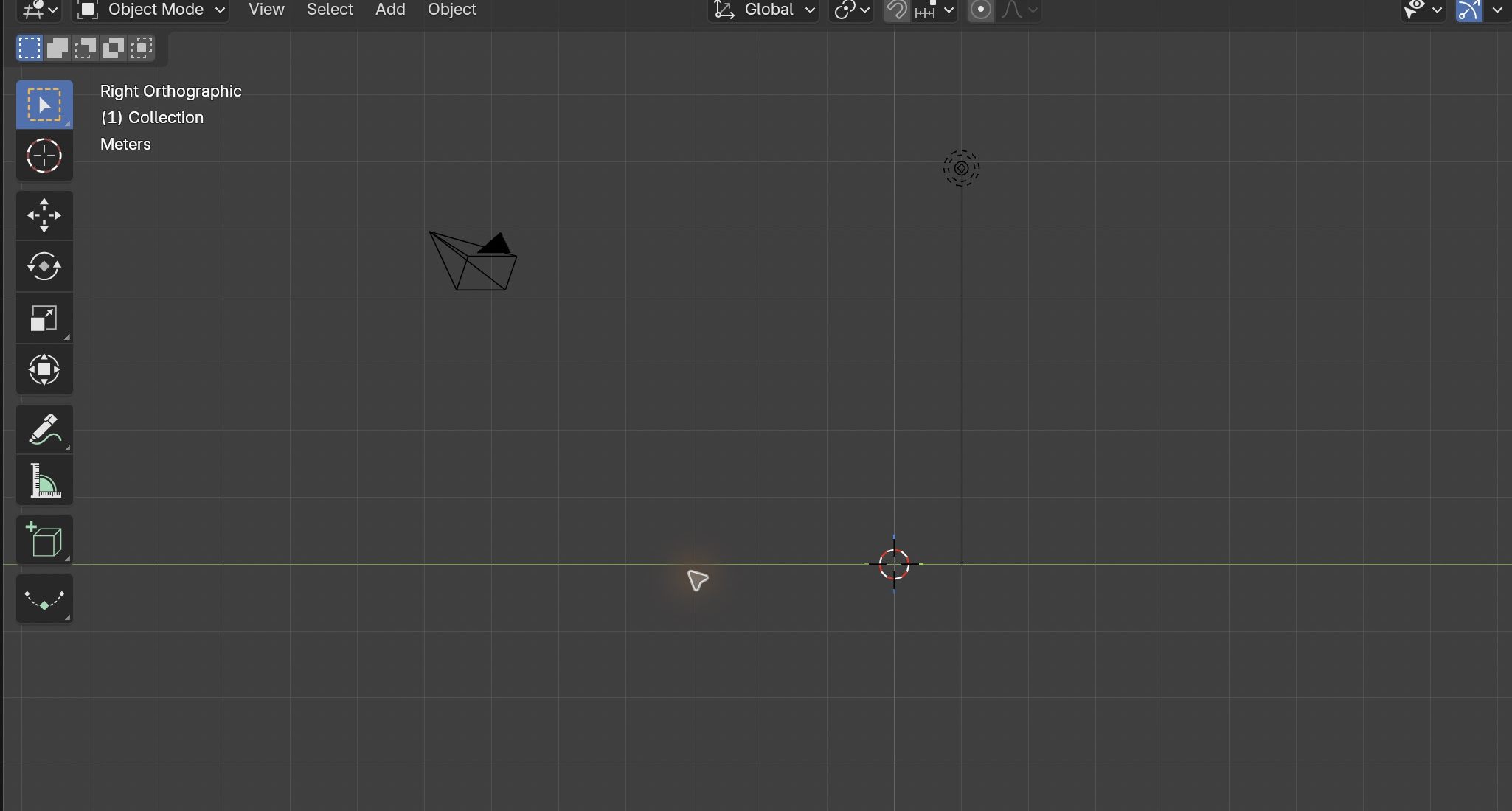
View > Viewpoint > RightResult in the native demonstration. Check the selected object, state and values against this view.
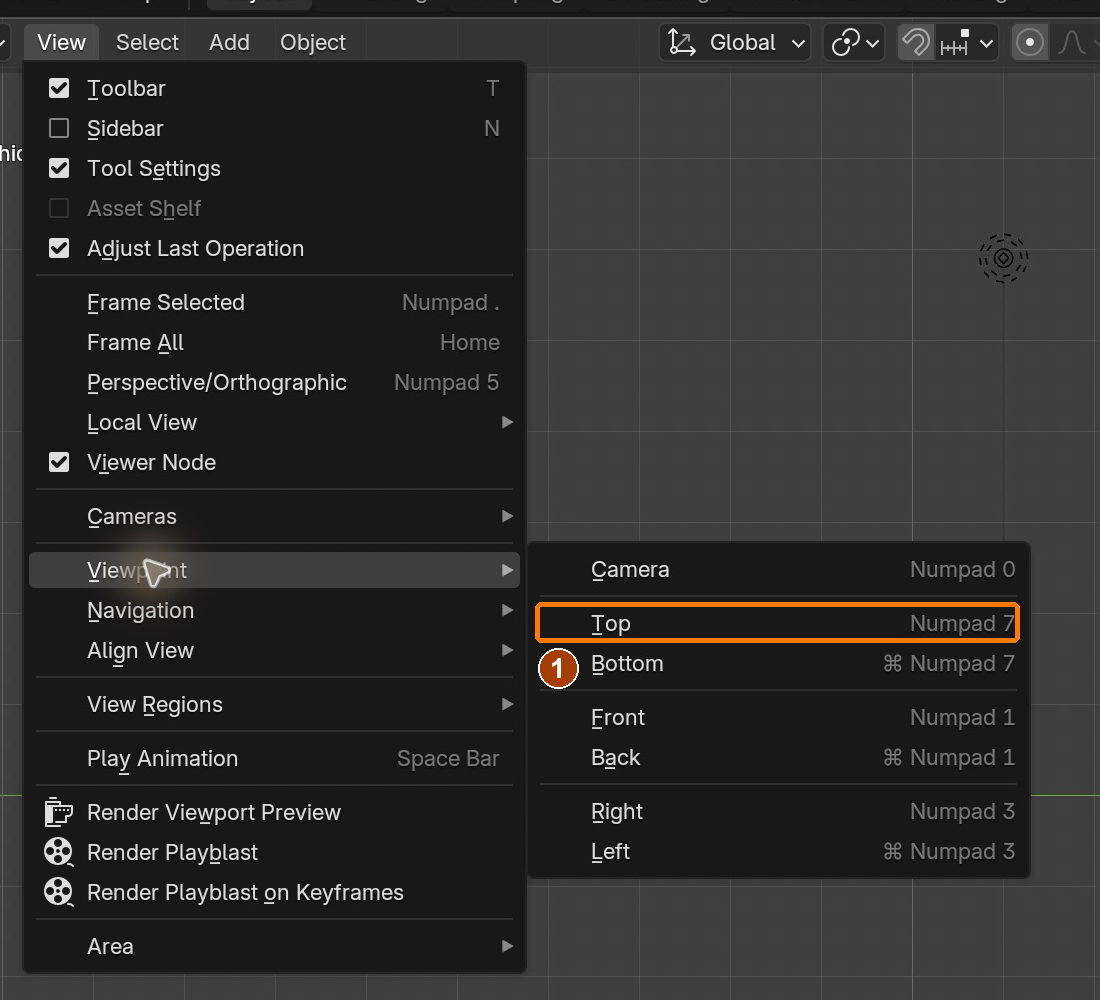
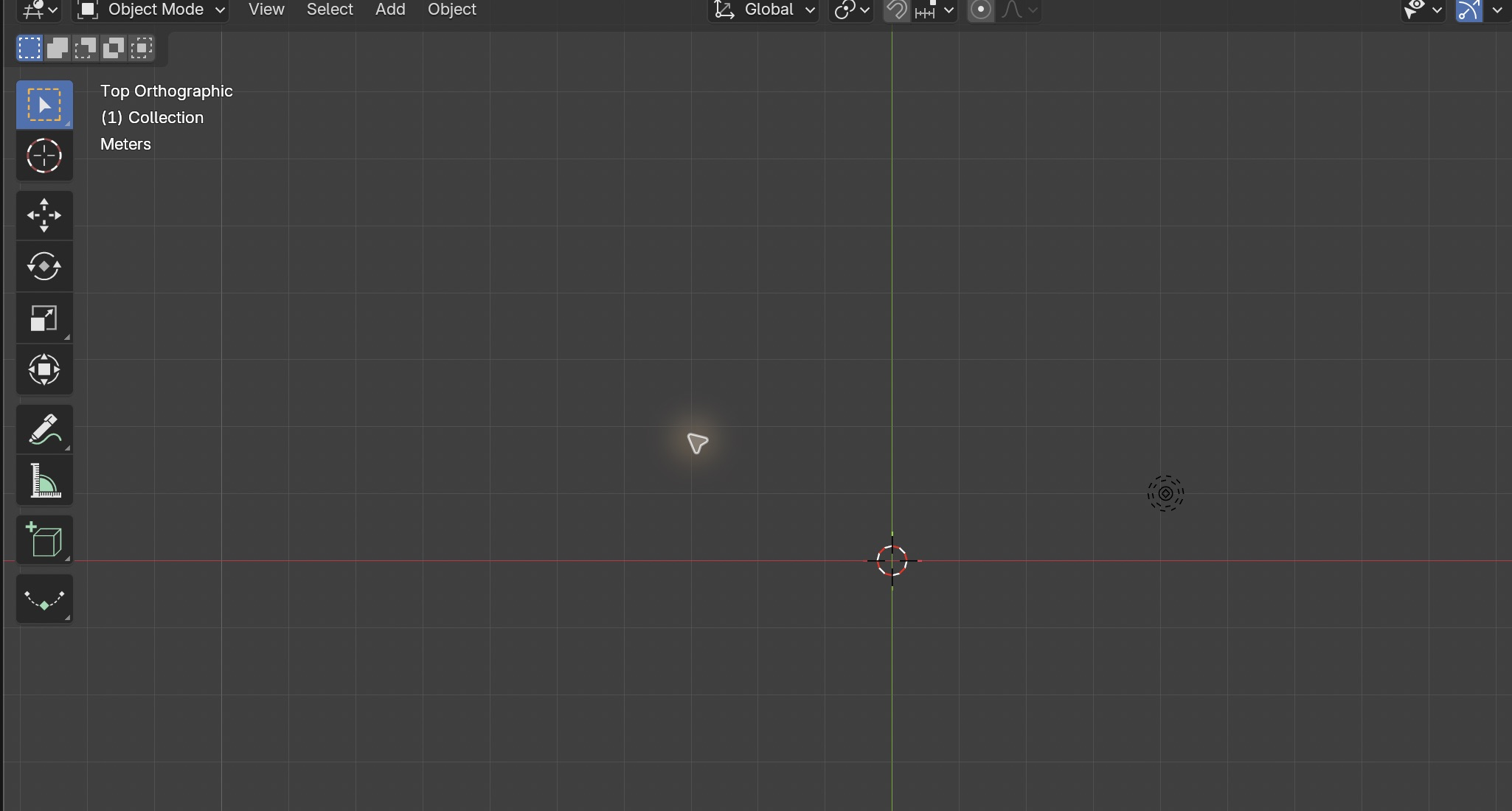
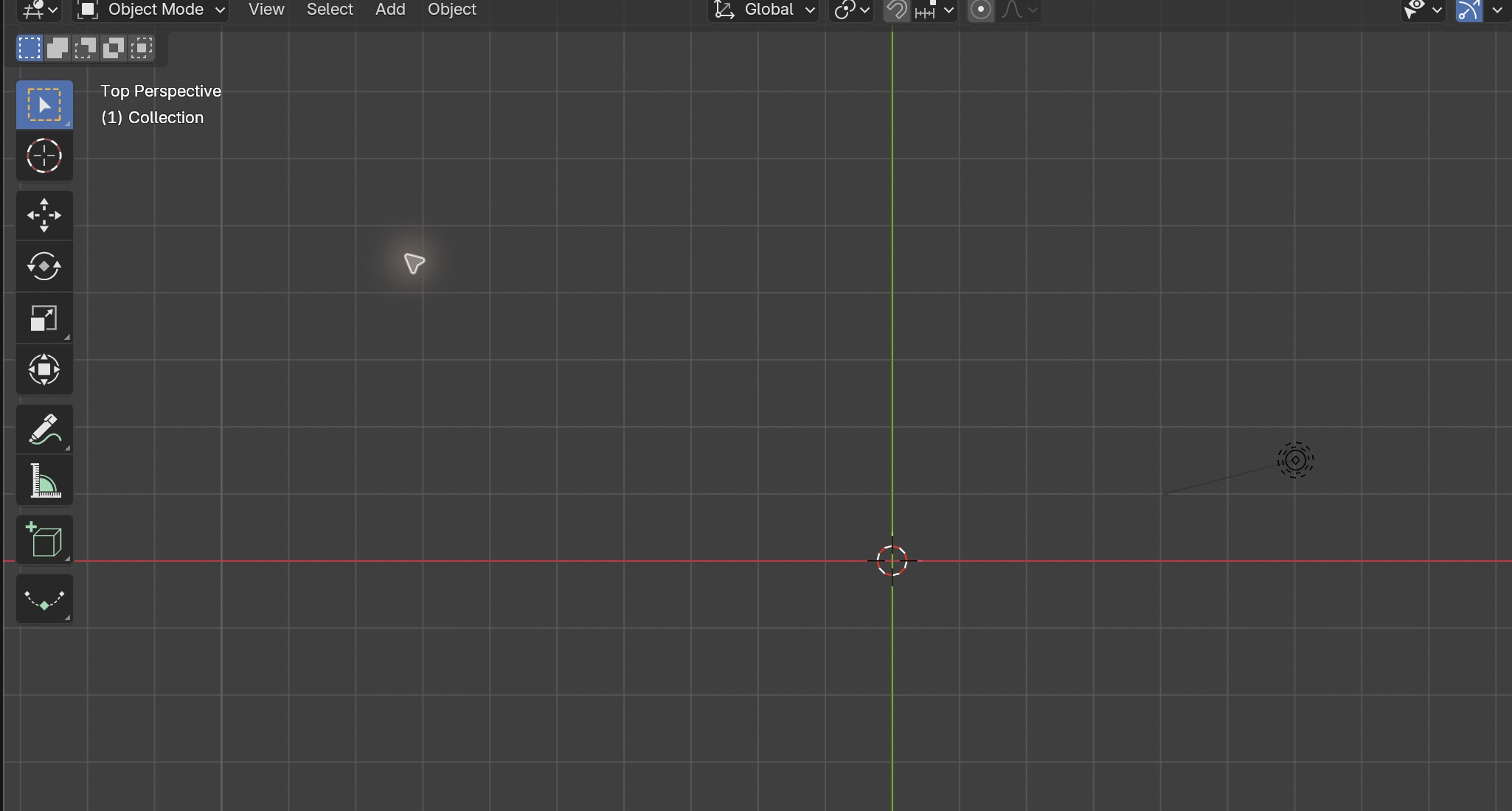
View > Viewpoint > TopResult in the native demonstration. Check the selected object, state and values against this view.
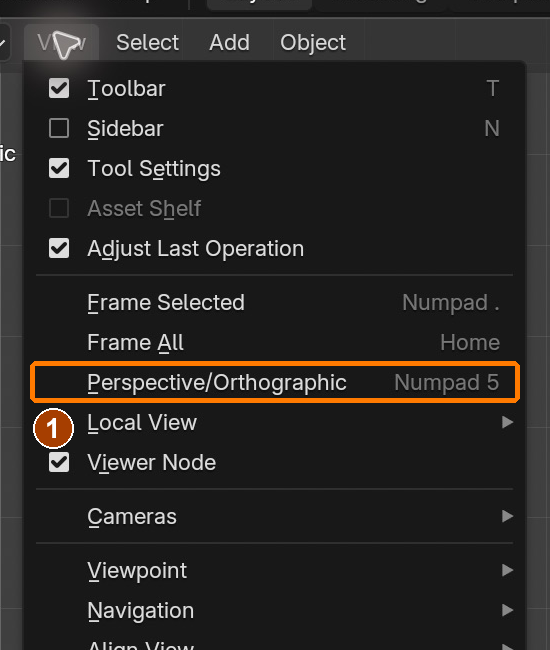
View > Perspective/OrthographicResult in the native demonstration. Check the selected object, state and values against this view.
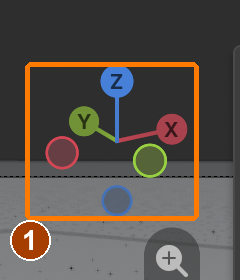
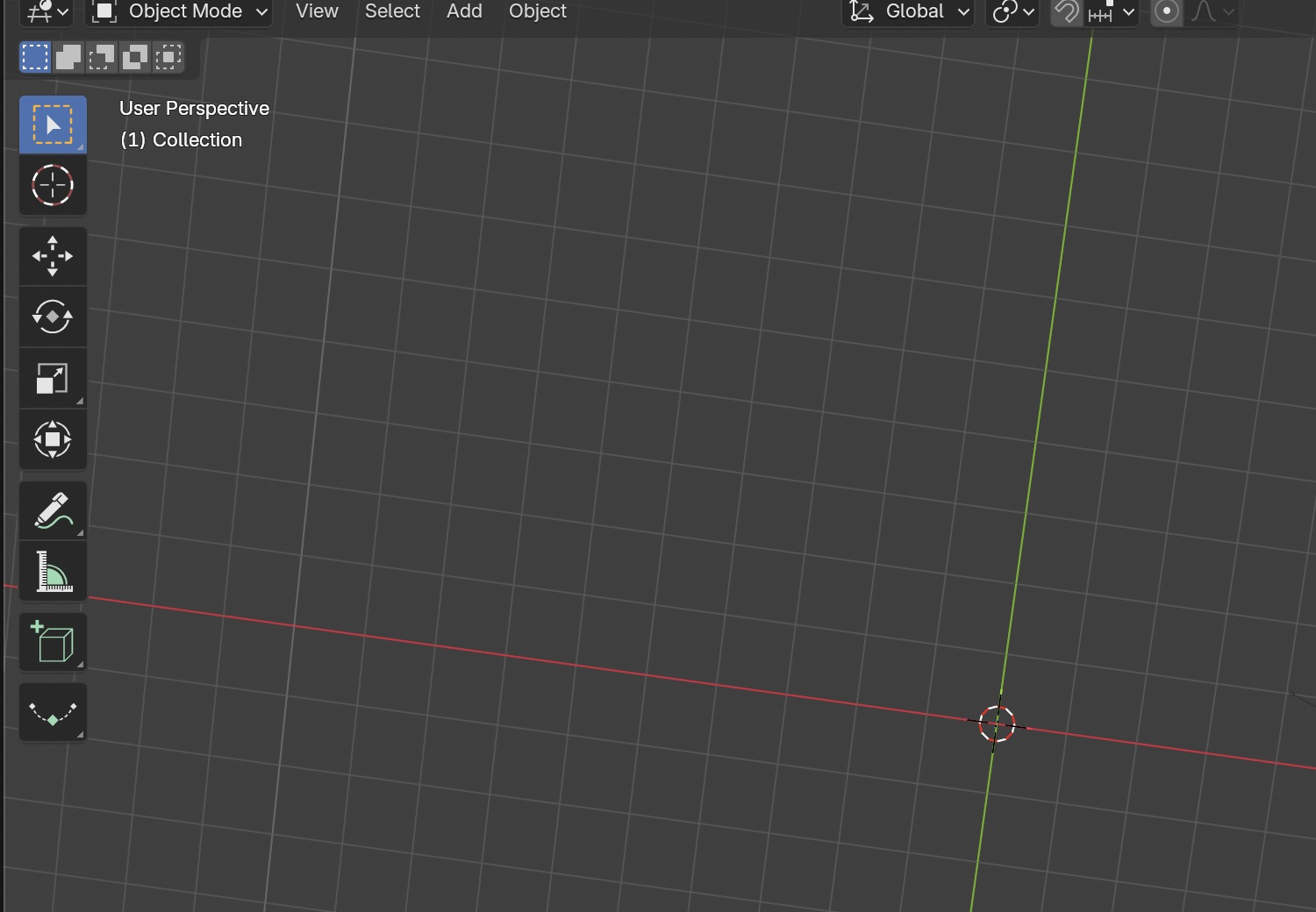
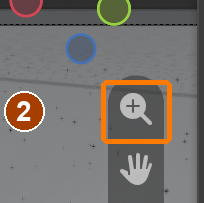
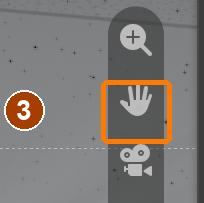
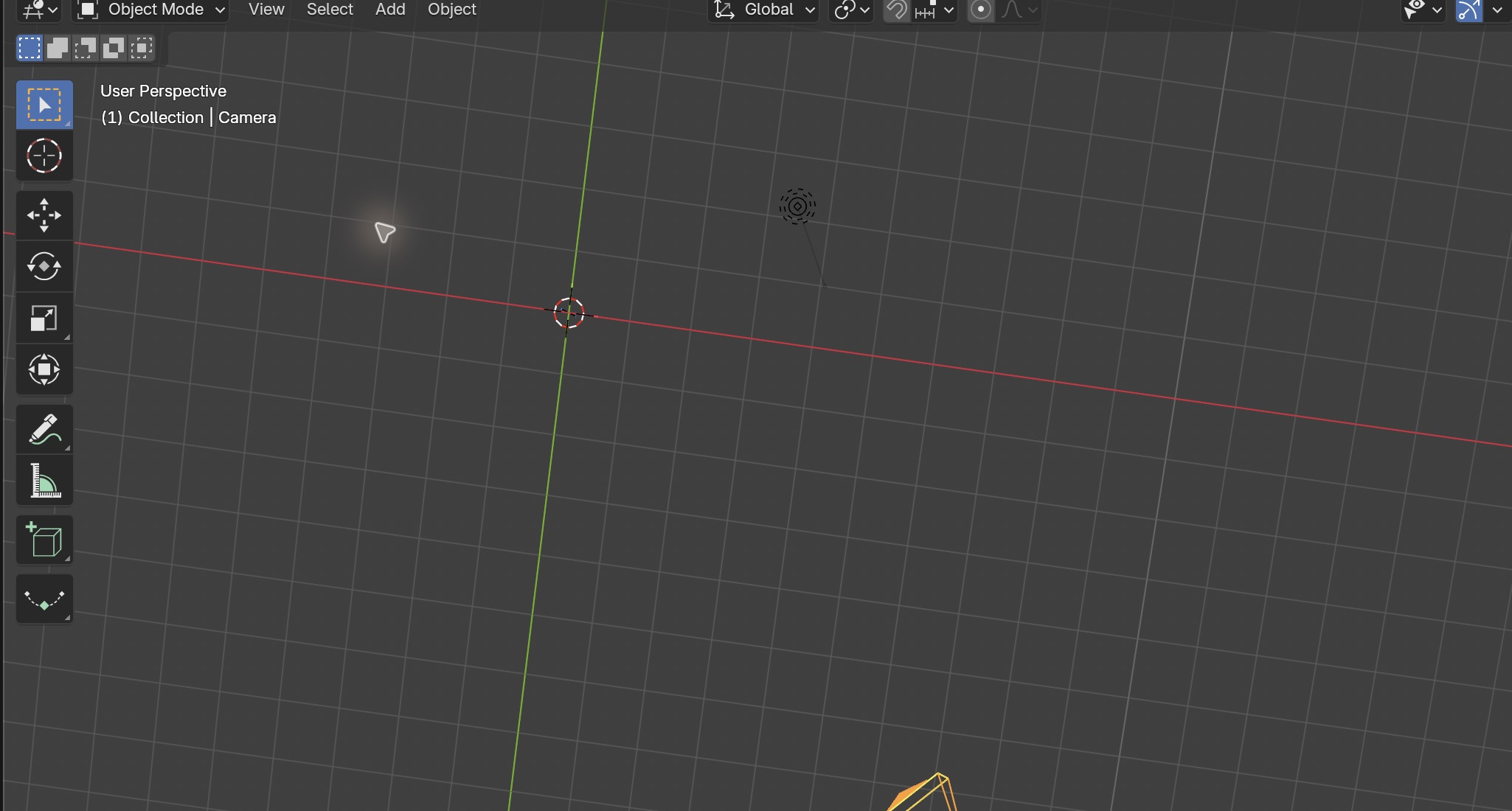
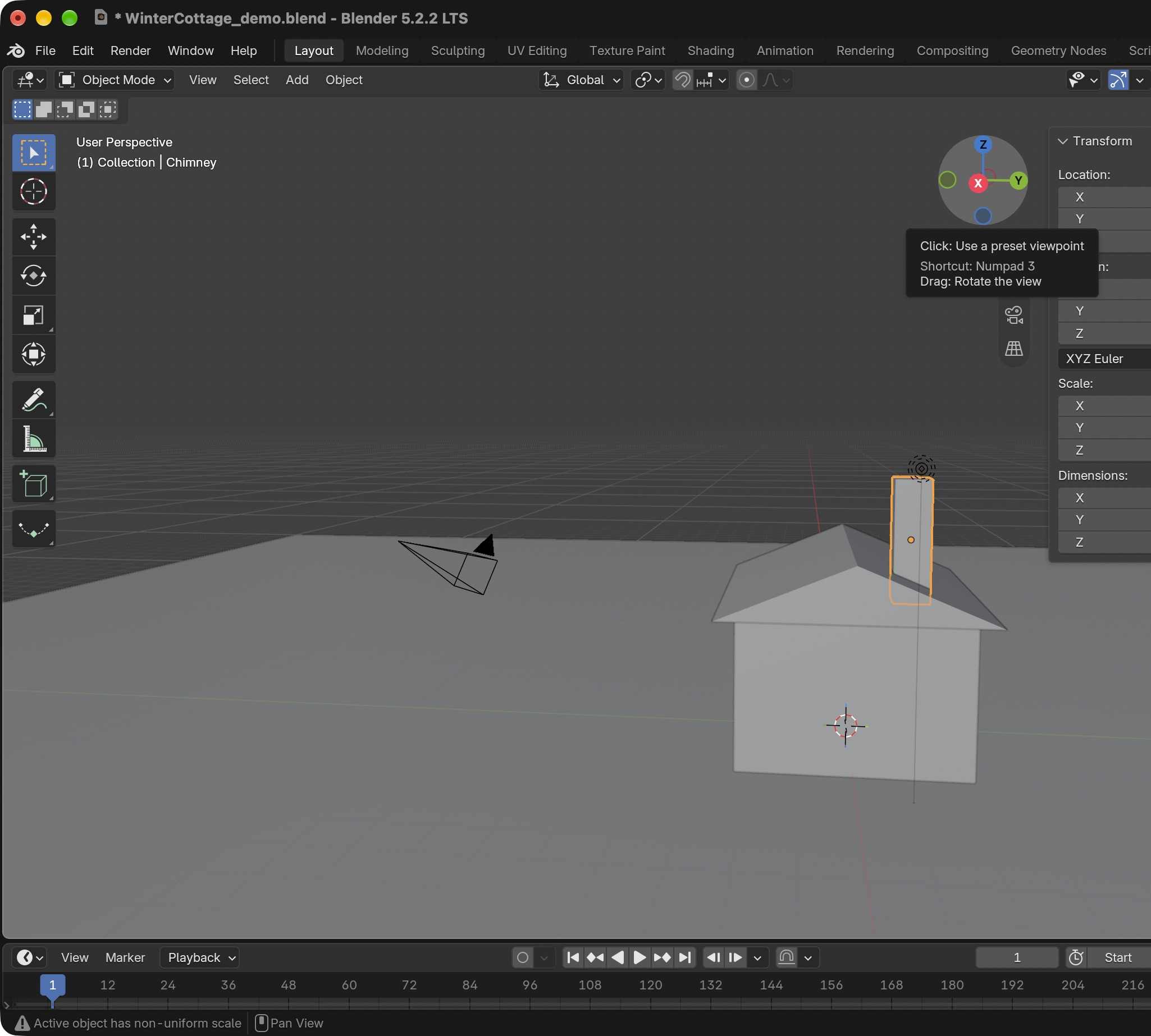
1: drag the axes to orbit. 2: drag the magnifier to zoom. 3: drag the hand to pan. This capture uses the later cottage scene to show the same controls. · Orbit axes.Result in the native demonstration. Check the selected object, state and values against this view.
1: drag the axes to orbit. 2: drag the magnifier to zoom. 3: drag the hand to pan. This capture uses the later cottage scene to show the same controls. · Zoom magnifier.Result in the native demonstration. Check the selected object, state and values against this view.
1: drag the axes to orbit. 2: drag the magnifier to zoom. 3: drag the hand to pan. This capture uses the later cottage scene to show the same controls. · Pan hand.Result in the native demonstration. Check the selected object, state and values against this view.
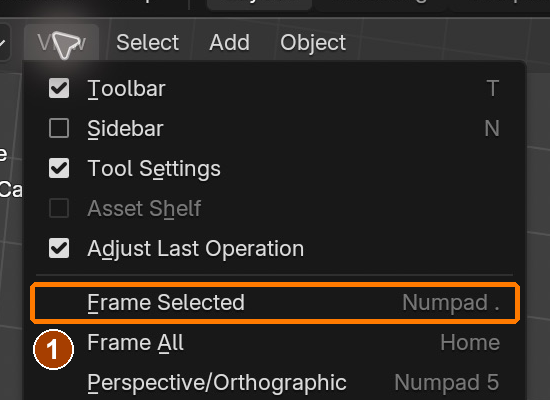
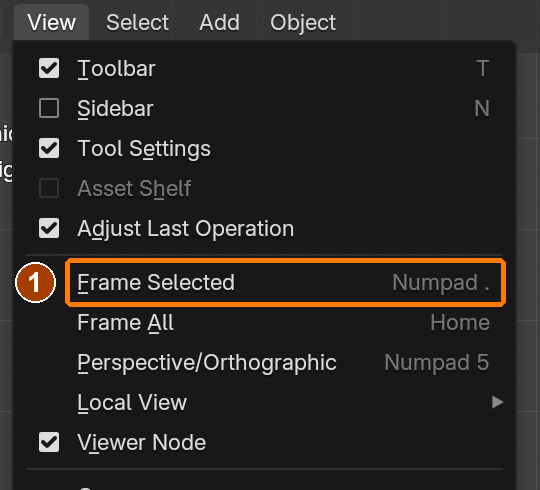
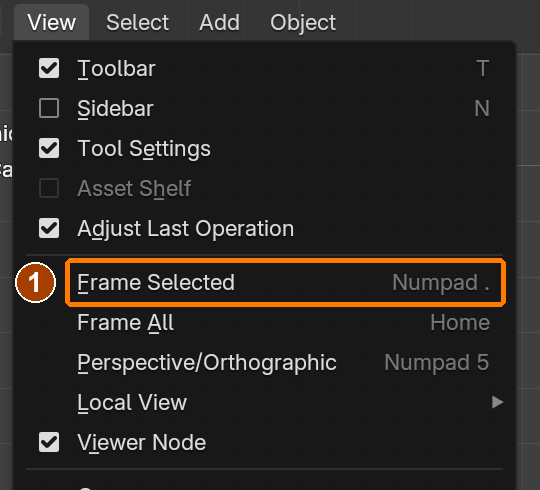
View › Frame SelectedResult in the native demonstration. Check the selected object, state and values against this view.
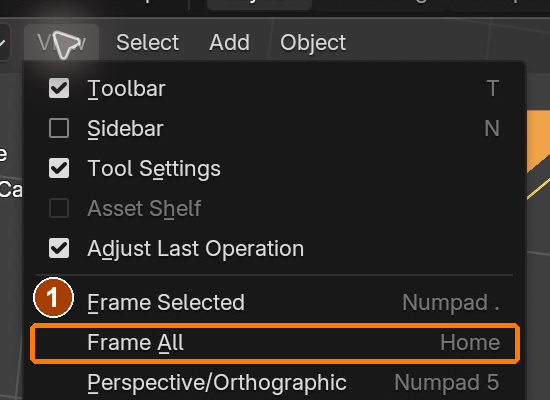
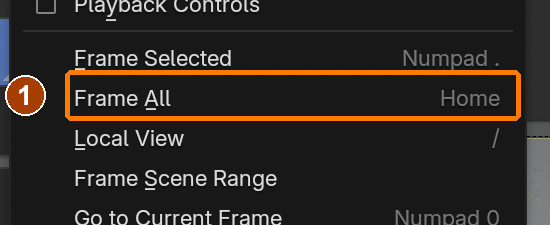
View › Frame AllResult in the native demonstration. Check the selected object, state and values against this view.
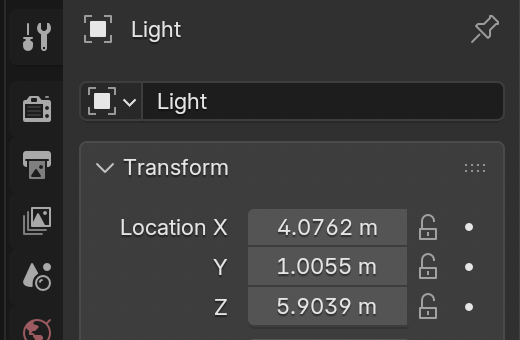
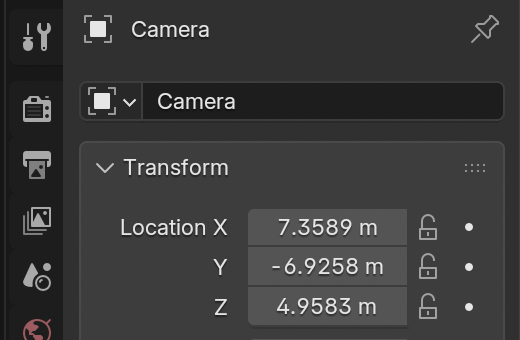
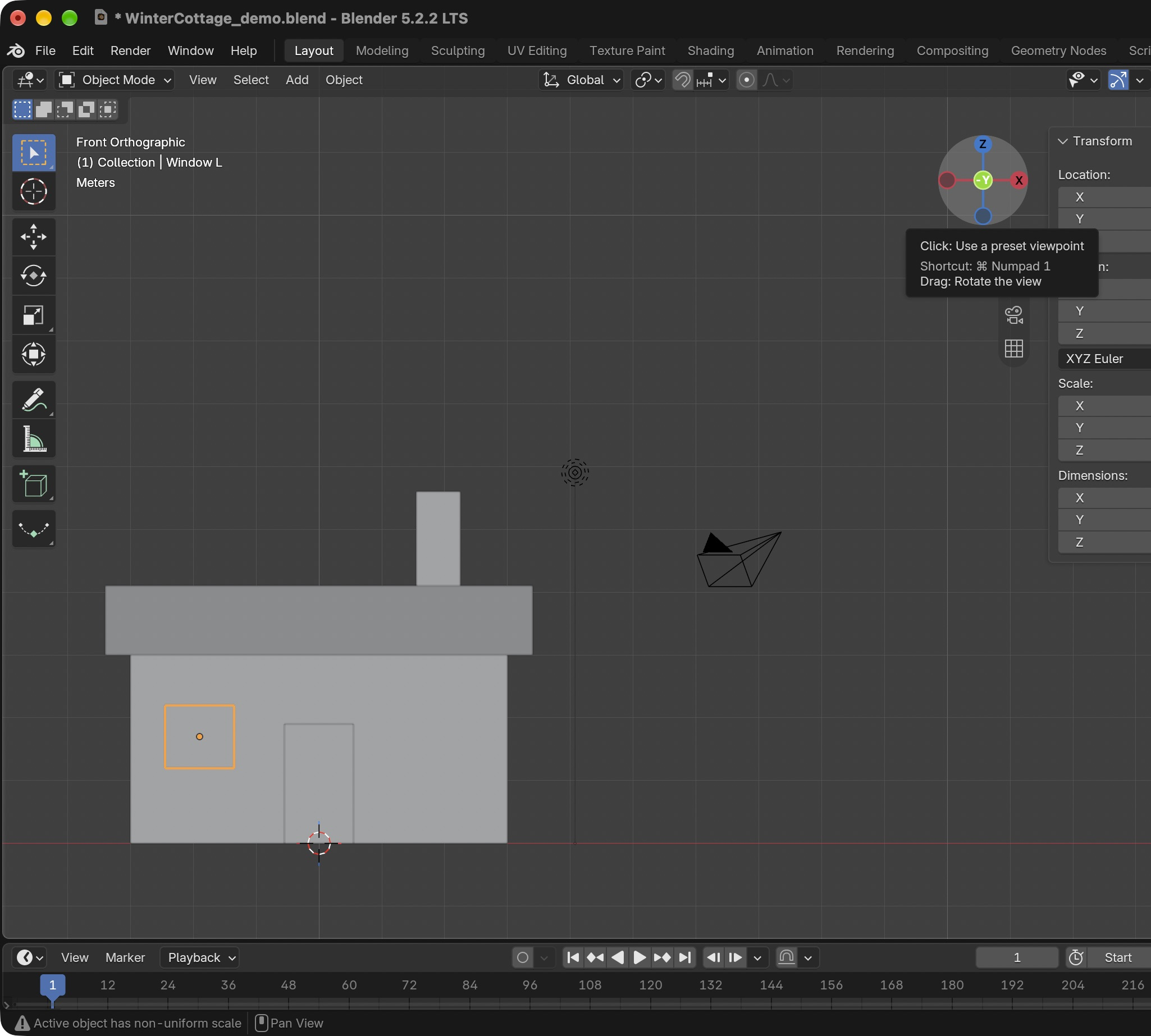
View > Frame Selected changes the view, not the light Location. Compare its Location before and after.Result in the native demonstration. Check the selected object, state and values against this view.
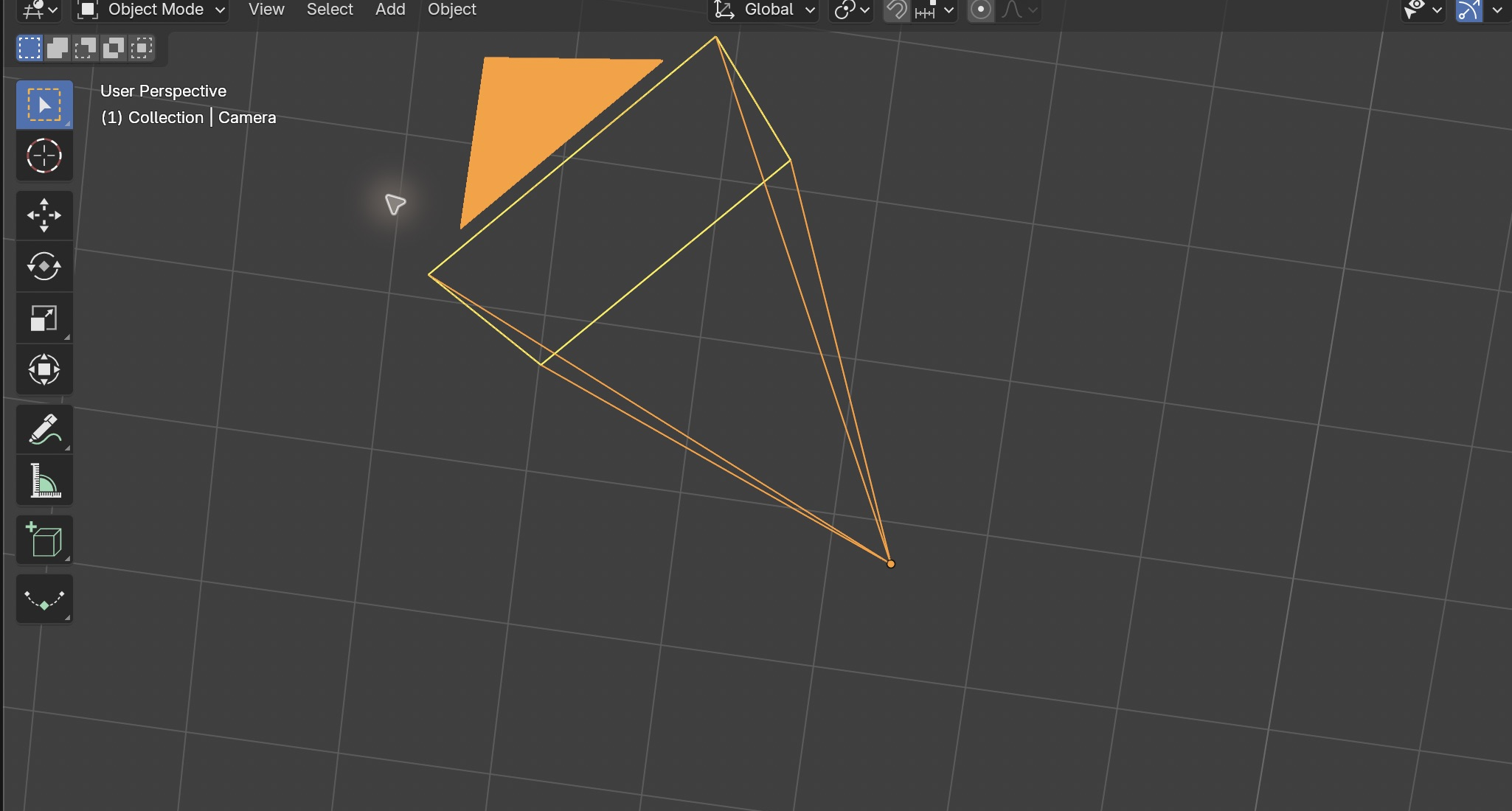
View > Frame Selected changes the view, not the camera Location. Compare its Location before and after.Result in the native demonstration. Check the selected object, state and values against this view.
EXPLANATION FRAMESThe view changed from ___ to ___, while the object’s Location remained ___.
A mistake from the actual build
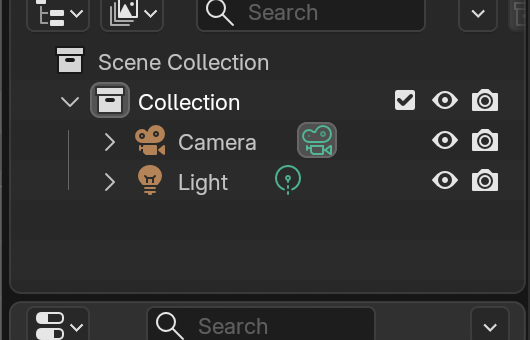
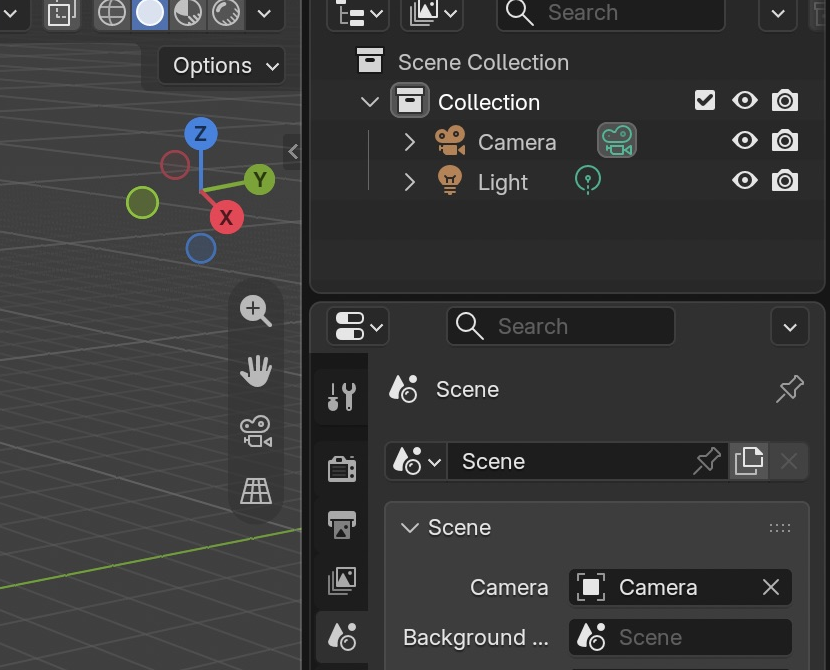
Wrong · Reopening showed Cube again: I had clicked empty viewport space and deselected it before Delete.Right · I selected Cube in the Outliner, deleted it, saved and reopened. Camera and Light remain; Cube is gone.
Diagnose: intended result → observed mismatch → likely cause → one change → test.
STEP CHECKLIST
Tick each action beside its instruction after checking the result. Ticks record progress on this device; they do not establish achievement.
GLOSSARY
Orthographic: A view without perspective, used to line things up
WHYEvery later skill assumes you can look at anything from any angle, quickly.
CHECKYou reach front, right, top and perspective views and frame a selection without menus.
FIXLost in space? Home, then Numpad . on an object.
WORKED EXAMPLE · DIFFERENT OBJECTDifferent object: select a lamp, Frame Selected, then Top view. The view changes but Location remains (2, 0, 3). If Location changes, a transform was used instead of navigation.
STRETCH (AFTER THE CHECK PASSES)Try View › Navigation › Walk Navigation (WASD), then Esc.
Method basis: B1. Values and sequence are authored for this project.
03
Block out the cottage and roof. Licence 1 check.
Objects, meshes and modes
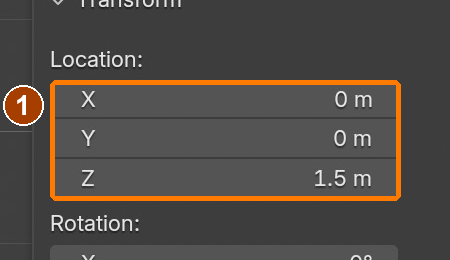
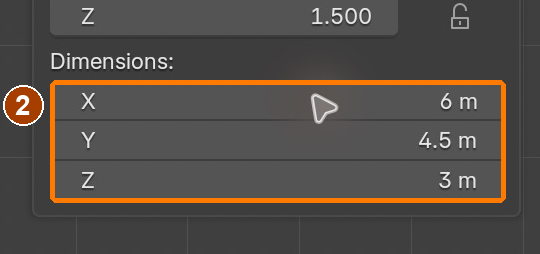
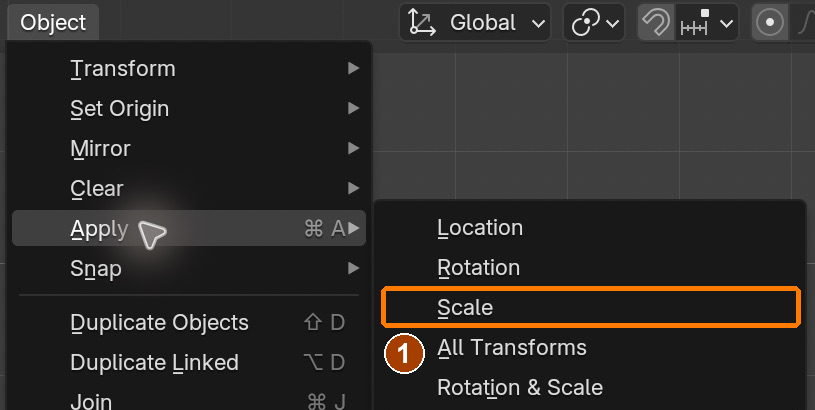
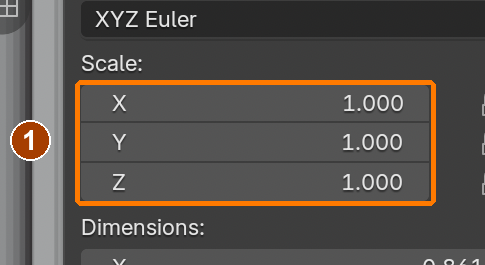
A mesh is a surface made from vertices (points), edges (connections) and faces (surfaces). Object Mode moves or scales the whole object. Edit Mode changes its mesh. Location places the object, Rotation turns it, Scale multiplies its size, and Dimensions reports its size along the axes. Apply Scale keeps the visible size while resetting the scale multiplier to one, so later modifiers use predictable distances.
Application verification incomplete: actions 1, 2, 3, 4, 5, 6, 7, 8, 9, 10 still need their complete run/capture/result evidence checked. Unproven procedures remain not yet run.
IN SHORTPlace the wall block; apply scale; select the roof rows in X-Ray; collapse and merge the ridge; seat the roof; test a smaller shed.
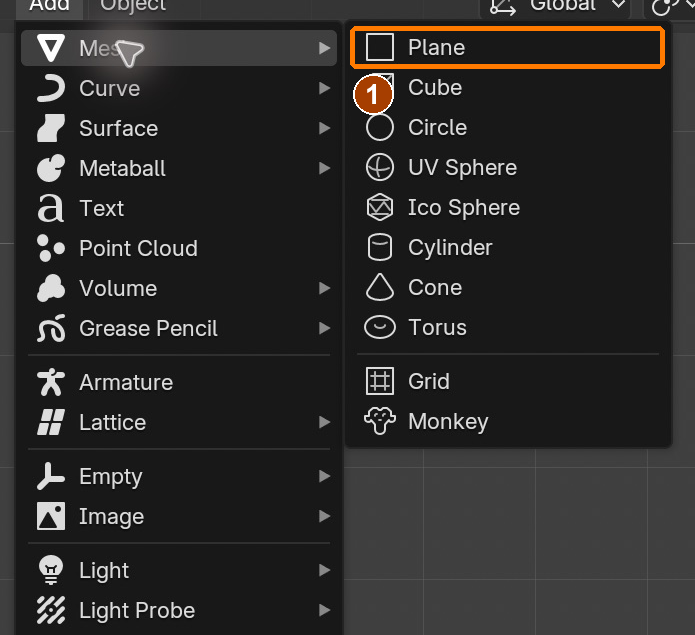
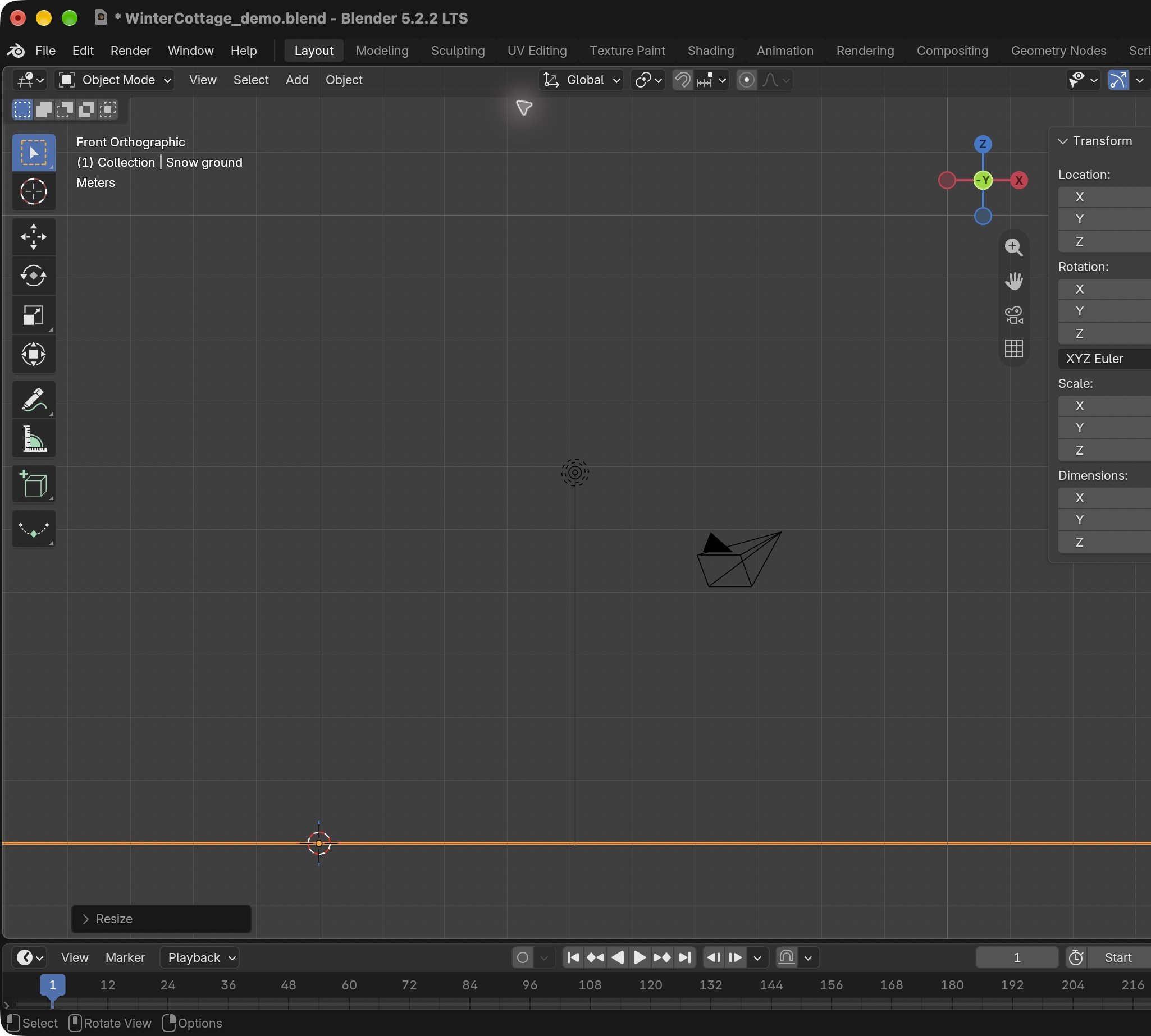
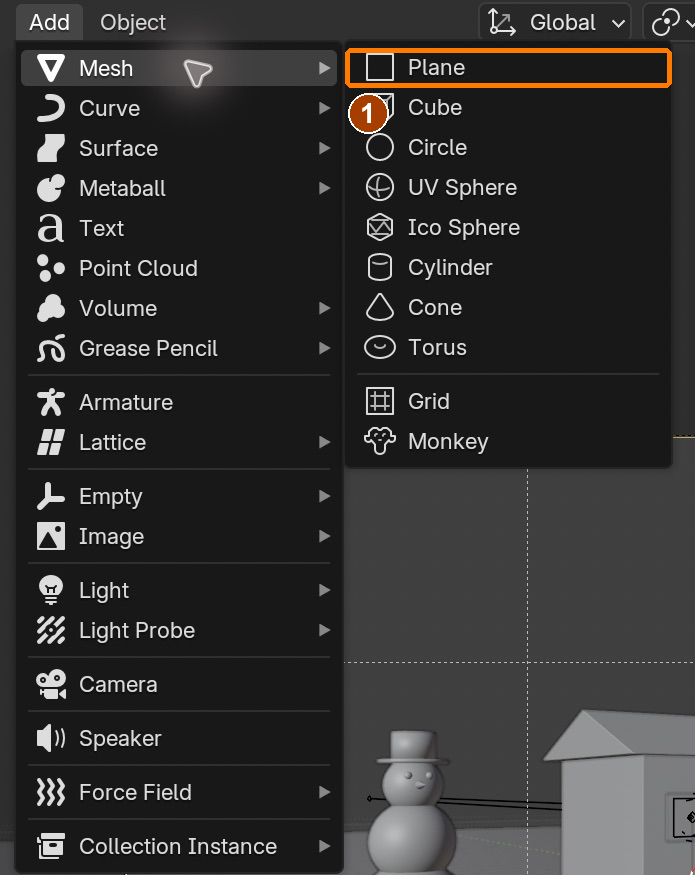
Add > Mesh > PlaneResult in the native demonstration. Check the selected object, state and values against this view.
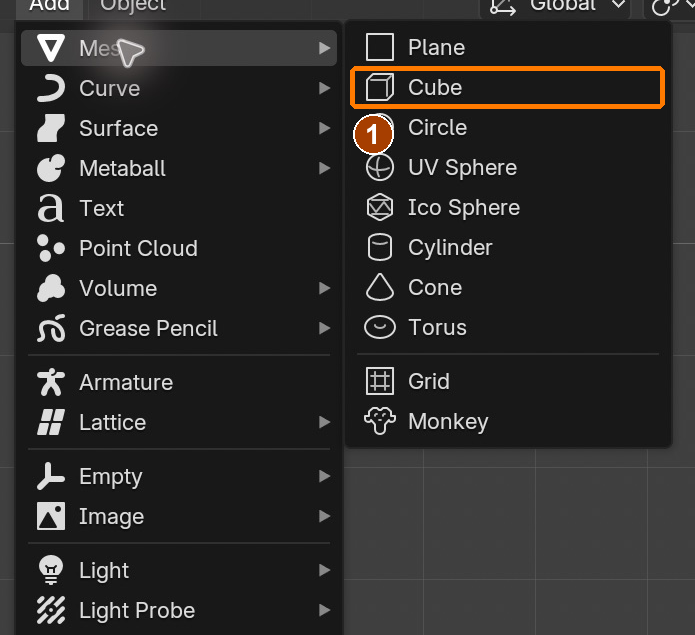
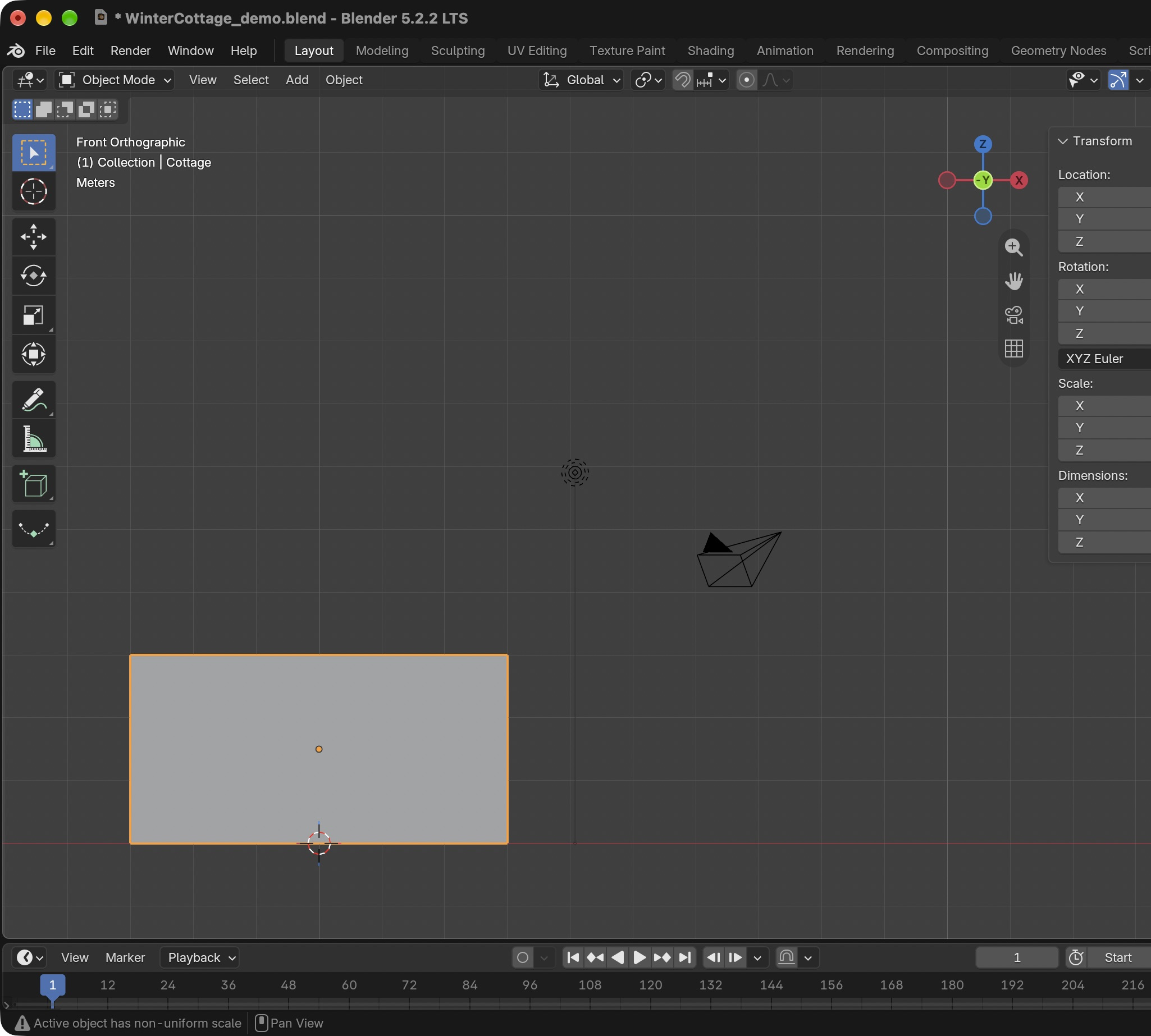
Add > Mesh > CubeResult in the native demonstration. Check the selected object, state and values against this view.
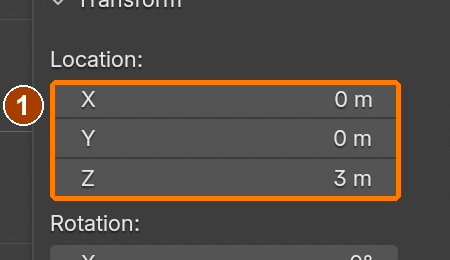
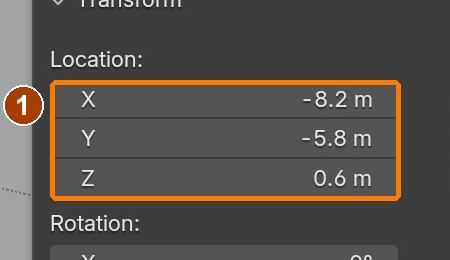
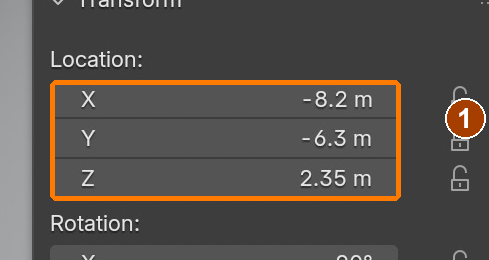
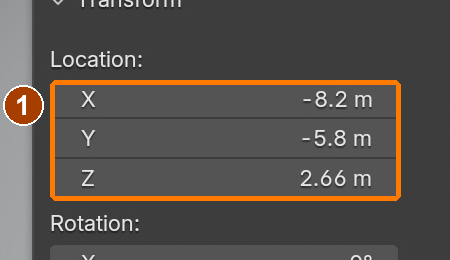
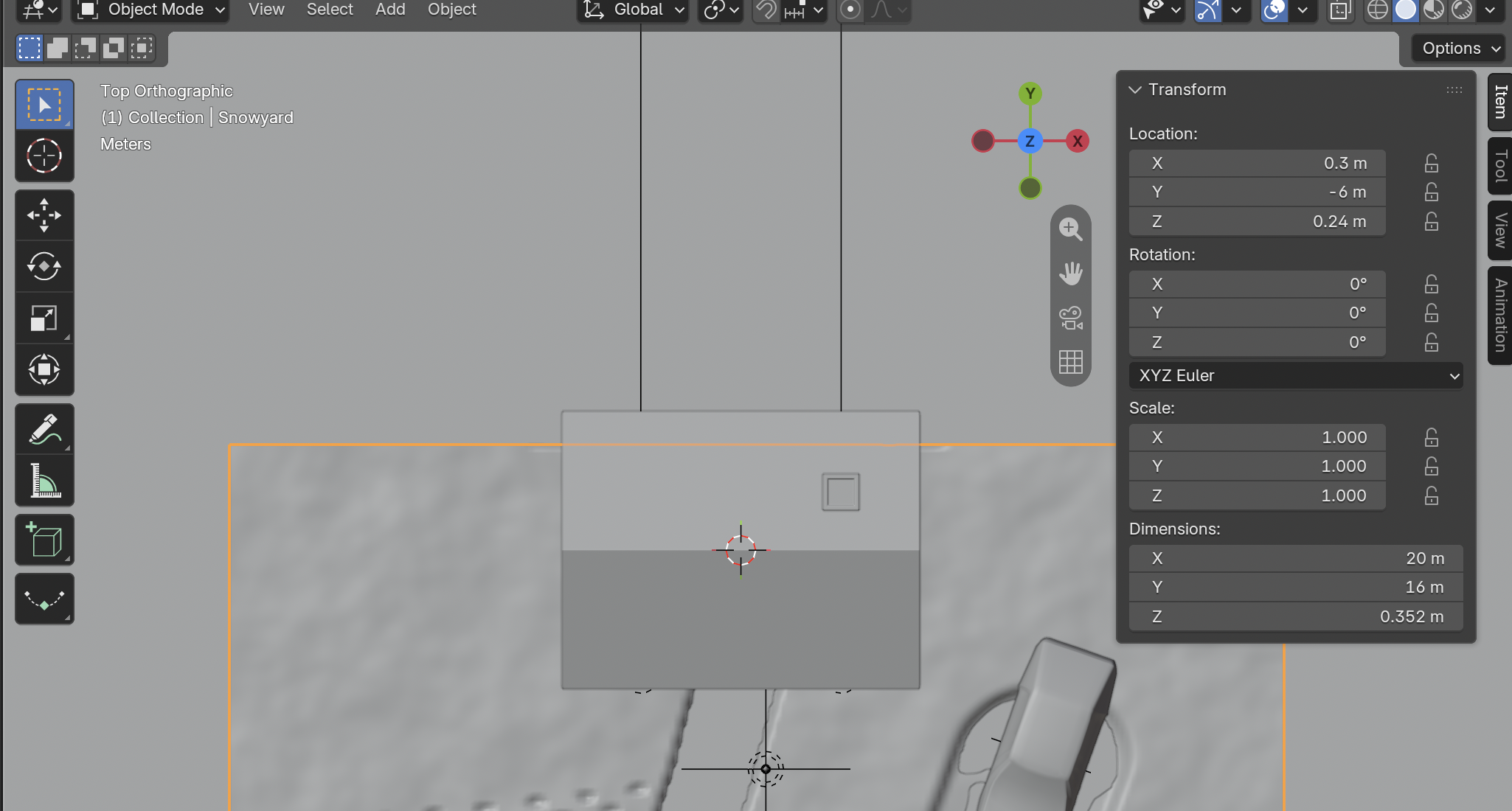
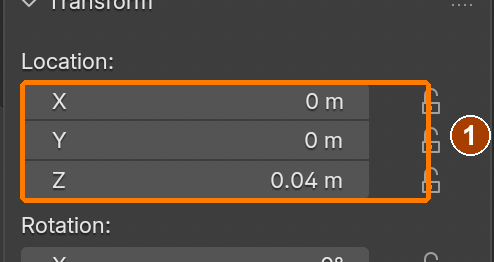
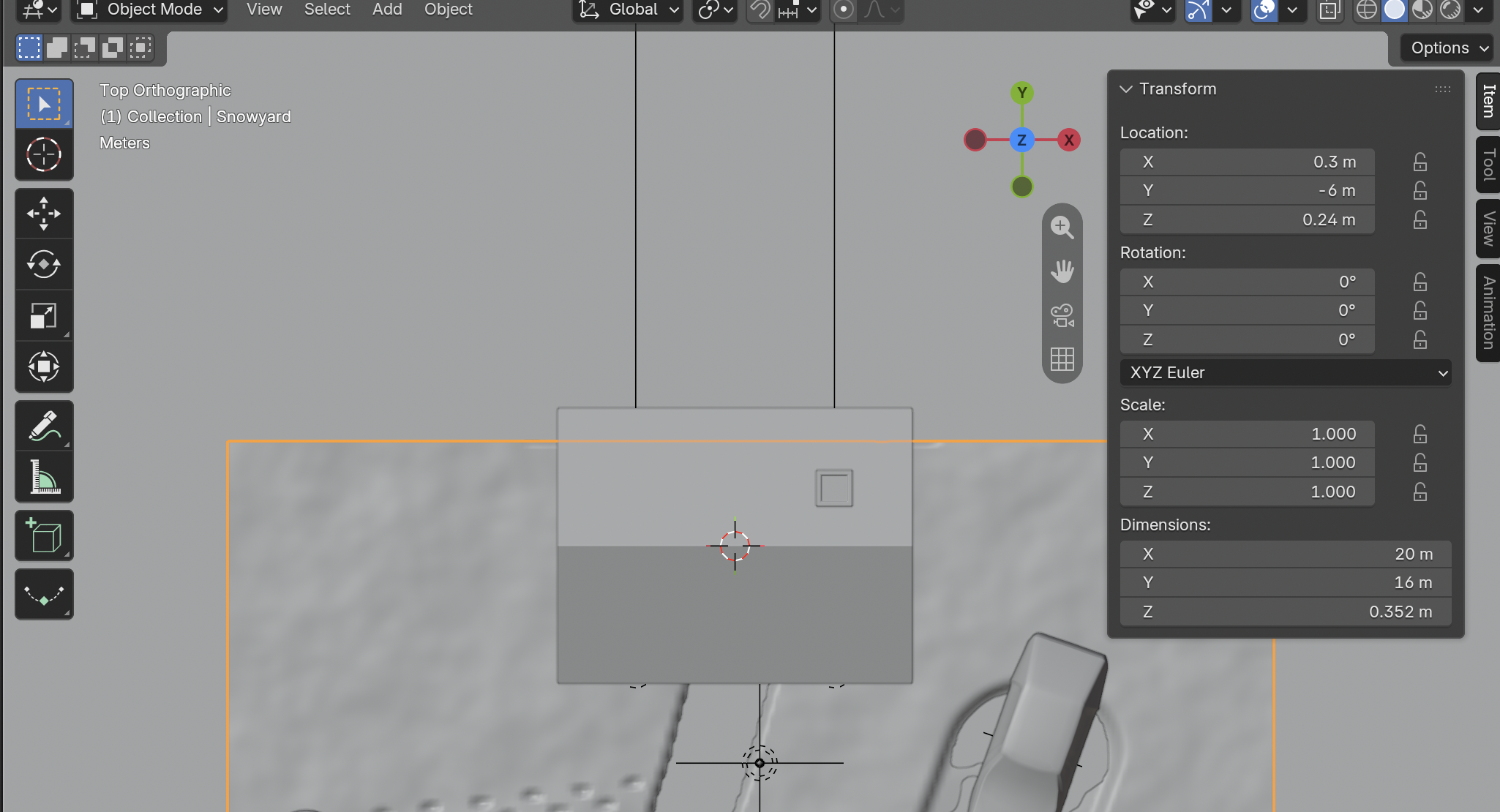
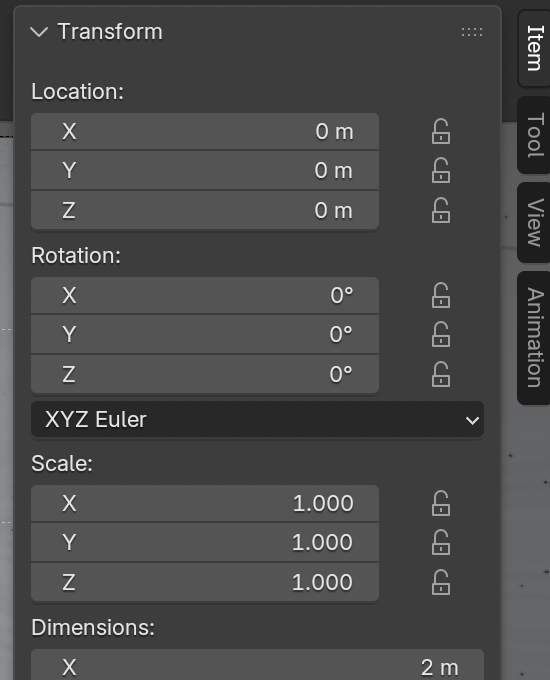
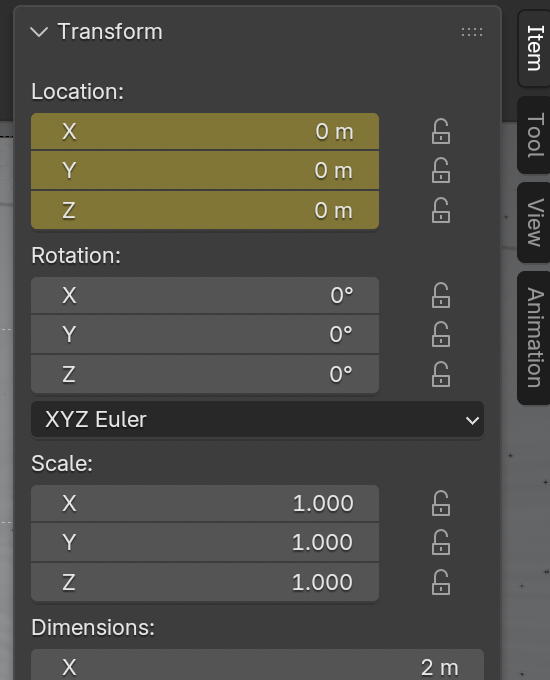
Item sidebar: Location and Dimensions · Location.Result in the native demonstration. Check the selected object, state and values against this view.
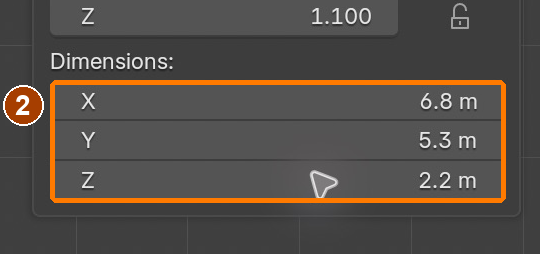
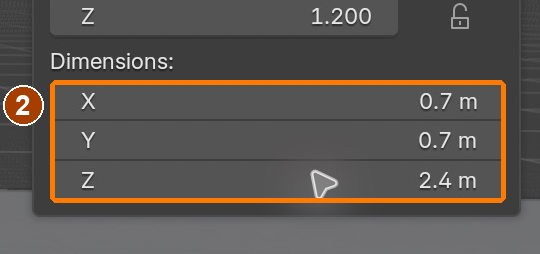
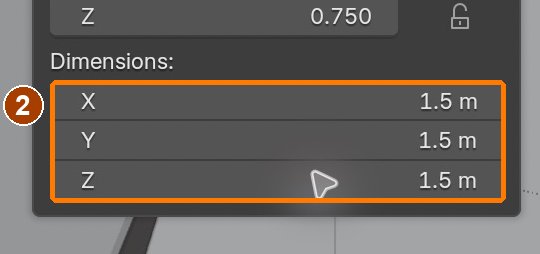
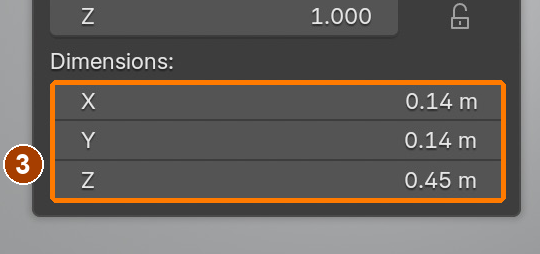
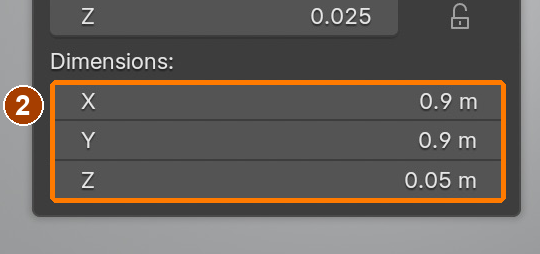
Item sidebar: Location and Dimensions · Dimensions.Result in the native demonstration. Check the selected object, state and values against this view.
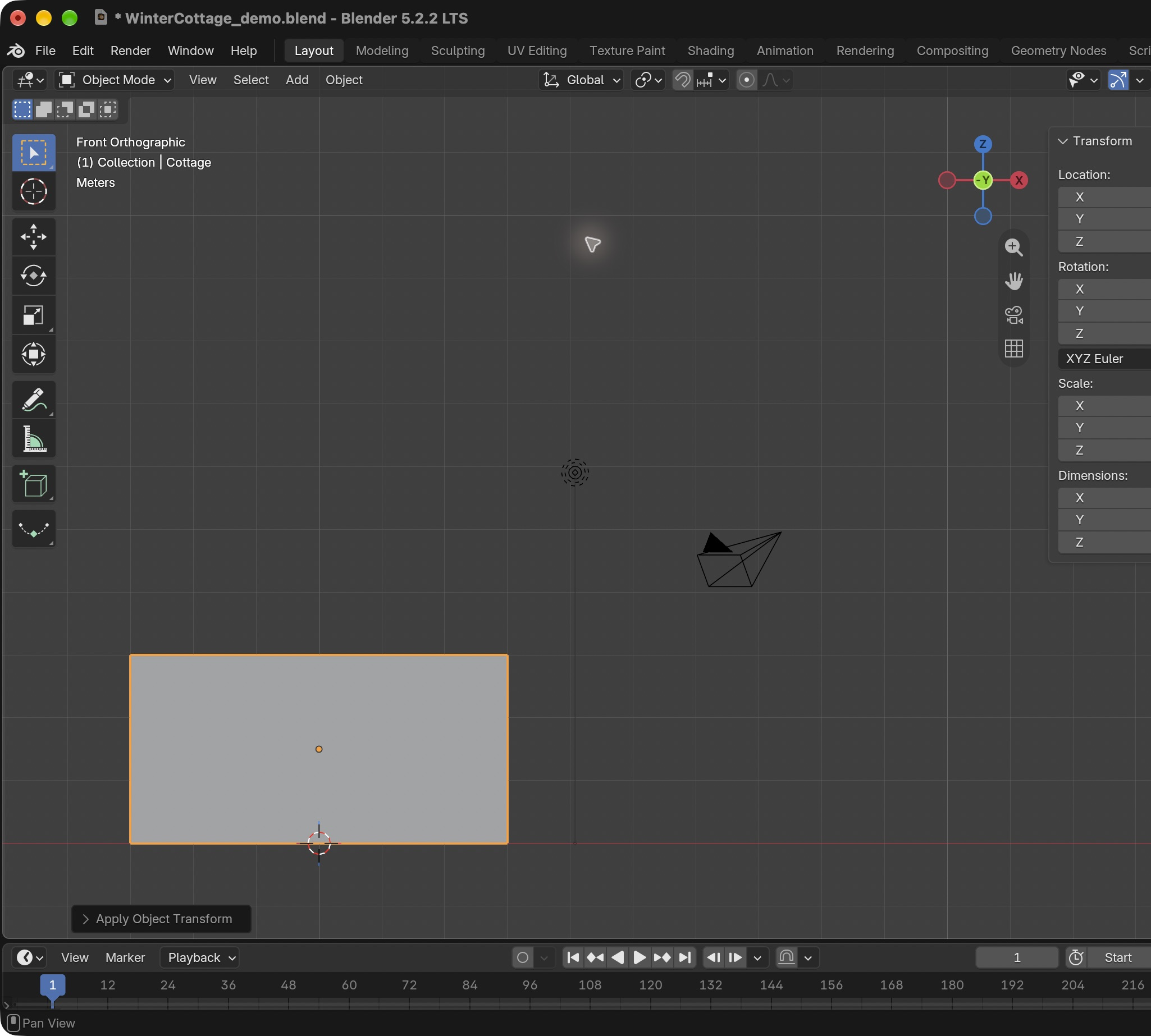
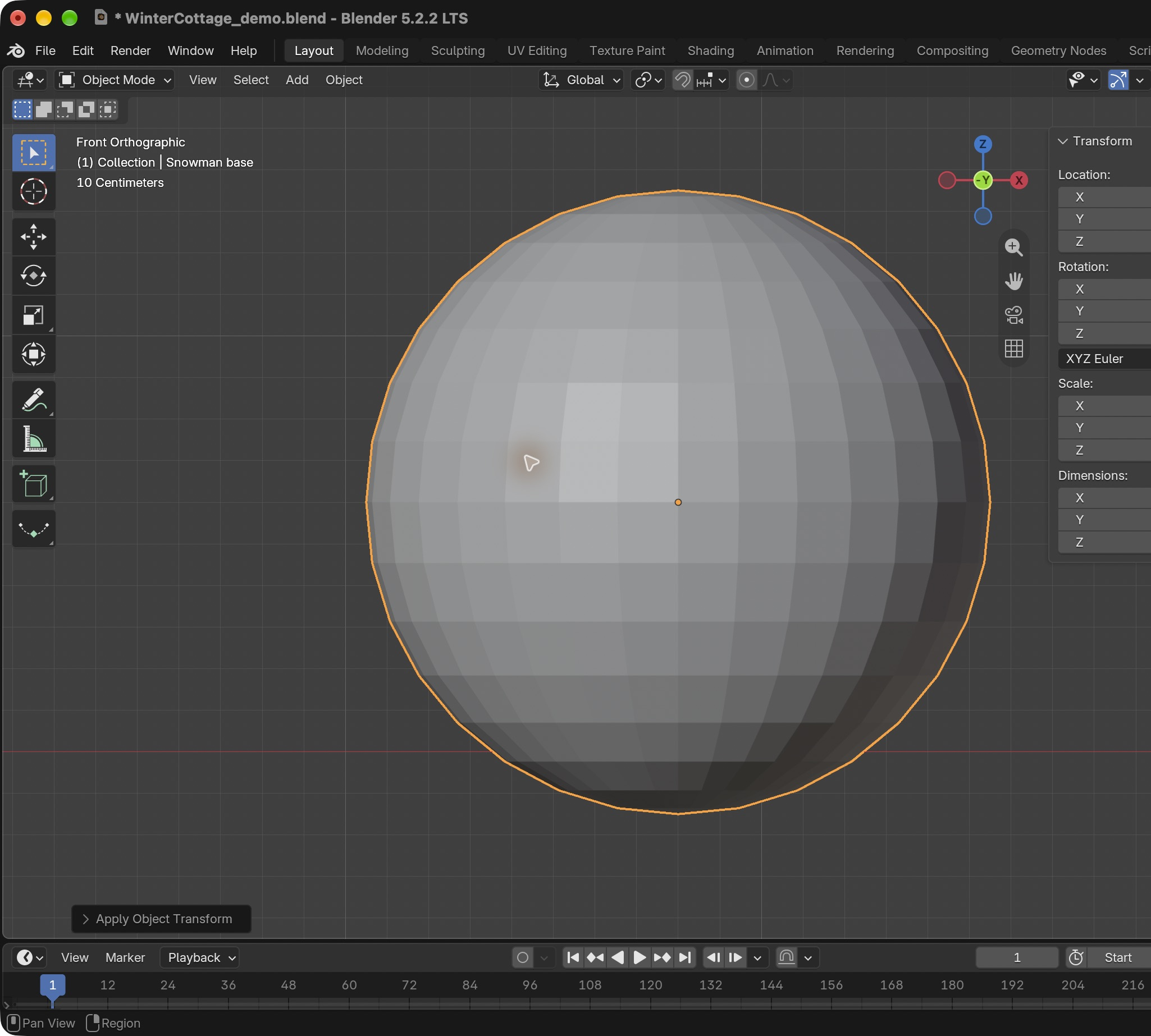
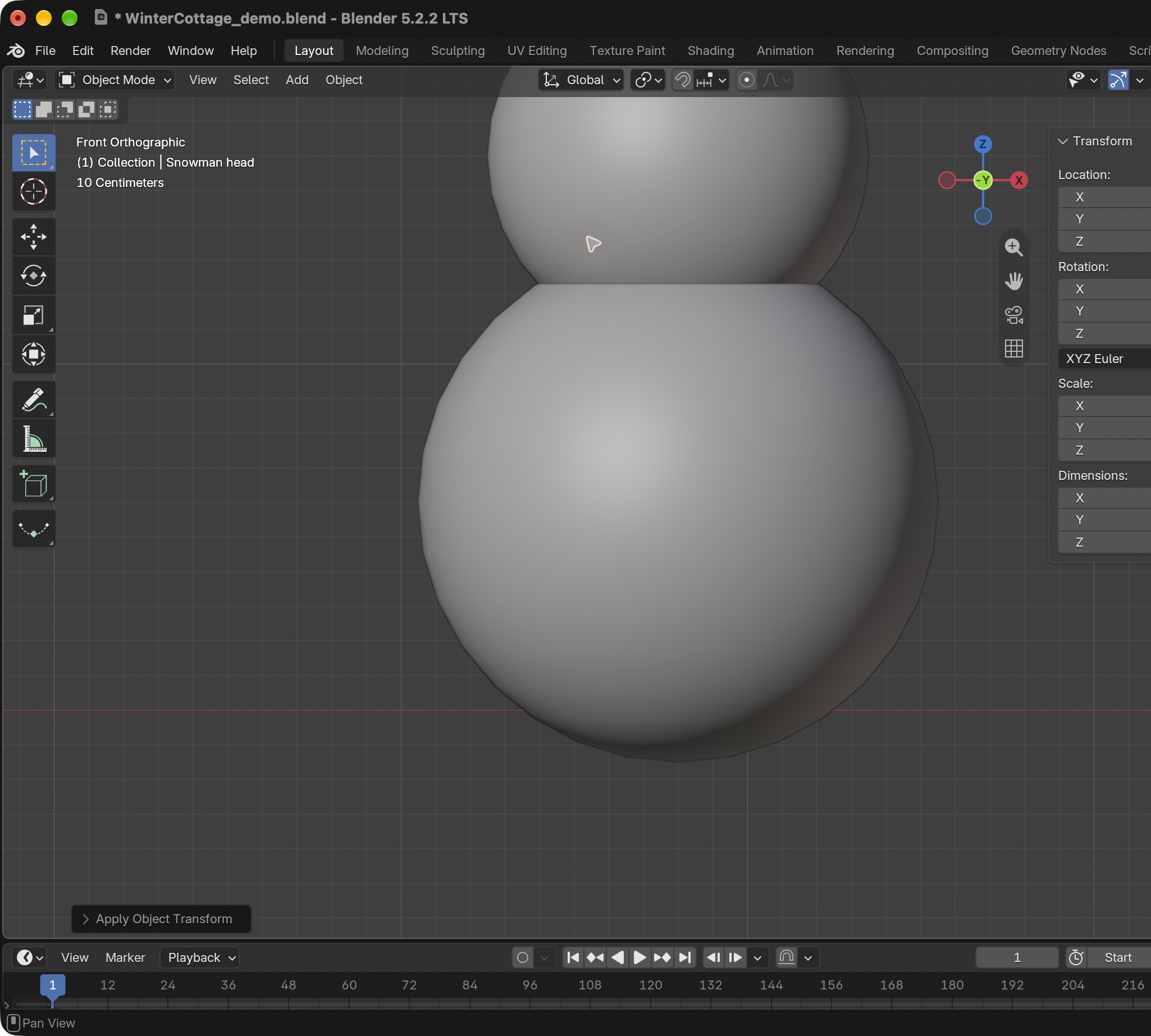
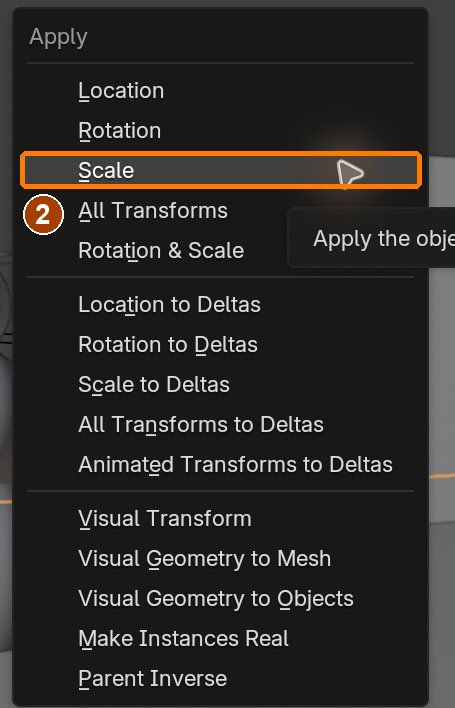
Object > Apply > ScaleResult in the native demonstration. Check the selected object, state and values against this view.
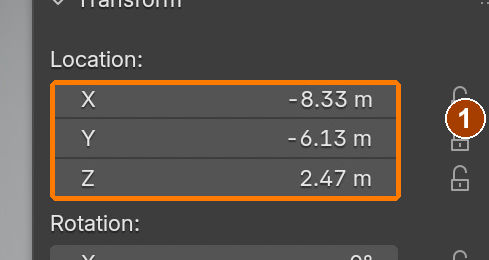
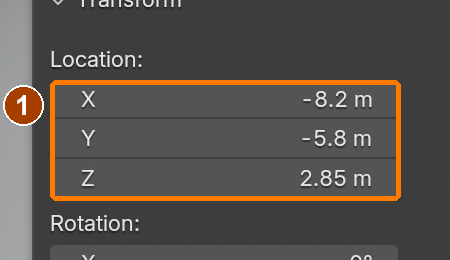
Item sidebar: Location and Dimensions · Location.Result in the native demonstration. Check the selected object, state and values against this view.
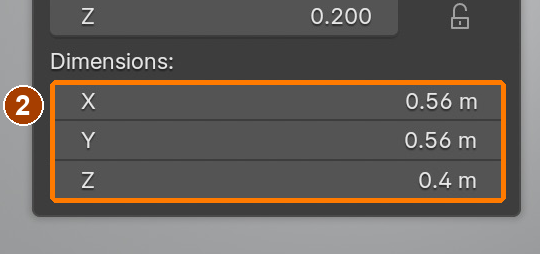
Item sidebar: Location and Dimensions · Dimensions.Result in the native demonstration. Check the selected object, state and values against this view.
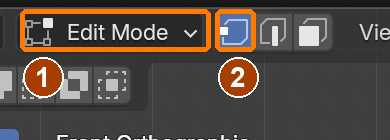
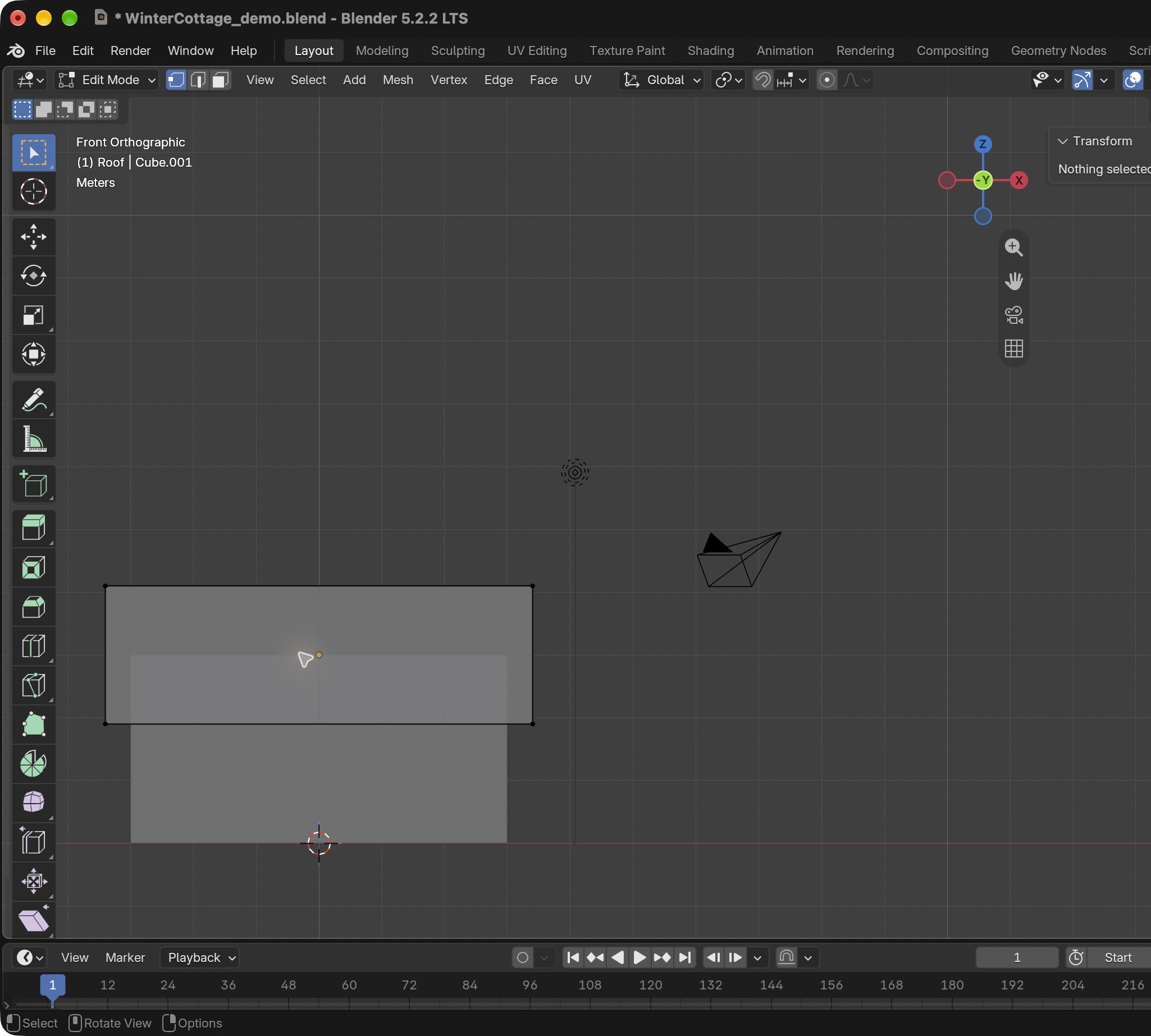
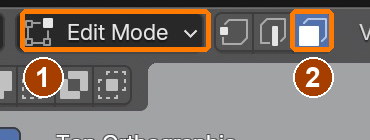
Edit Mode, Vertex Select and X-RayResult in the native demonstration. Check the selected object, state and values against this view.
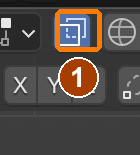
X-Ray toggleResult in the native demonstration. Check the selected object, state and values against this view.
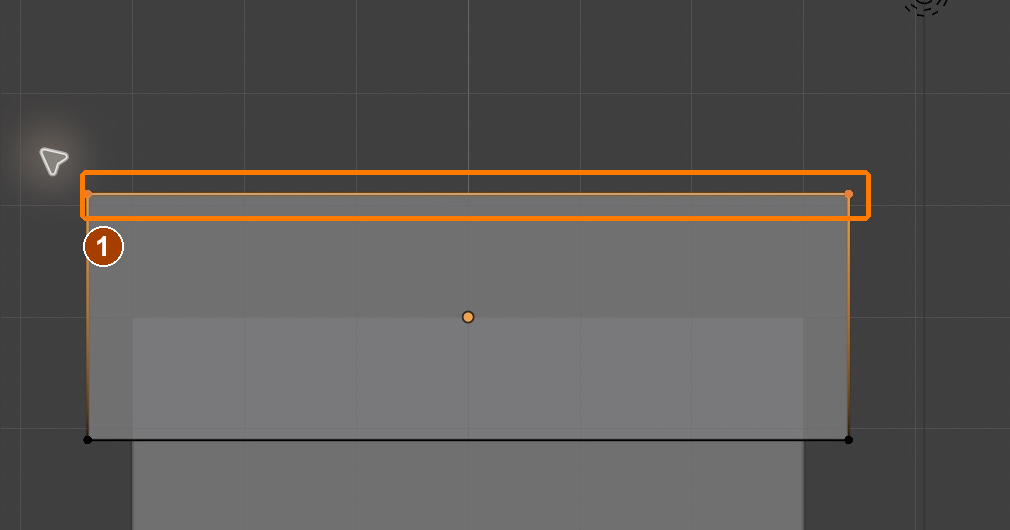
Box-select the four top verticesResult in the native demonstration. Check the selected object, state and values against this view.
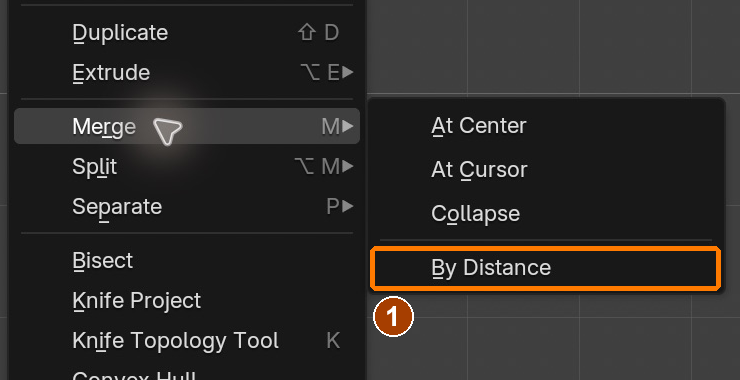
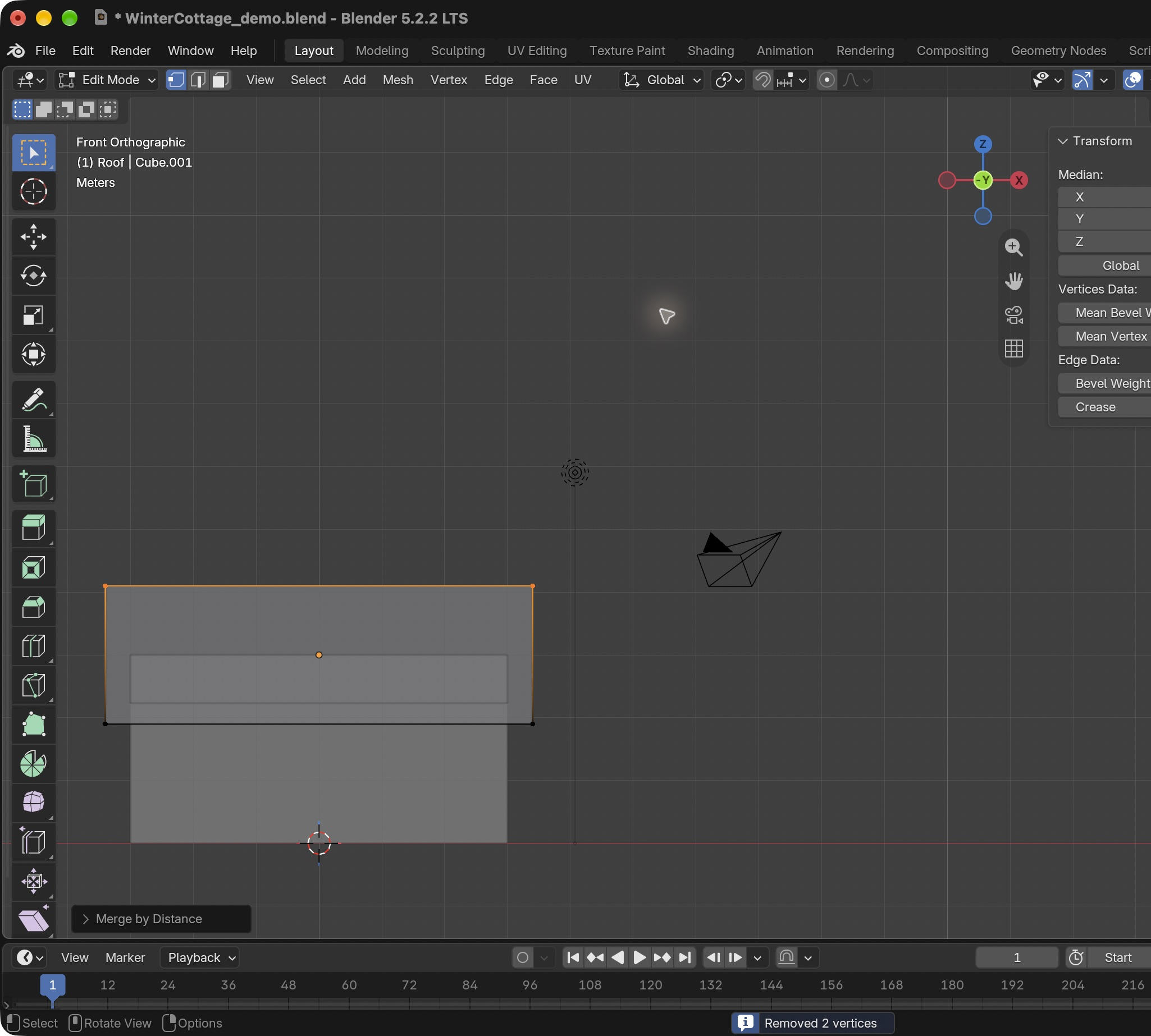
Mesh > Merge > By DistanceResult in the native demonstration. Check the selected object, state and values against this view.
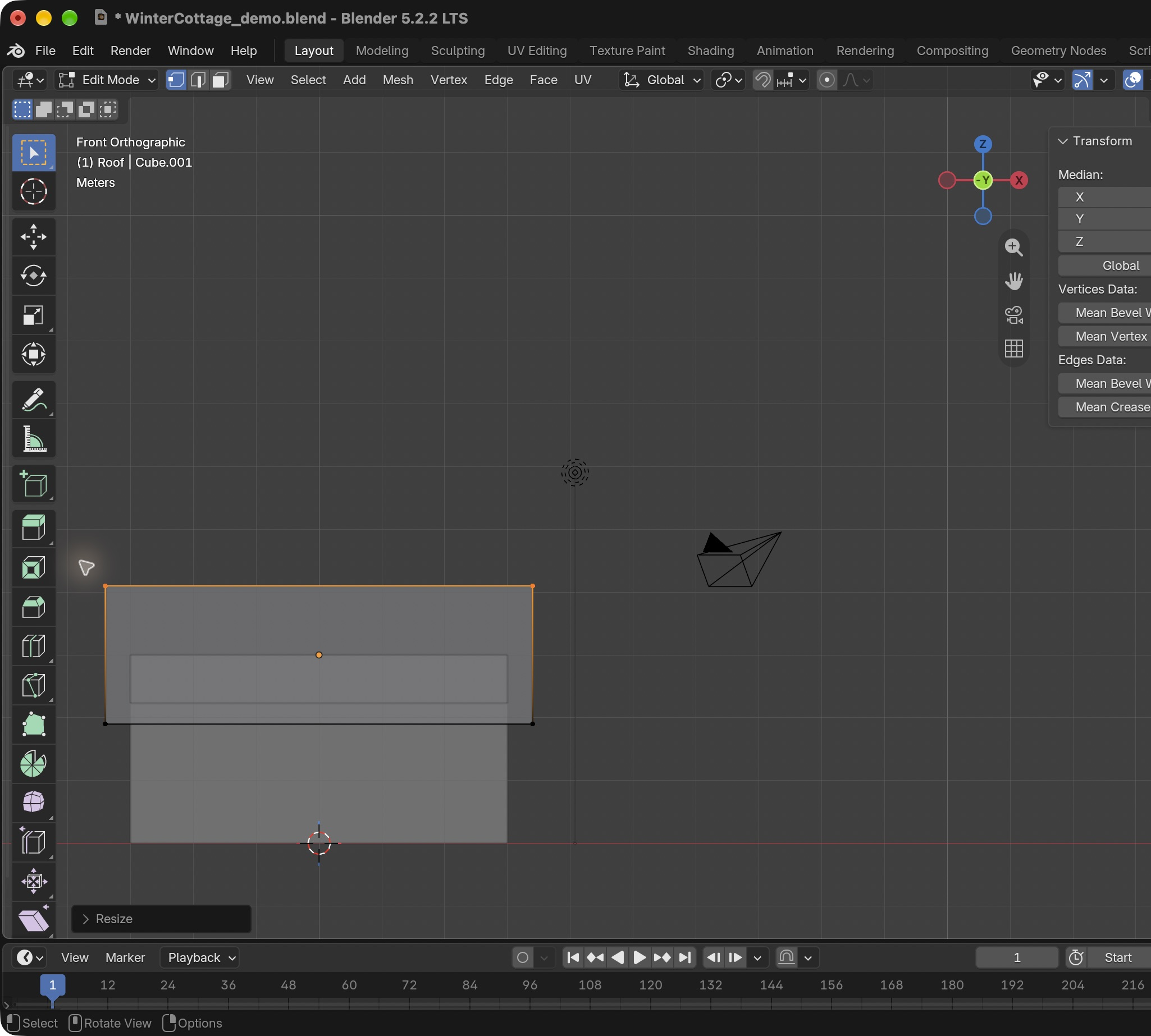
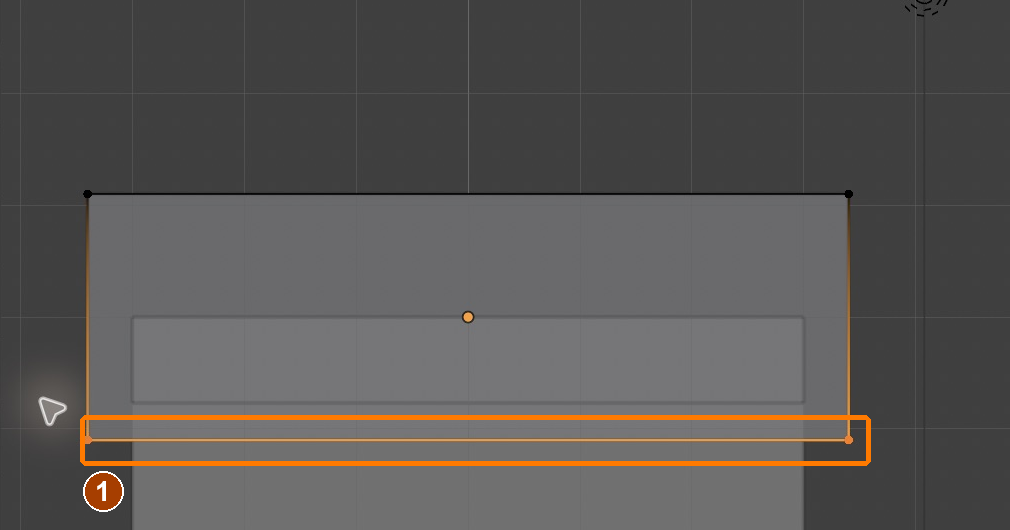
Box-select the bottom verticesResult in the native demonstration. Check the selected object, state and values against this view.
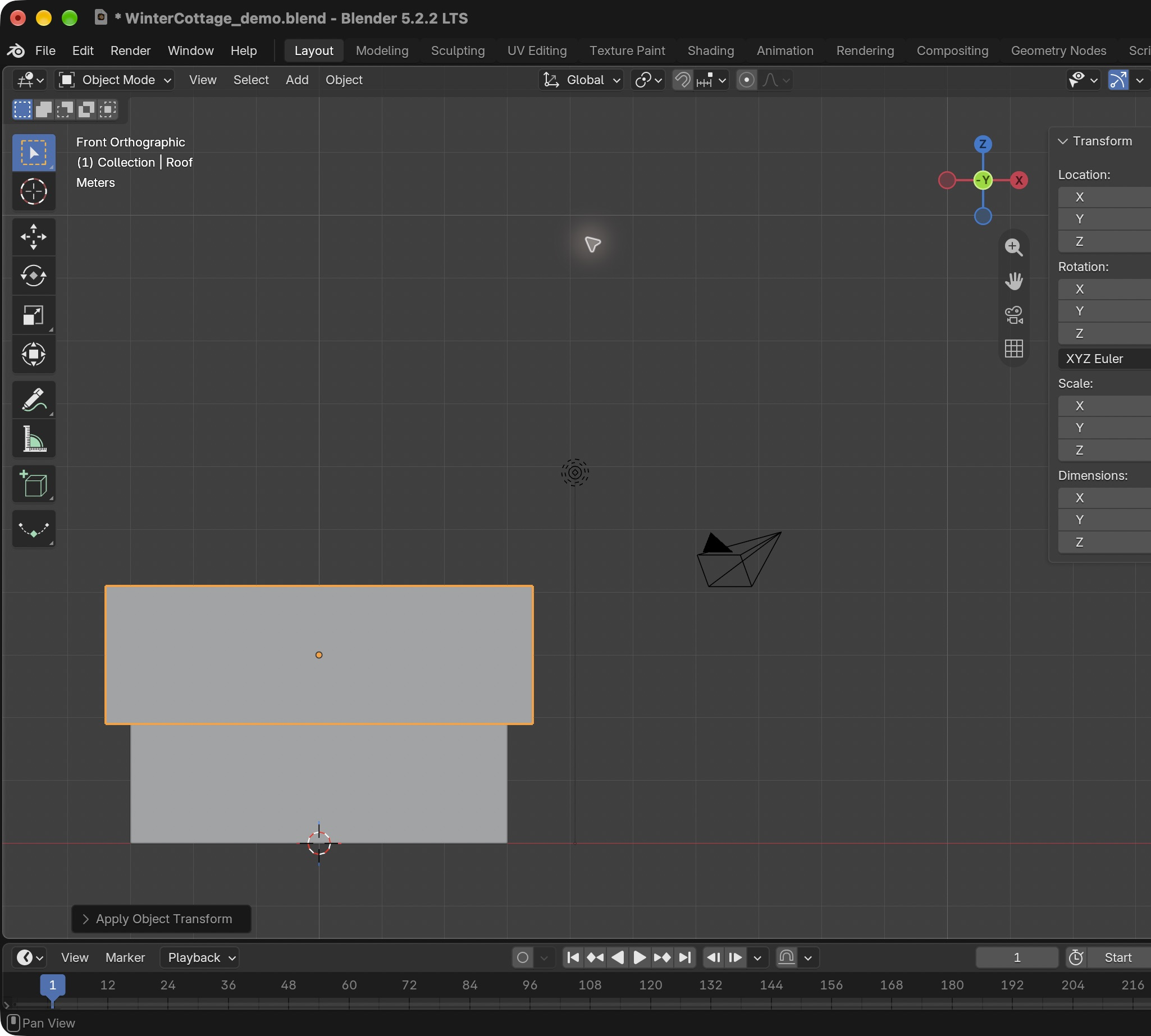
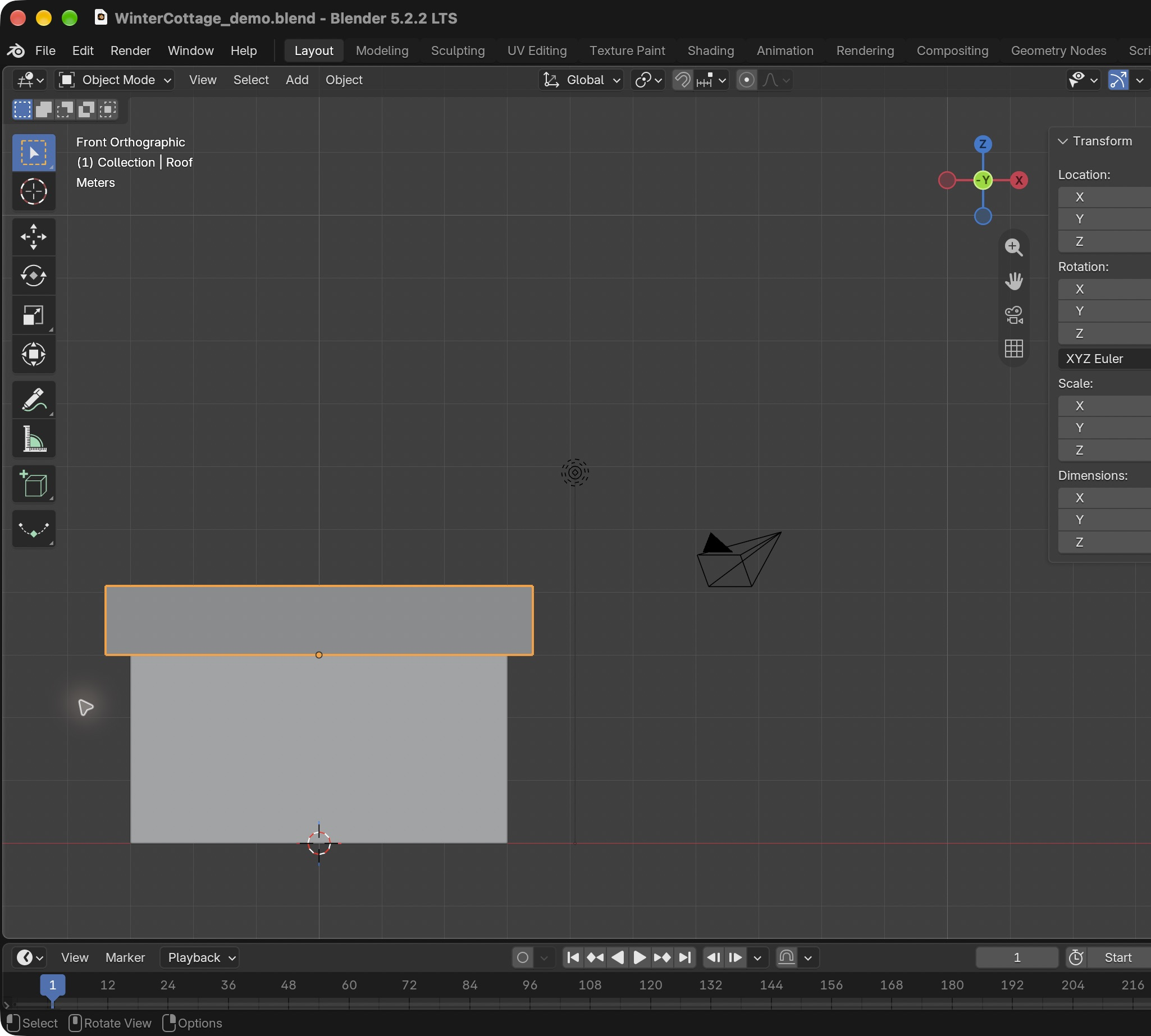
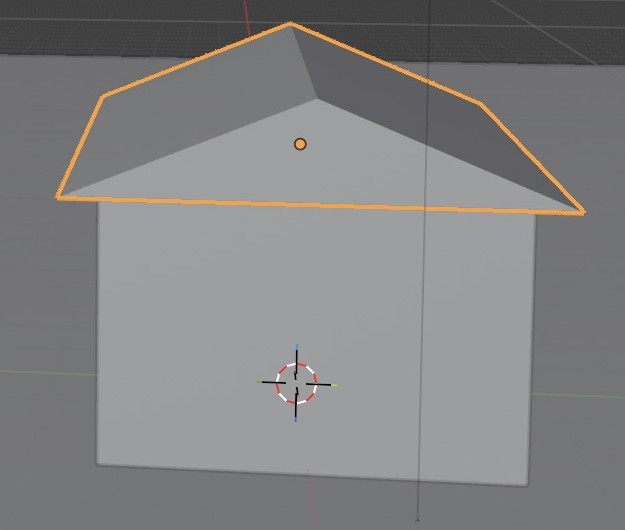
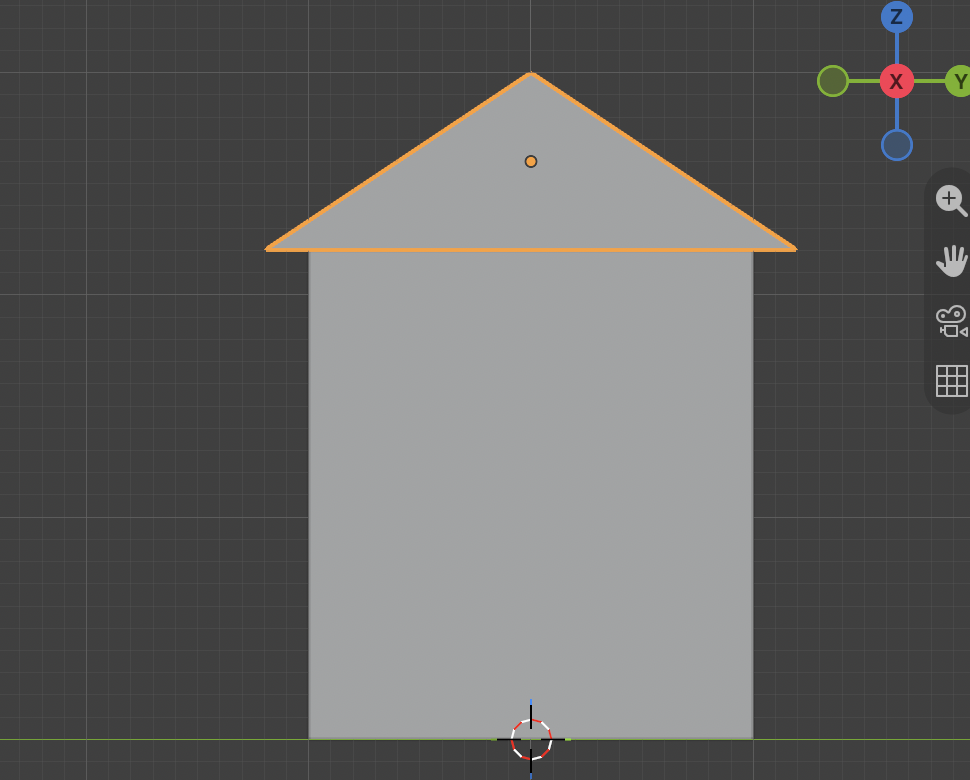
Object Mode is active after Tab. Orbit with the view gizmo; the selected roof remains seated.Result in the native demonstration. Check the selected object, state and values against this view.
X-Ray is off: the overlapping-squares button is dark.Result in the native demonstration. Check the selected object, state and values against this view.
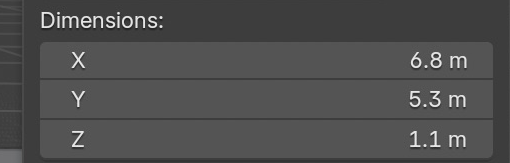
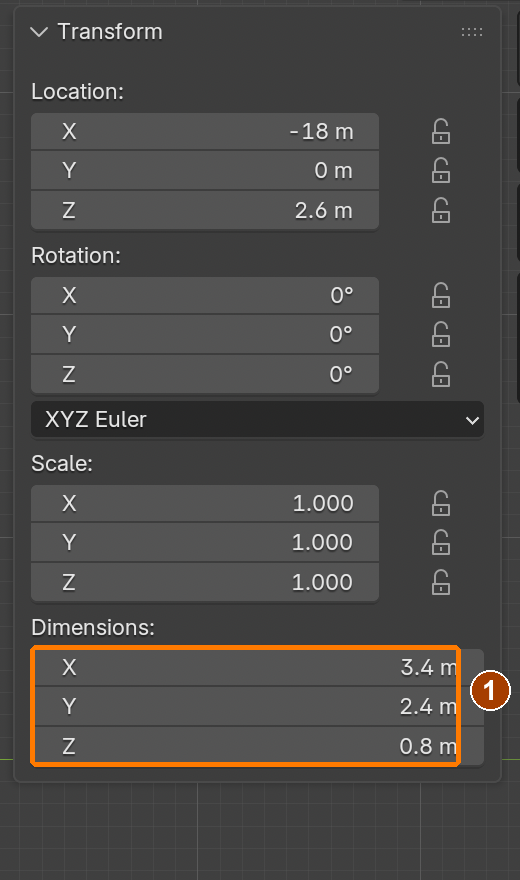
Different-object practice: roof dimensions are 3.4 × 2.4 × 0.8 m; its bottom meets the 2.2 m shed walls. Check the seat in Right view.Result in the native demonstration. Check the selected object, state and values against this view.
EXPLANATION FRAMESI used ___ Mode to change ___. The roof seats at Z ___ because ___.
STEP CHECKLIST
Tick each action beside its instruction after checking the result. Ticks record progress on this device; they do not establish achievement.
GLOSSARY
Block-out: A quick model of the main shapes before detail
Dimensions: The real size of an object in metres
WHYPros block out big shapes first so the scene’s scale and composition are right before any detail. Typed values keep it exact.
CHECKA ground plane, a 6 × 4.5 × 3 m cottage, and a ridged roof that sits on the walls, all named.
FIXRoof distorted? Undo to the last selection. In Front view with X-Ray on, deselect everything and select only the stated top or bottom row; confirm the selected vertices before transforming.
WORKED EXAMPLE · DIFFERENT OBJECTDifferent building: a shed wall is 2.2 m high. A 0.8 m roof should have its base at 2.2 and ridge at 3.0. Draw those heights first; the seat follows the wall height rather than guessing by eye.
STRETCH (AFTER THE CHECK PASSES)Add an overhang: make the roof 20 cm wider than the walls on each side.
Method basis: B1 · V1. Values and sequence are authored for this project.
Session B · Lesson 2 · mm12-26-s06-d02
Model the details: chimney, door, windows, snowman.
Edit Mode turns boxes into a believable cottage, and simple spheres become a snowman with character.
TODAYChimney, door and windows (30 min), snowman (30 min).
04
Model the chimney, door and windows in Edit Mode
Building detail from faces
Inset creates a smaller face inside a face, leaving a border. Extrude extends the selected geometry; a negative distance here recesses the centre. A bevel replaces a sharp edge with a narrow surface that catches light. A modifier changes how a mesh is evaluated while keeping its underlying geometry editable. Selection matters: editing the wrong face or adding a modifier to the wrong object changes a different part of the scene.
Recall first (from last lesson, no peeking):
Which three keys move, rotate and scale, and how do you lock one to an axis?
Where do you type an exact size in metres?
What does a block-out leave out on purpose?
Say or write your answers, then check them against your file.
Application verification incomplete: actions 1, 2, 3, 4, 5, 6, 7, 8, 9 still need their complete run/capture/result evidence checked. Unproven procedures remain not yet run.
IN SHORTBuild the chimney, door and two windows with exact transforms; inset and recess the selected faces; add small bevels.
READ ALOUD
DOCUMENT: WinterCottage_YourName.blend SELECT: A chimney cube, door and window cubes TOOLS / ROUTE: Edit Mode · Face Select button · I inset · E extrude · Bevel modifier
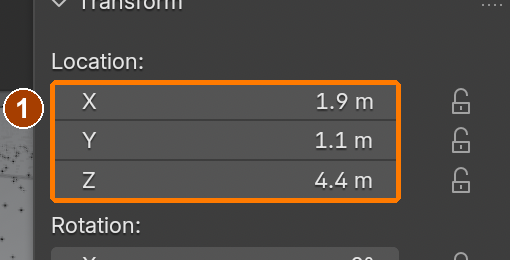
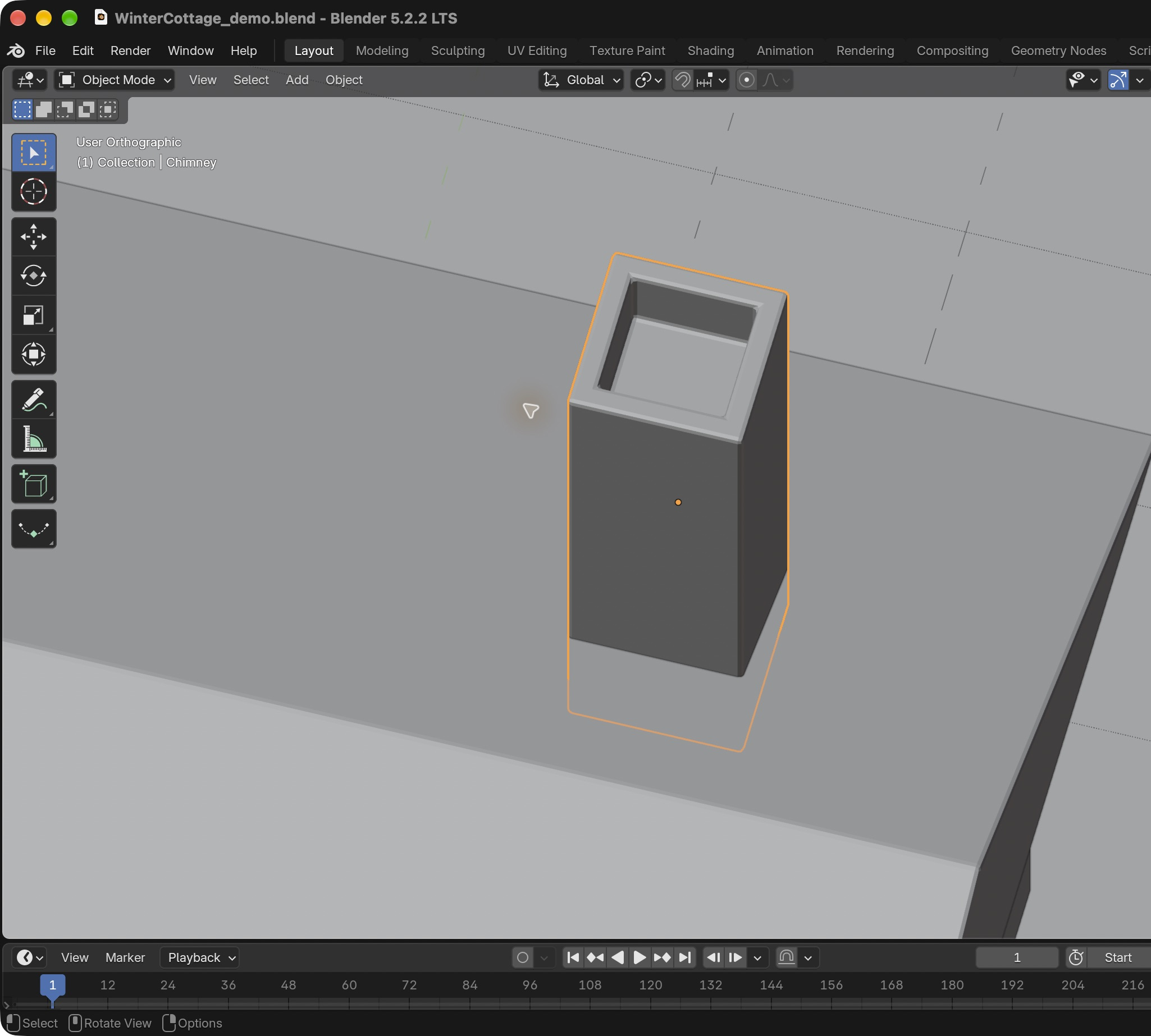
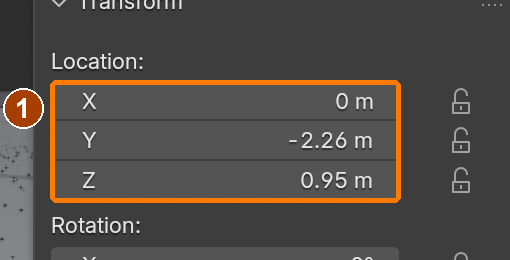
Chimney selected: Item sidebar Location. Clean native recapture after reopening.Result in the native demonstration. Check the selected object, state and values against this view.
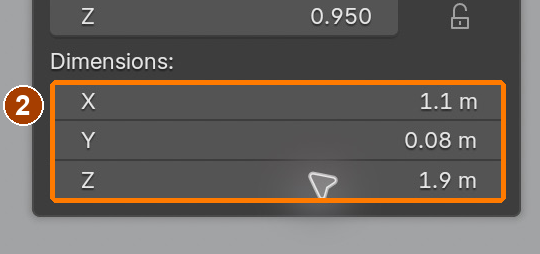
Item sidebar: Location and Dimensions · Dimensions.Result in the native demonstration. Check the selected object, state and values against this view.
Edit Mode and Face SelectResult in the native demonstration. Check the selected object, state and values against this view.
Select only chimney top faceResult in the native demonstration. Check the selected object, state and values against this view.
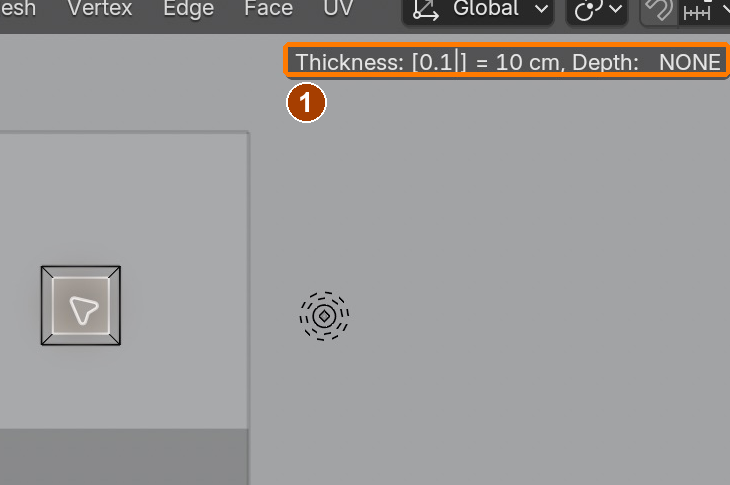
Inset thickness 0.1 mResult in the native demonstration. Check the selected object, state and values against this view.
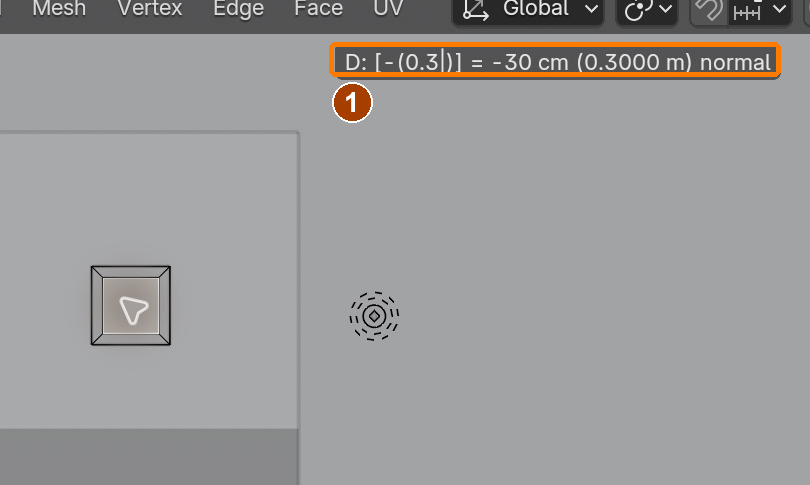
Extrude −0.3 m along normalResult in the native demonstration. Check the selected object, state and values against this view.
Door selected: Item sidebar Location. Clean native recapture after reopening.Result in the native demonstration. Check the selected object, state and values against this view.
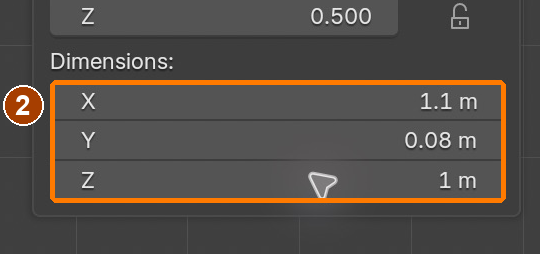
Item sidebar: Location and Dimensions · Dimensions.Result in the native demonstration. Check the selected object, state and values against this view.
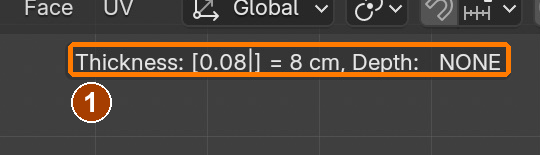
Inset thickness 0.08 mResult in the native demonstration. Check the selected object, state and values against this view.
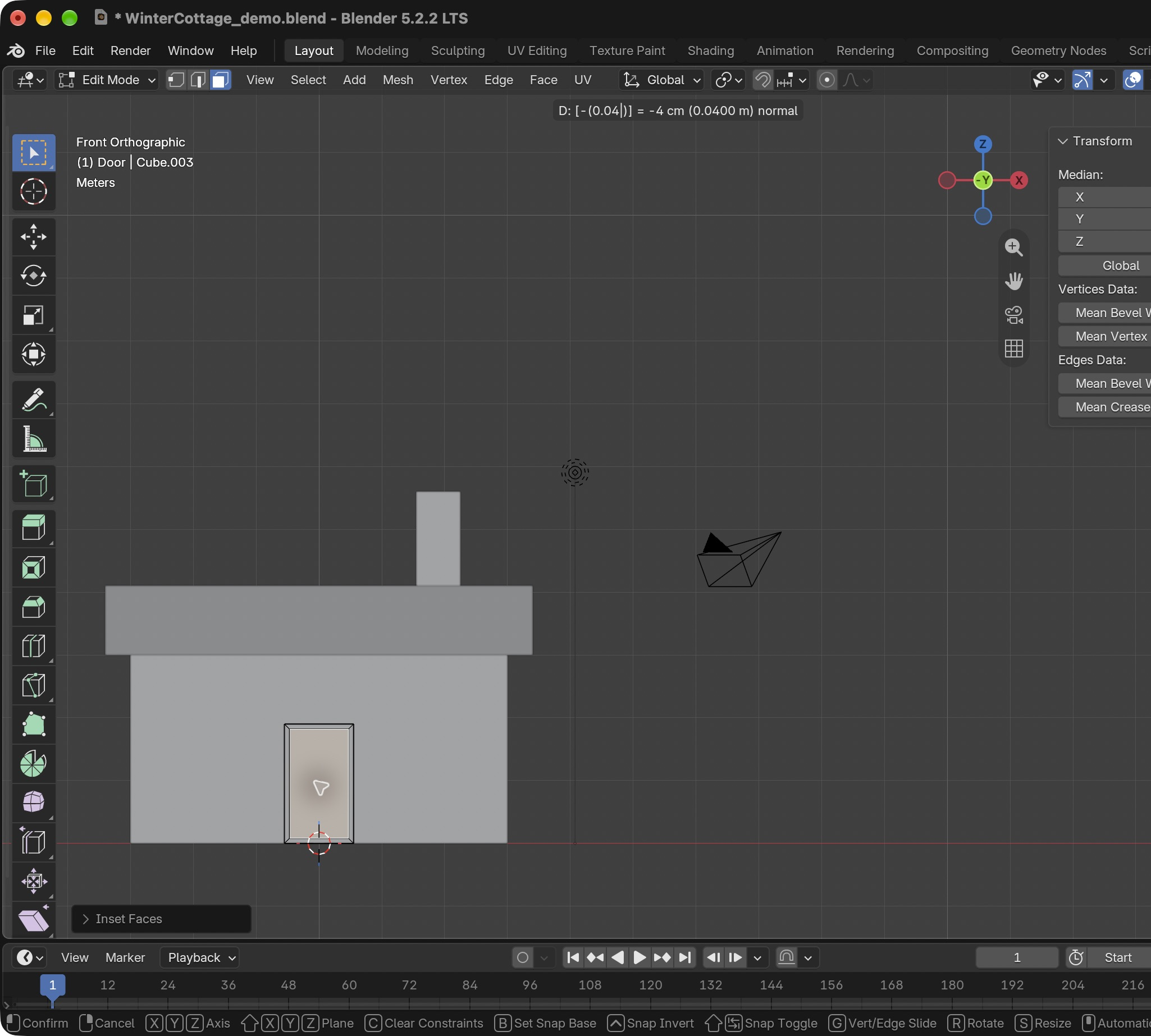
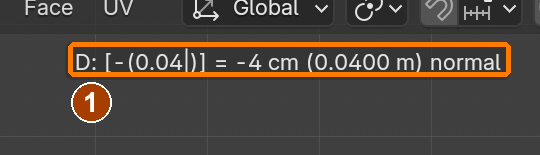
Extrude −0.04 m along normalResult in the native demonstration. Check the selected object, state and values against this view.
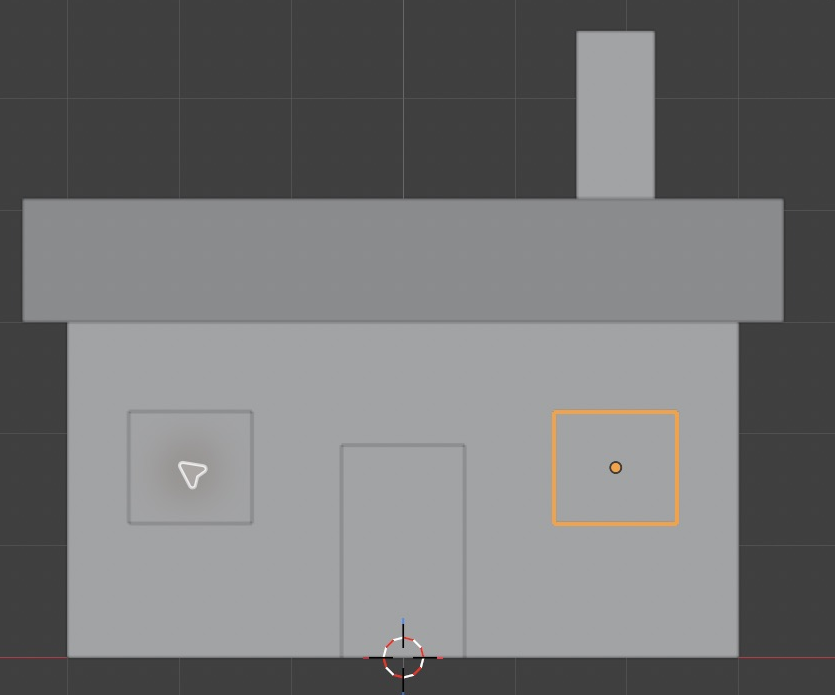
Window selected: Item sidebar Location. Clean native recapture after reopening.Result in the native demonstration. Check the selected object, state and values against this view.
Item sidebar: Location and Dimensions · Dimensions.Result in the native demonstration. Check the selected object, state and values against this view.
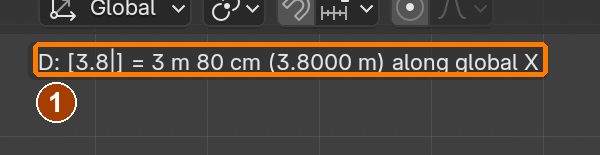
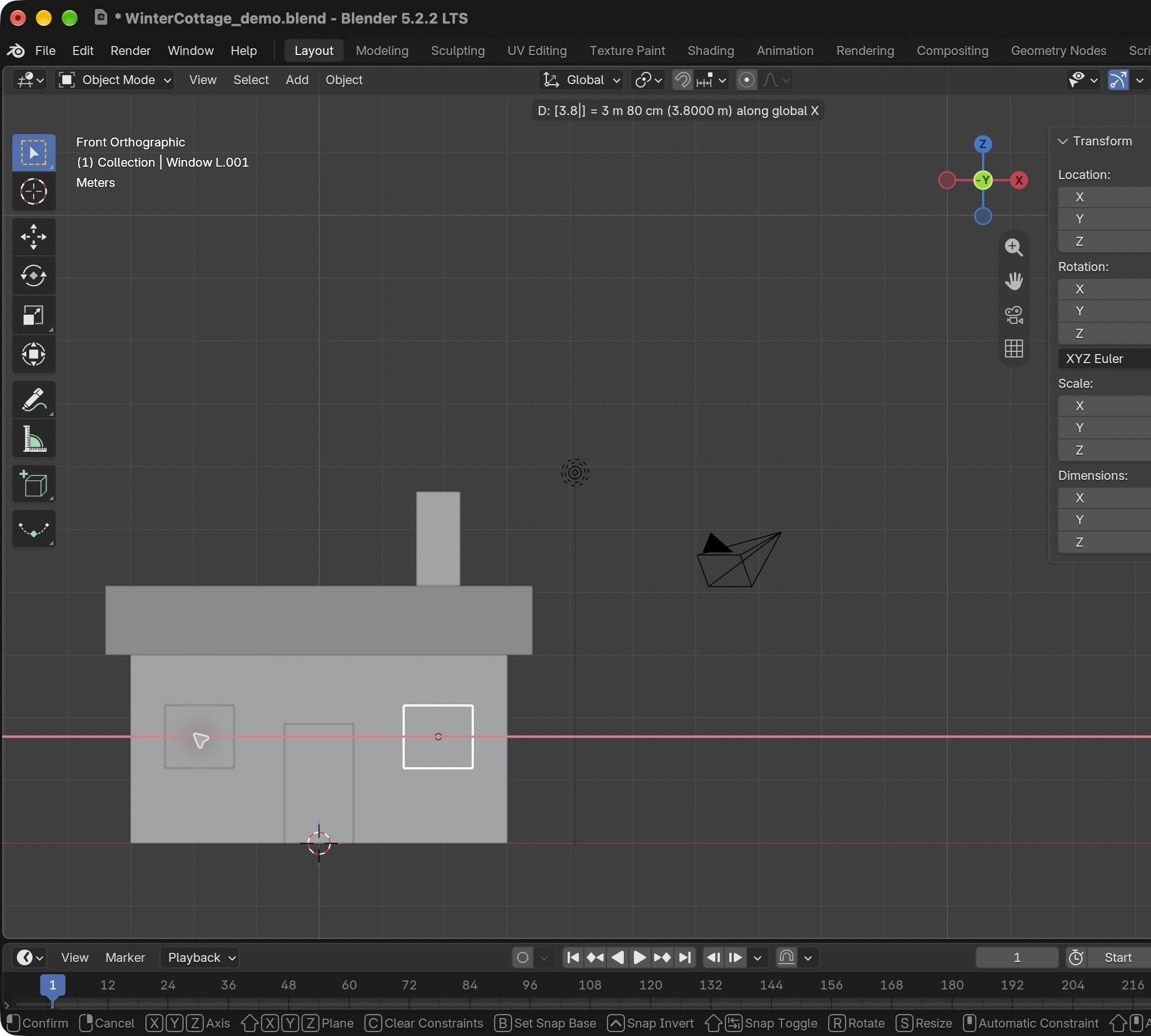
Shift+D X 3.8 mResult in the native demonstration. Check the selected object, state and values against this view.
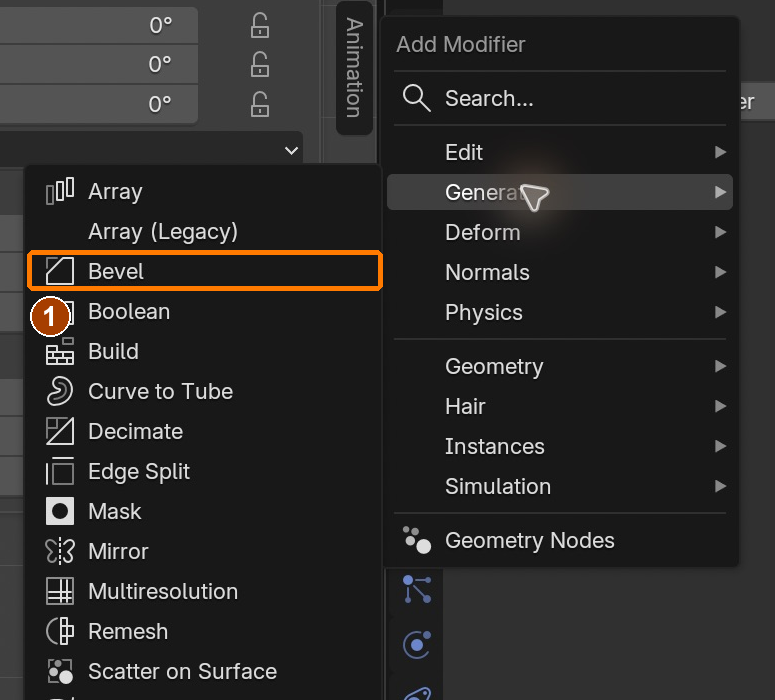
Add Modifier > Generate > BevelResult in the native demonstration. Check the selected object, state and values against this view.
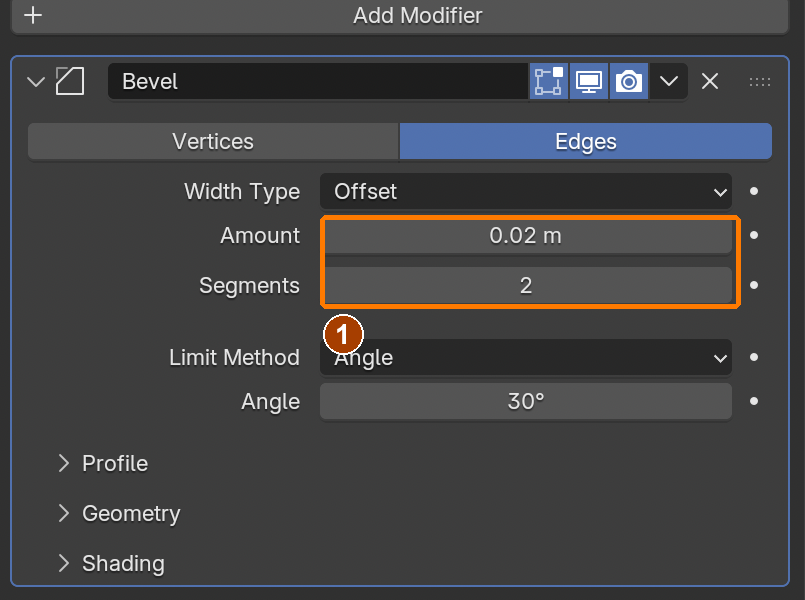
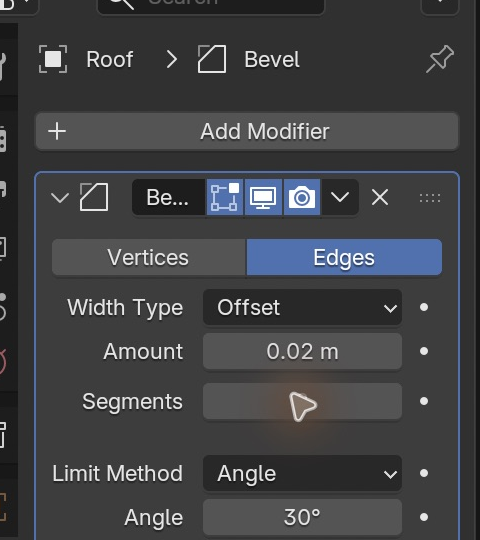
Bevel: Amount 0.02 and Segments 2Result in the native demonstration. Check the selected object, state and values against this view.
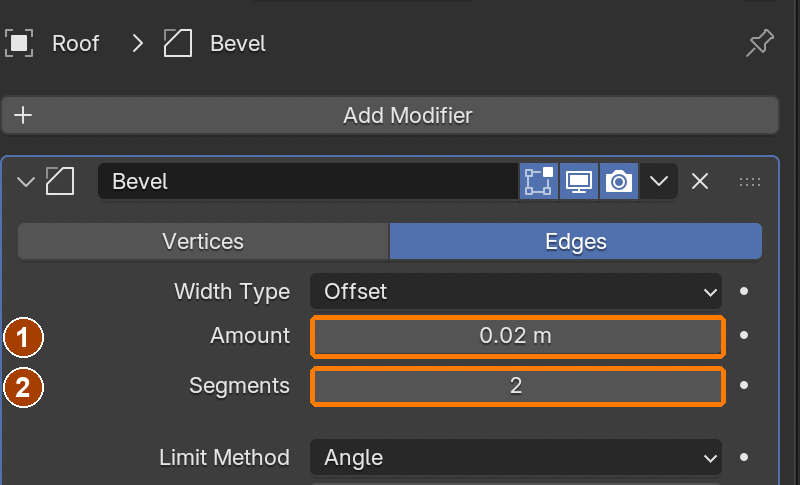
Roof selected: Bevel Amount 0.02 m and Segments 2.Result in the native demonstration. Check the selected object, state and values against this view.
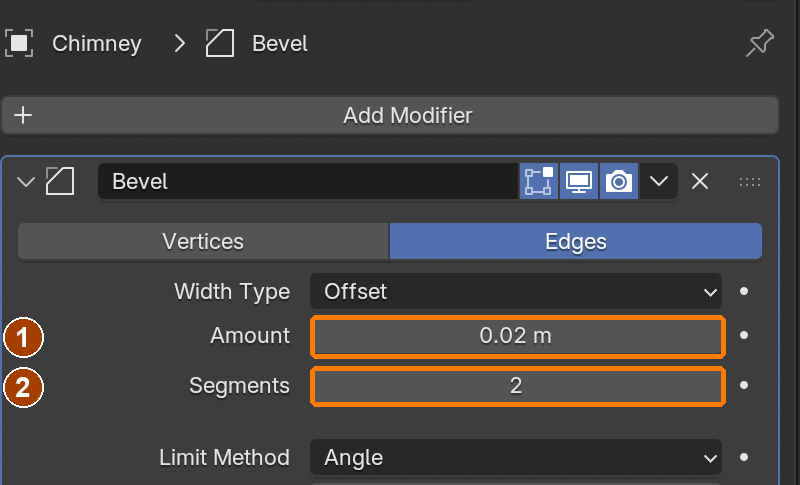
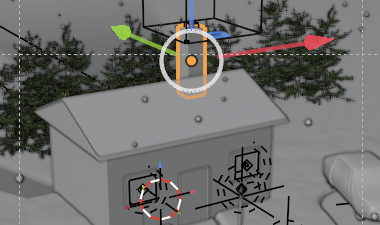
Chimney selected: Bevel Amount 0.02 m and Segments 2.Result in the native demonstration. Check the selected object, state and values against this view.
The native Saved message confirms the opaque-window checkpoint was written. Step 7 adds the centre-face glow and external lights.Result in the native demonstration. Check the selected object, state and values against this view.
EXPLANATION FRAMESInset created ___. Extrude changed ___. My bevel width is appropriate because ___.
A mistake from the actual build
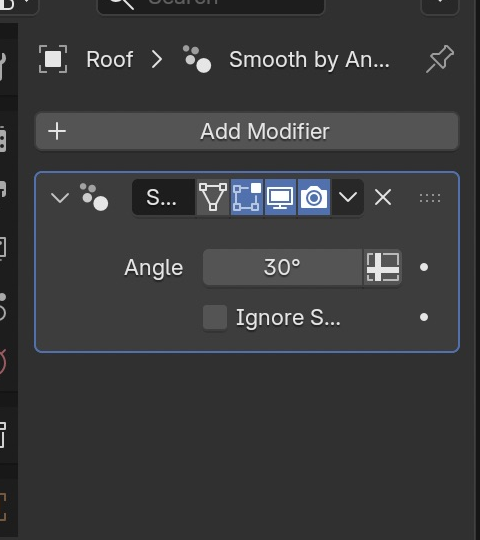
Wrong · The roof received Smooth by Angle when I chose the wrong modifier search result.Right · I removed that modifier and added Bevel. Check the modifier name before setting Amount 0.02 m and Segments 2.
Diagnose: intended result → observed mismatch → likely cause → one change → test.
STEP CHECKLIST
Tick each action beside its instruction after checking the result. Ticks record progress on this device; they do not establish achievement.
GLOSSARY
Inset: Creates a smaller face inside a face
Extrude: Pulls new geometry out of (or into) a surface
WHYInset and extrude are the two moves that turn simple blocks into detailed models. Bevels make edges look manufactured, not perfect.
CHECKA hollow-topped chimney through the roof, framed door and windows, and bevelled edges.
FIXInset joined faces together? Press I twice for individual insets. Bevel huge? Apply scale first (Ctrl/Cmd+A › Scale).
WORKED EXAMPLE · DIFFERENT OBJECTDifferent object: a 0.5 m planter cube has its top inset by 0.05 m and extruded -0.2 m. The rim stays level while the inner face descends. A 0.01 m bevel catches a highlight without rounding away the rim.
STRETCH (AFTER THE CHECK PASSES)Add a window box or shutters using the same inset and extrude moves.
Method basis: B2 · V1. Values and sequence are authored for this project.
05
Build the snowman
Shape, shading and materials
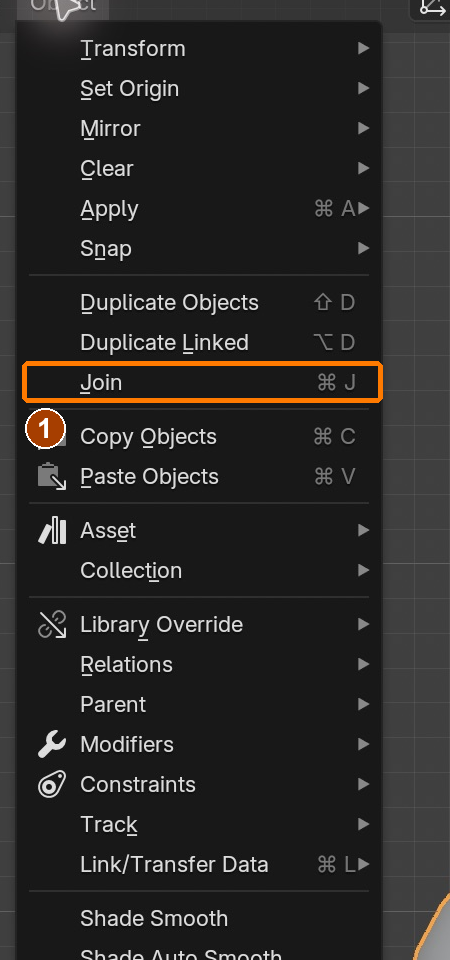
A material describes how a surface responds to light. Base Color sets its colour; Roughness controls how broad its reflections are. Shade Smooth interpolates shading across faces so a sphere looks rounded; it does not add geometry. Join combines selected mesh objects into one object while retaining their material slots. The active object is the last selected object and supplies the joined object’s origin.
Application verification incomplete: actions 1, 2, 3, 4, 5, 6, 7, 8 still need their complete run/capture/result evidence checked. Unproven procedures remain not yet run.
IN SHORTPlace eight pieces; assign Snow, Carrot and Coal before joining; keep the base active; check the separate practice sculpture.
READ ALOUD
DOCUMENT: WinterCottage_YourName.blend SELECT: Three spheres, a cone, small spheres, cylinders TOOLS / ROUTE: Add › Mesh · Material Properties · Shade Smooth · Object › Join
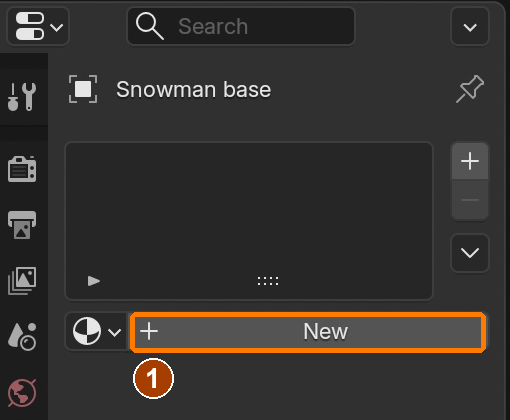
Material Properties > NewResult in the native demonstration. Check the selected object, state and values against this view.
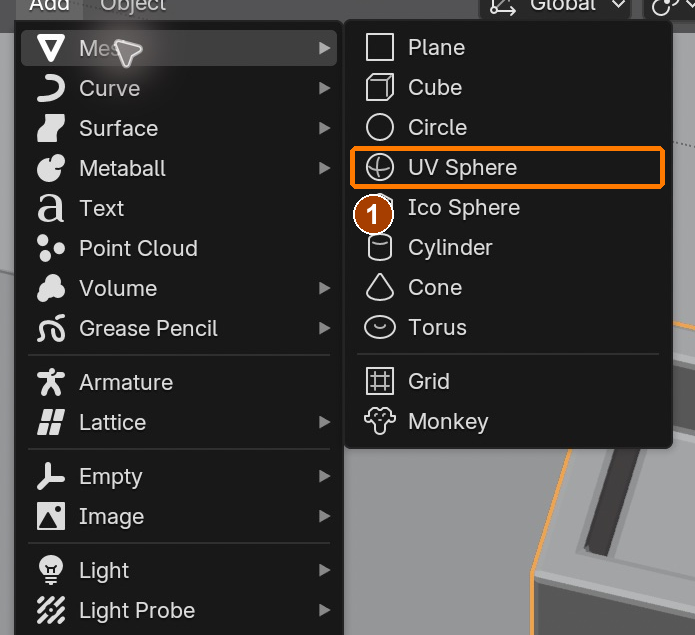
Add > Mesh > SphereResult in the native demonstration. Check the selected object, state and values against this view.
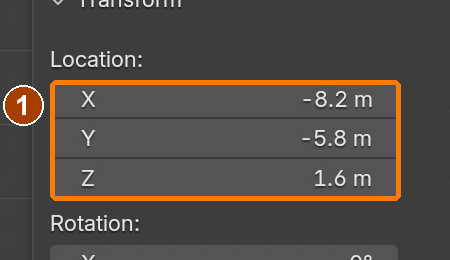
Item sidebar: Location and Dimensions · Location.Result in the native demonstration. Check the selected object, state and values against this view.
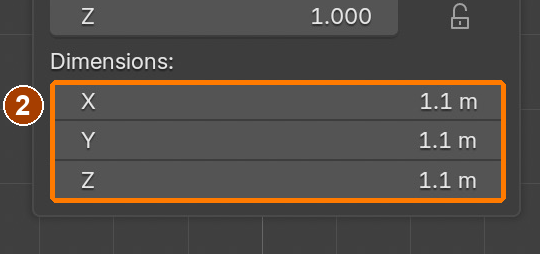
Item sidebar: Location and Dimensions · Dimensions.Result in the native demonstration. Check the selected object, state and values against this view.
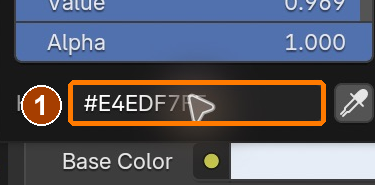
Snow Hex #E4EDF7; Roughness 0.72 · Base Color Hex #E4EDF7.Result in the native demonstration. Check the selected object, state and values against this view.
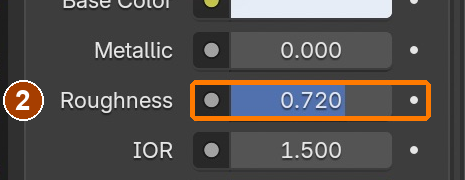
Snow Hex #E4EDF7; Roughness 0.72 · Roughness 0.72.Result in the native demonstration. Check the selected object, state and values against this view.
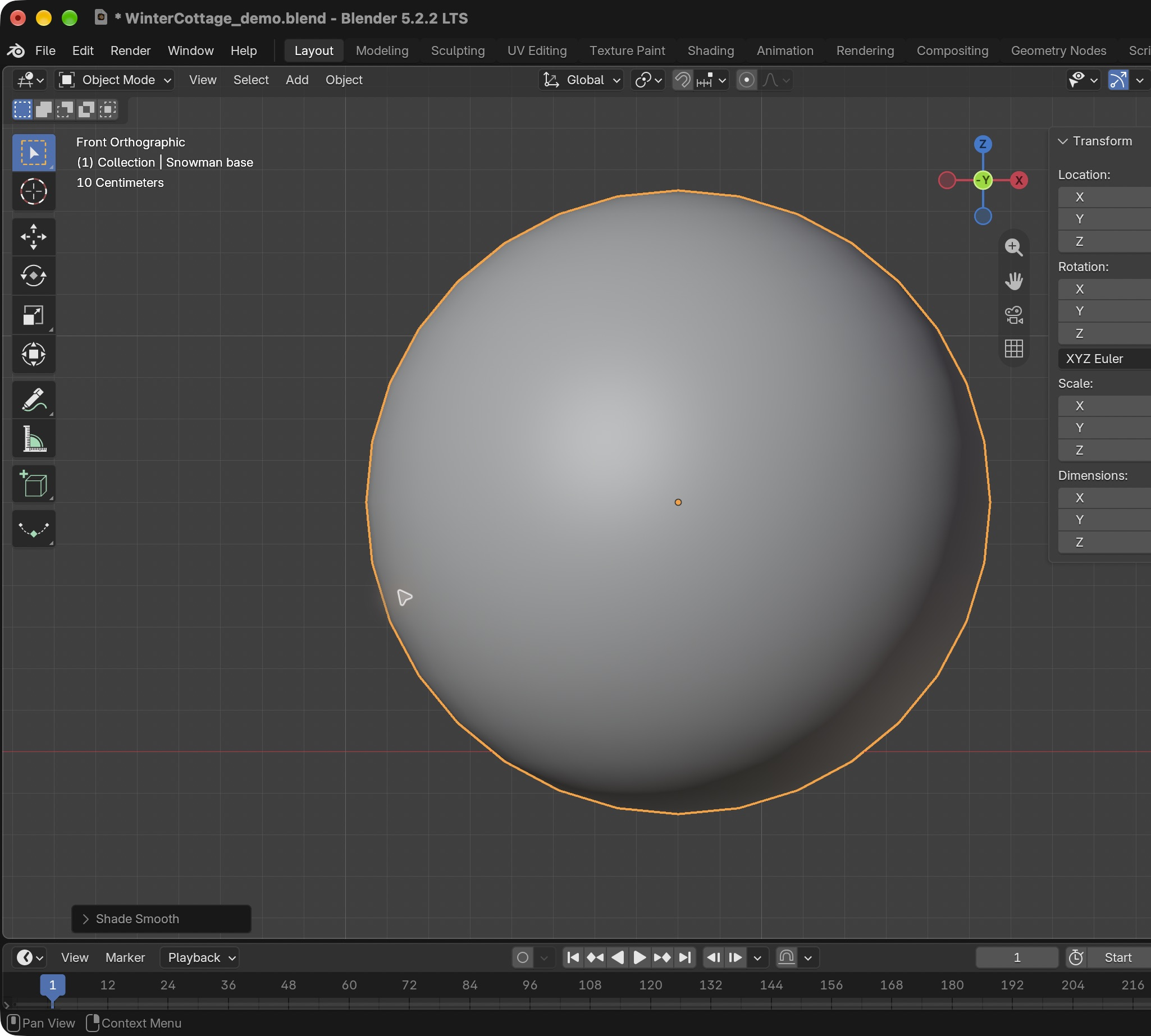
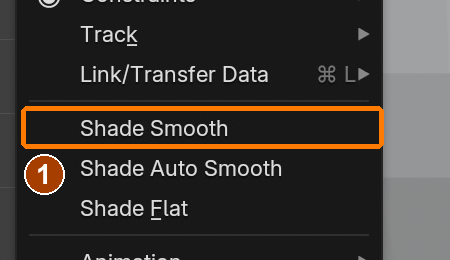
Object › Shade SmoothResult in the native demonstration. Check the selected object, state and values against this view.
Item sidebar: Location and Dimensions · Location.Result in the native demonstration. Check the selected object, state and values against this view.
Item sidebar: Location and Dimensions · Dimensions.Result in the native demonstration. Check the selected object, state and values against this view.
Item sidebar: Location and Dimensions · Location.Result in the native demonstration. Check the selected object, state and values against this view.
Item sidebar: Location and Dimensions · Dimensions.Result in the native demonstration. Check the selected object, state and values against this view.
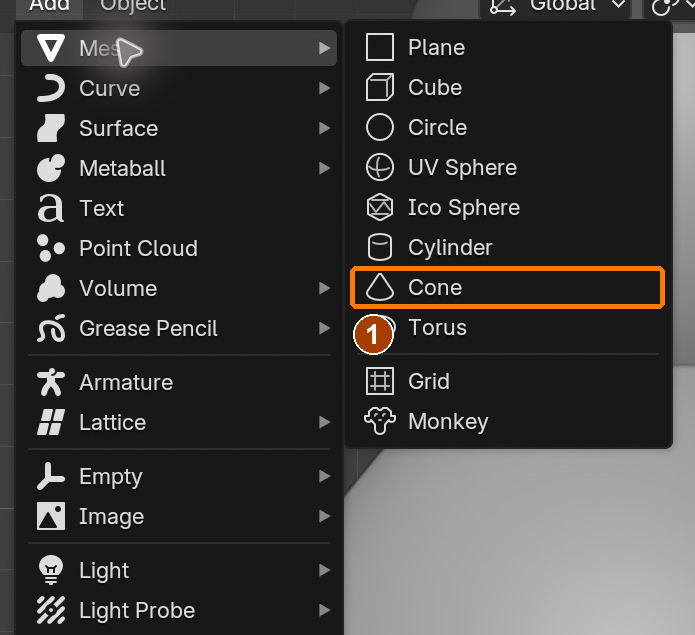
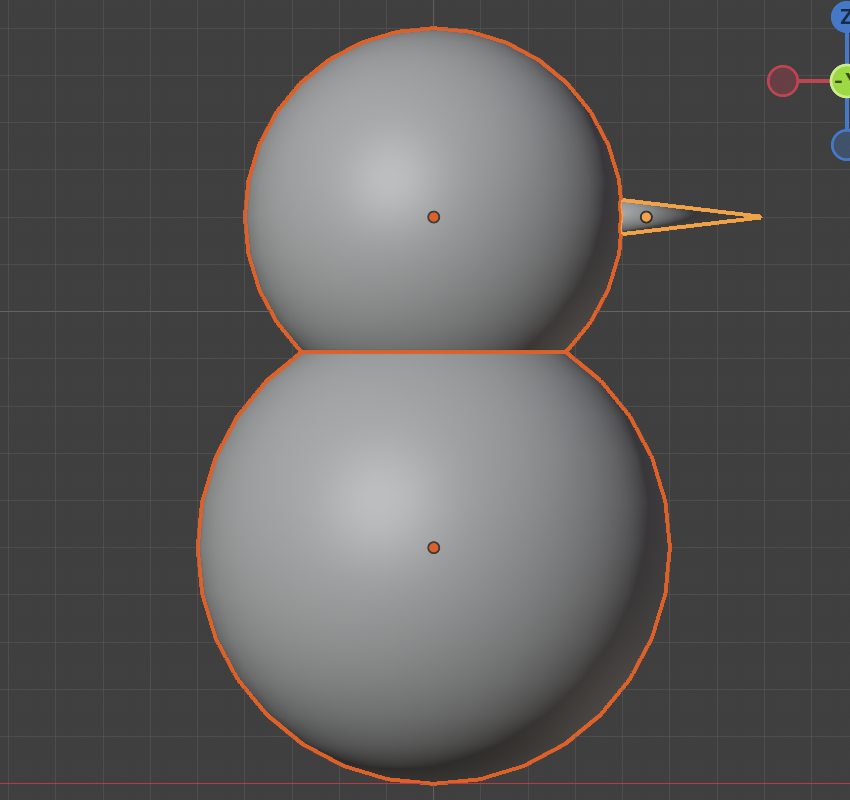
Add > Mesh > ConeResult in the native demonstration. Check the selected object, state and values against this view.
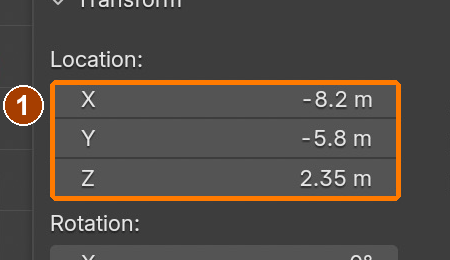
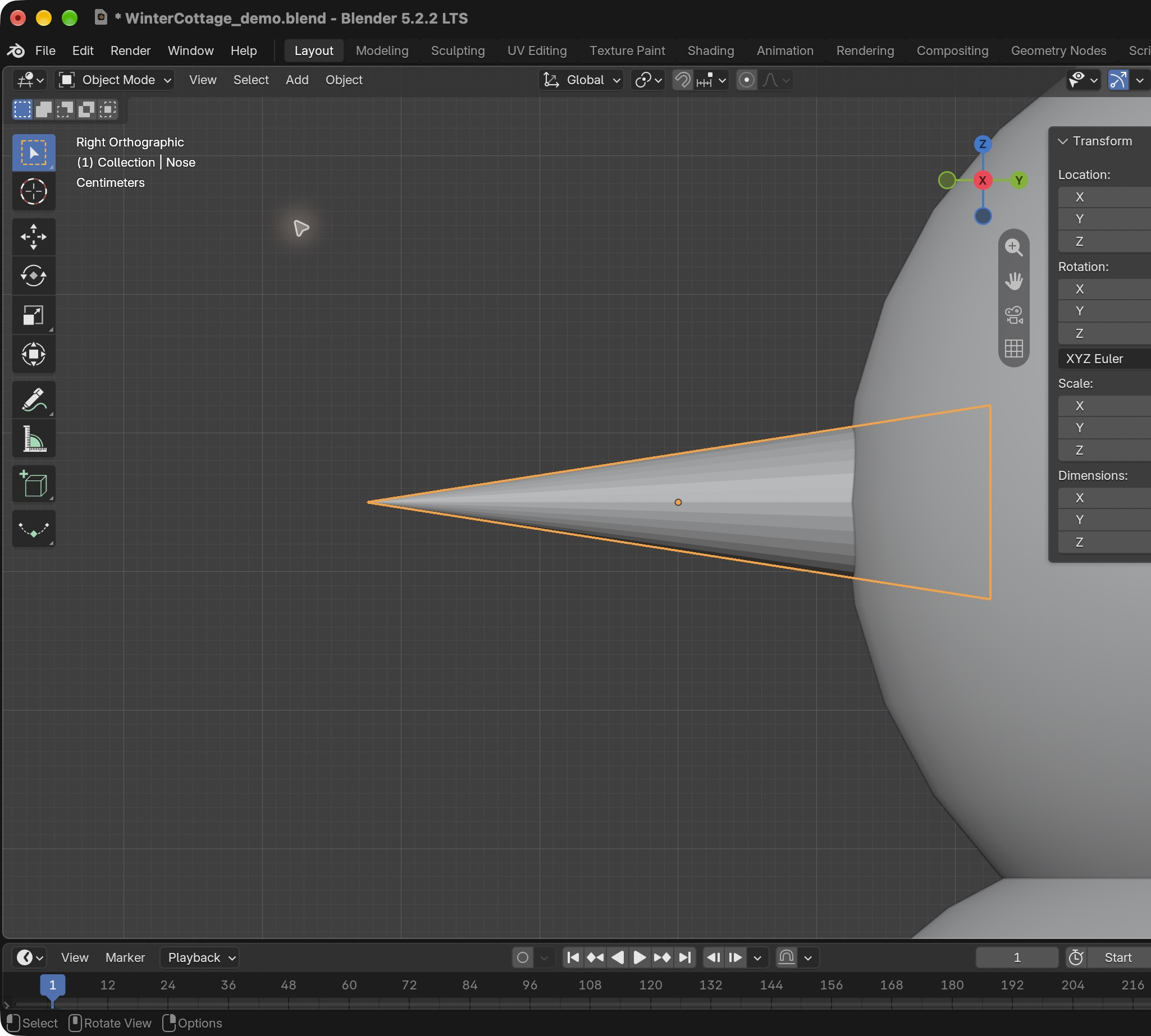
Nose Location, Rotation X 90° and Dimensions · Location.Result in the native demonstration. Check the selected object, state and values against this view.
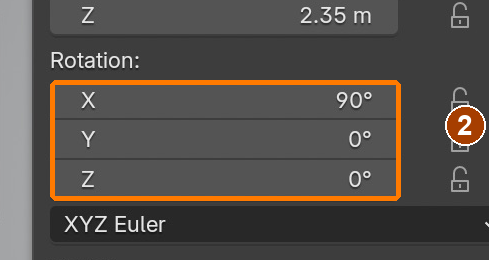
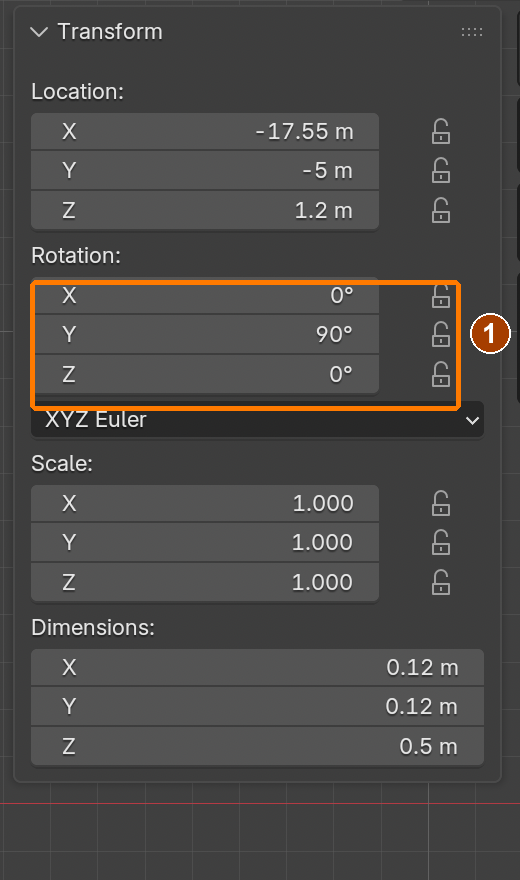
Nose Location, Rotation X 90° and Dimensions · Rotation.Result in the native demonstration. Check the selected object, state and values against this view.
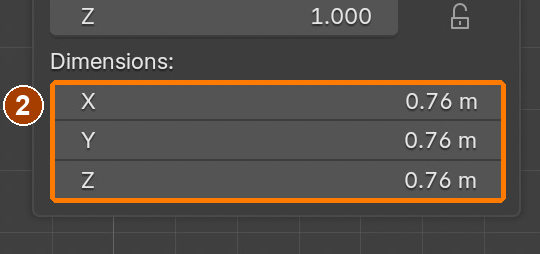
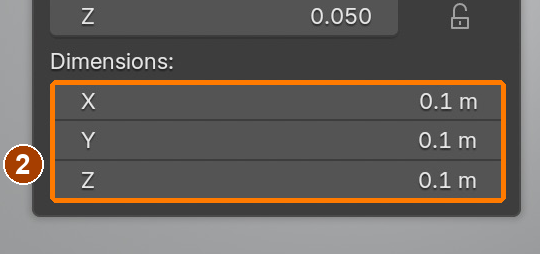
Nose Location, Rotation X 90° and Dimensions · Dimensions.Result in the native demonstration. Check the selected object, state and values against this view.
First eye Location and Dimensions · Location.Result in the native demonstration. Check the selected object, state and values against this view.
First eye Location and Dimensions · Dimensions.Result in the native demonstration. Check the selected object, state and values against this view.
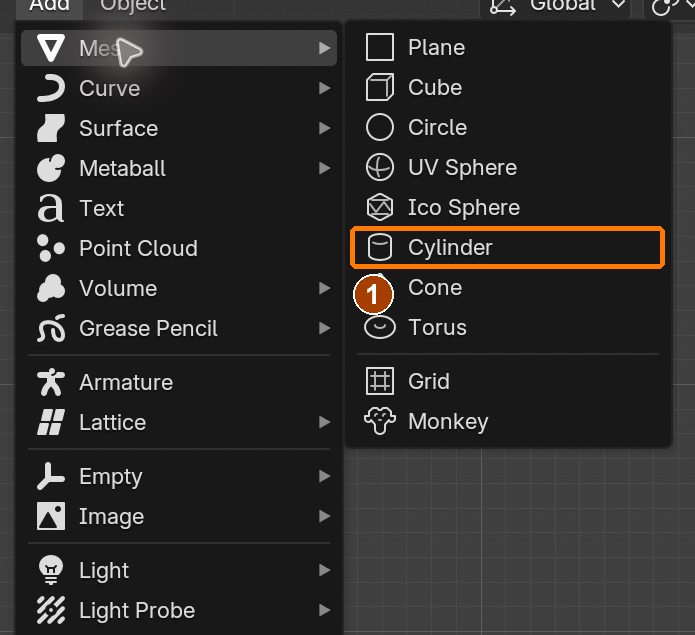
Add > Mesh > CylinderResult in the native demonstration. Check the selected object, state and values against this view.
Item sidebar: Location and Dimensions · Location.Result in the native demonstration. Check the selected object, state and values against this view.
Item sidebar: Location and Dimensions · Dimensions.Result in the native demonstration. Check the selected object, state and values against this view.
Item sidebar: Location and Dimensions · Location.Result in the native demonstration. Check the selected object, state and values against this view.
Item sidebar: Location and Dimensions · Dimensions.Result in the native demonstration. Check the selected object, state and values against this view.
Object > JoinResult in the native demonstration. Check the selected object, state and values against this view.
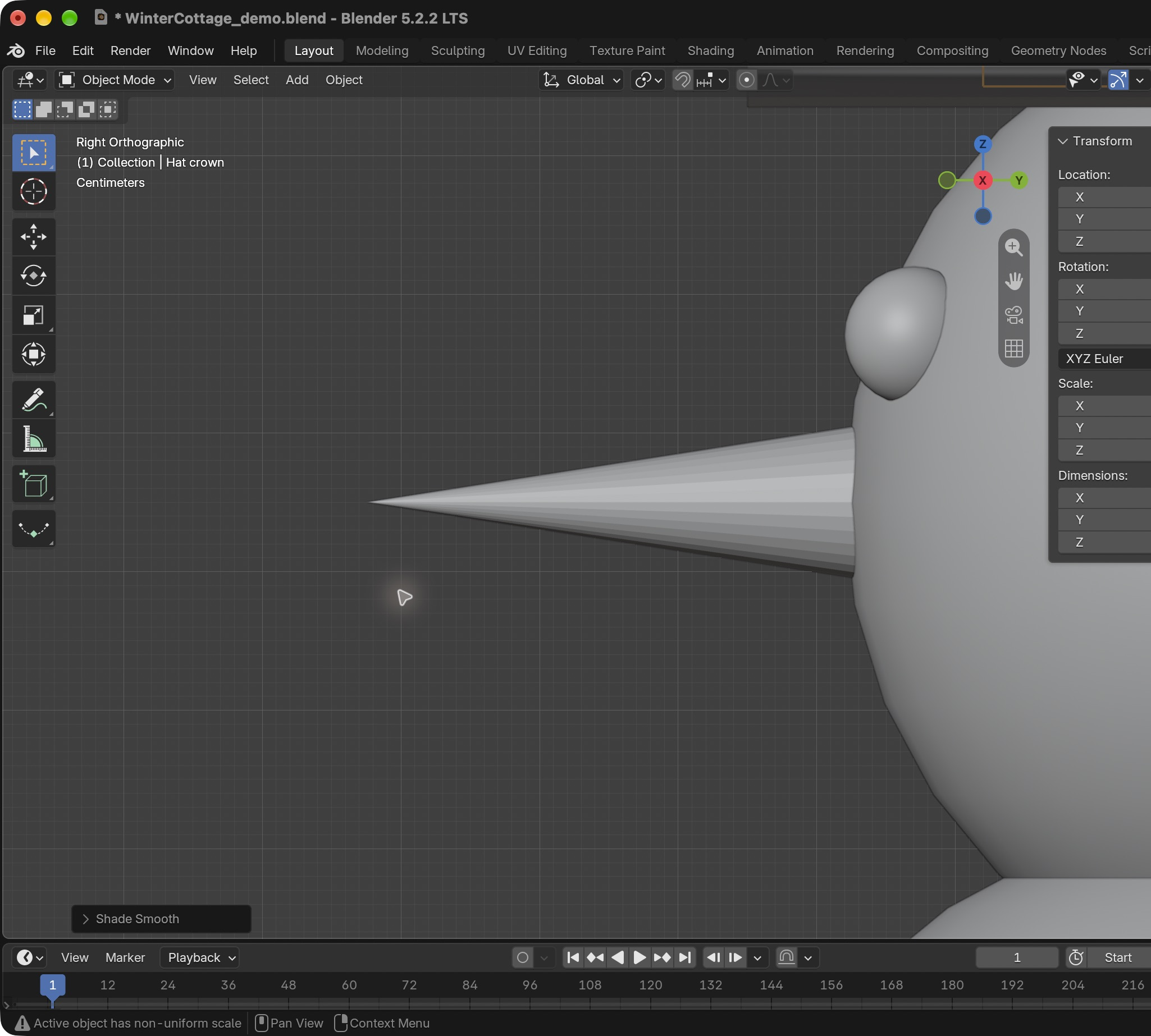
Different-object practice: Y rotation 90° points this cone sideways. Compare this direction with the guided snowman’s X rotation.Result in the native demonstration. Check the selected object, state and values against this view.
EXPLANATION FRAMESI assigned ___ before joining so that ___. I checked the active object by ___.
STEP CHECKLIST
Tick each action beside its instruction after checking the result. Ticks record progress on this device; they do not establish achievement.
GLOSSARY
Join: Combine several objects into one
Shade Smooth: Makes curved surfaces look smooth
WHYGreat characters are often simple shapes with clear silhouettes. Joining parts makes one object that is easy to move.
CHECKOne joined snowman made from eight pieces, retaining snow, coal and carrot materials.
FIXSome parts turn white? Undo Join, assign the material to each part first, then select the eight pieces with the base active and join again.
WORKED EXAMPLE · DIFFERENT OBJECTDifferent character: two spheres with grey clay and a separate red cone are joined after material assignment. Join combines objects while preserving their material slots; it does not turn the red cone grey.
STRETCH (AFTER THE CHECK PASSES)Give the snowman a scarf: a torus squashed flat, with a small cylinder hanging down.
Method basis: B1. Values and sequence are authored for this project.
Session C · Lesson 3 · mm12-26-s06-d03
Textures, glowing windows and lights.
Image textures make the cottage look built from real materials; emission makes windows glow; lights make it dusk.
TODAYUV unwrap and textures (30 min), emission and lights (30 min).
06
UV-unwrap the cottage and add real textures
How a texture wraps around a model
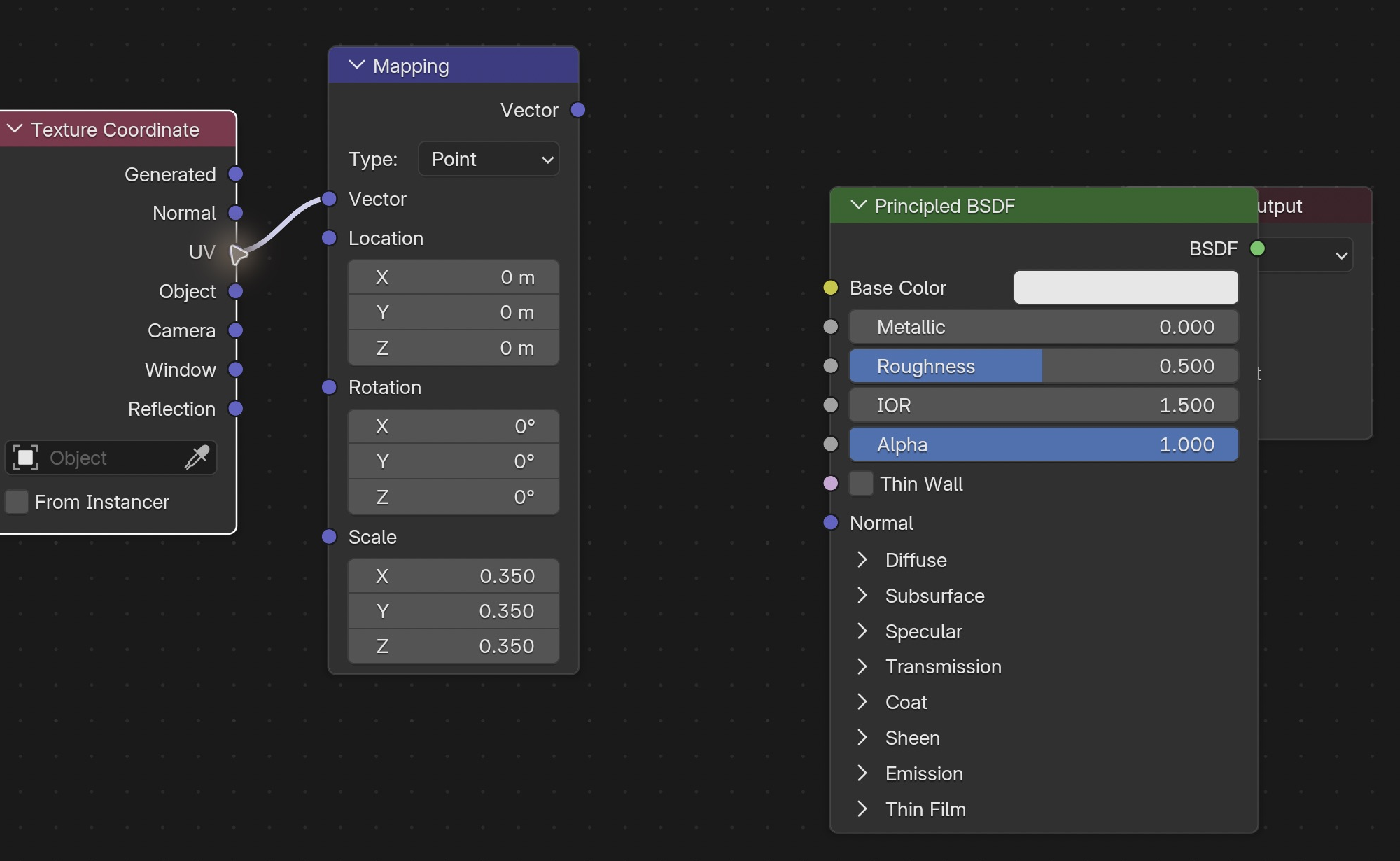
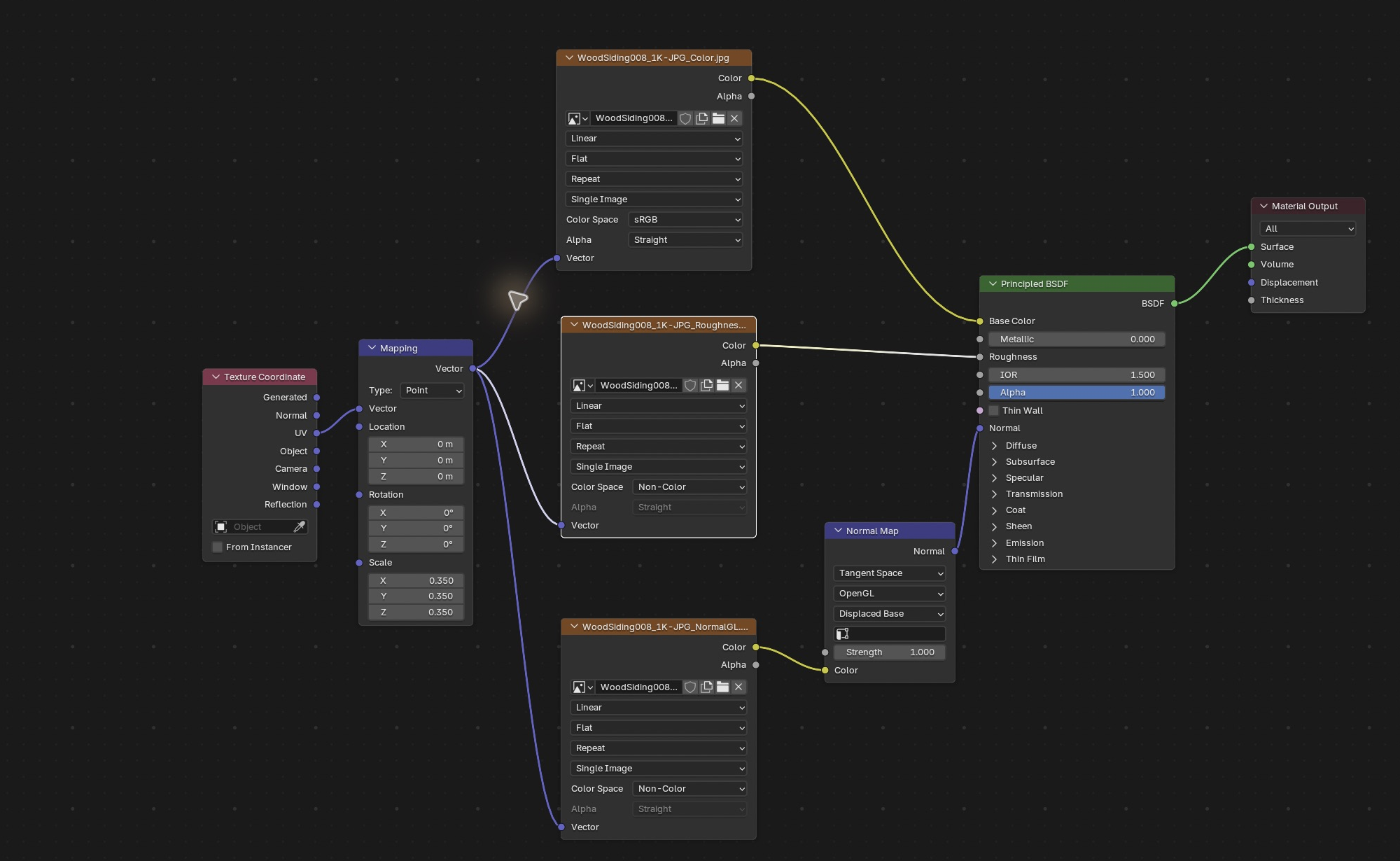
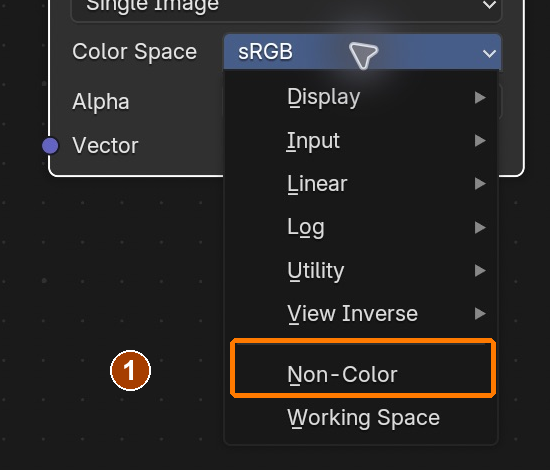
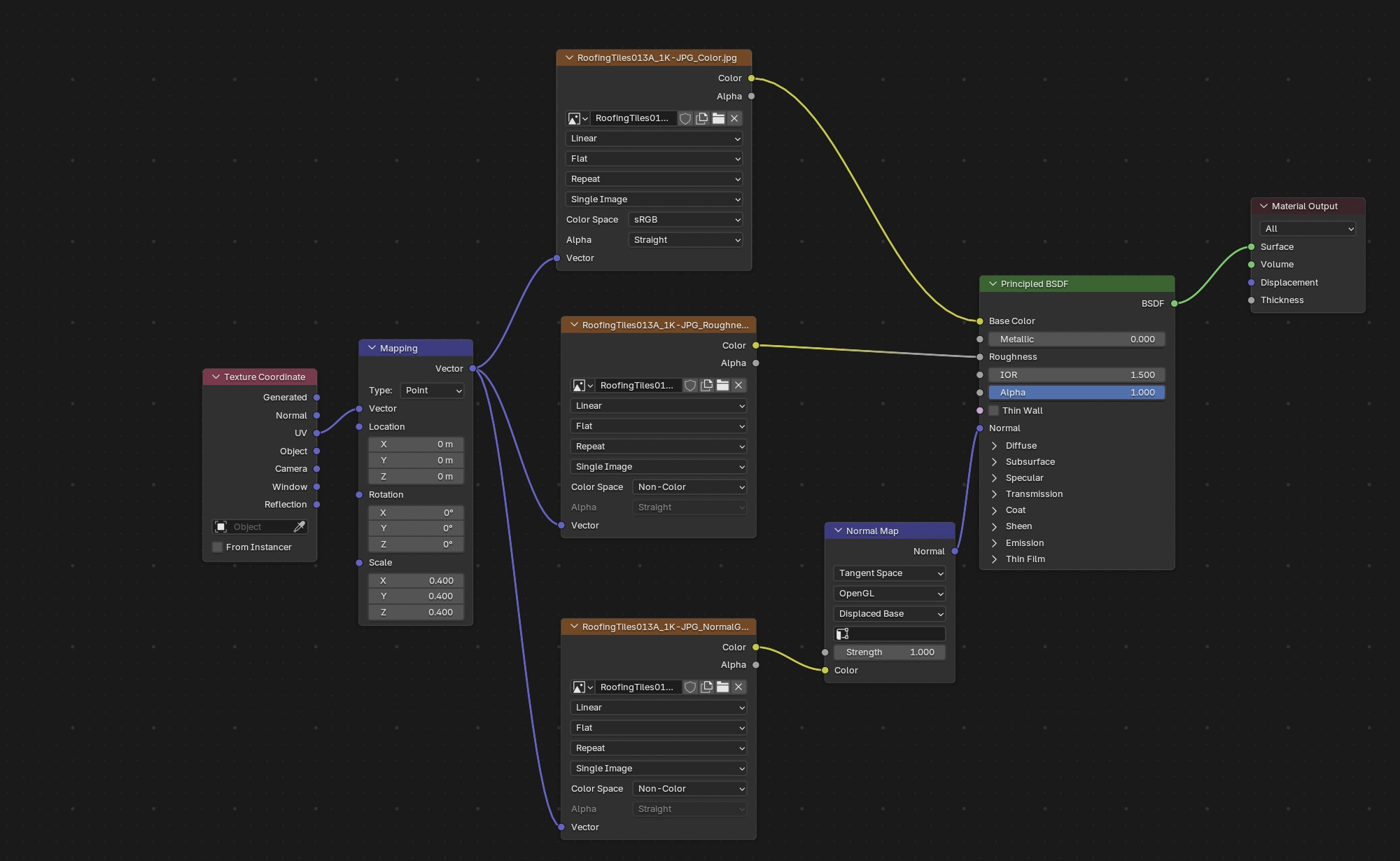
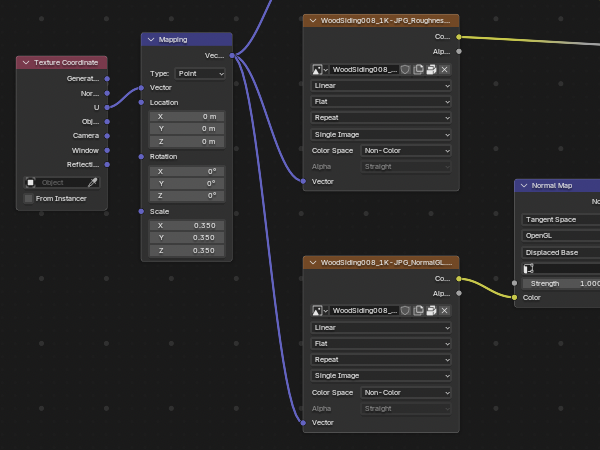
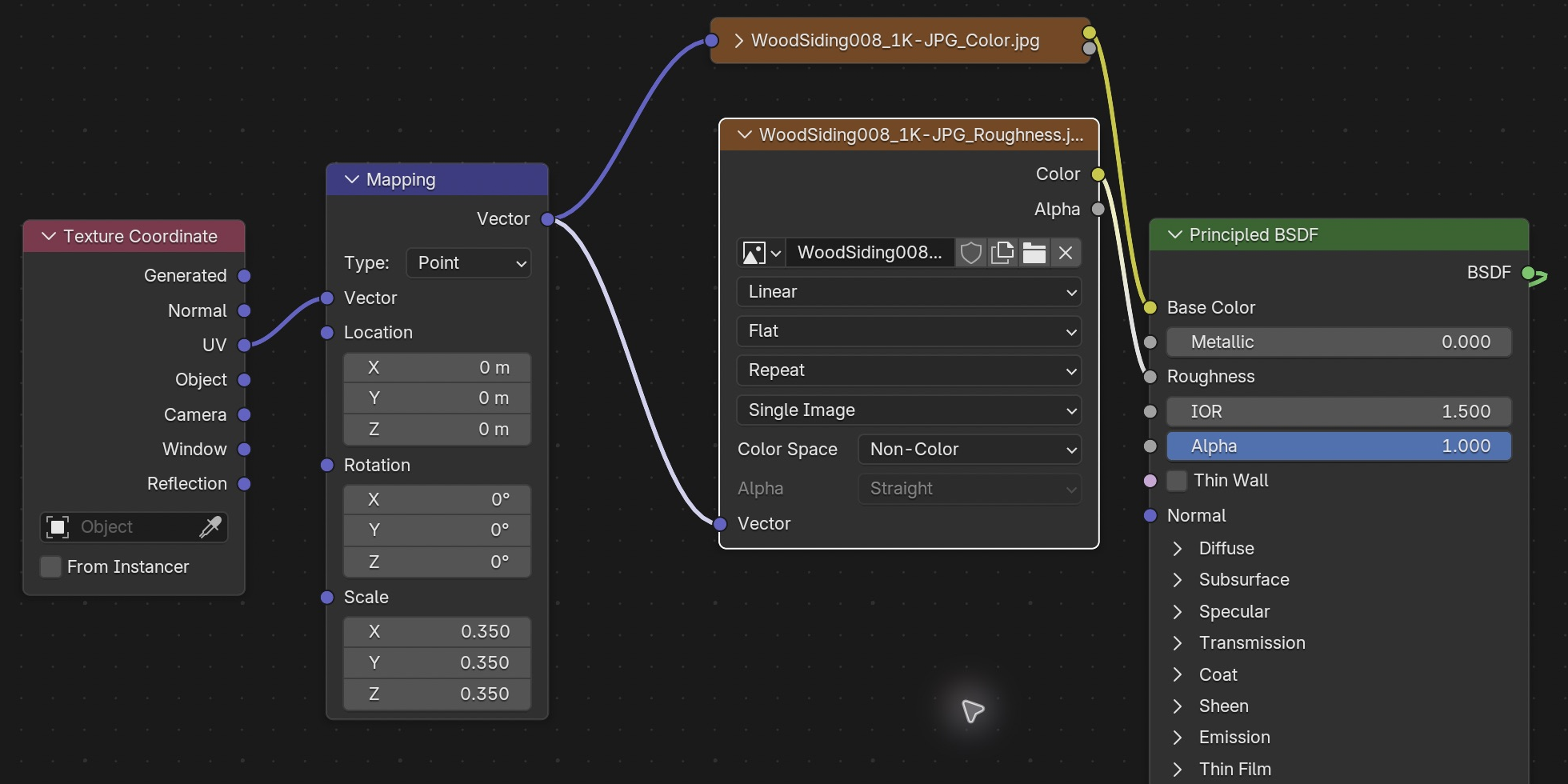
UV coordinates are the model’s flat address map for an image. Mapping changes the coordinates sent to each texture, controlling repetition and alignment. Colour gives appearance, roughness controls reflections, and a normal map changes apparent fine surface direction without changing the silhouette. Colour images use sRGB; roughness and normal images use Non-Color because their pixels represent data. All three maps need the same coordinates to stay aligned.
Recall first (from last lesson, no peeking):
What do Inset and Extrude each do?
Why add a Bevel modifier to a box?
What does Join (Ctrl/Cmd+J) change in the Outliner?
Say or write your answers, then check them against your file.
Application verification incomplete: actions 1, 2, 3, 4, 5, 6, 7, 8, 9, 10, 11 still need their complete run/capture/result evidence checked. Unproven procedures remain not yet run.
IN SHORTCube-project UVs; link UV through Mapping to all three PBR maps; set colour spaces; make separate material copies; pack and reopen.
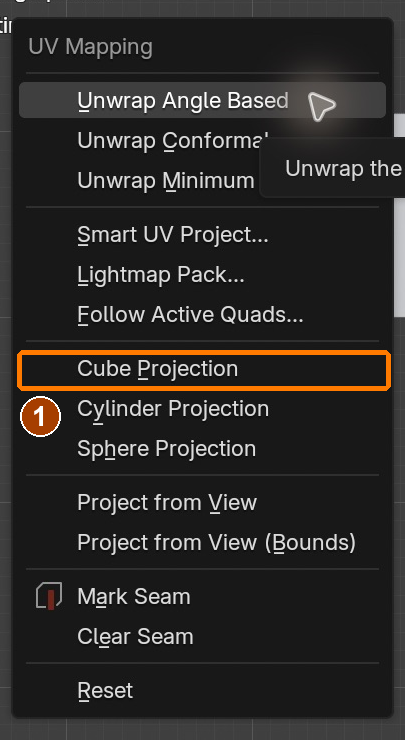
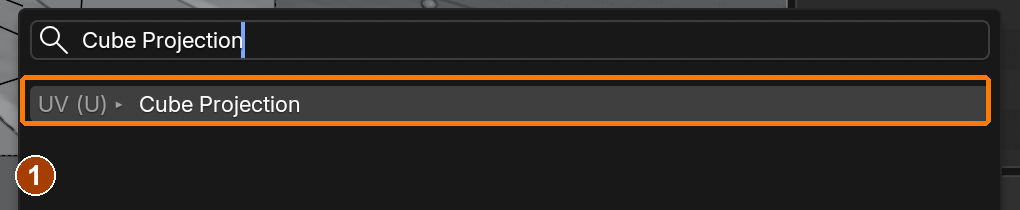
UV › Cube ProjectionResult in the native demonstration. Check the selected object, state and values against this view.
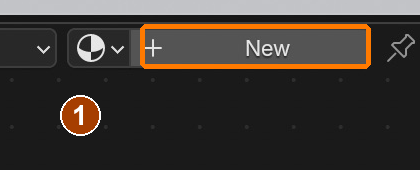
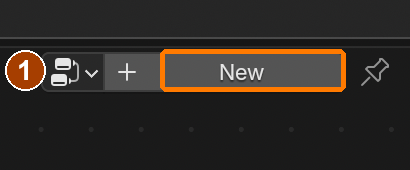
With Cottage selected, the Shader Editor New button creates its material.Result in the native demonstration. Check the selected object, state and values against this view.
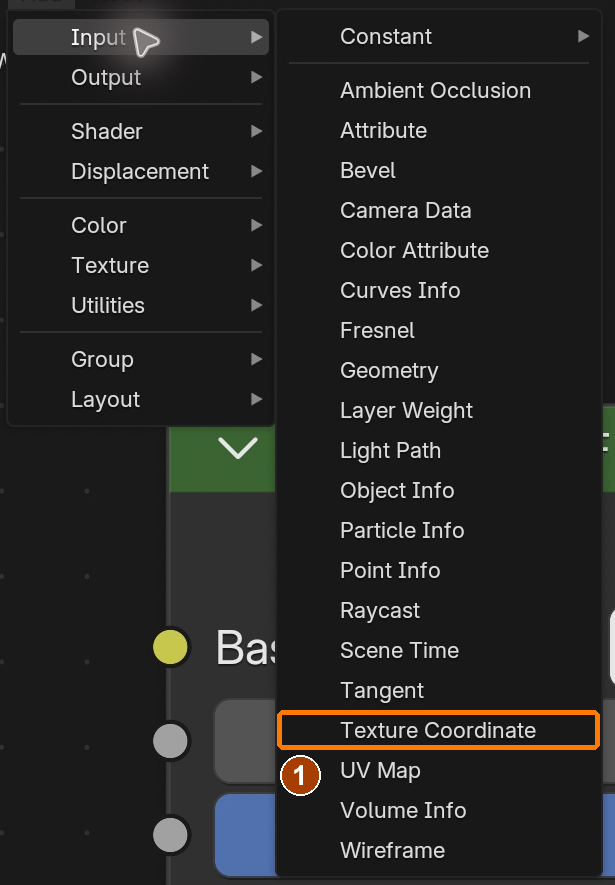
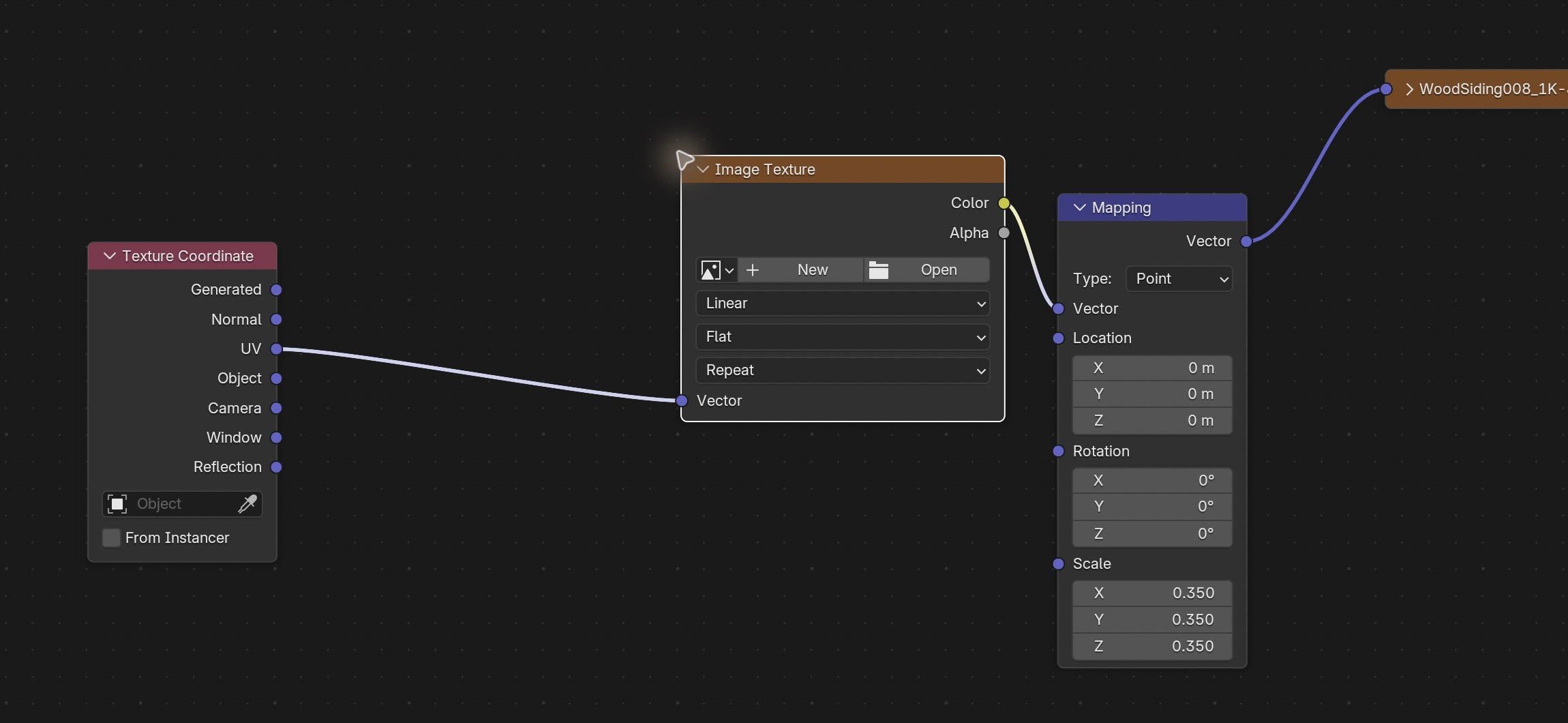
Add › Input › Texture CoordinateResult in the native demonstration. Check the selected object, state and values against this view.
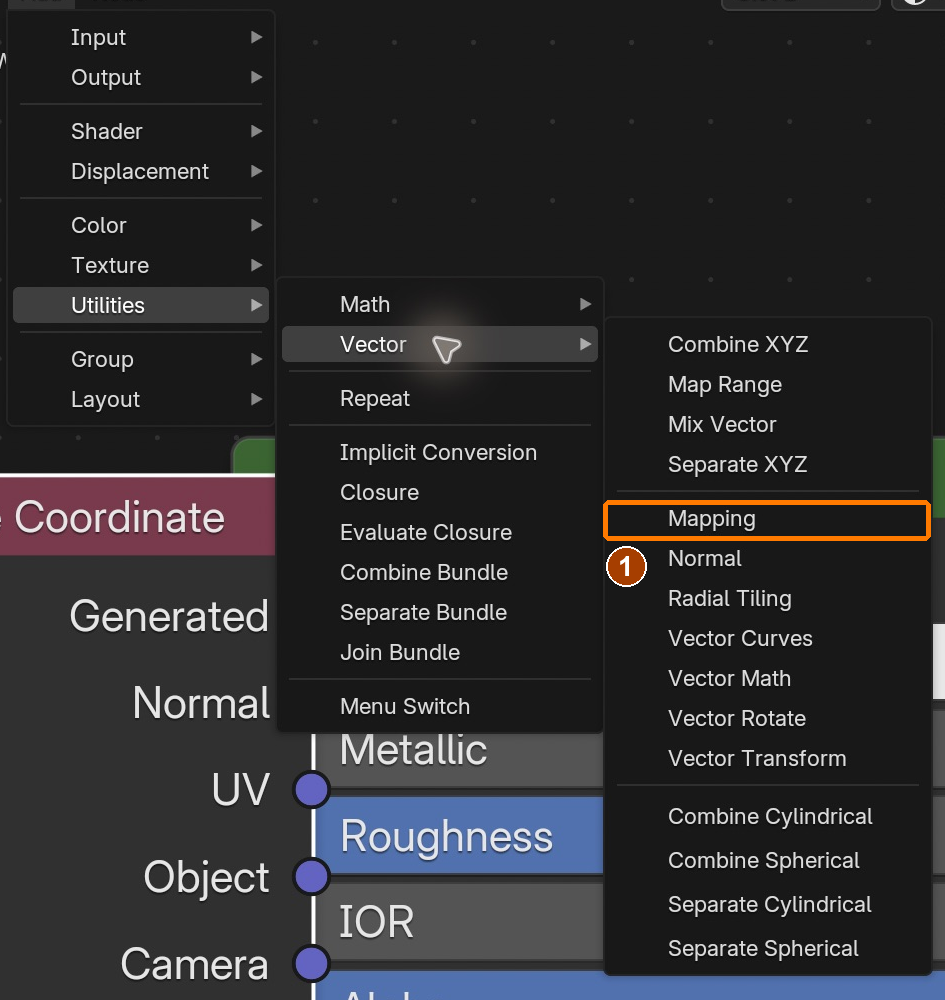
Add › Utilities › Vector › MappingResult in the native demonstration. Check the selected object, state and values against this view.
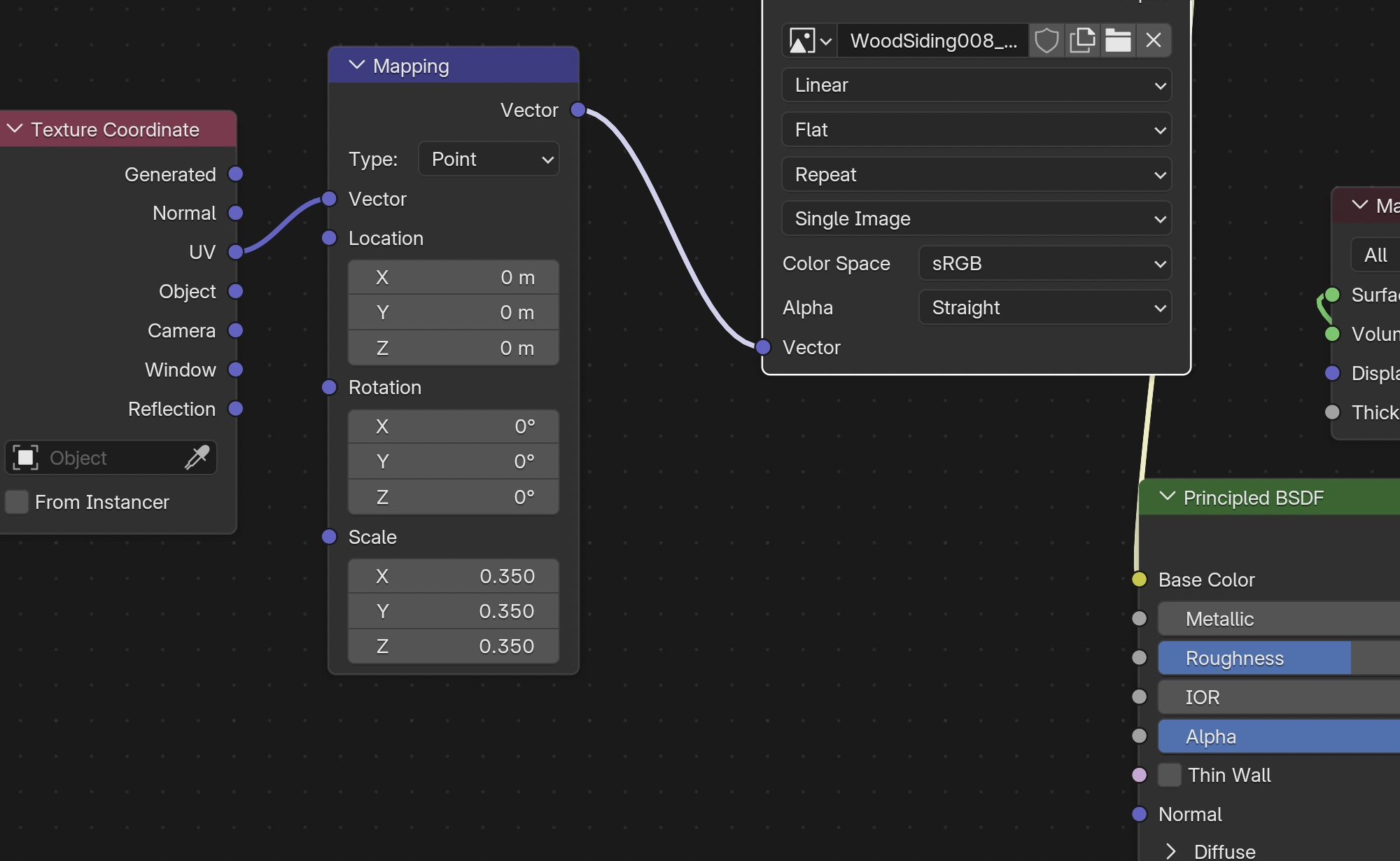
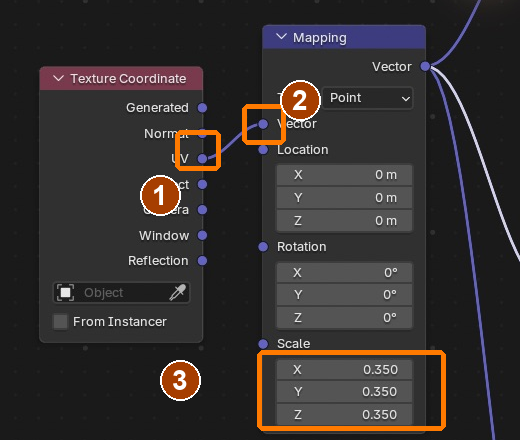
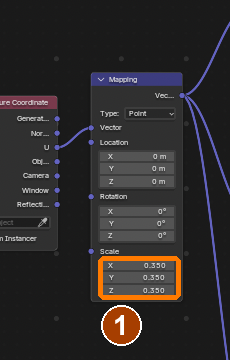
Drag UV output (1) to Mapping Vector input (2); set Scale 0.35 (3)Result in the native demonstration. Check the selected object, state and values against this view.
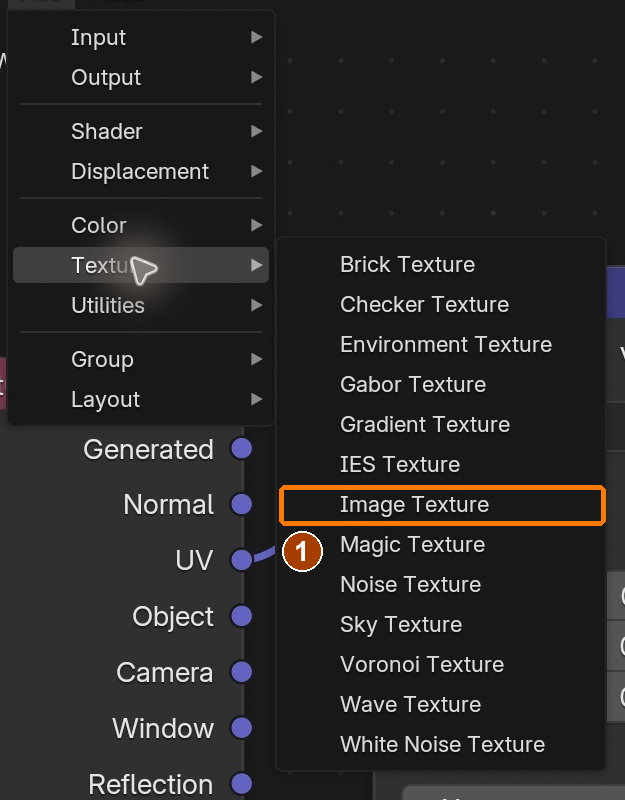
Add › Texture › Image TextureResult in the native demonstration. Check the selected object, state and values against this view.
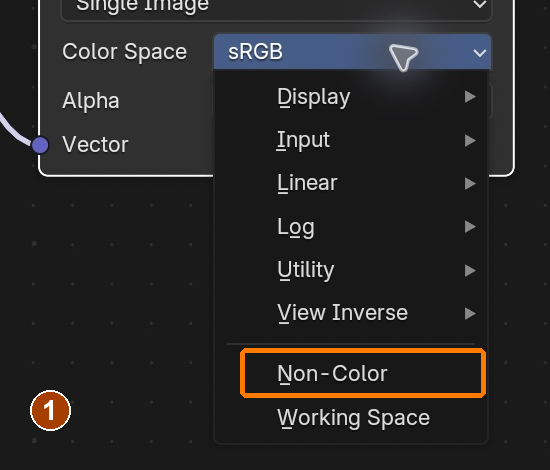
The roughness image is data: choose Non-Color in the open colour-space menu.Result in the native demonstration. Check the selected object, state and values against this view.
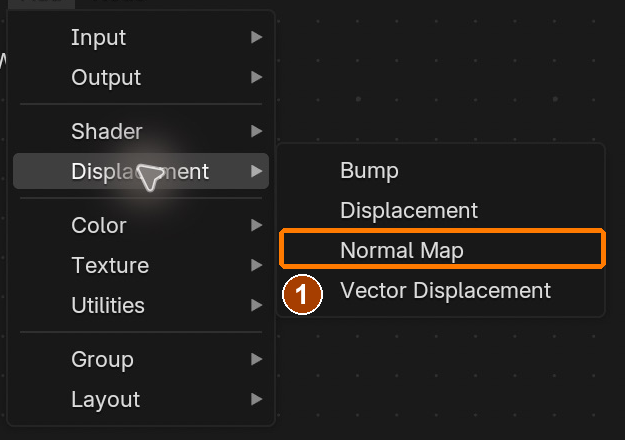
Add › Displacement › Normal MapResult in the native demonstration. Check the selected object, state and values against this view.
NormalGL image Color Space menu: Non-ColorResult in the native demonstration. Check the selected object, state and values against this view.
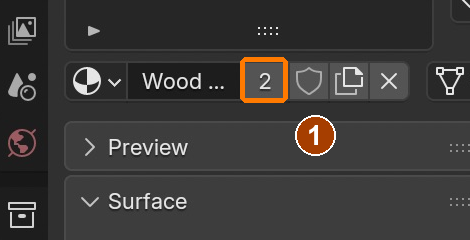
Click material user-count 2 before renaming Roof tilesResult in the native demonstration. Check the selected object, state and values against this view.
Restore Wood siding Mapping Scale X, Y and Z to 0.350 after the 0.700 comparison.Result in the native demonstration. Check the selected object, state and values against this view.
Cube Projection can also be found with F3; Door is selected in Edit Mode.Result in the native demonstration. Check the selected object, state and values against this view.
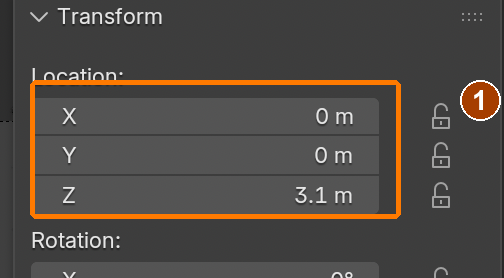
Roof snow: move to Z 3.1 and scale 0.985; apply Scale next. · Location.Result in the native demonstration. Check the selected object, state and values against this view.
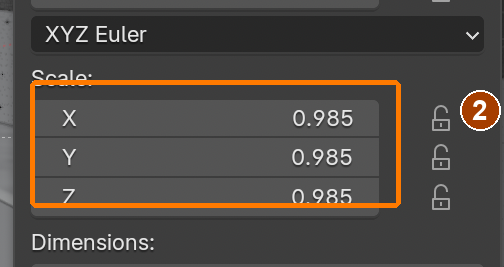
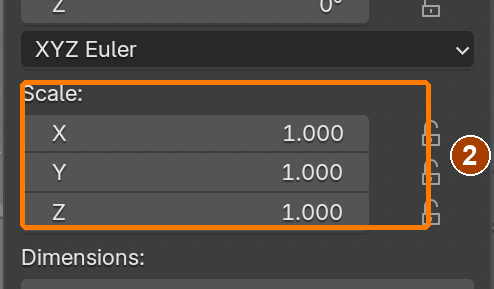
Roof snow: move to Z 3.1 and scale 0.985; apply Scale next. · Scale.Result in the native demonstration. Check the selected object, state and values against this view.
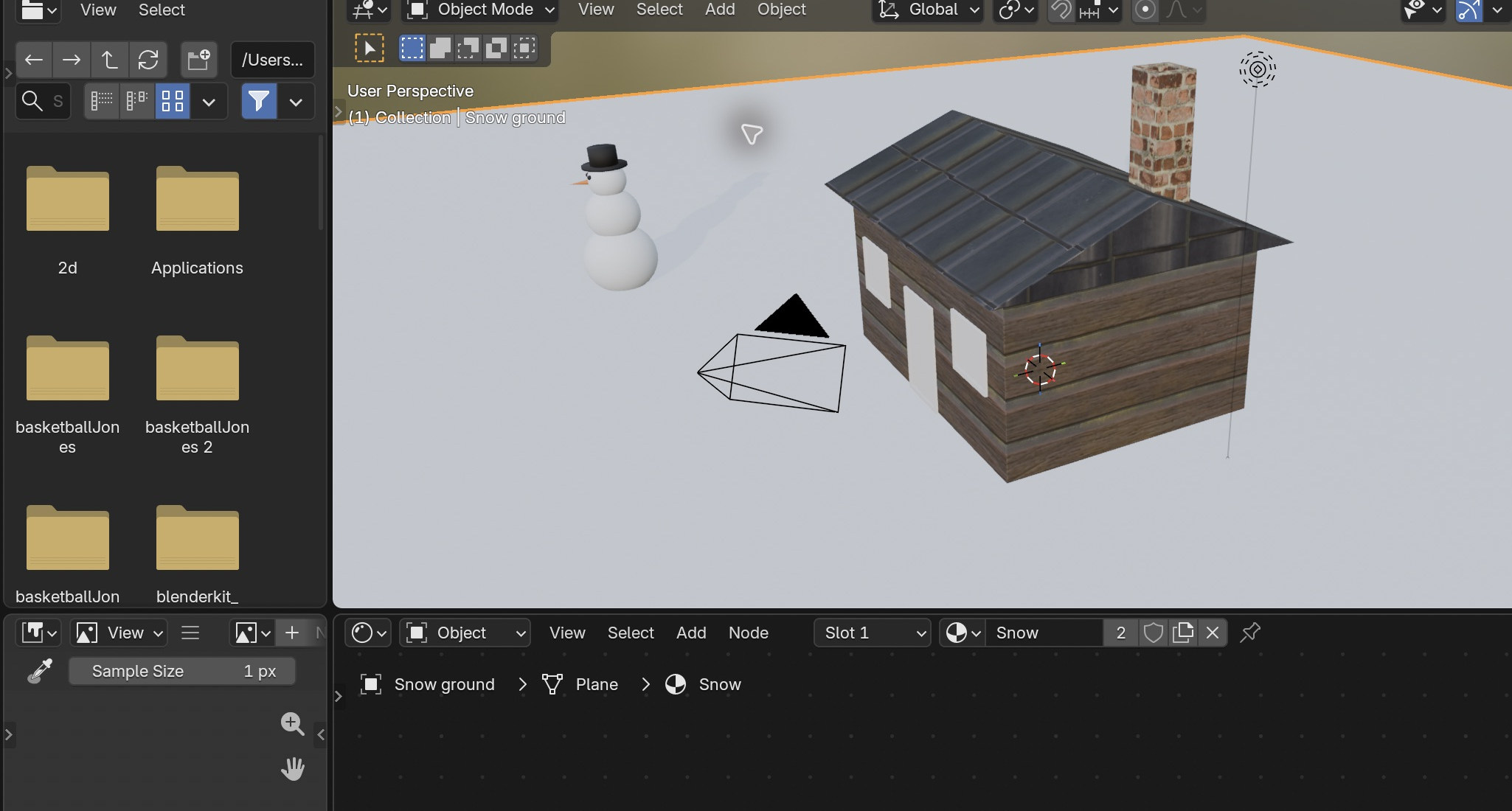
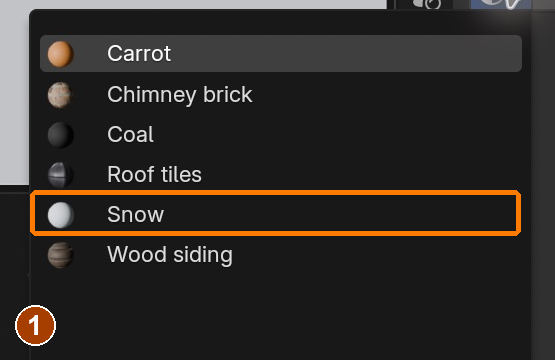
Choose the existing Snow material for Snow ground.Result in the native demonstration. Check the selected object, state and values against this view.
EXPLANATION FRAMESThe ___ image feeds ___. Mapping affects it because the ___ sockets connect.
A mistake from the actual build
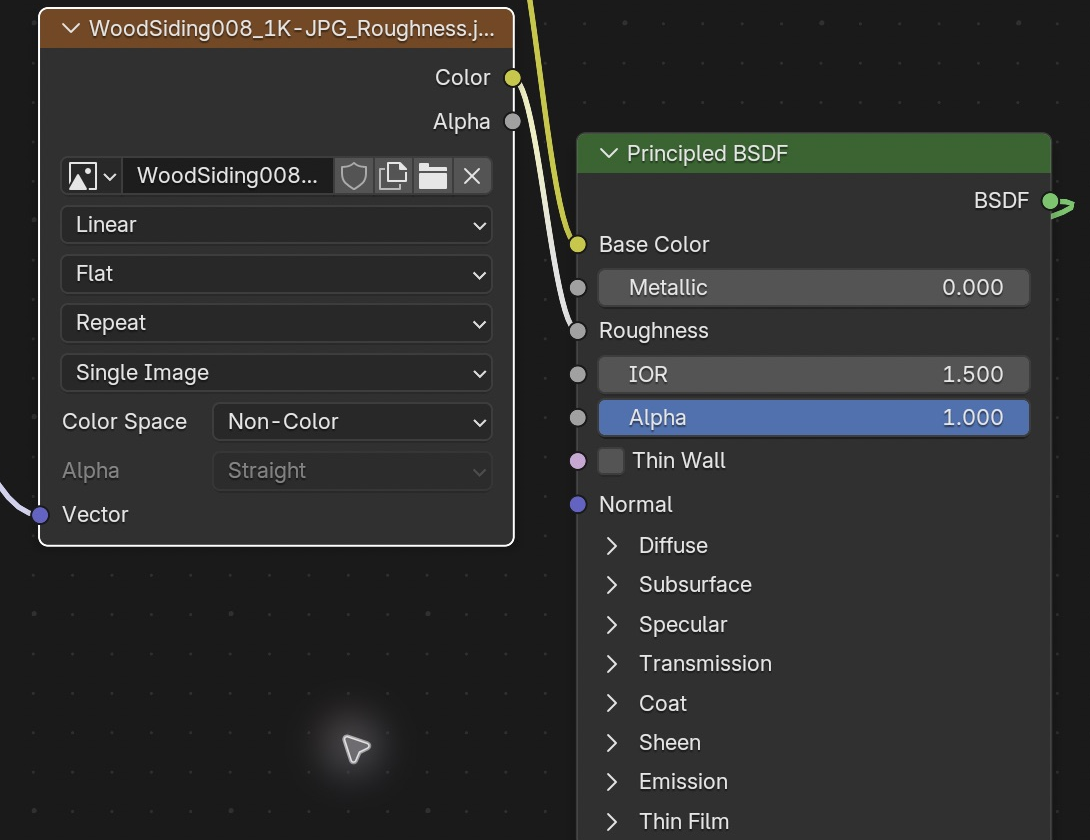
Wrong · Placing Image Texture on a wire inserted it between UV and Mapping. Image Color is not the intended UV coordinate input.Right · UV feeds Mapping directly; Mapping feeds the texture Vector inputs. The roughness image feeds Principled Roughness.
Diagnose: intended result → observed mismatch → likely cause → one change → test.
STEP CHECKLIST
Tick each action beside its instruction after checking the result. Ticks record progress on this device; they do not establish achievement.
GLOSSARY
UV map: The flat layout that tells a texture how to wrap onto a model
Normal map: A texture that fakes small bumps and grooves
WHYReal texture maps (colour, roughness and normal) are how studios make surfaces believable. The UV map tells Blender how to wrap a flat image onto a 3D object.
CHECKWood siding on the walls, tiles on the roof and bricks on the chimney, at a believable scale, with roughness and normal maps connected.
FIXMapping Scale has no effect? Follow the wires: UV → Mapping Vector → all three image Vector inputs. Roughness and NormalGL must be Non-Color; NormalGL also needs a Normal Map node.
WORKED EXAMPLE · DIFFERENT OBJECTDifferent surface: on a stone slab, UV → Mapping → each image Vector keeps colour, roughness and normal aligned. Mapping Scale 2 repeats all three twice as often. Connecting only the colour map would misalign the detail.
STRETCH (AFTER THE CHECK PASSES)Add snow on the roof by mixing in white where the roof faces up (Geometry › Normal Z into a Mix).
Method basis: B3 · A1. Values and sequence are authored for this project.
07
Make the windows glow and light the dusk
Visible glow and illumination
Emission makes a surface appear luminous. A light controls illumination on nearby objects. Our opaque cottage uses a separate Area light outside each window to approximate spill; increasing an interior lamp cannot make it shine through an opaque wall. World lighting surrounds the scene, while a Sun light supplies one consistent direction. Warm local lights against cooler surroundings help the viewer locate the cottage.
Application verification incomplete: actions 1, 2, 3, 4, 5, 6, 7 still need their complete run/capture/result evidence checked. Unproven procedures remain not yet run.
IN SHORTAssign glow only to window centres; add two exterior Area spill lights; use the dusk sky and Moon Sun; inspect an actual render.
READ ALOUD
DOCUMENT: WinterCottage_YourName.blend SELECT: Window centre faces, exterior Area spill lights, World and Moon Sun TOOLS / ROUTE: Principled BSDF › Emission · World › Sky Texture · Add › Light
Window glow Emission Color and Strength 0.6Result in the native demonstration. Check the selected object, state and values against this view.
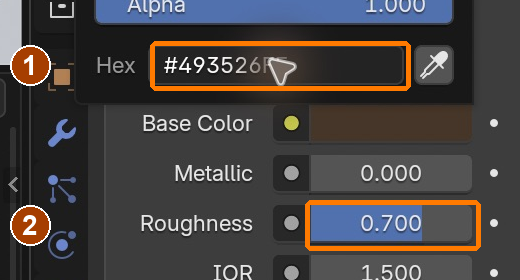
Trim Base Color #493526 and Roughness 0.7Result in the native demonstration. Check the selected object, state and values against this view.
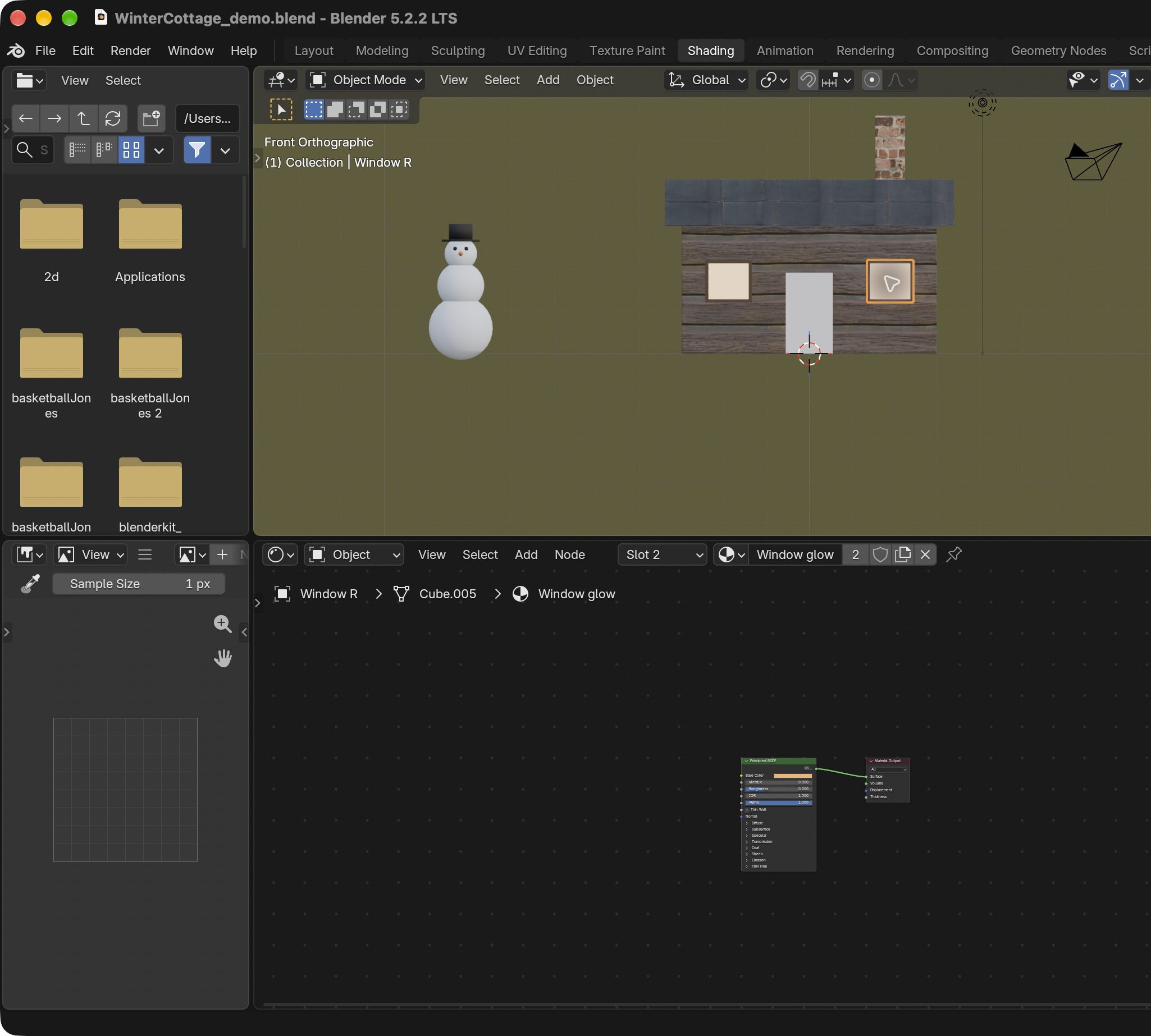
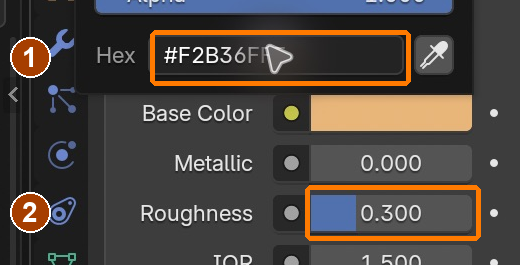
Window glow Base Color #F2B36F and Roughness 0.3Result in the native demonstration. Check the selected object, state and values against this view.
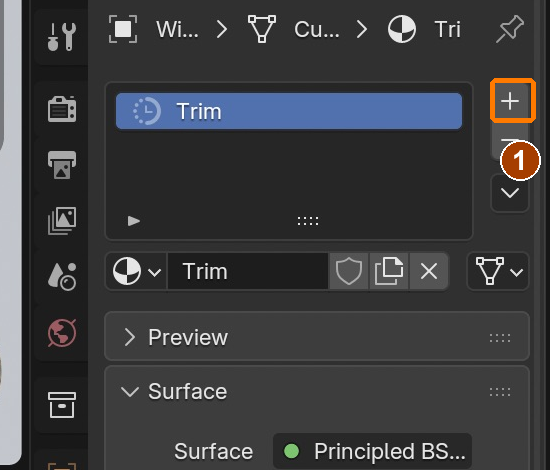
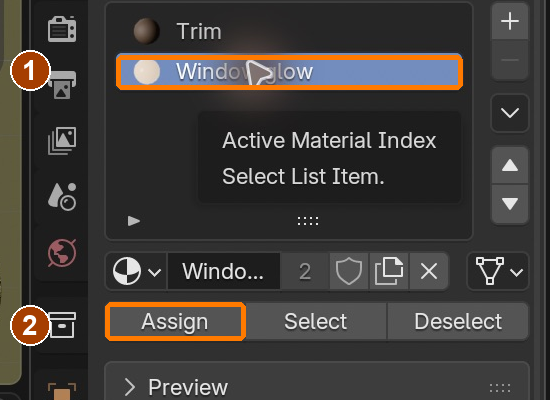
Material Properties: + adds a second material slot.Result in the native demonstration. Check the selected object, state and values against this view.
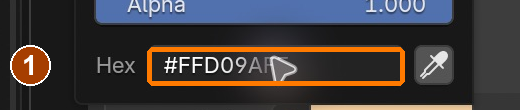
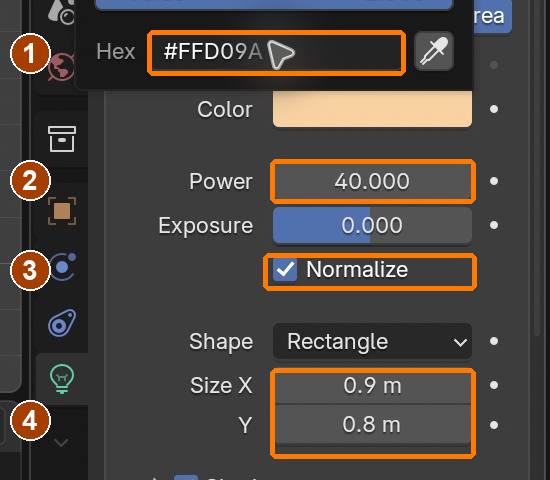
Emission Color: #FFD09A. See the separate Strength 0.6 capture.Result in the native demonstration. Check the selected object, state and values against this view.
Select Window glow, then Assign to the selected inset face.Result in the native demonstration. Check the selected object, state and values against this view.
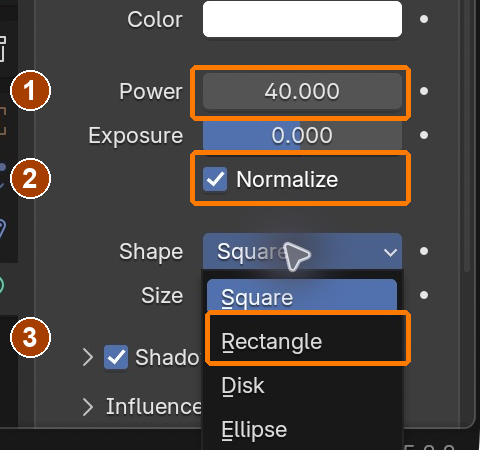
Area Power 40 W, Normalize enabled, open Shape menu > RectangleResult in the native demonstration. Check the selected object, state and values against this view.
Window spill: #FFD09A, 40 W, Normalize on, rectangle 0.9 × 0.8 m.Result in the native demonstration. Check the selected object, state and values against this view.
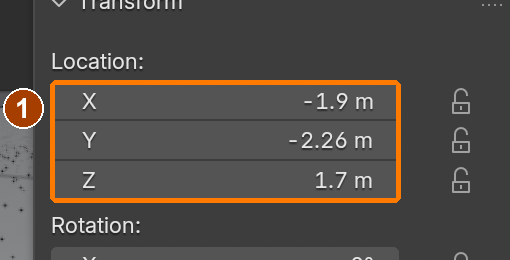
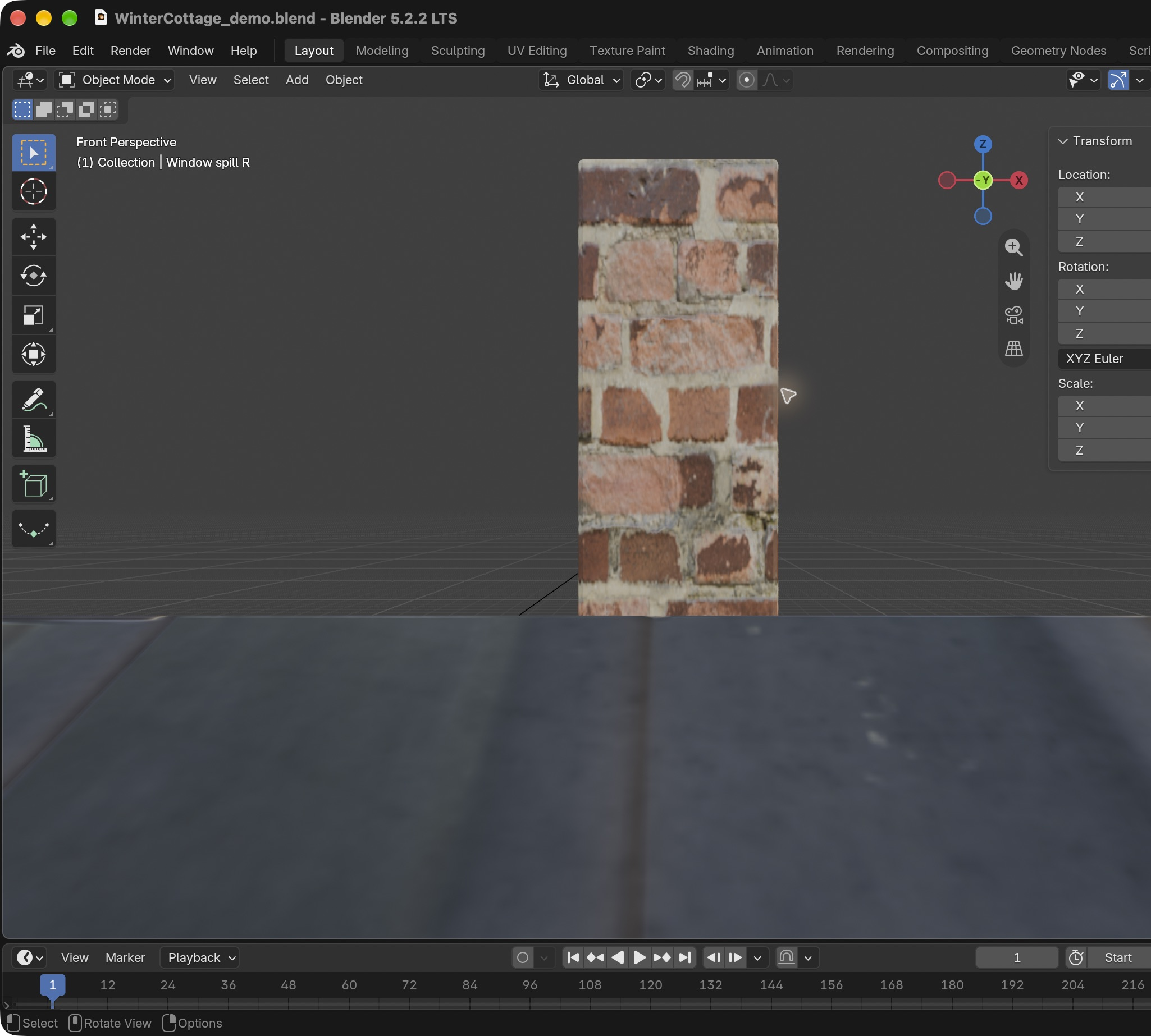
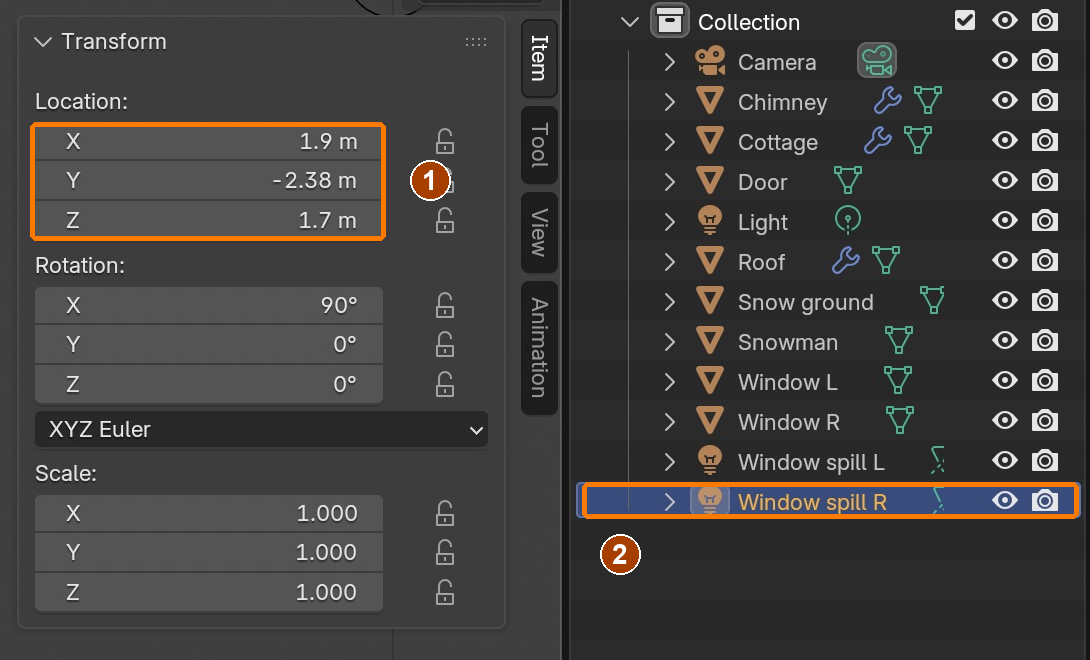
After Shift+D, X,3.8,Enter, Window spill R has Location (1.9,-2.38,1.7). This capture shows the applied duplicate and selected object.Result in the native demonstration. Check the selected object, state and values against this view.
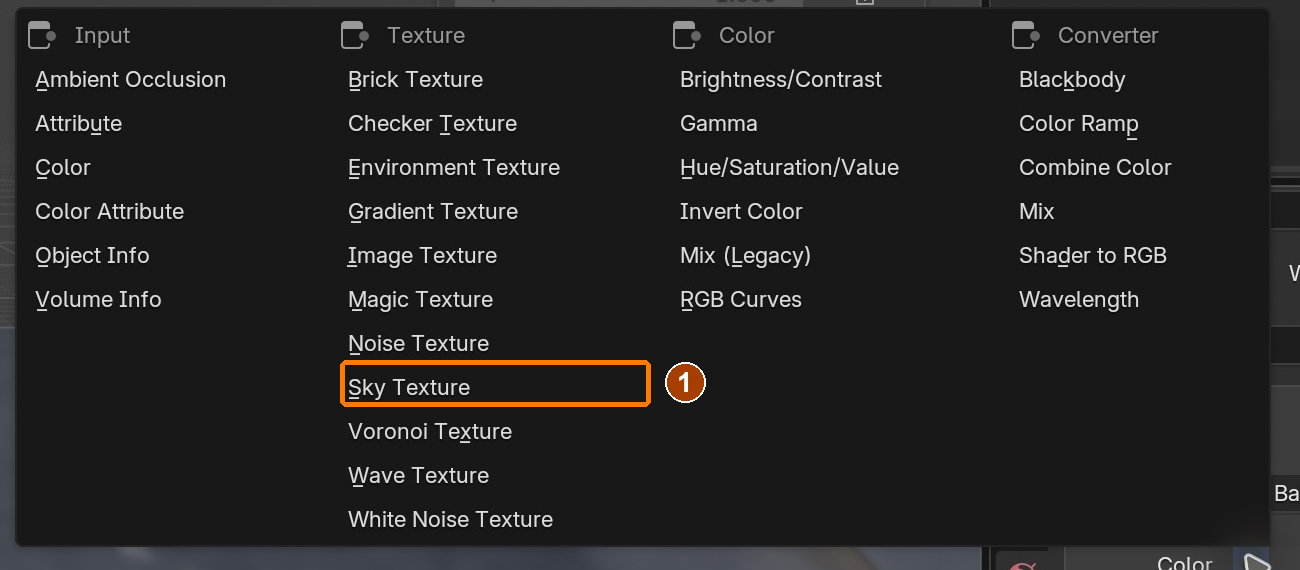
Background Color input menu: Sky Texture.Result in the native demonstration. Check the selected object, state and values against this view.
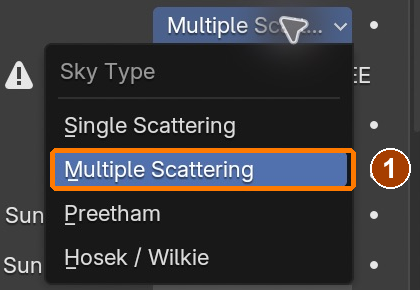
Sky Type dropdown: Multiple Scattering.Result in the native demonstration. Check the selected object, state and values against this view.
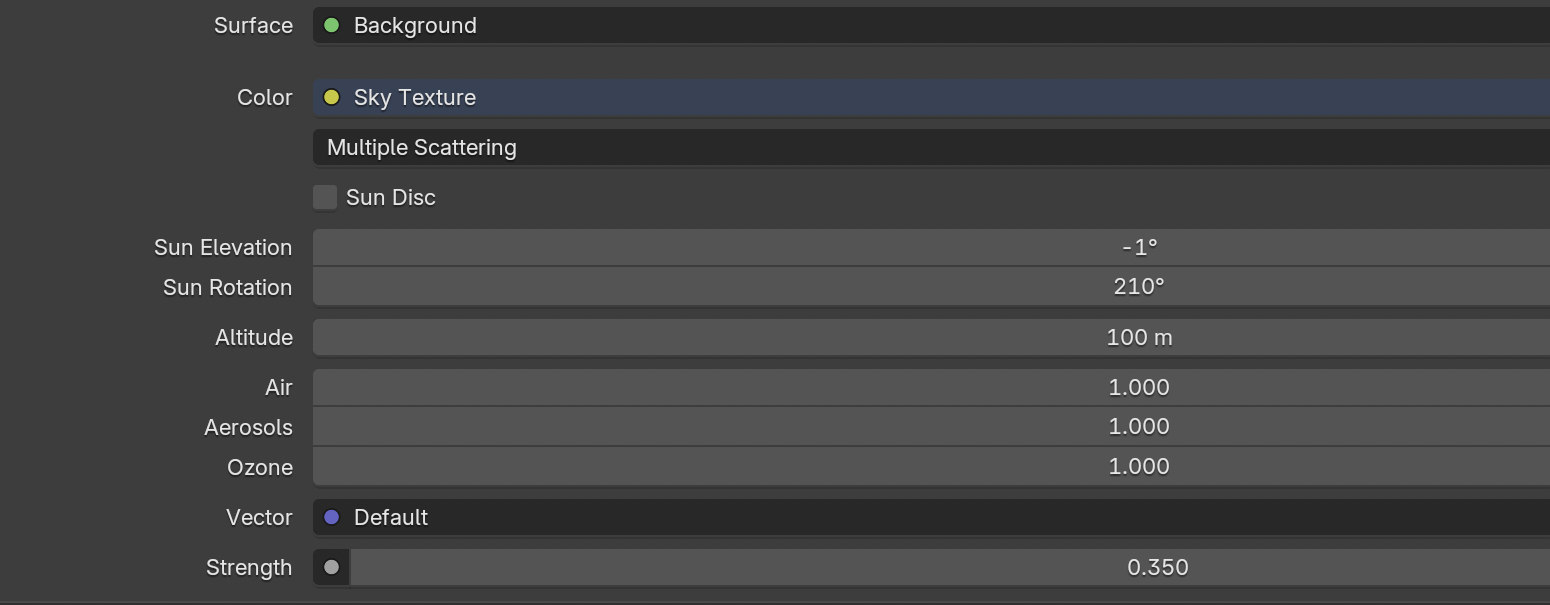
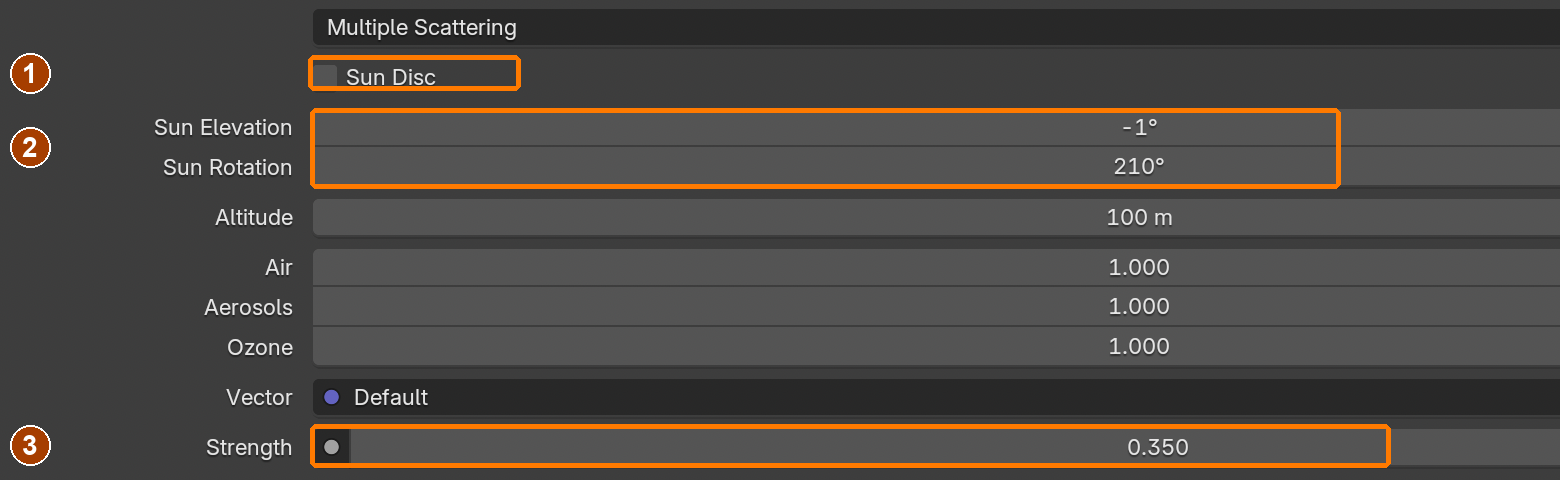
Sun Disc off; elevation -1°, rotation 210°, Background Strength 0.35.Result in the native demonstration. Check the selected object, state and values against this view.
Moon Sun: Strength 1 and Angle 5°.Result in the native demonstration. Check the selected object, state and values against this view.
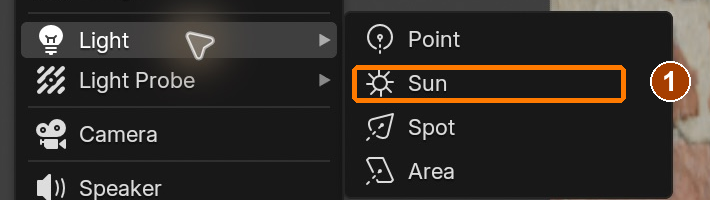
Add > Light > Sun.Result in the native demonstration. Check the selected object, state and values against this view.
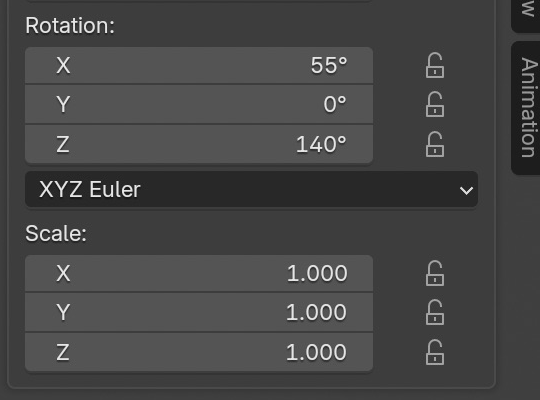
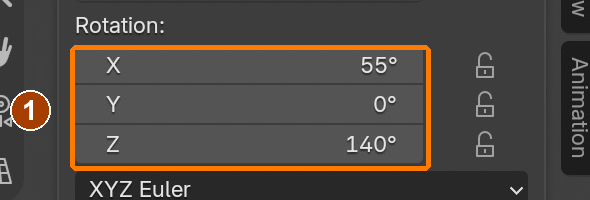
Moon rotation: 55°, 0°, 140°.Result in the native demonstration. Check the selected object, state and values against this view.
Moon Color #B3CCFF. Strength 1 shown separately.Result in the native demonstration. Check the selected object, state and values against this view.
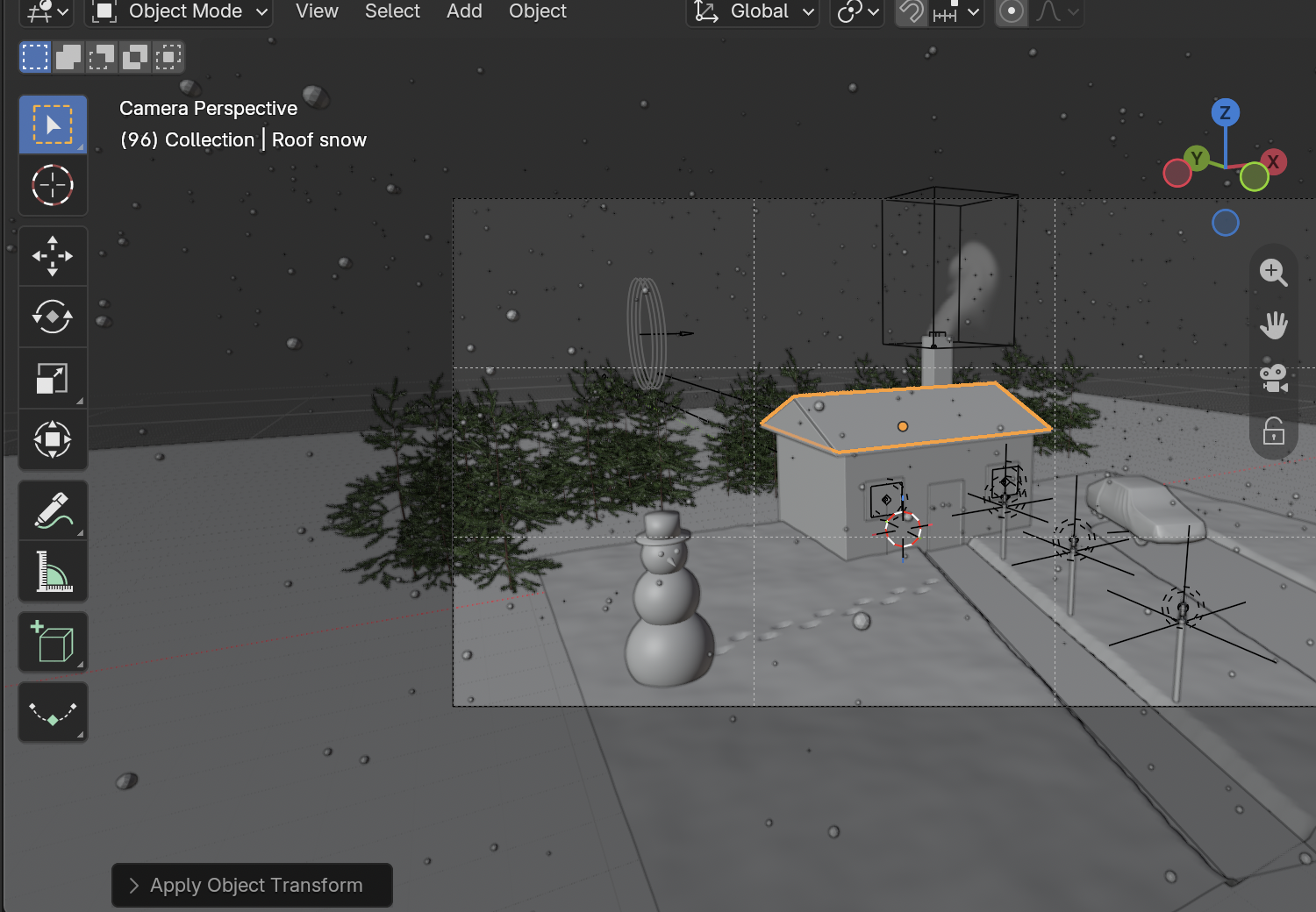
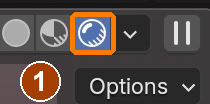
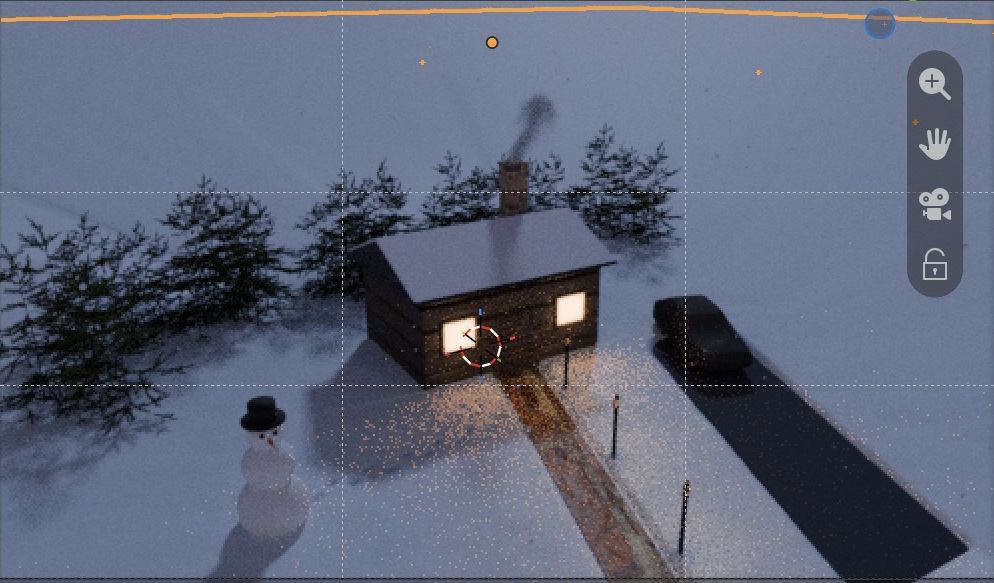
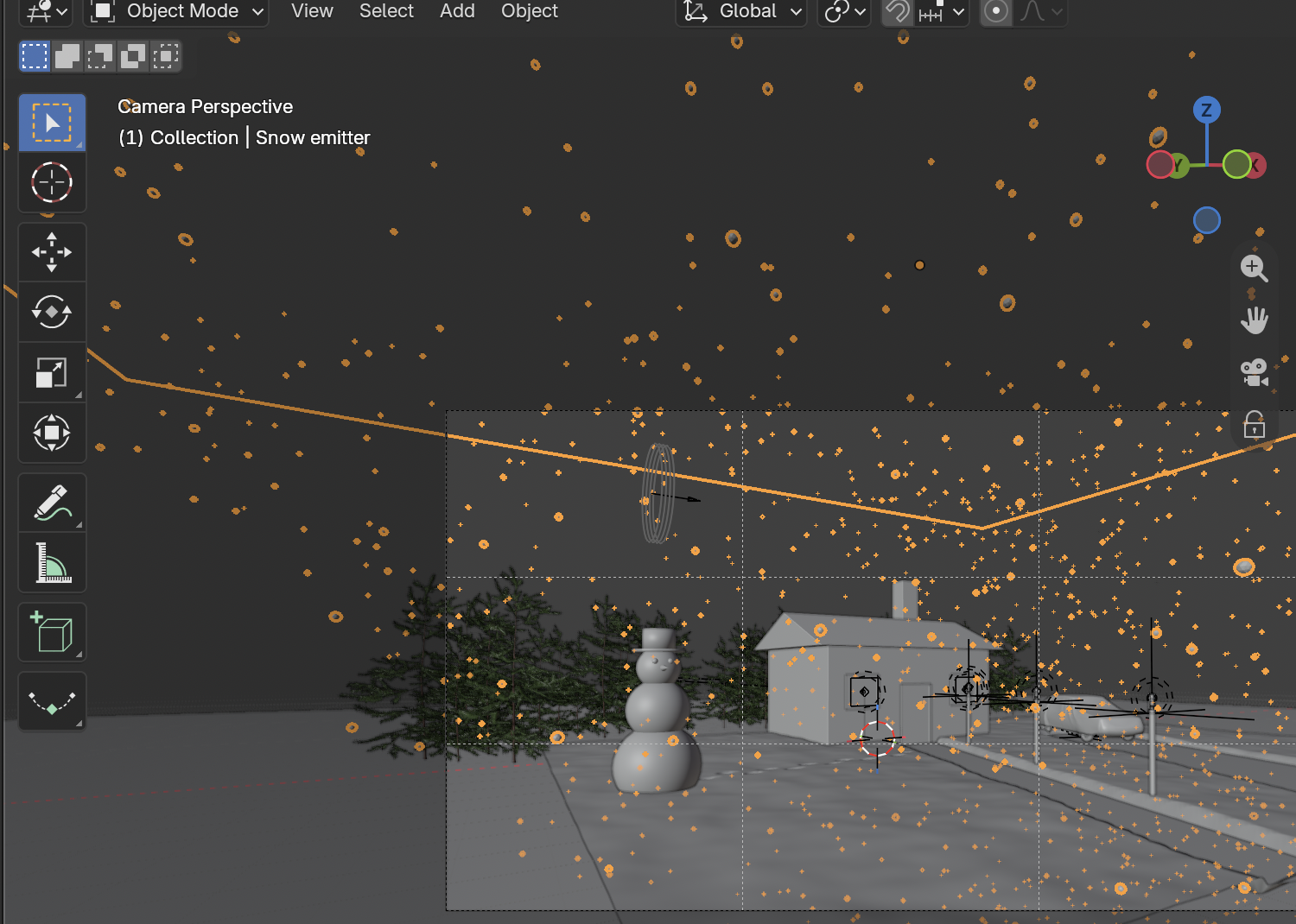
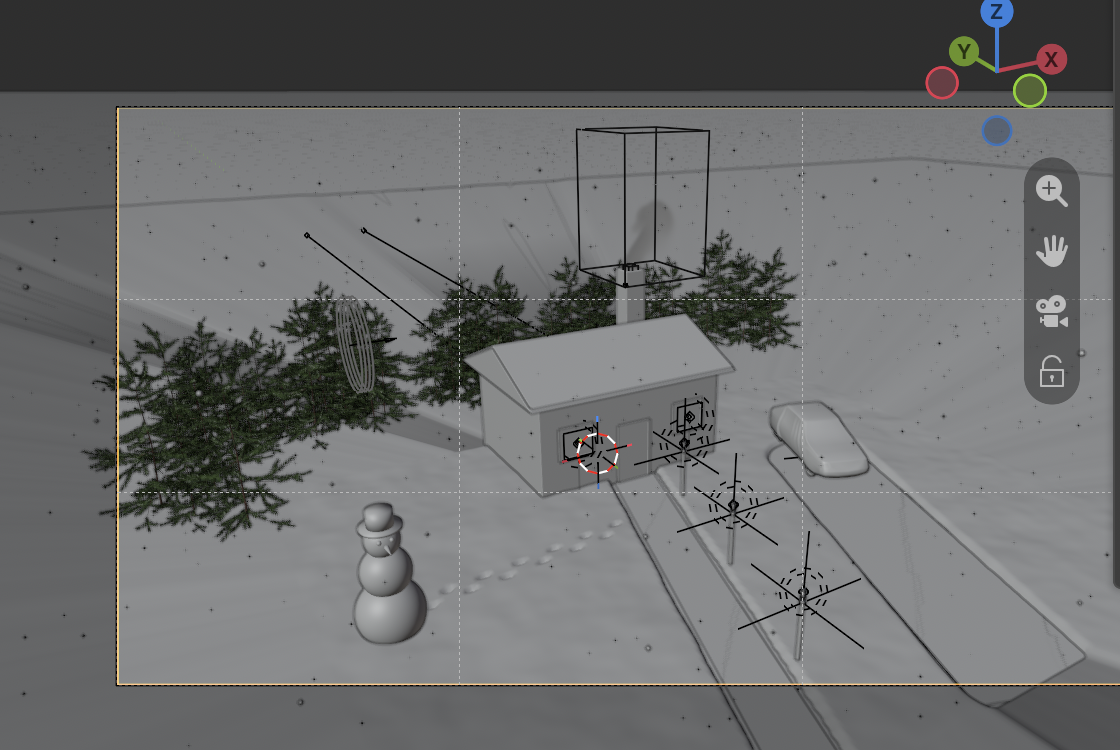
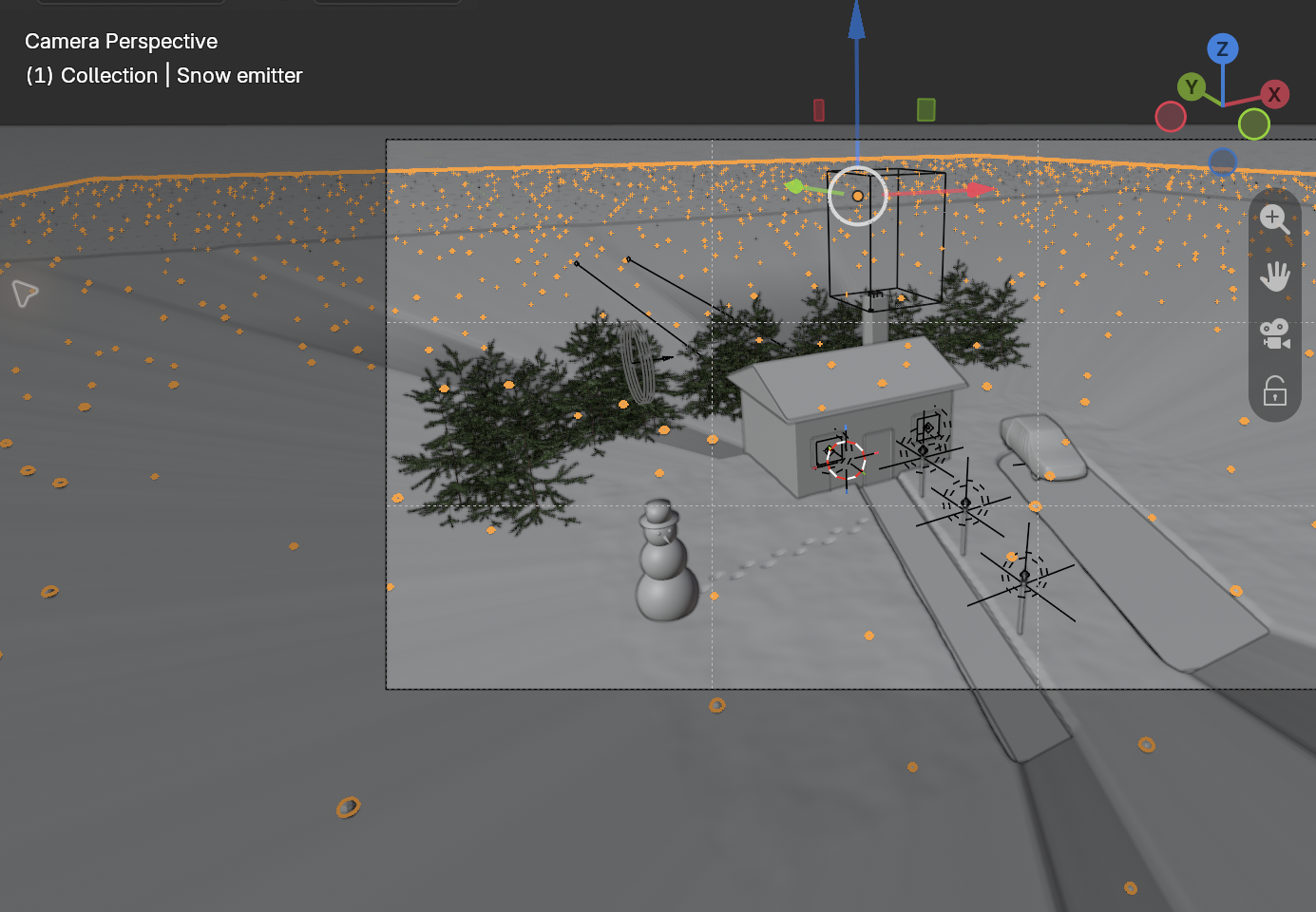
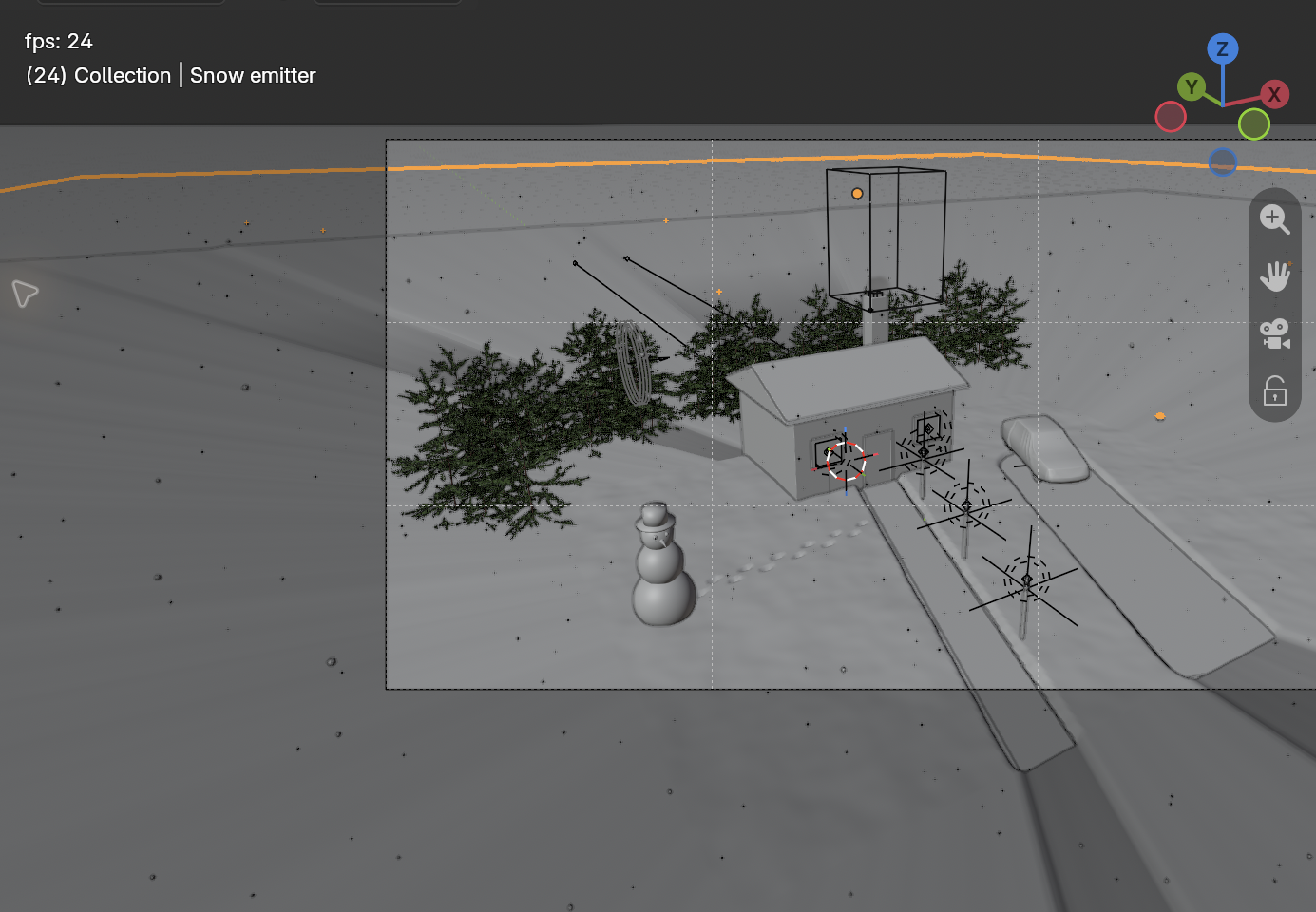
Use Rendered viewport shading to inspect warm ground spill and cool shadows. This later saved scene also includes snow, trees and smoke.Result in the native demonstration. Check the selected object, state and values against this view.
EXPLANATION FRAMESThe visible source is ___. The spill is produced by ___. I chose this approximation because ___.
STEP CHECKLIST
Tick each action beside its instruction after checking the result. Ticks record progress on this device; they do not establish achievement.
GLOSSARY
Emission: Light given off by a surface
Practical light: A light source visible in the scene
WHYEmission makes a surface give off light; practical lights inside make that glow believable. Warm windows against a cool sky is the classic cozy winter look.
CHECKGlowing windows, warm light spilling onto the snow, a dusk sky and a faint cool moon rim, checked in Rendered view.
FIXNo light reaches the snow? Check that each Area light sits in front of the opaque wall and points outward. White windows? Reduce emission, then rerender without changing every light at once.
WORKED EXAMPLE · DIFFERENT OBJECTDifferent practical: an opaque shop sign has a low emission glow, while an Area light in front illuminates the pavement. The sign reads as the light source; the separate light controls the spill. An interior lamp behind an opaque wall remains blocked.
STRETCH (AFTER THE CHECK PASSES)Add a warm porch light above the door.
Method basis: B1. Values and sequence are authored for this project.
Session D · Lesson 4 · mm12-26-s06-d04
Bring in models, frame the shot. Licence 2.
Studios rarely build everything. Append ready-made models, add lantern lights, and frame the camera like a cinematographer.
TODAYAppend models and lanterns (30 min), camera and first render (30 min).
08
Append a car and lanterns from other files
An assembly and its parent
Append copies data from another .blend file into this scene. A parent is an object that controls its children: moving a root Empty moves the whole assembly. An Empty has a transform but no rendered surface. Keep Transform preserves the children’s visible positions when parenting. Shift+D makes independent data copies here, allowing the lantern lights to animate separately. Packing includes supported external assets in the saved project; reopening checks the result.
Recall first (from last lesson, no peeking):
What does a UV map tell Blender?
Which three image maps did you connect, and to which inputs?
What makes a window glow, and what makes that glow light the snow?
Say or write your answers, then check them against your file.
Application verification incomplete: actions 1, 2, 3, 4, 5, 6, 7 still need their complete run/capture/result evidence checked. Unproven procedures remain not yet run.
IN SHORTAppend complete assemblies; parent their parts with Keep Transform; duplicate the lantern hierarchy; create three independent Point lights.
READ ALOUD
DOCUMENT: Starter pack: covered_car_1k.blend, Lantern_01_1k.blend SELECT: The car and the lantern objects TOOLS / ROUTE: File › Append · Empty parents · Keep Transform · Shift+D · independent Point lights
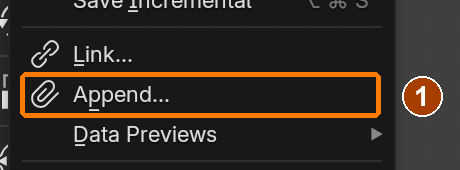
File menu: Append.Result in the native demonstration. Check the selected object, state and values against this view.
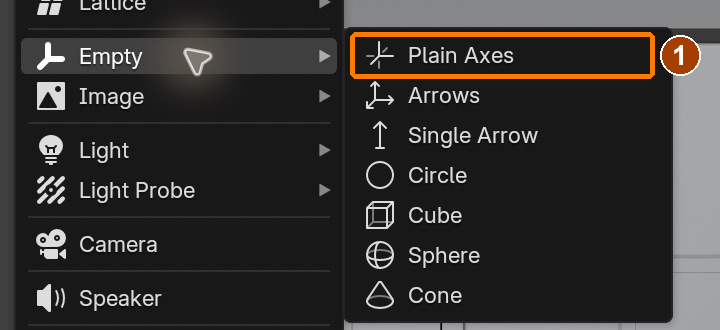
Add > Empty > Plain Axes.Result in the native demonstration. Check the selected object, state and values against this view.
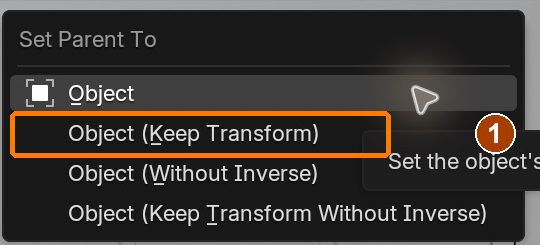
Ctrl+P menu: Object (Keep Transform).Result in the native demonstration. Check the selected object, state and values against this view.
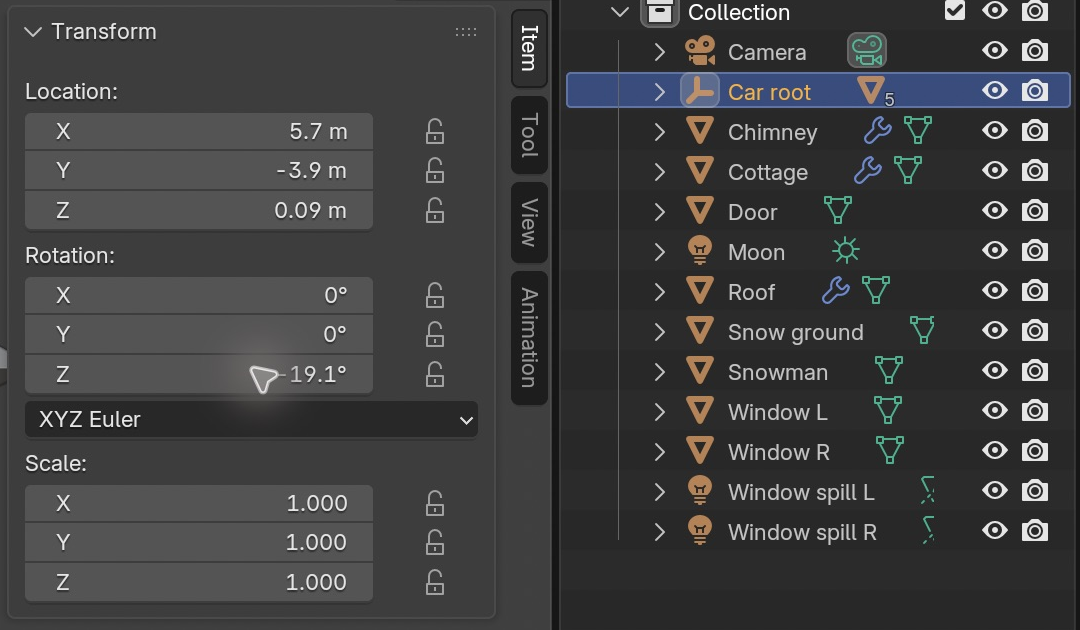
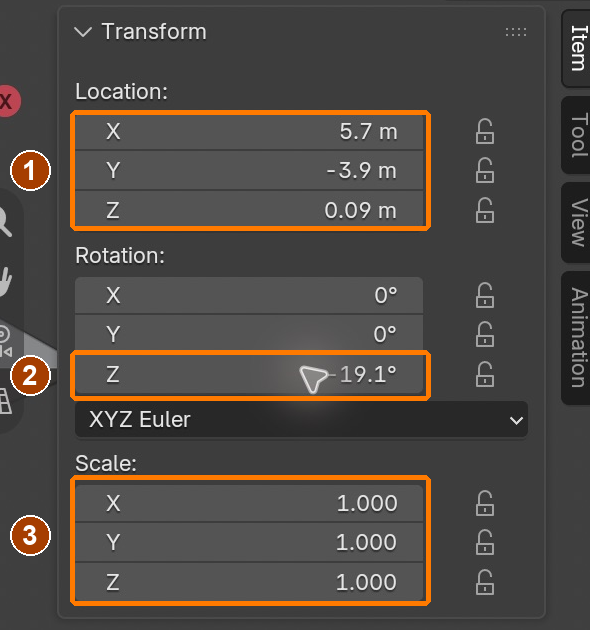
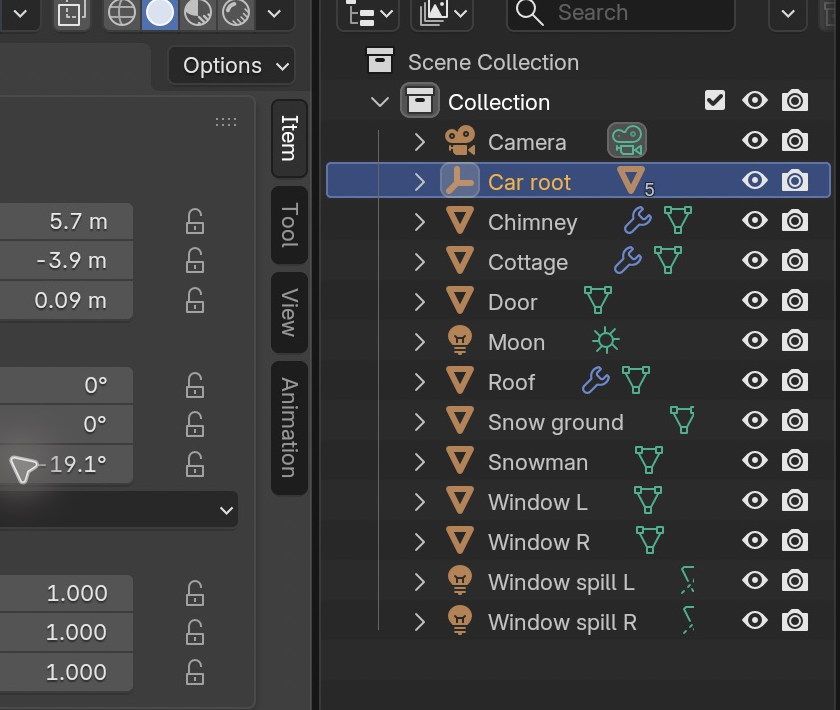
Car root location, Z rotation and Scale 1.Result in the native demonstration. Check the selected object, state and values against this view.
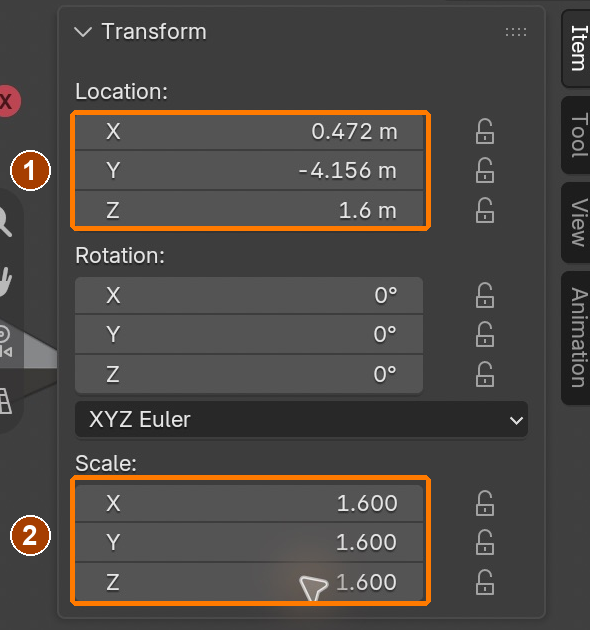
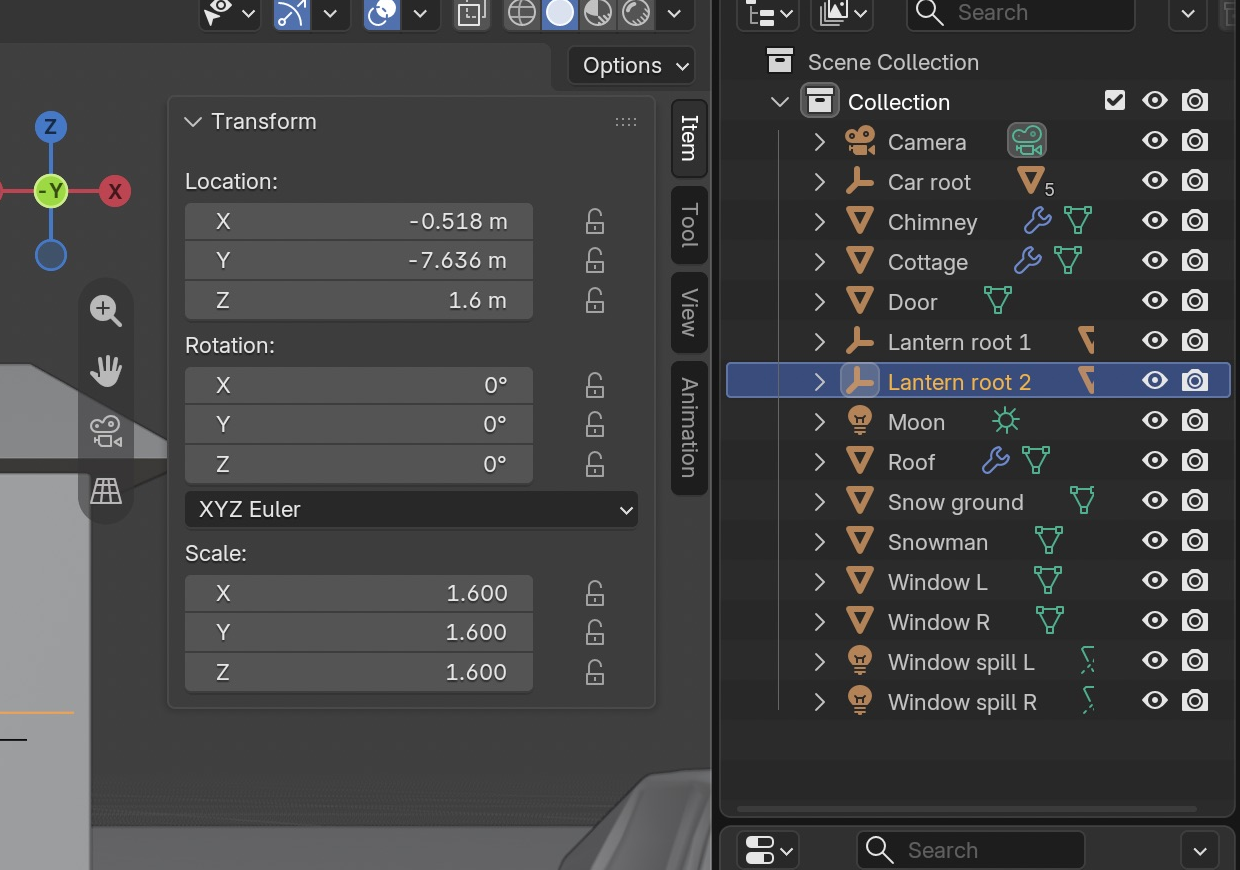
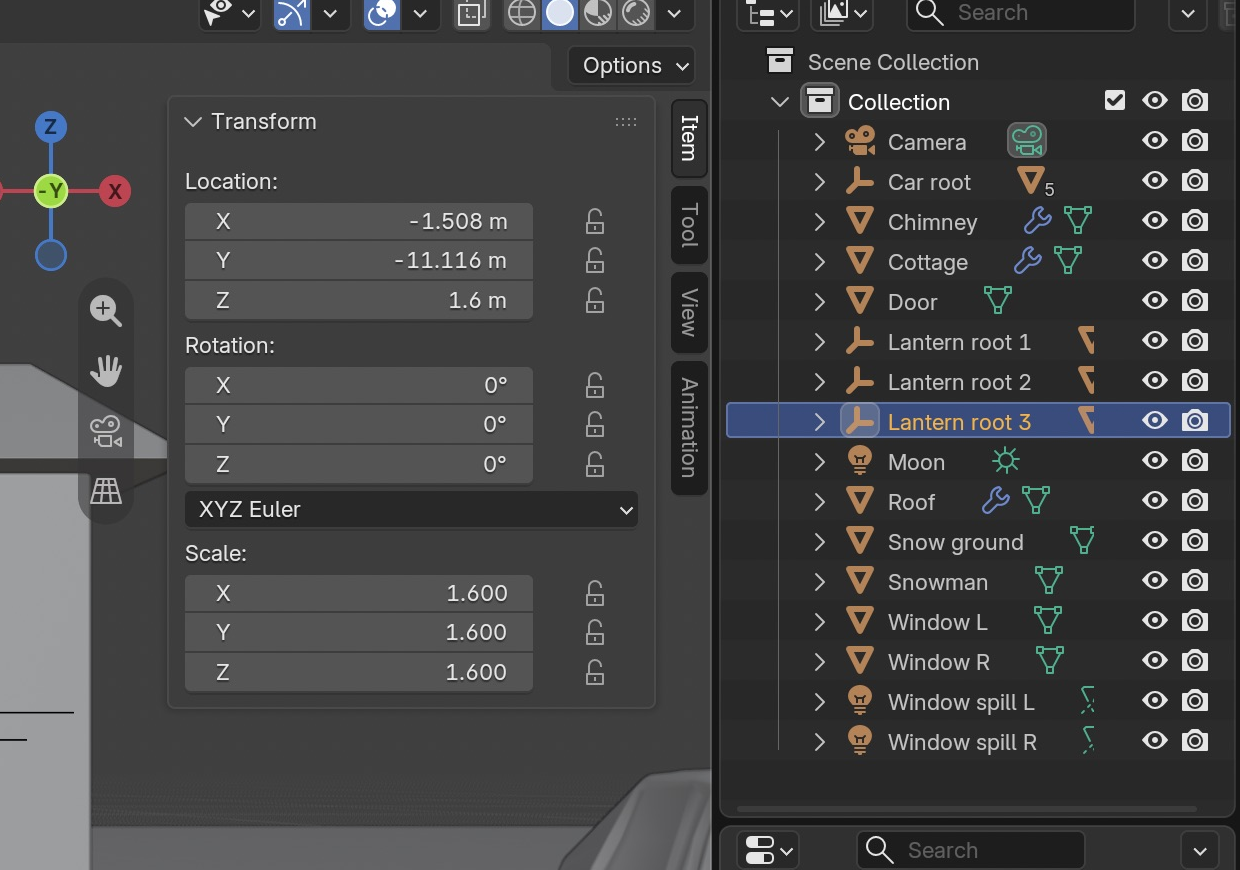
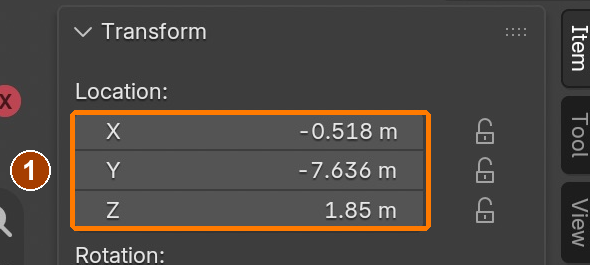
Lantern root 1 location and Scale 1.6.Result in the native demonstration. Check the selected object, state and values against this view.
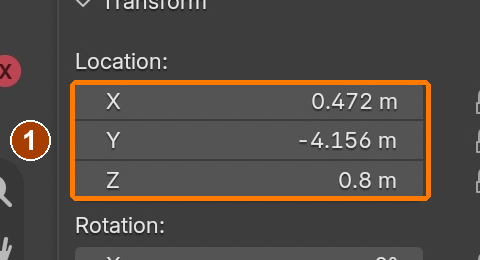
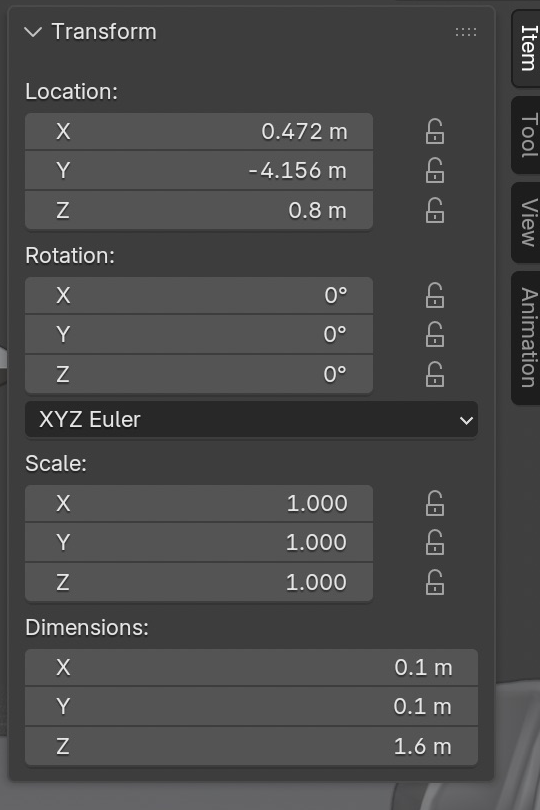
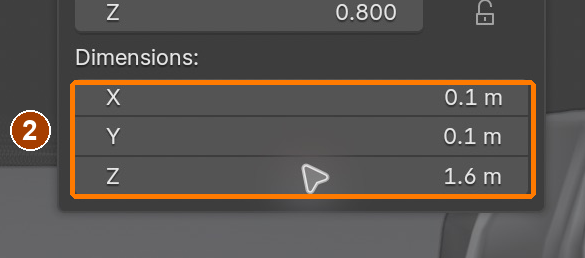
Post location and Dimensions 0.1 × 0.1 × 1.6 m; next apply scale. · Location.Result in the native demonstration. Check the selected object, state and values against this view.
Post location and Dimensions 0.1 × 0.1 × 1.6 m; next apply scale. · Dimensions.Result in the native demonstration. Check the selected object, state and values against this view.
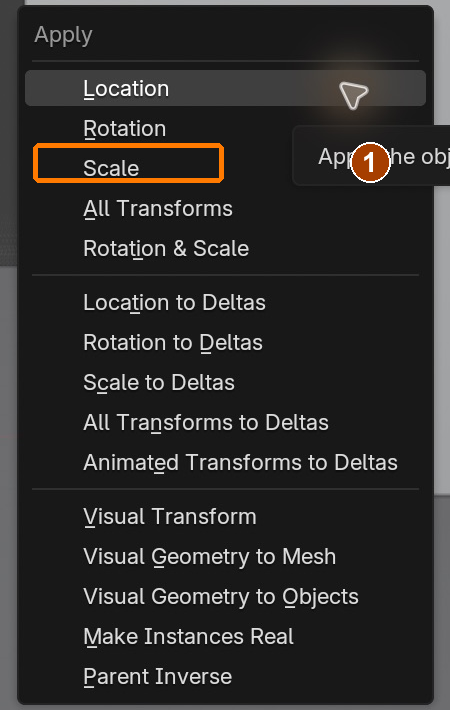
Apply menu: Scale.Result in the native demonstration. Check the selected object, state and values against this view.
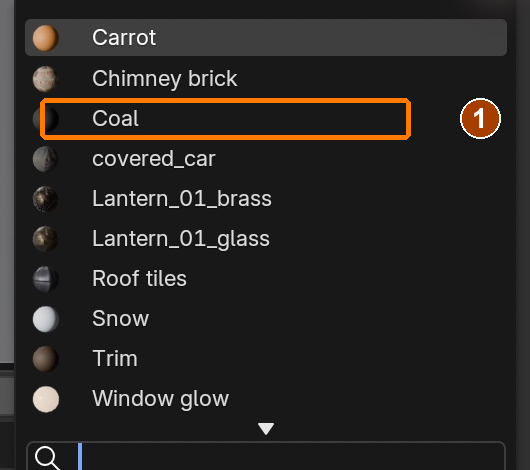
Material dropdown: existing Coal.Result in the native demonstration. Check the selected object, state and values against this view.
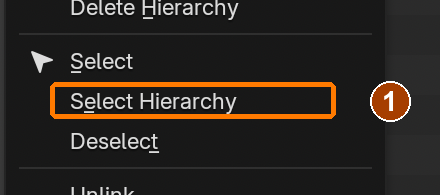
Outliner right-click: Select Hierarchy.Result in the native demonstration. Check the selected object, state and values against this view.
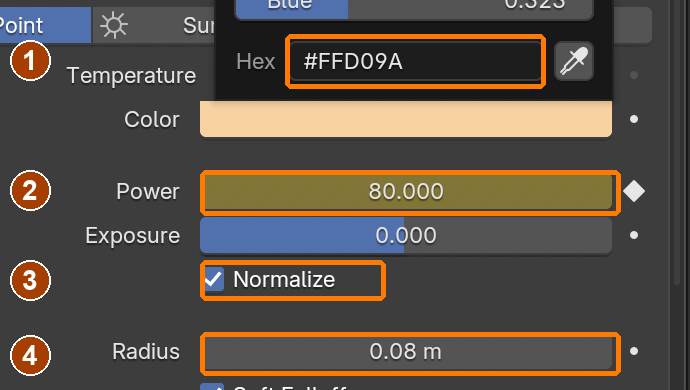
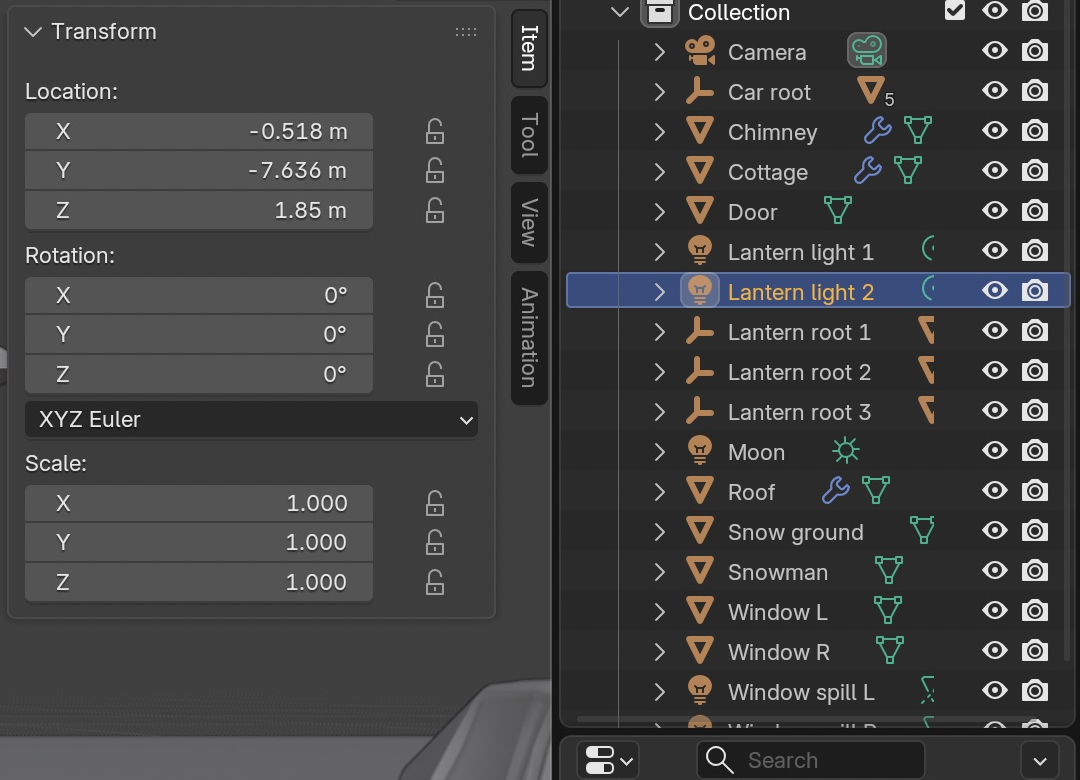
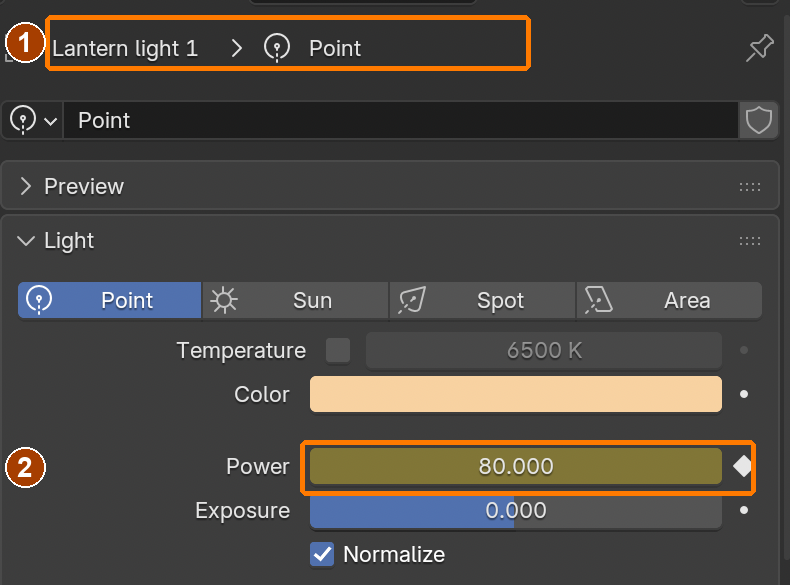
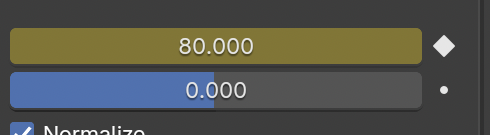
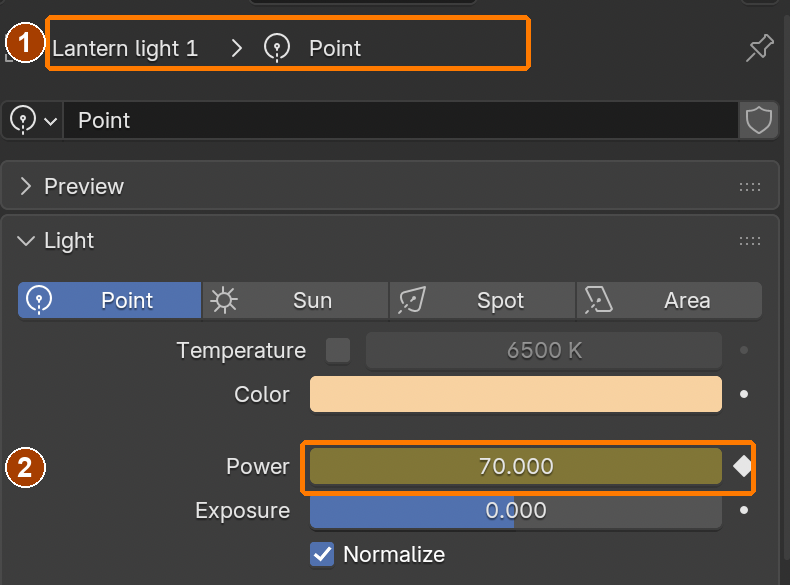
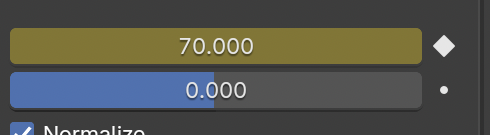
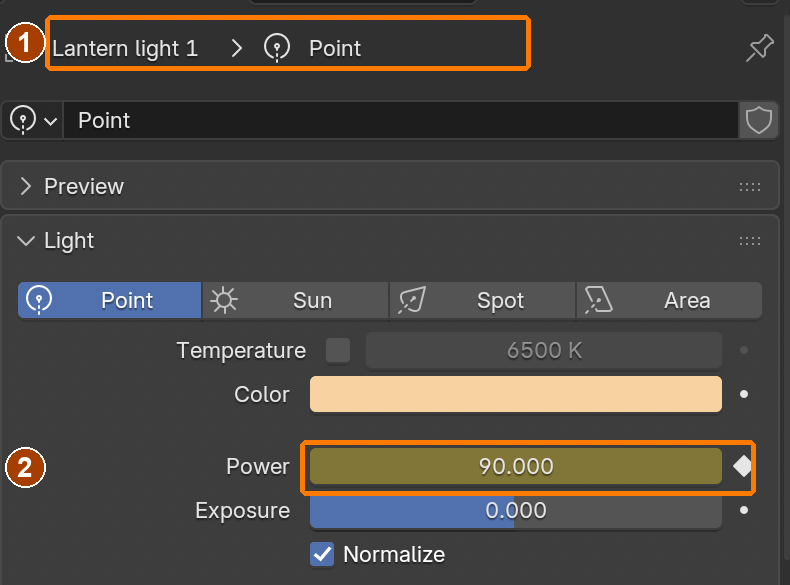
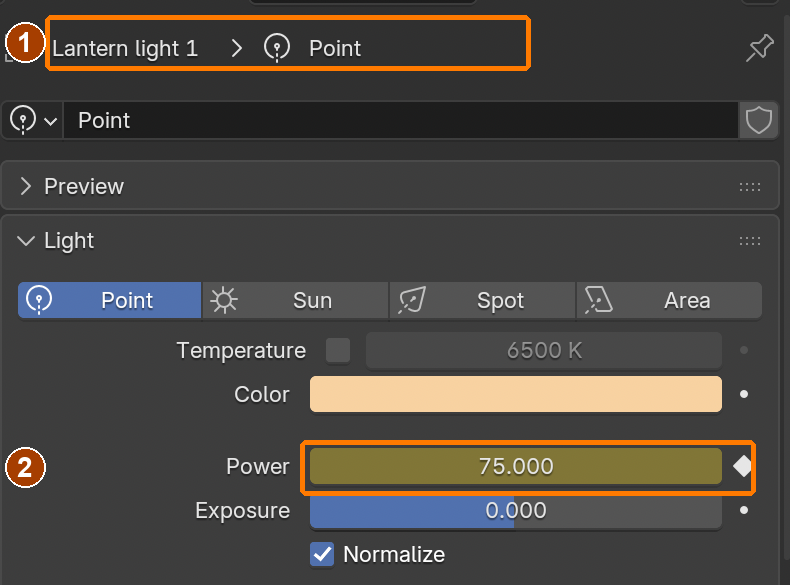
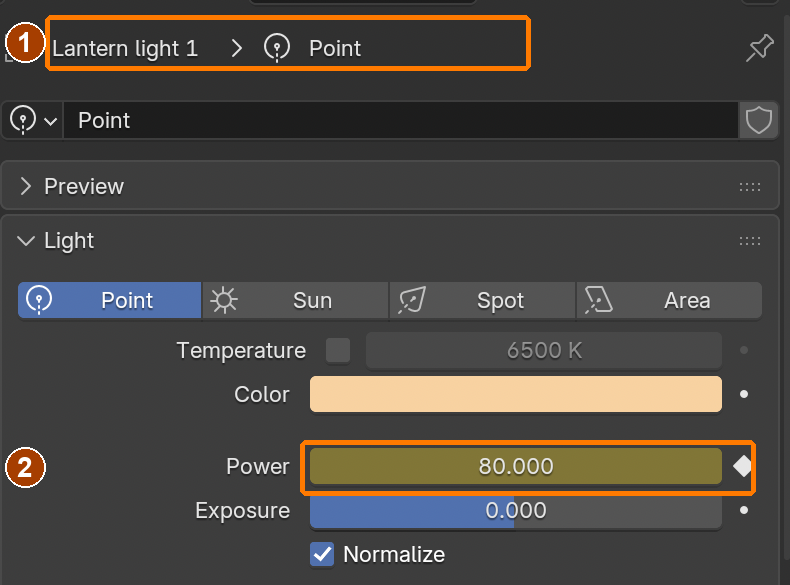
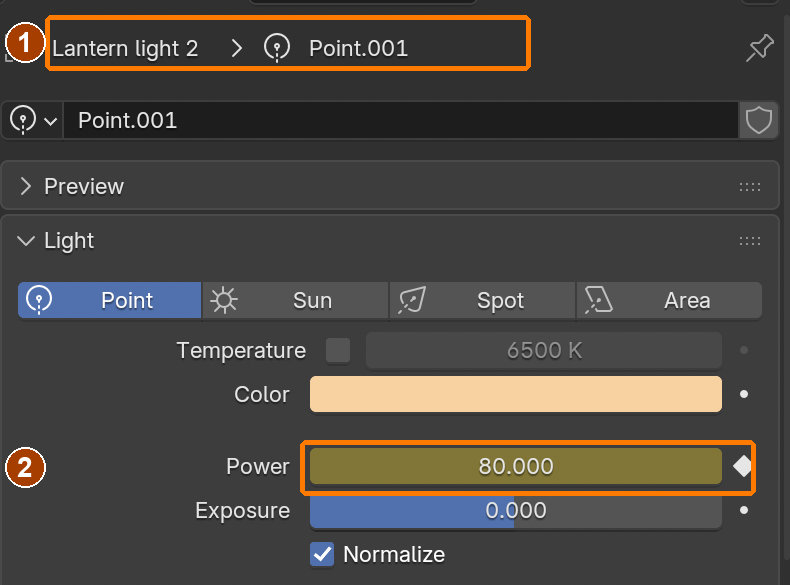
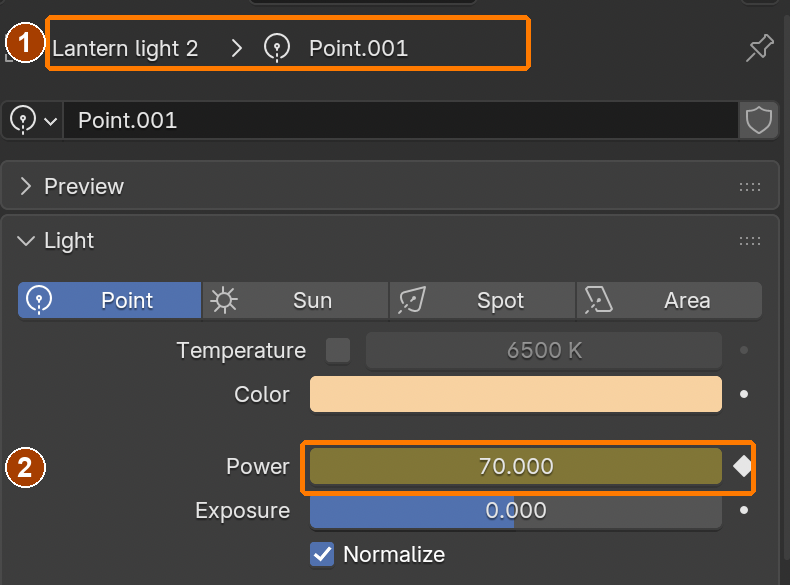
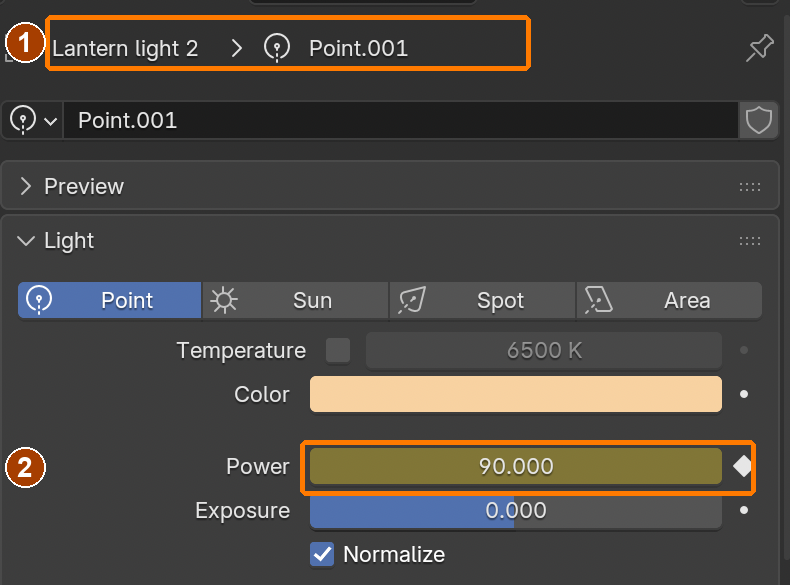
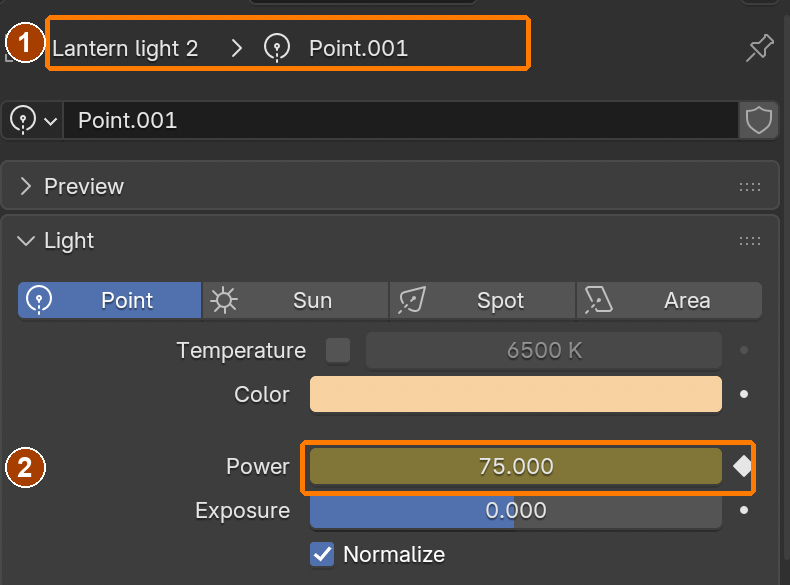
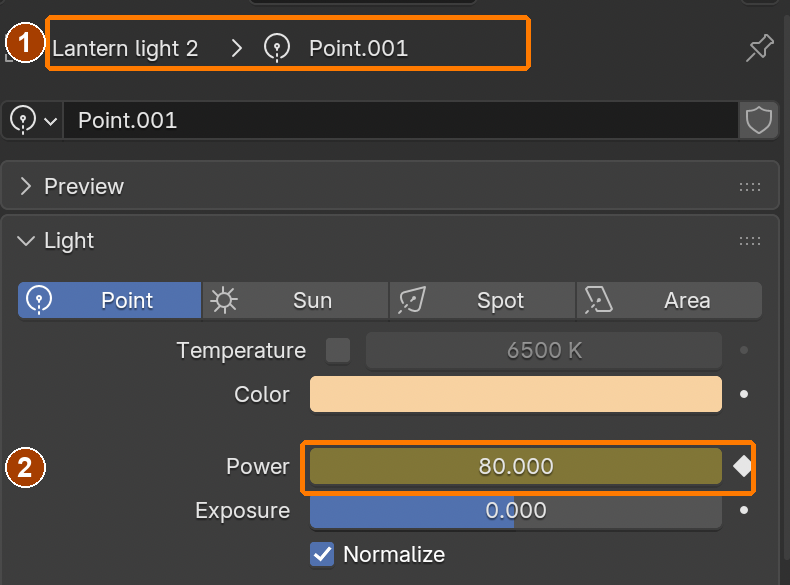
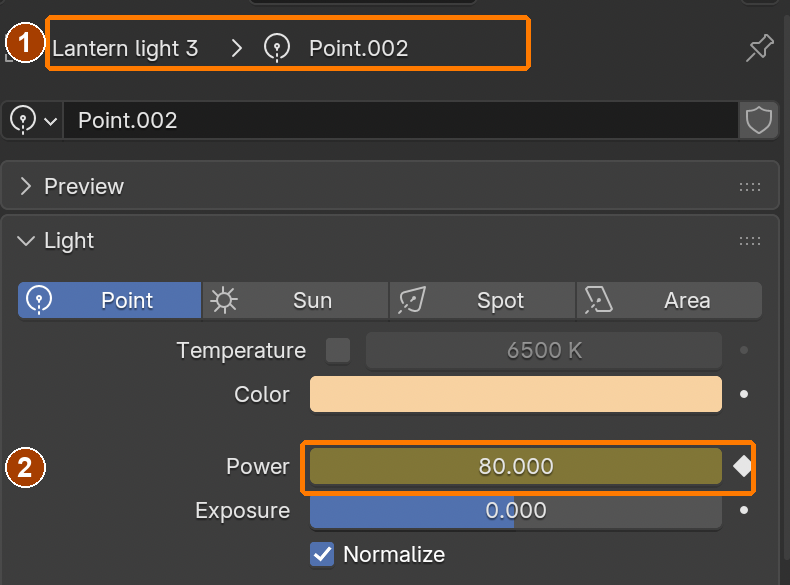
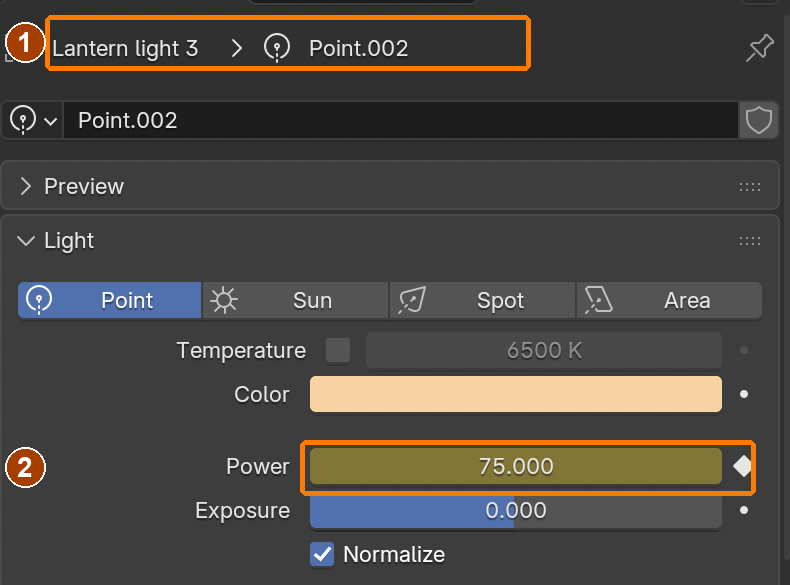
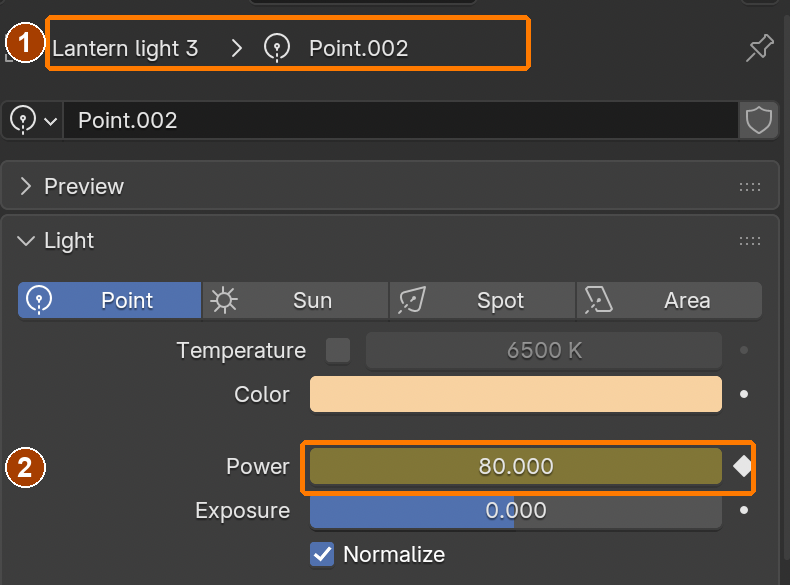
Lantern point: #FFD09A, 80 W, Normalize on, radius 0.08 m.Result in the native demonstration. Check the selected object, state and values against this view.
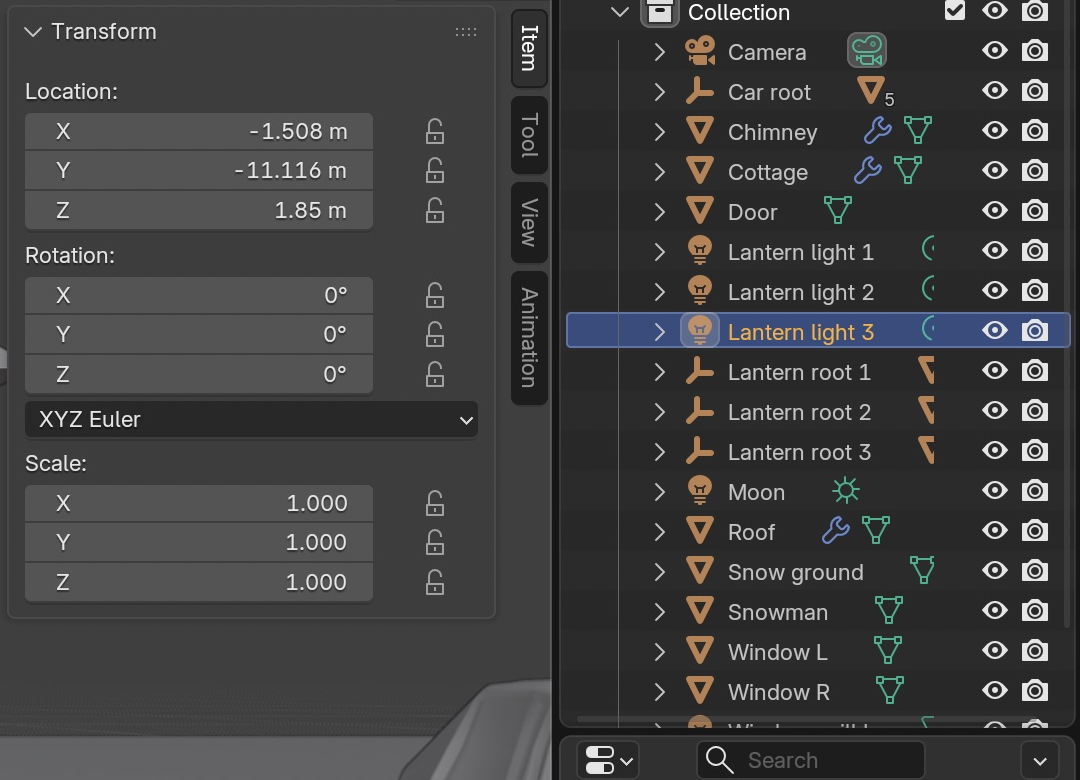
Lantern light 2 location.Result in the native demonstration. Check the selected object, state and values against this view.
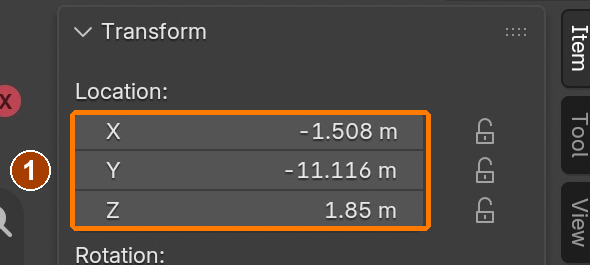
Lantern light 3 location.Result in the native demonstration. Check the selected object, state and values against this view.
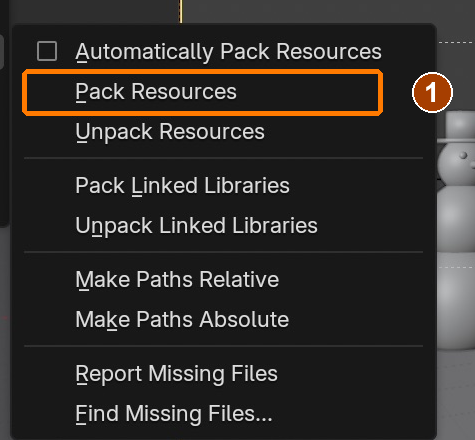
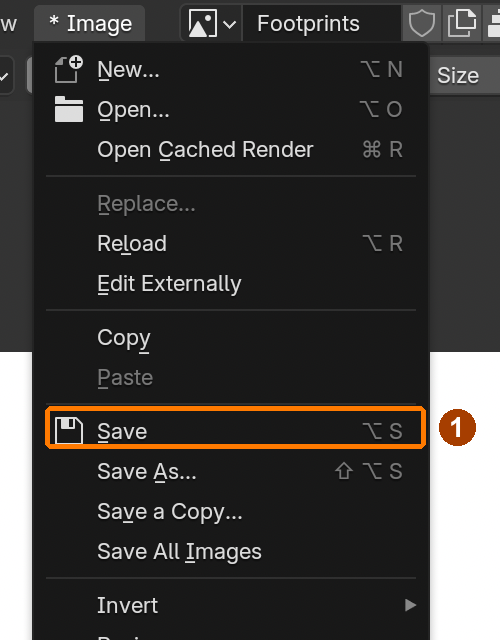
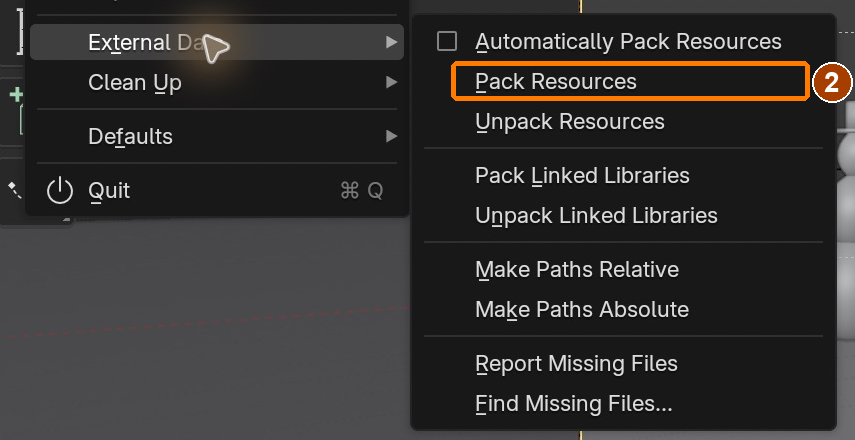
File > External Data > Pack Resources.Result in the native demonstration. Check the selected object, state and values against this view.
EXPLANATION FRAMESThe parent controls ___. The credit and packed-resource check show ___.
A mistake from the actual build
Wrong · The appended car body and four wheels arrived as separate objects; moving one did not move the assembly.Right · I added Car root and parented all five parts with Keep Transform. The root shows five mesh children; expand its arrow to inspect them.
Diagnose: intended result → observed mismatch → likely cause → one change → test.
STEP CHECKLIST
Tick each action beside its instruction after checking the result. Ticks record progress on this device; they do not establish achievement.
GLOSSARY
Append: Copy an object from another .blend file into this one
Linked duplicate: A copy that shares mesh data with the original (Alt+D)
WHYAppending copies an object, with its materials, from another .blend. It is how studios reuse assets and how you will bring in Sketchfab and Mixamo models later.
CHECKThe car and three lanterns placed in the scene, lanterns lit, textures showing (not pink).
FIXModel is pink? Its textures were not found: keep the starter pack folders together. Can’t see the model? Press Numpad . with it selected.
WORKED EXAMPLE · DIFFERENT OBJECTDifferent asset: a bench arrives as seat, legs and parent. Selecting just the seat separates the assembly. Moving the parent moves every child; packing and reopening tests its textures.
STRETCH (AFTER THE CHECK PASSES)Append a second Poly Haven model that suits the scene (a barrel or a bench) and credit it.
Method basis: B8 · A2. Values and sequence are authored for this project.
09
Frame the camera and render a still. Licence 2 check.
A camera and a render
The camera defines the final frame. Its lens affects the field of view; its transform sets position and direction. Thirds guides help compare composition without changing the render. Cycles calculates lighting with sampled rays; more samples can reduce noise but take longer. Denoising reduces remaining noise. AgX converts the render’s large brightness range for the display. Judge material detail and light from an actual render, then measure the time before choosing a larger output.
Application verification incomplete: actions 1, 2, 3, 4, 5, 6, 7, 8 still need their complete run/capture/result evidence checked. Unproven procedures remain not yet run.
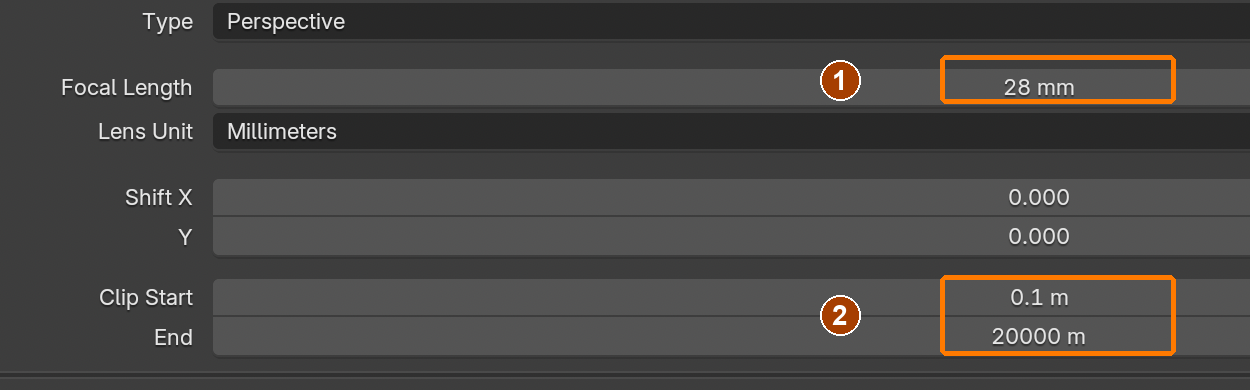
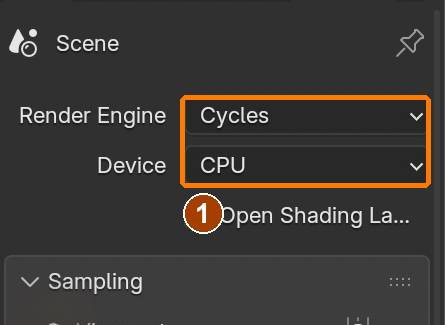
IN SHORTSet the 28 mm camera and clipping range; test Cycles CPU, sampling, AgX and the saved lighting-test PNG; measure render time.
READ ALOUD
DOCUMENT: WinterCottage_YourName.blend SELECT: Camera, render and output settings TOOLS / ROUTE: Camera transforms · Cycles · Sampling · AgX · Render Image · Image Save As
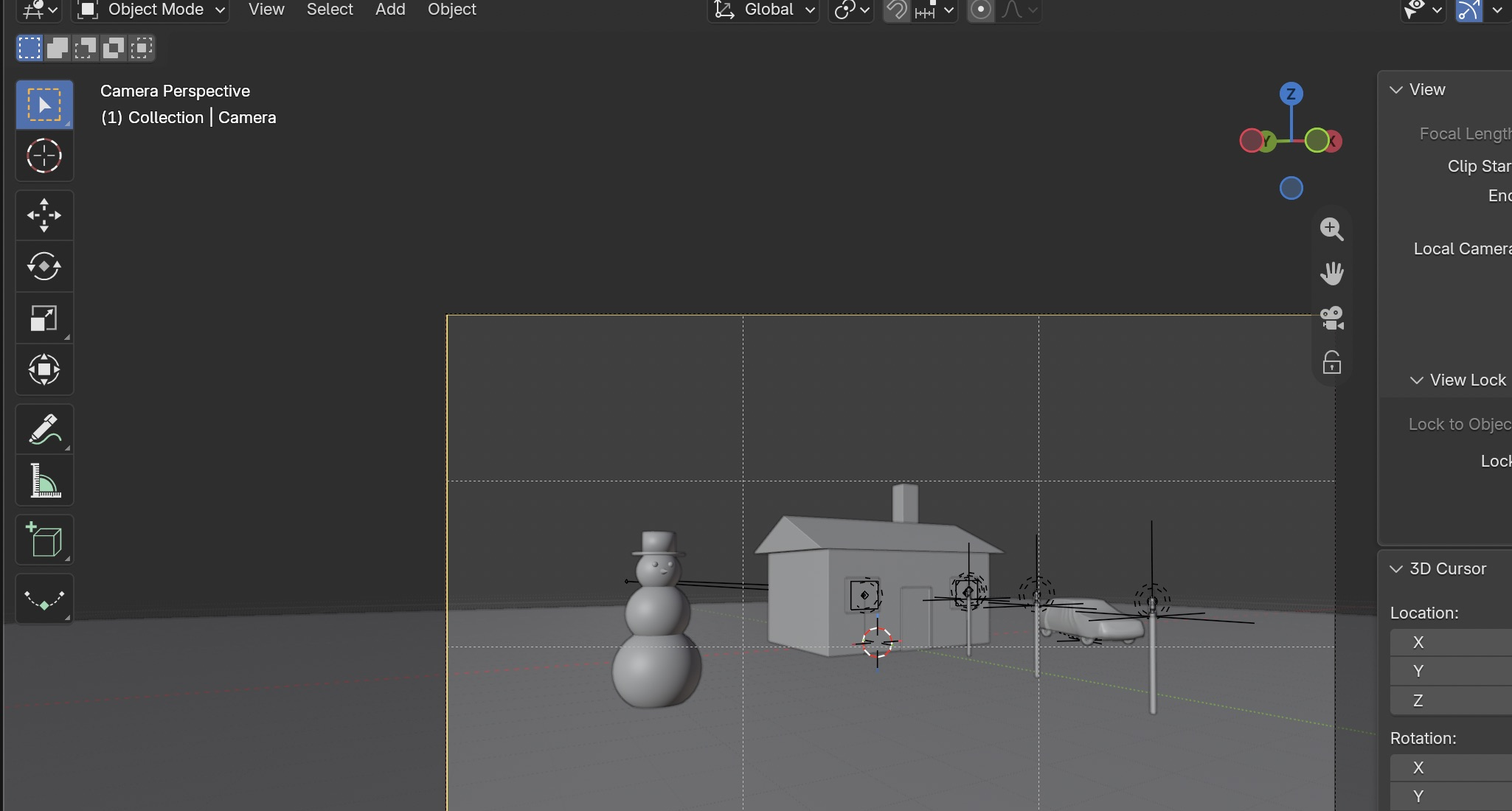
Camera Data: Focal Length 28 mm, Clip Start 0.1 m and End 20000 mResult in the native demonstration. Check the selected object, state and values against this view.
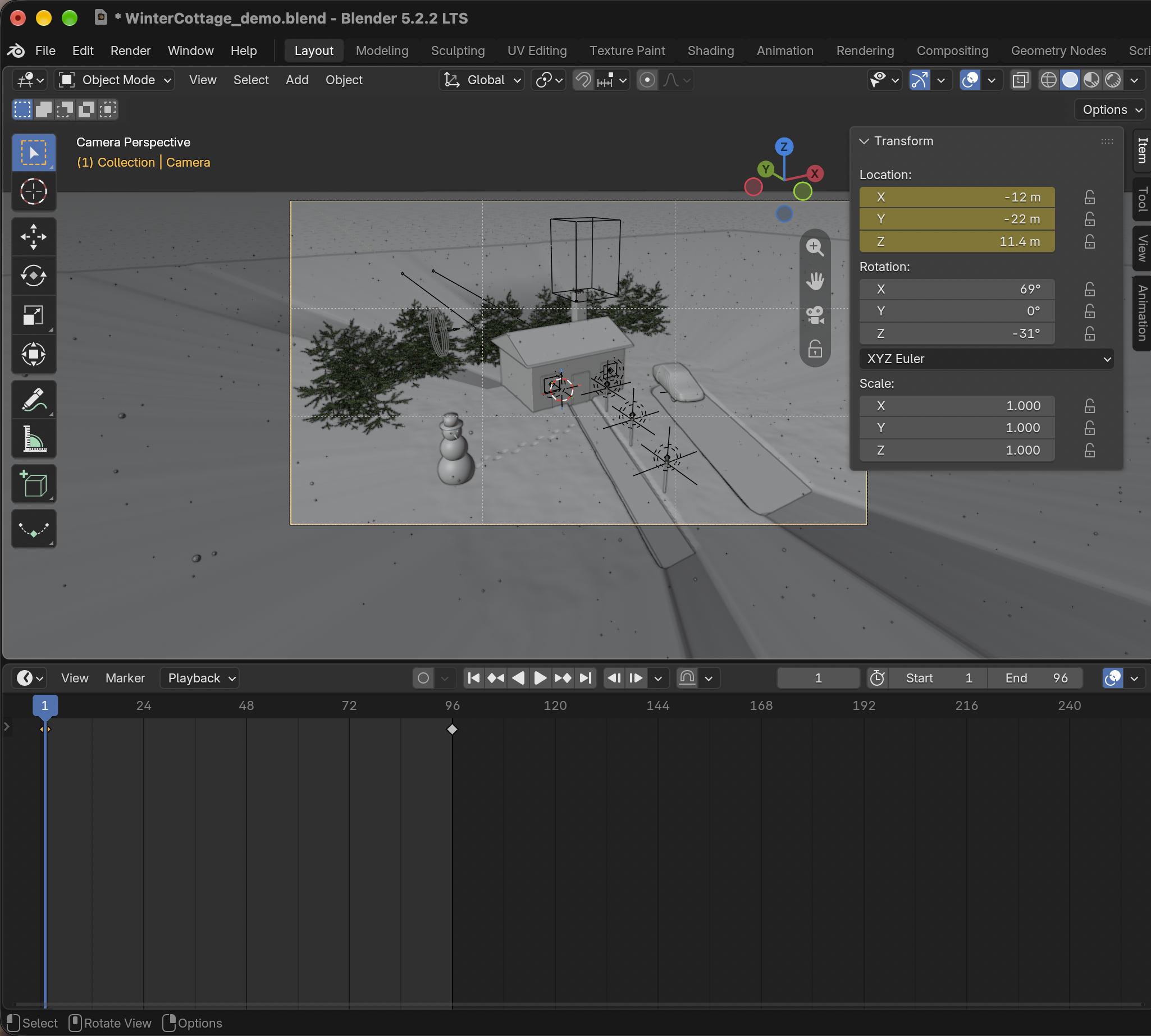
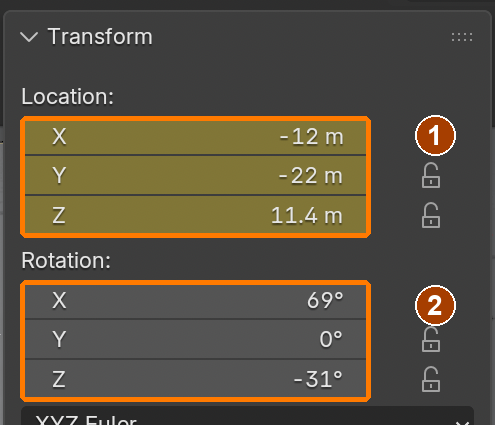
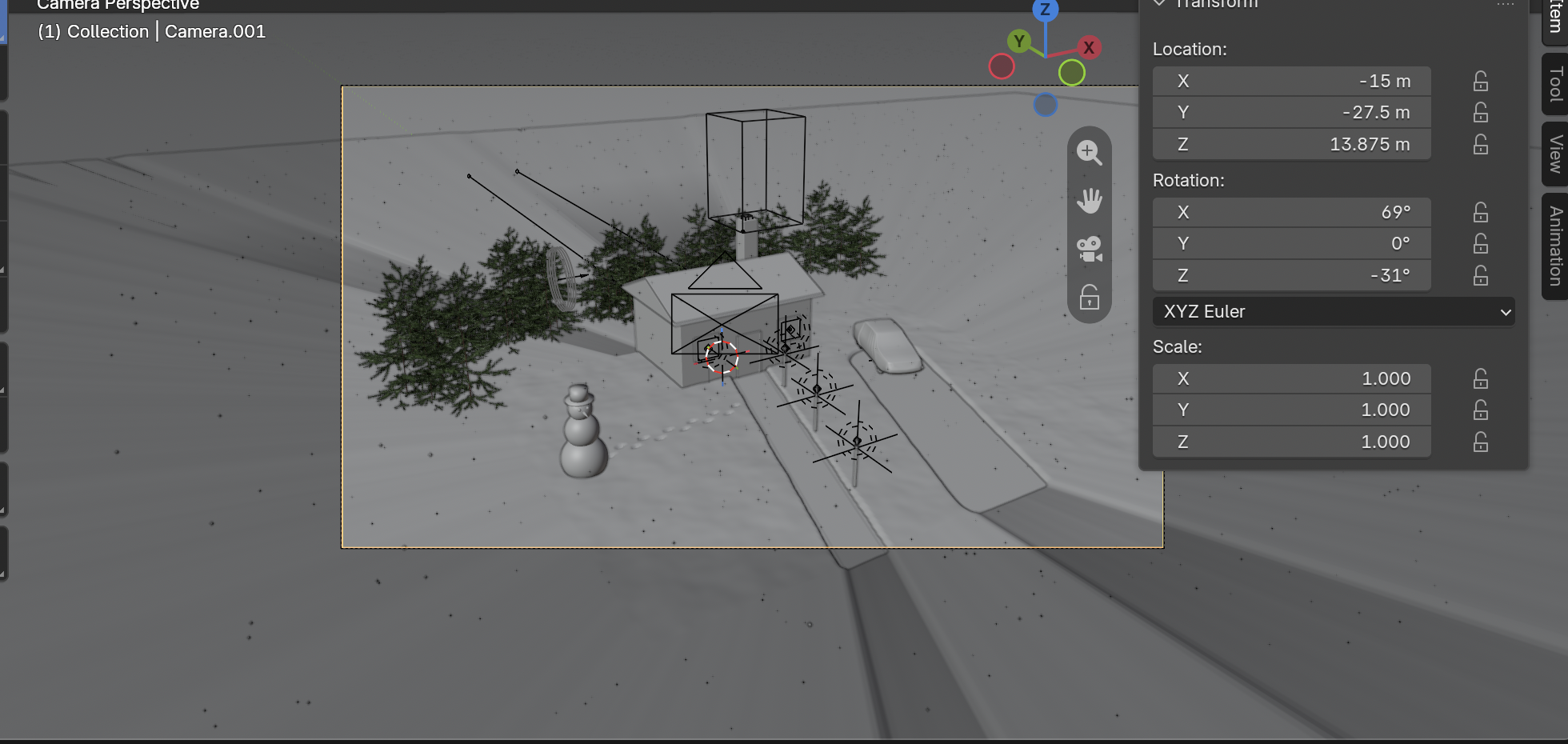
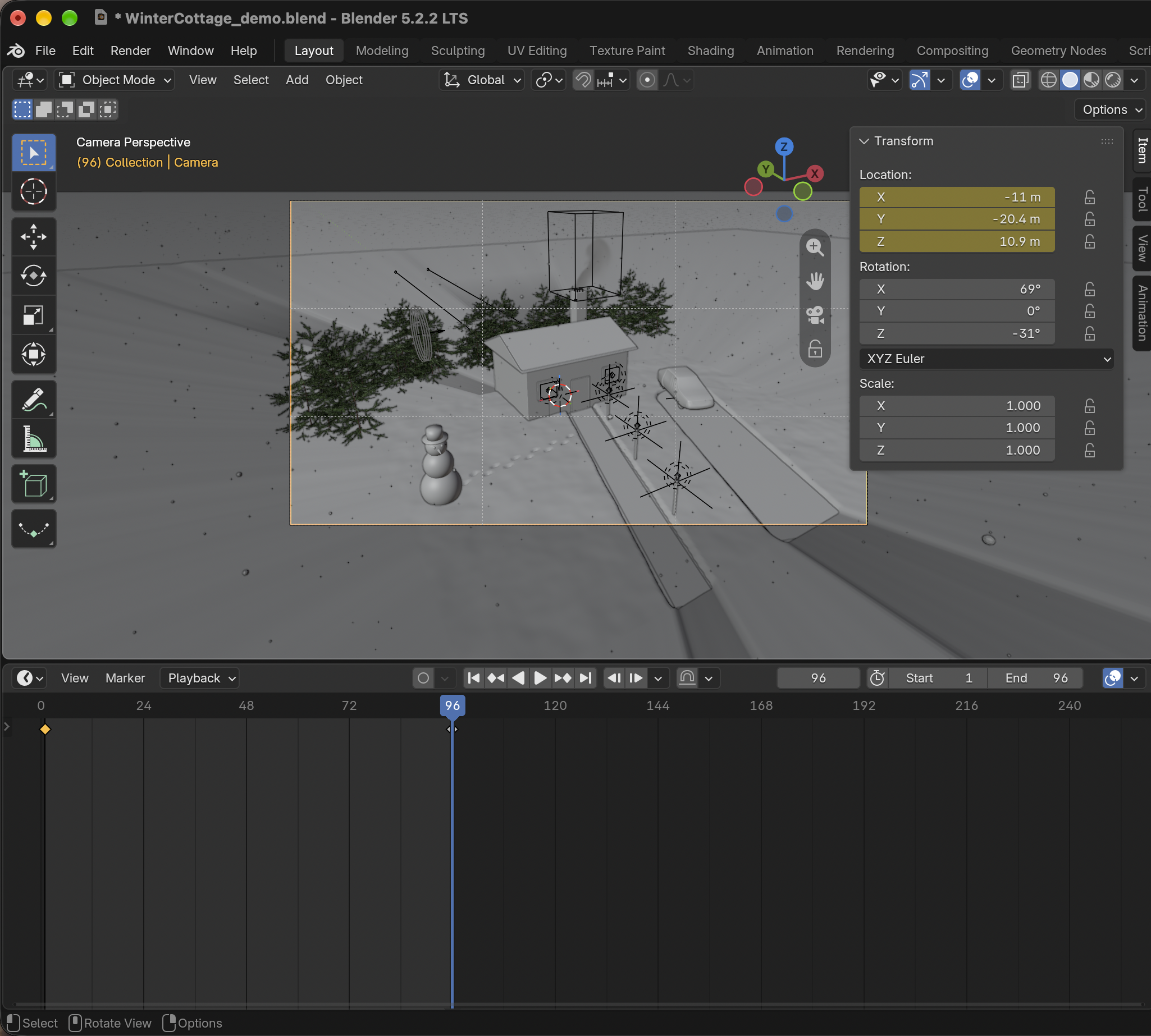
Demonstrated camera start Location and Rotation; Location shown keyed after Step 14Result in the native demonstration. Check the selected object, state and values against this view.
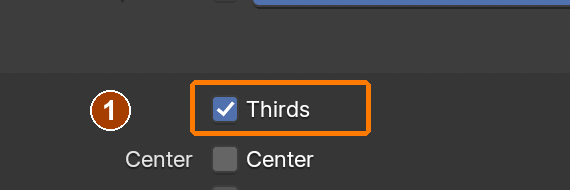
Camera Data > Viewport Display > Composition Guides: ThirdsResult in the native demonstration. Check the selected object, state and values against this view.
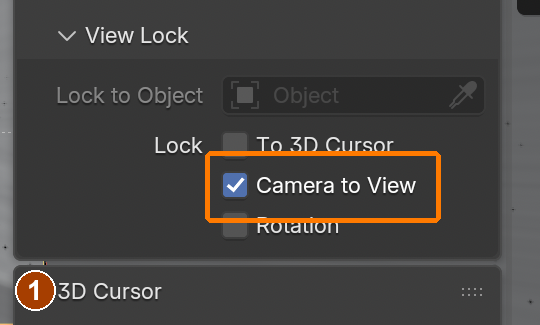
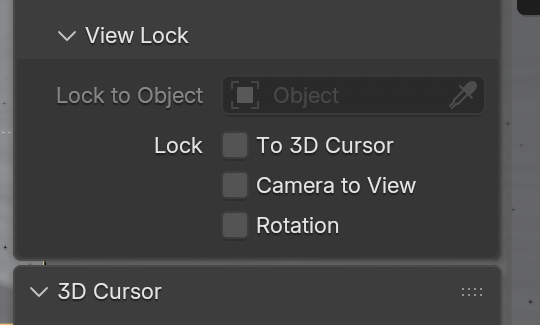
Camera to View allows navigation to move the active camera; turn it off immediately afterward.Result in the native demonstration. Check the selected object, state and values against this view.
Render Properties > Cycles / Device CPUResult in the native demonstration. Check the selected object, state and values against this view.
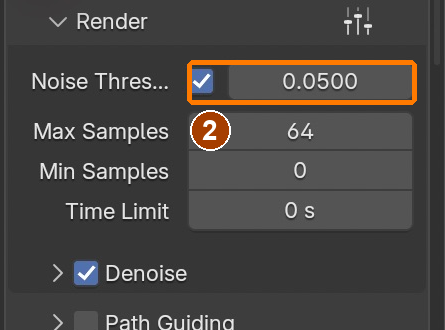
Sampling > Render > Noise Threshold 0.0500, enabledResult in the native demonstration. Check the selected object, state and values against this view.
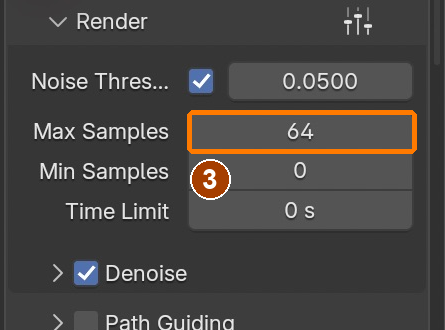
Sampling > Render > Max Samples 64Result in the native demonstration. Check the selected object, state and values against this view.
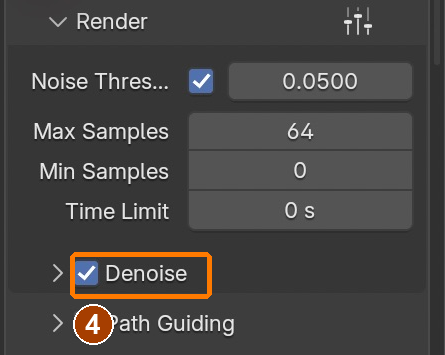
Sampling > Render > Denoise, enabledResult in the native demonstration. Check the selected object, state and values against this view.
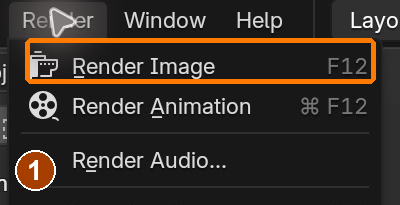
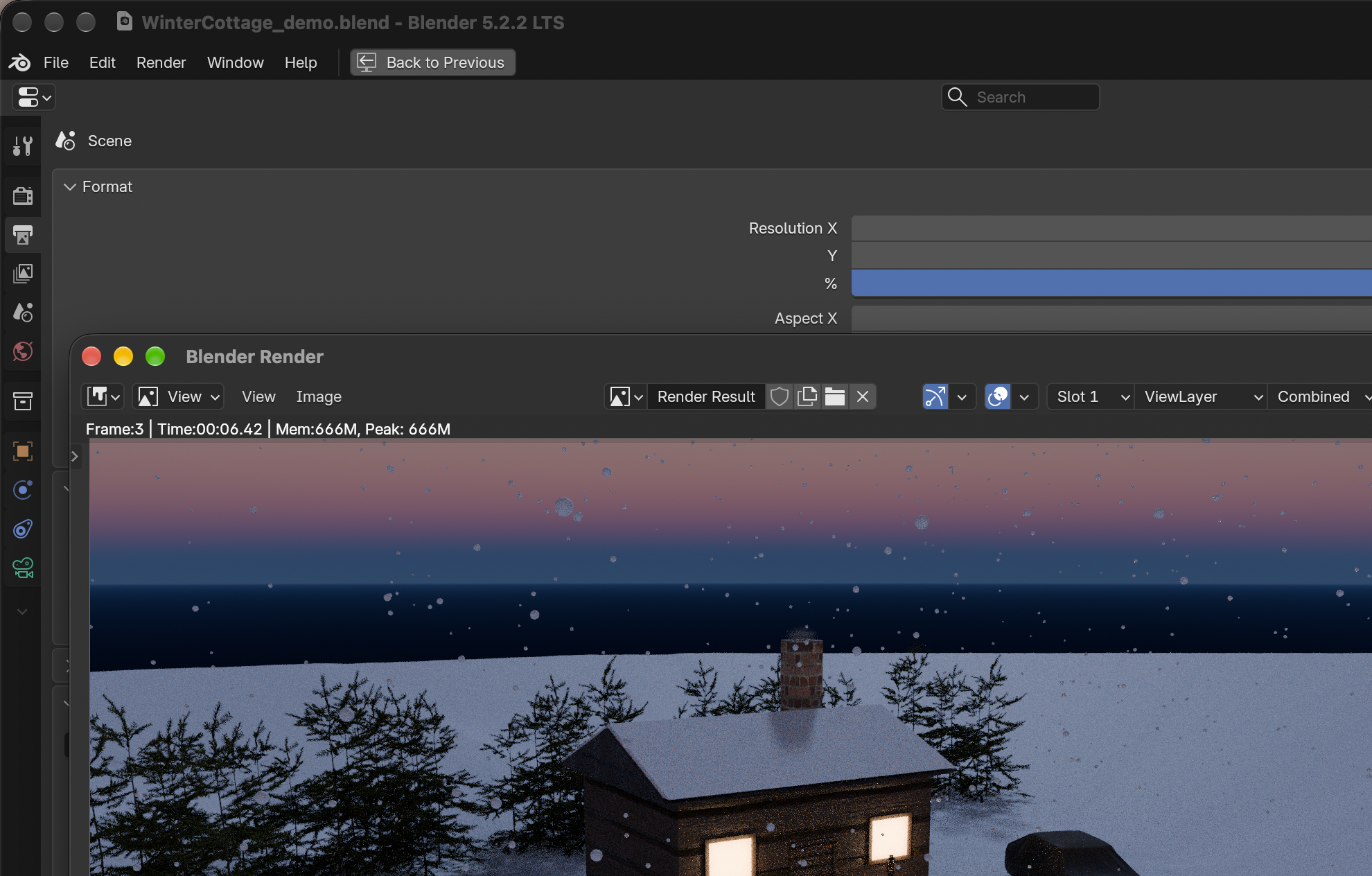
Render Image creates the lighting-test still; the screenshot is cropped to the command.Result in the native demonstration. Check the selected object, state and values against this view.
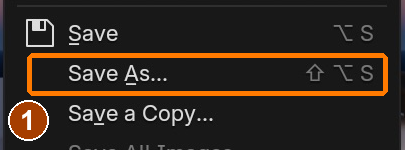
Save As in the render Image menu saves the actual rendered pixels.Result in the native demonstration. Check the selected object, state and values against this view.
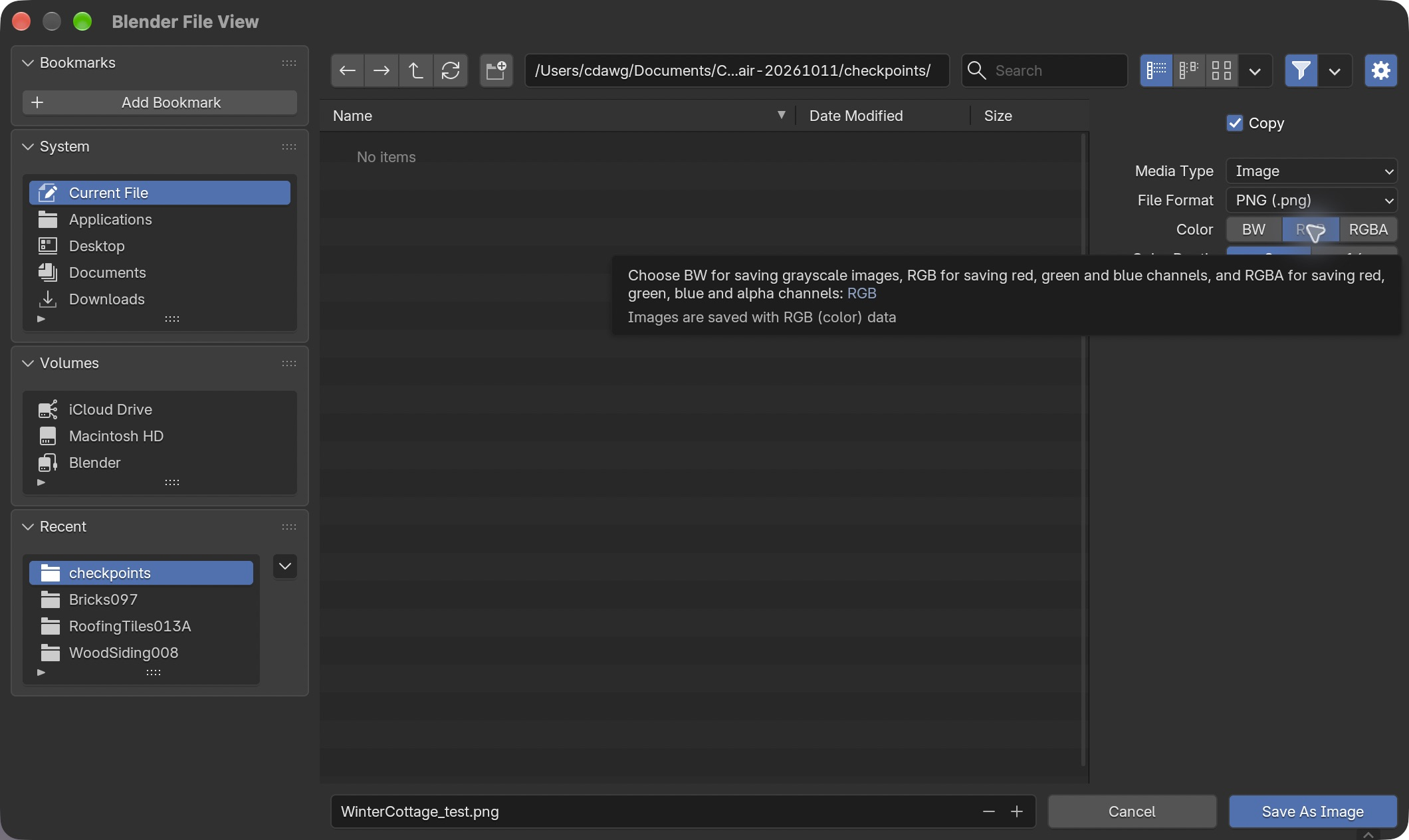
Save the first milestone still as WinterCottage_test.png using Save As Image. Keep the project folder selected.Result in the native demonstration. Check the selected object, state and values against this view.
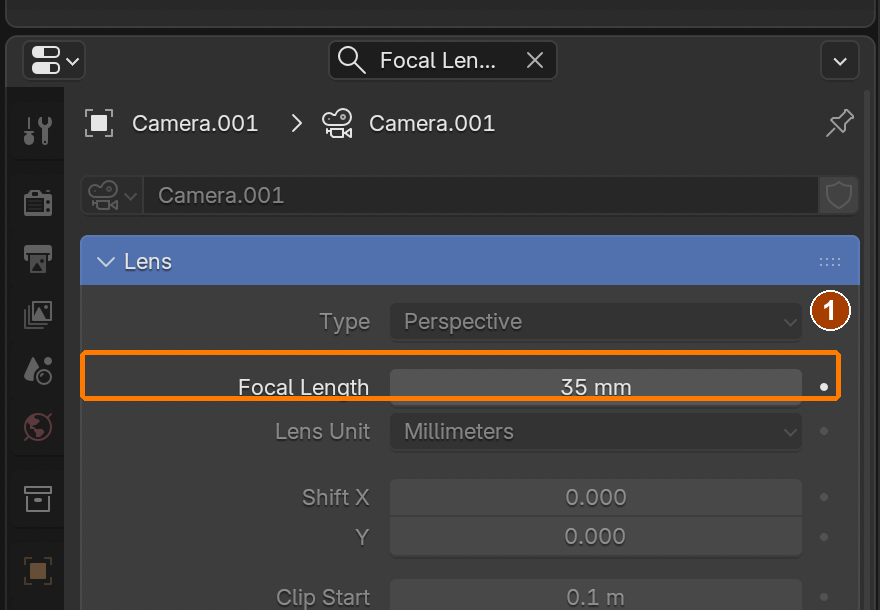
Changed-condition practice: compare the 35 mm view with the longer lens while keeping the cottage framing. These are practice values, not director-card answers.Result in the native demonstration. Check the selected object, state and values against this view.
EXPLANATION FRAMESThis framing emphasizes ___. The render took ___ at ___ settings; my final budget is ___.
Render guide: make it believable, and make it finish
Believable comes from the scene, not the sample count. Check these before you touch a render setting.
What to check
What to do in this scene
Why it reads as real
One main light
The Moon is the key light. Keep the World dim. Lanterns and window lights are accents.
Real places have one dominant light and clear shadows.
Warm against cool
Warm windows and lanterns, cool blue snow and sky.
Colour contrast gives depth and tells the eye where to look.
Surfaces
Colour, roughness and normal maps on wood, brick and roof. Bevel hard edges.
Nothing real is perfectly flat or perfectly sharp.
Glow that lights things
An Emission surface glows but hardly lights its surroundings. Add a real light beside it, as you did for the windows.
Light spilling on the snow is what sells the window.
Things you must see
Snowflakes need their own bright material, or they vanish against the yard.
An effect that is technically there but invisible is not there.
View transform
Color Management: AgX.
Bright windows roll off gently instead of burning to flat white.
Efficient means spending time only where it shows.
Setting
Where
Use
Resolution %
Output Properties › Format
50 % for every test: about a quarter of the time. 100 % only for the final.
Noise Threshold and Max Samples
Render Properties › Sampling › Render
0.05 and 64 here. Cycles stops early on parts of the picture that are already clean.
Denoise
Render Properties › Sampling › Render
On. It removes the remaining grain, so you need far fewer samples.
Time Limit
Render Properties › Sampling › Render
Set a cap per frame when you have a fixed amount of class time.
GPU Compute is usually faster if the computer has a supported graphics card. CPU always works.
Max Bounces
Render Properties › Light Paths
Lower values render faster and slightly darker. Try 4 total for tests.
Persistent Data
Render Properties › Performance › Final Render
For animations: Blender keeps the scene loaded between frames instead of rebuilding it each time.
Bake first
Particle and smoke Cache panels
Bake snow and smoke before rendering so every frame reads a saved result.
PNG frames, then a movie
Output Properties › Output
If a render stops at frame 60 you keep 59 frames. A movie file would be lost.
Budget before you start. Render one frame, read its time in the render window, and multiply by 96. If that is longer than you have, lower Resolution % or Max Samples and test again.
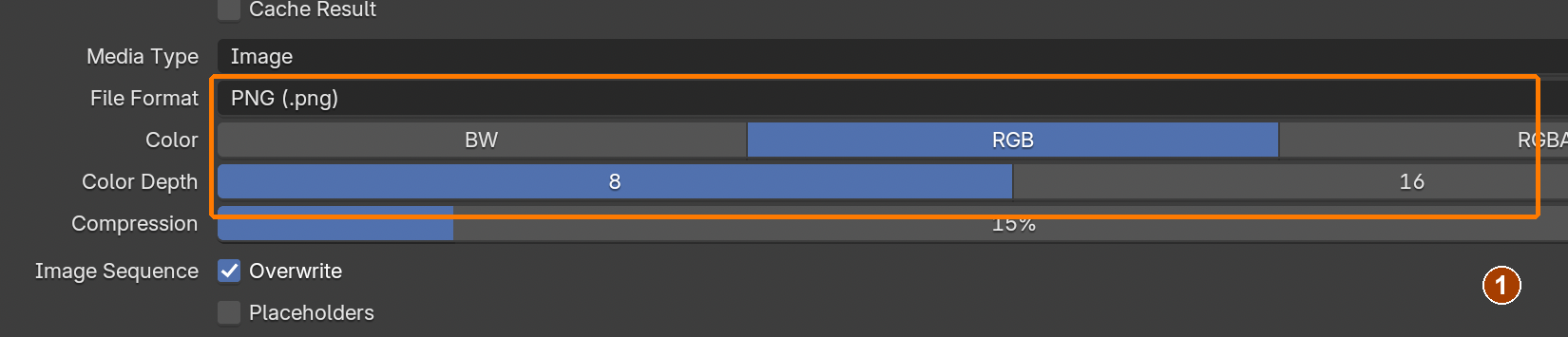
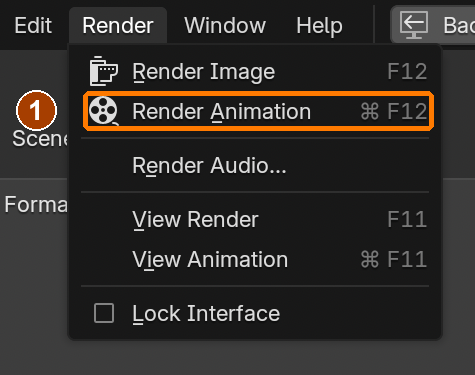
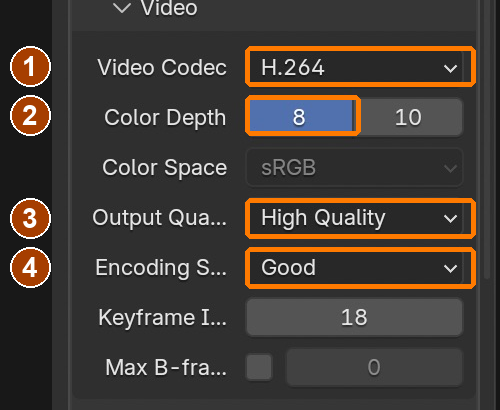
Measured on the Mac used to build this guide (Apple M5), one 1920 × 1080 frame of the finished scene at these settings took about 3½ minutes on the CPU and a little over 1 minute on the GPU: roughly 5½ hours against 2 hours for all 96 frames. The classroom PCs have not been timed, so measure your own. This table is a reference from the Blender manual; the Time Limit, Max Bounces and Persistent Data controls were not used in the demo and have no screenshots.
STEP CHECKLIST
Tick each action beside its instruction after checking the result. Ticks record progress on this device; they do not establish achievement.
GLOSSARY
Focal length: The lens setting; low numbers are wide
Rule of thirds: Placing subjects on imaginary thirds of the frame
WHYLens and framing decide what the audience feels. Leaving space above the chimney plans ahead for the smoke you add next.
CHECKA saved Cycles lighting-test PNG with readable window colour, deliberate framing and recorded settings/time. Finish the effects before rendering the final still.
FIXRender black? The camera isn’t active: select it and press Ctrl/Cmd+Numpad 0. Camera flies away? Turn off Lock Camera to View.
WORKED EXAMPLE · DIFFERENT OBJECTDifferent product shot: two camera tests use 35 mm and 70 mm. Move the camera to maintain subject size, then compare background size. A final Cycles still uses measured samples and denoising; a material-preview screenshot is not a final render.
STRETCH (AFTER THE CHECK PASSES)Render a second, low and wide angle and compare the mood.
Method basis: B1. Values and sequence are authored for this project.
Session E · Lesson 5 · mm12-26-s06-d05
Snow on the ground: drifts, footprints, a forest.
Real snow is never flat. Modifiers make drifts, a painted texture makes footprints, and weight painting decides where the forest grows.
TODAYDrifts and footprints (30 min), weight-painted forest (30 min).
10
Snow drifts, a shovelled walkway, a ploughed drive and footprints
Painting height rather than colour
A height map stores surface height as brightness. With Midlevel 1, white stays at the original height, black moves down by the displacement strength, and grey moves down partway. The Displace modifier needs enough vertices to form those depressions. The unconnected image node identifies our paint target; it must not replace the snow’s Base Color. Save the painted image as well as the .blend file, because an external image has its own unsaved state.
Recall first (from last lesson, no peeking):
What is the difference between Append and Alt+D?
Which lens number is wider: 24 mm or 50 mm?
Why leave space above the chimney?
Say or write your answers, then check them against your file.
Application verification incomplete: actions 1, 2, 3, 4, 5, 6, 7, 8, 9, 10, 11, 12 still need their complete run/capture/result evidence checked. Unproven procedures remain not yet run.
IN SHORTSubdivide and displace the yard; paint and save a white height image with black paths and grey prints; add the exposed surfaces; pack and reopen.
Add > Mesh > PlaneResult in the native demonstration. Check the selected object, state and values against this view.
Ctrl+A > ScaleResult in the native demonstration. Check the selected object, state and values against this view.
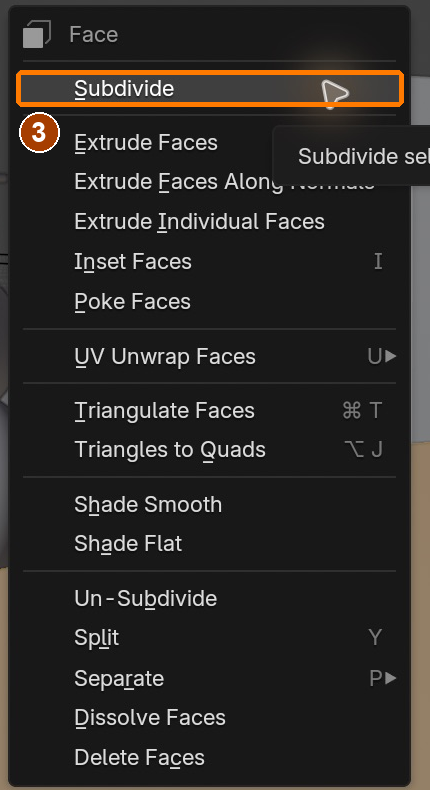
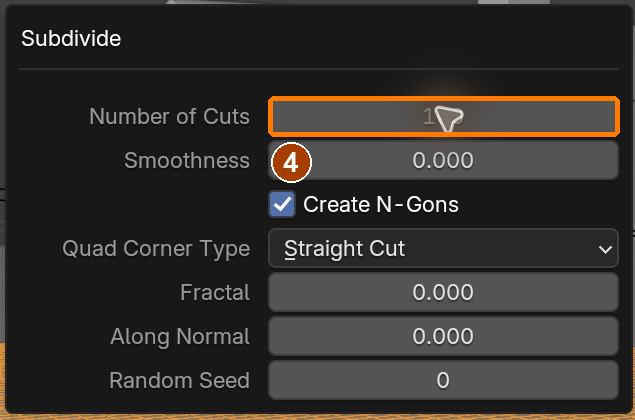
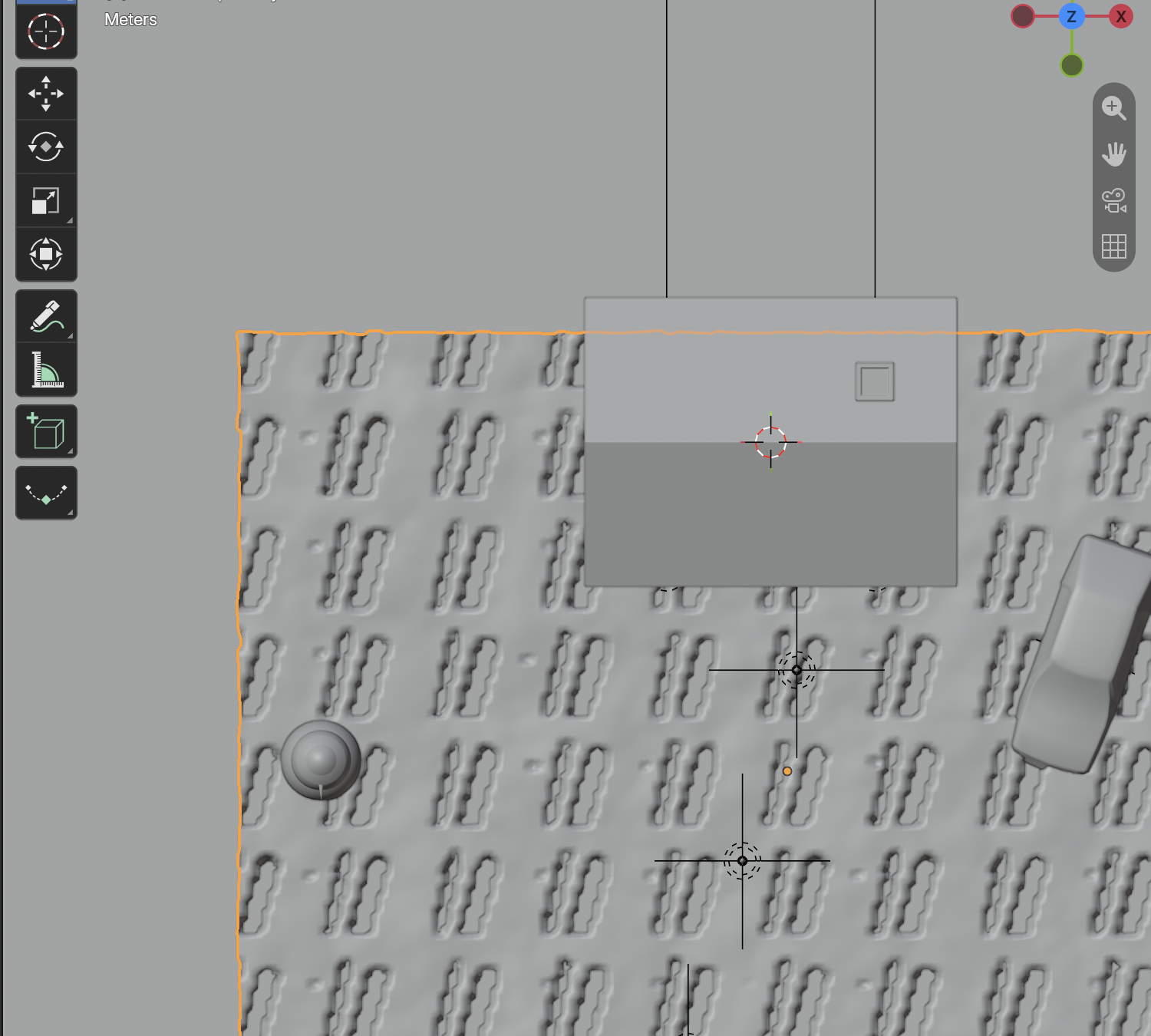
Edit Mode face context menu > SubdivideResult in the native demonstration. Check the selected object, state and values against this view.
Adjust Last Operation > Number of Cuts 100Result in the native demonstration. Check the selected object, state and values against this view.
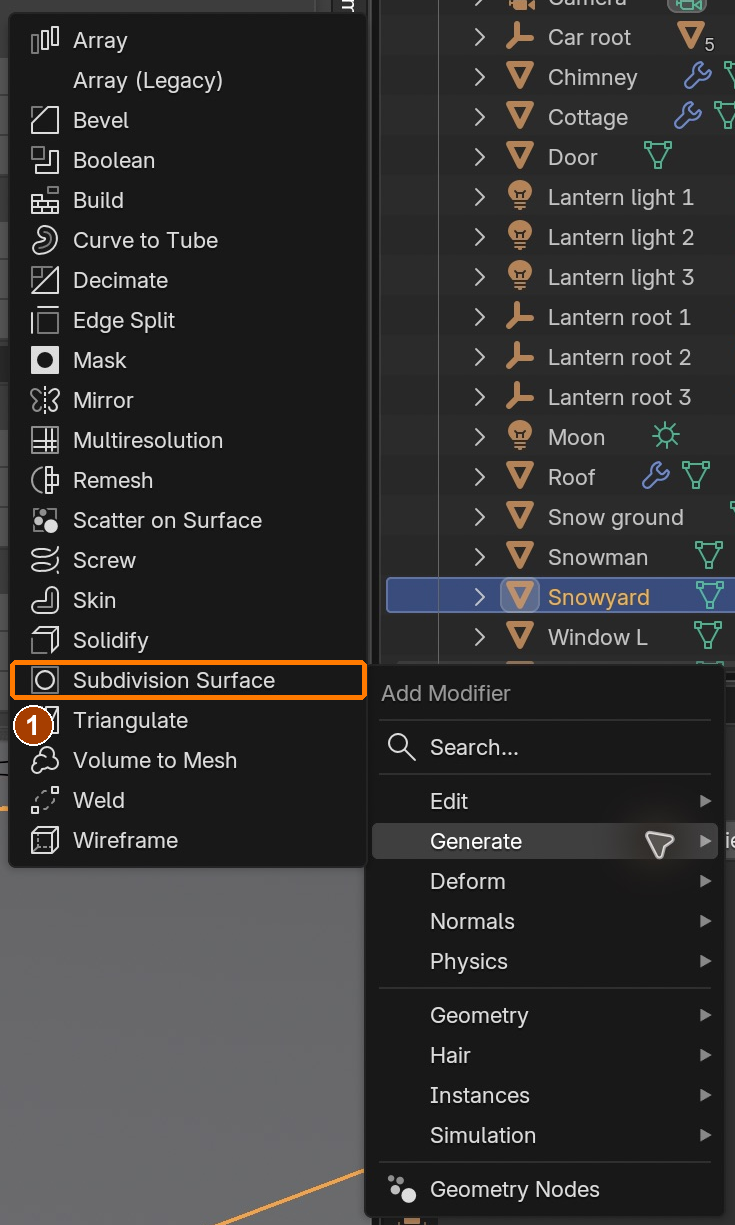
Add Modifier > Generate > Subdivision SurfaceResult in the native demonstration. Check the selected object, state and values against this view.
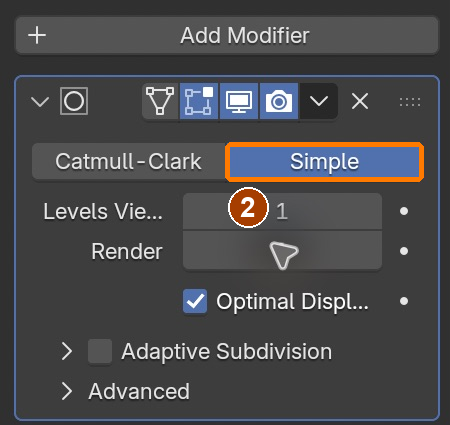
Subdivision Surface > Simple; viewport/render levels 1 visibleResult in the native demonstration. Check the selected object, state and values against this view.
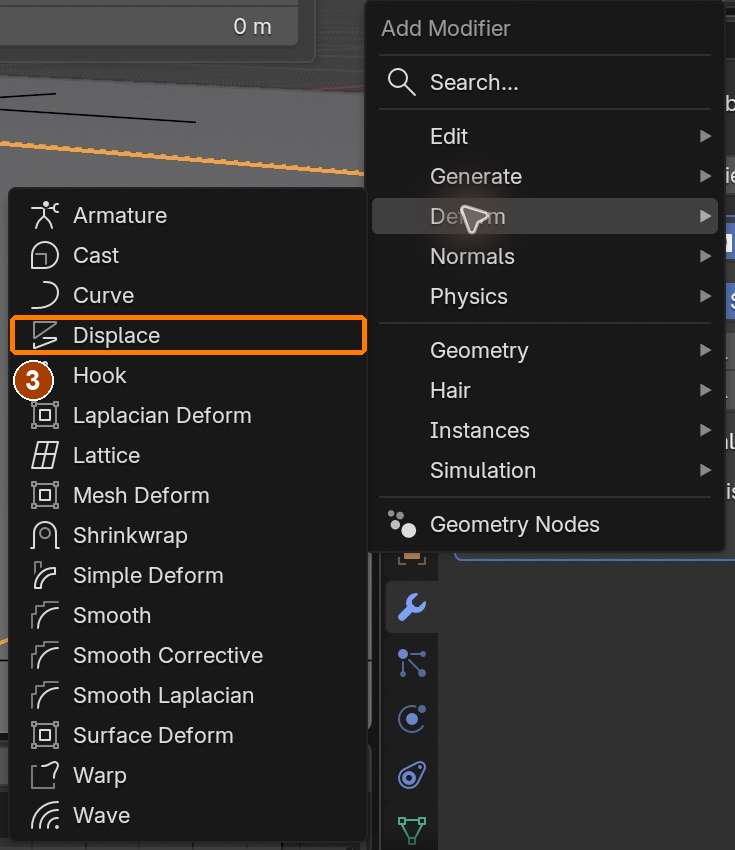
Add Modifier > Deform > DisplaceResult in the native demonstration. Check the selected object, state and values against this view.
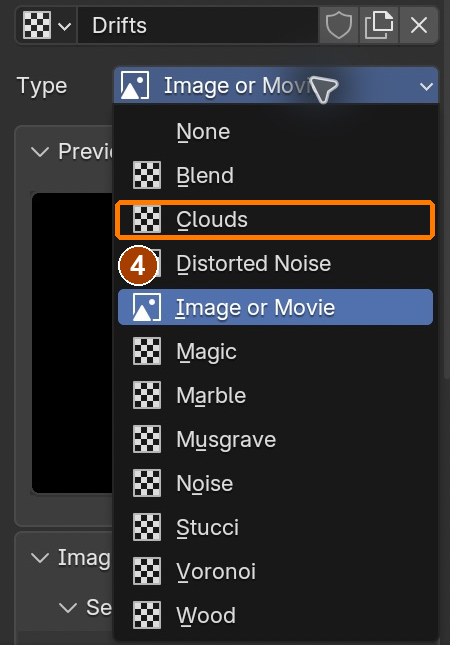
Texture Properties > Type > CloudsResult in the native demonstration. Check the selected object, state and values against this view.
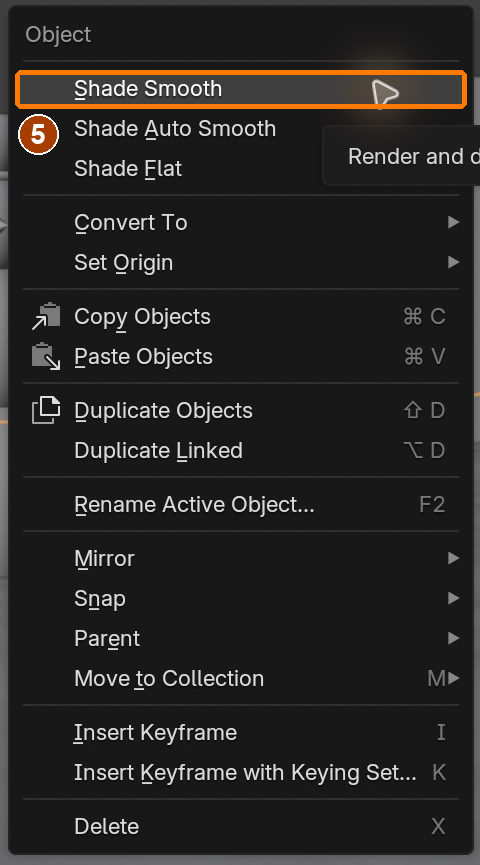
Object context menu > Shade SmoothResult in the native demonstration. Check the selected object, state and values against this view.
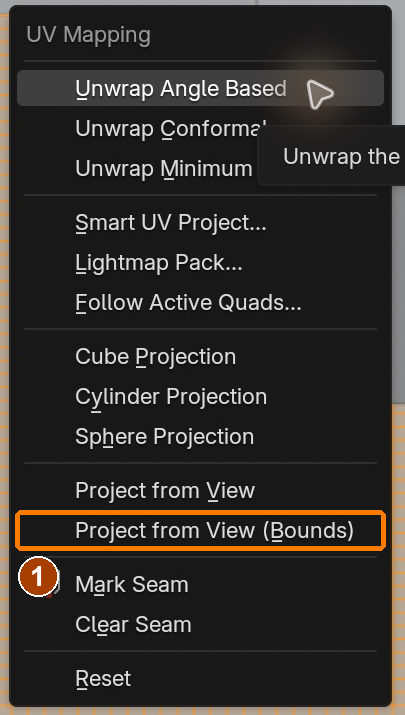
Top Orthographic Edit Mode > U > Project from View (Bounds)Result in the native demonstration. Check the selected object, state and values against this view.
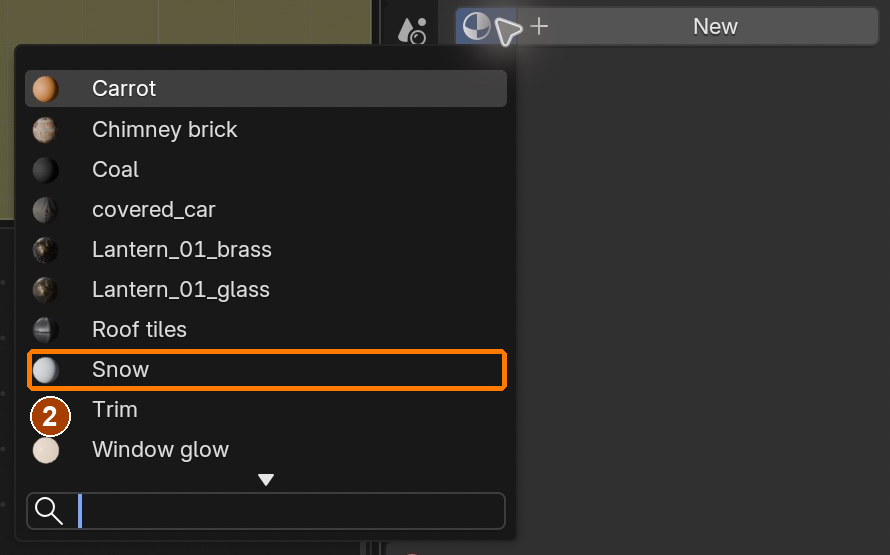
Material Properties > Browse Material > SnowResult in the native demonstration. Check the selected object, state and values against this view.
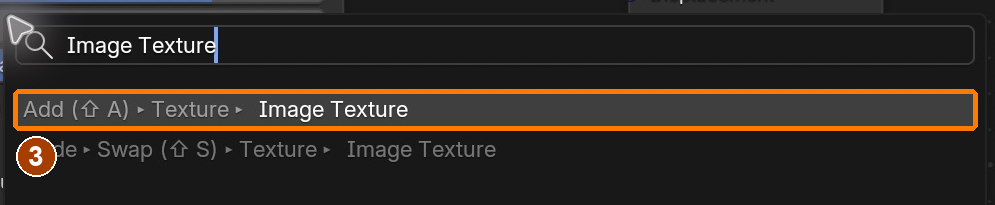
Shader Editor > F3 > Add Image TextureResult in the native demonstration. Check the selected object, state and values against this view.
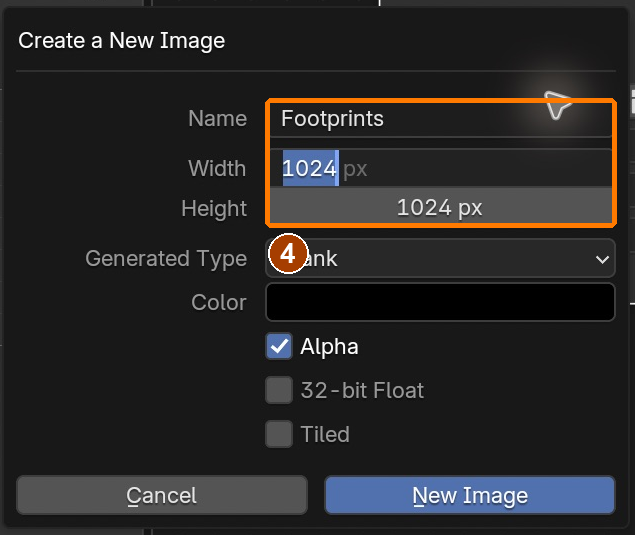
New Image > Name Footprints, Width 1024, Height 1024; black default, fill white in the next actionResult in the native demonstration. Check the selected object, state and values against this view.
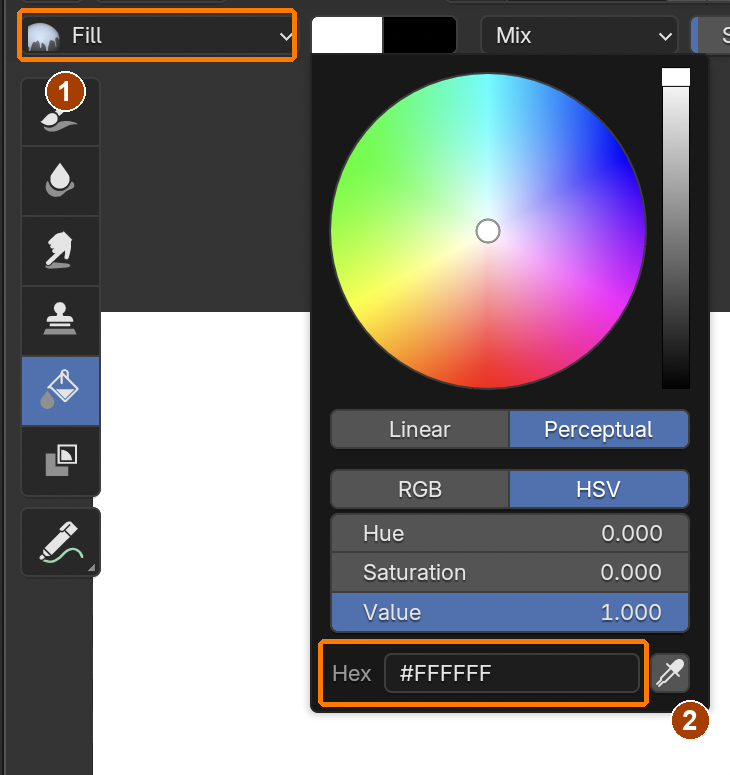
Fill tool and foreground Hex #FFFFFF; click outside the picker to commit.Result in the native demonstration. Check the selected object, state and values against this view.
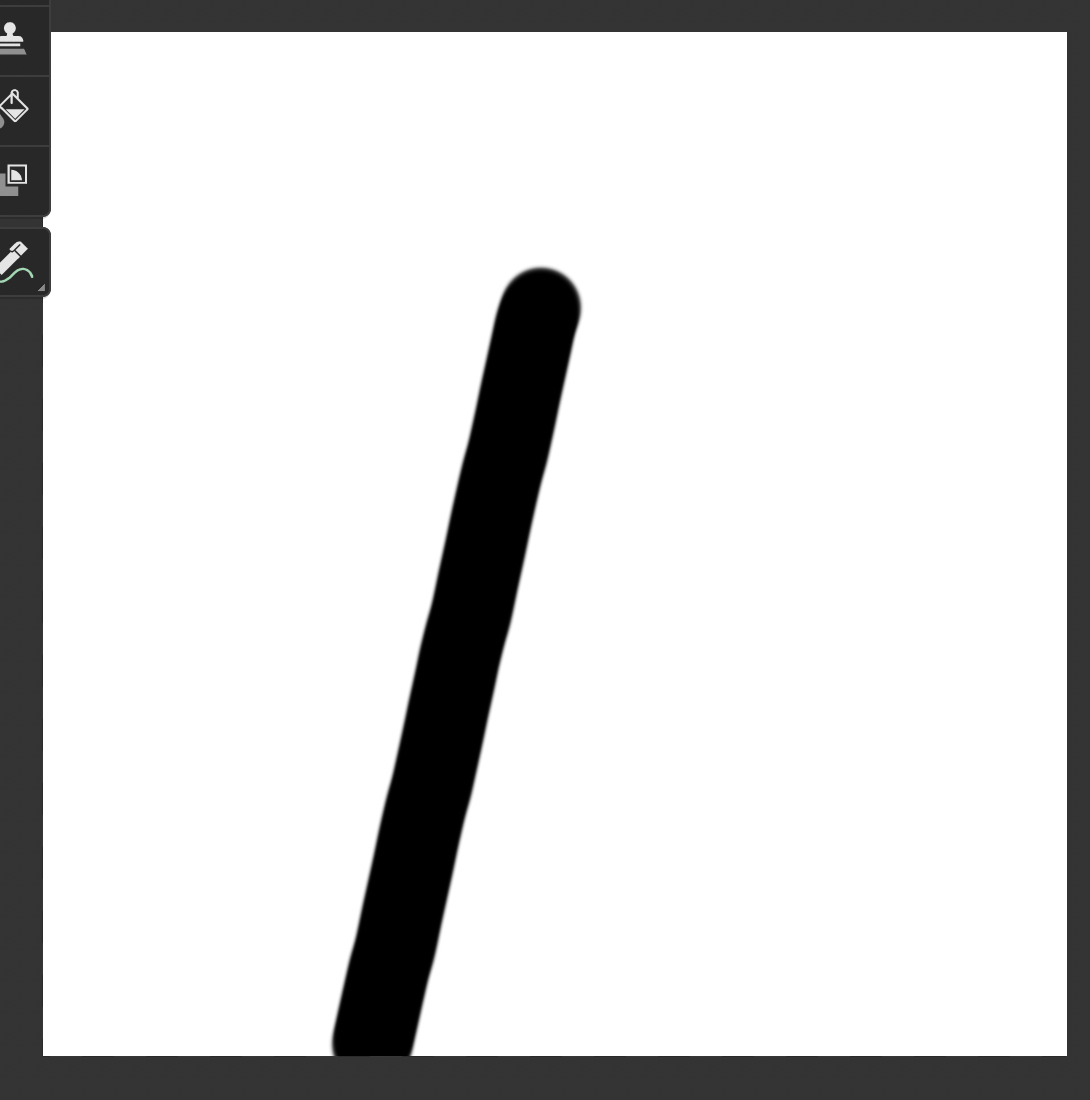
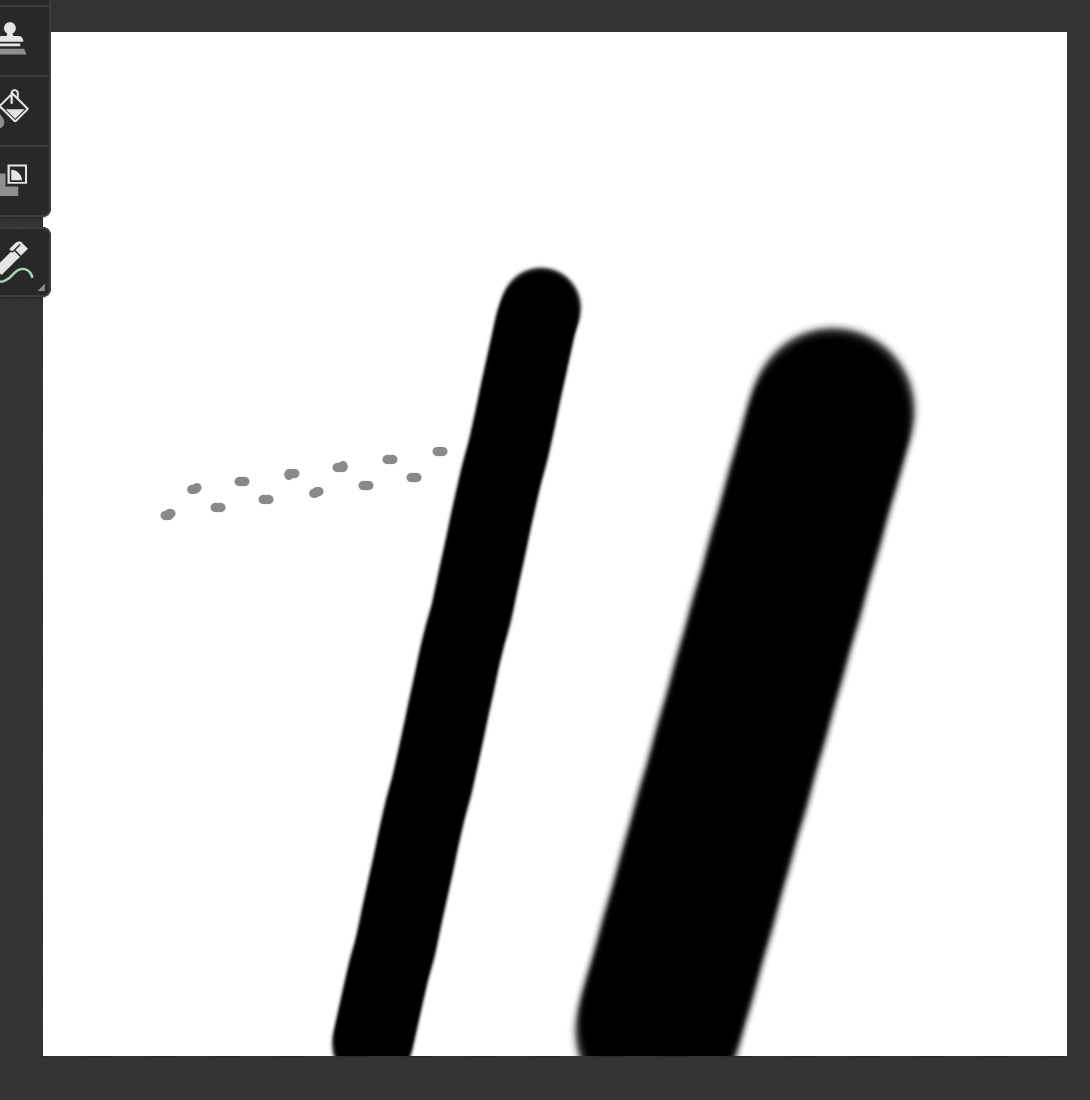
Paint Hard Size is 88 px for the walkway.Result in the native demonstration. Check the selected object, state and values against this view.
Increase Paint Hard Size to 180 px for the drive.Result in the native demonstration. Check the selected object, state and values against this view.
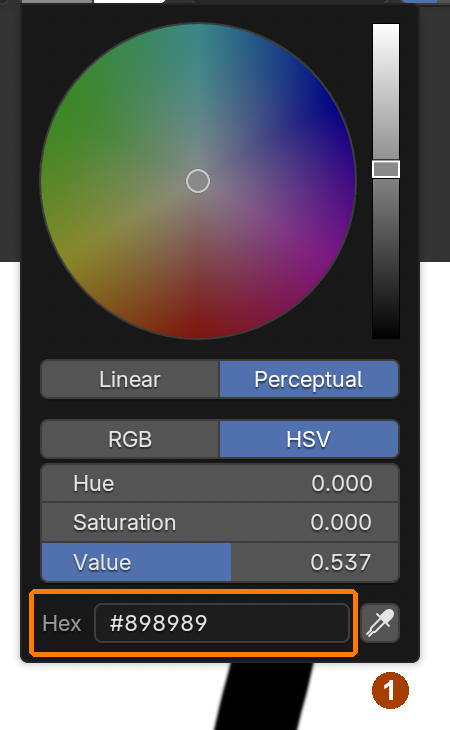
Set foreground Hex #898989; dismiss by clicking outside, because Escape cancels.Result in the native demonstration. Check the selected object, state and values against this view.
Use a 10 px brush and twelve short alternating strokes.Result in the native demonstration. Check the selected object, state and values against this view.
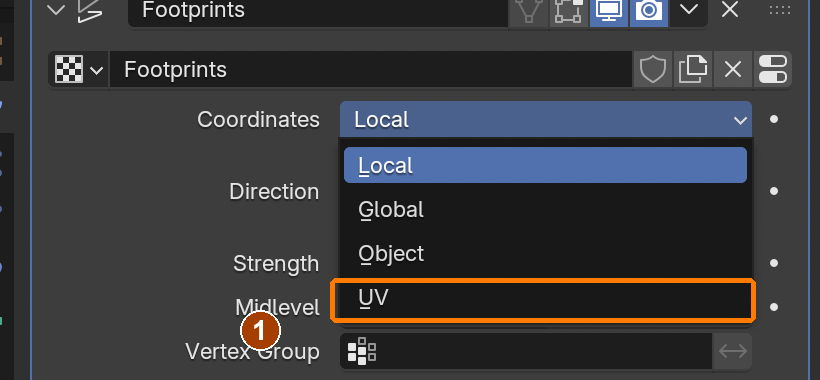
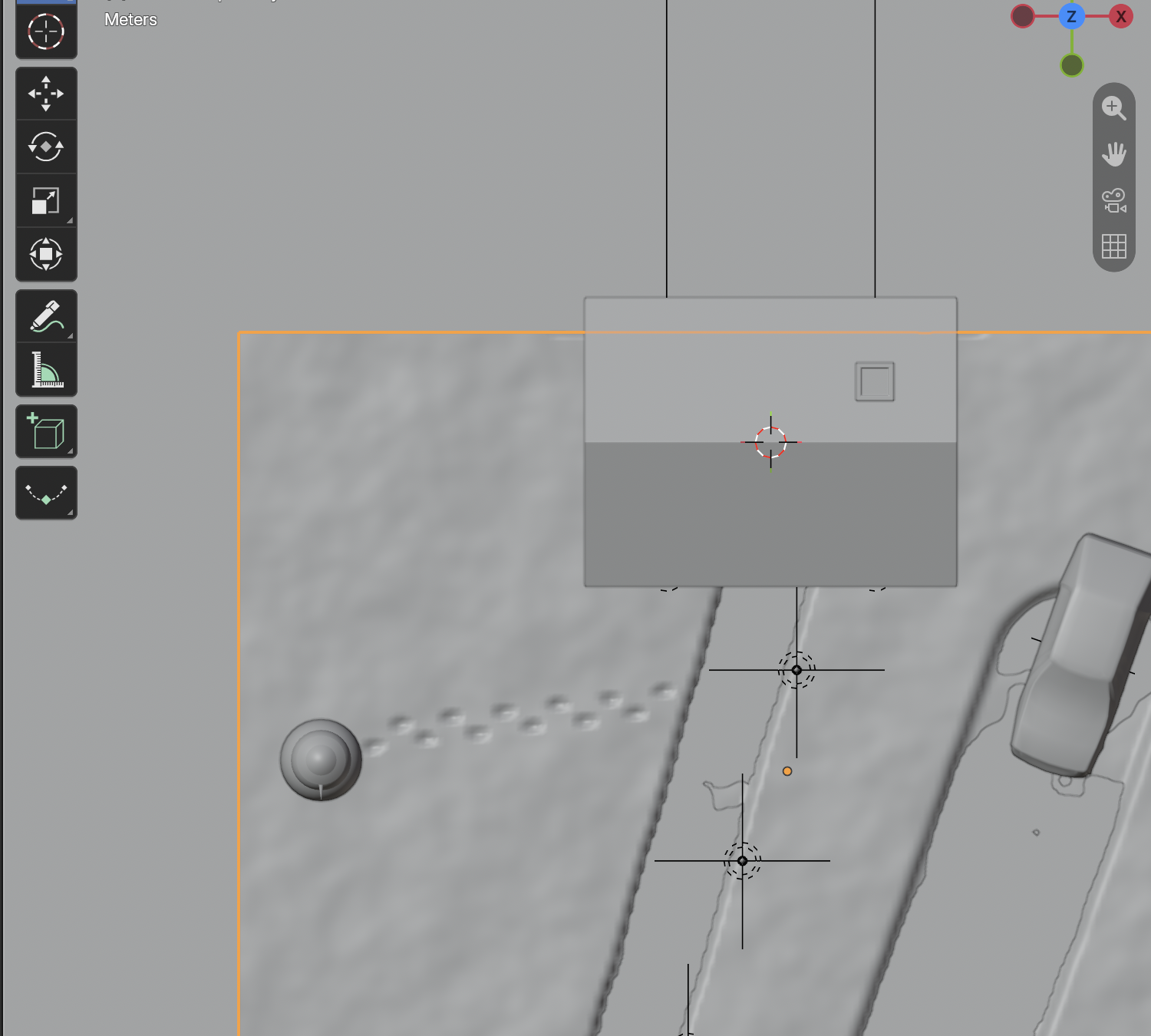
Choose UV in the Displace Coordinates menu; Local repeats the footprints incorrectly.Result in the native demonstration. Check the selected object, state and values against this view.
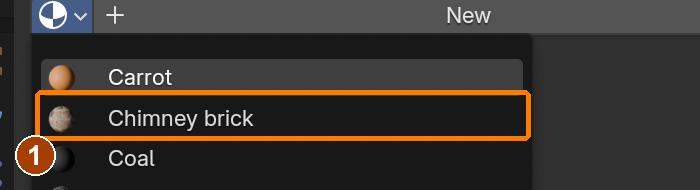
Choose the existing Chimney brick material for the Cube-projected walkway.Result in the native demonstration. Check the selected object, state and values against this view.
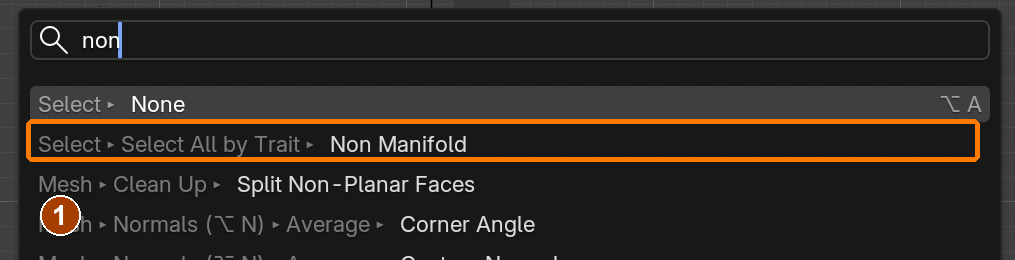
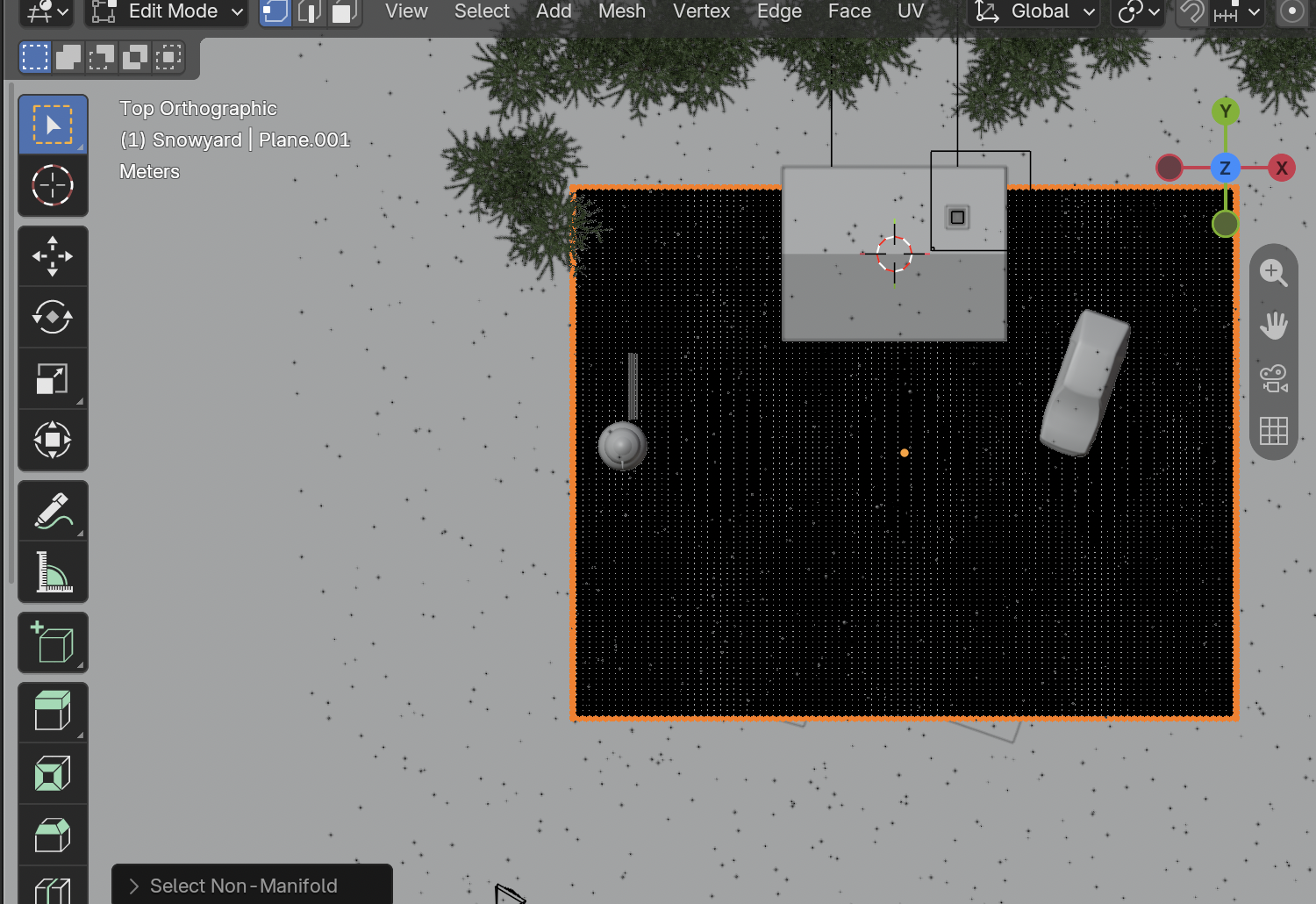
Search non and select Non Manifold to select only the outer perimeter.Result in the native demonstration. Check the selected object, state and values against this view.
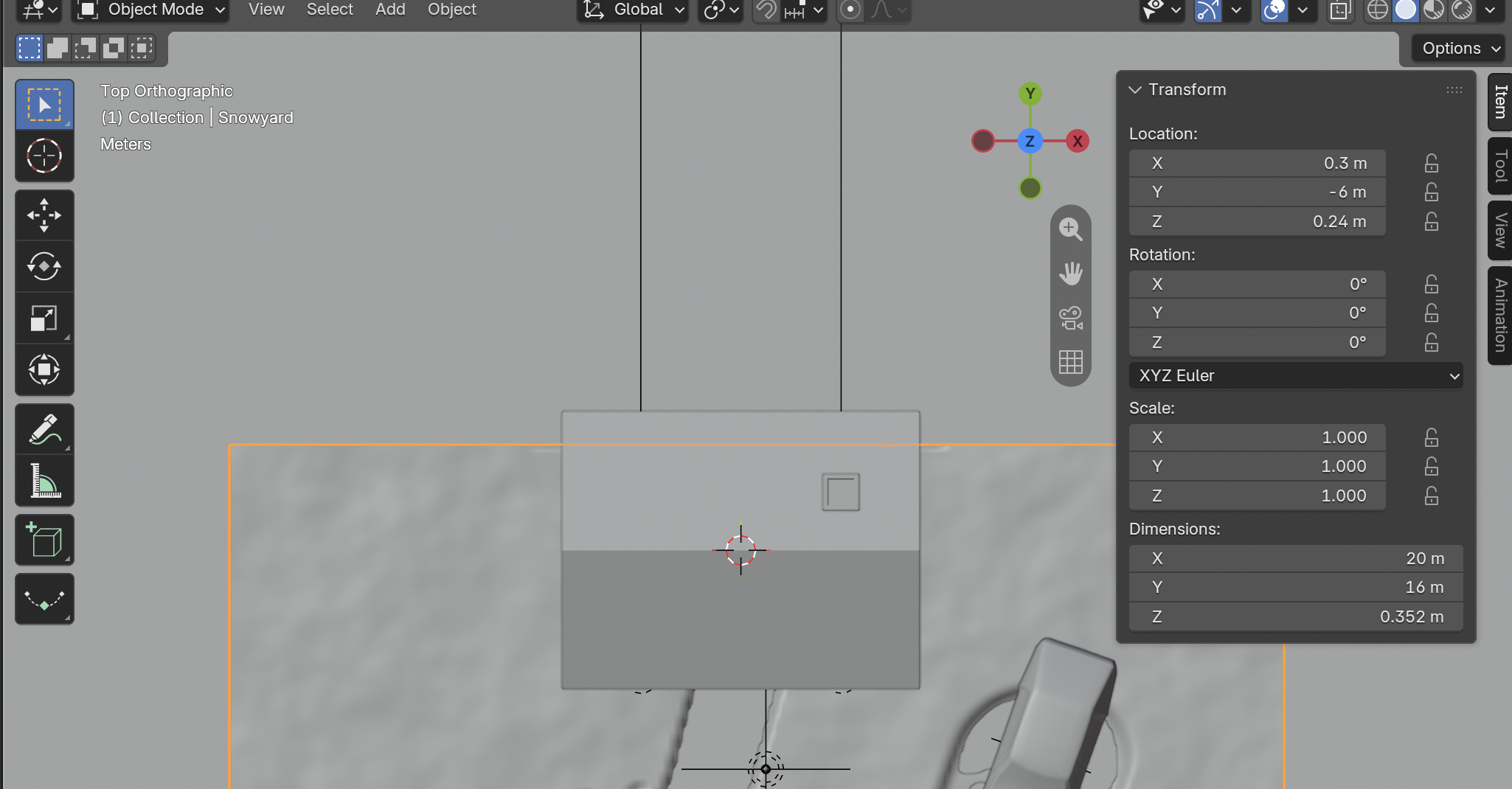
Distant snow Location, applied Scale and Dimensions 10000 × 10000 m · Location.Result in the native demonstration. Check the selected object, state and values against this view.
Distant snow Location, applied Scale and Dimensions 10000 × 10000 m · Scale.Result in the native demonstration. Check the selected object, state and values against this view.
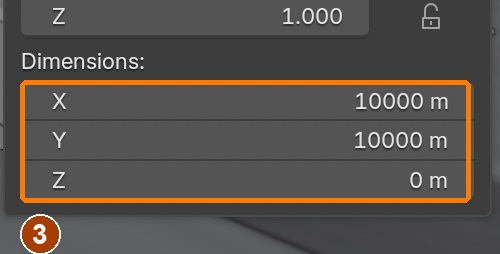
Distant snow Location, applied Scale and Dimensions 10000 × 10000 m · Dimensions.Result in the native demonstration. Check the selected object, state and values against this view.
Image > Save preserves Footprints. Save As is used on the first save when this new image has no filename.Result in the native demonstration. Check the selected object, state and values against this view.
File > External Data > Pack Resources packages image textures. The demonstrated menu is from the same master; simulation caches must still be handed in separately.Result in the native demonstration. Check the selected object, state and values against this view.
EXPLANATION FRAMESBlack changes the height by ___. I saved both ___ and ___; reopening proved ___.
A mistake from the actual build
Wrong · Displace Coordinates Local repeated the footprints across the yard.Right · Choosing UV uses the painted yard layout once, with the intended paths and twelve prints.
Diagnose: intended result → observed mismatch → likely cause → one change → test.
STEP CHECKLIST
Tick each action beside its instruction after checking the result. Ticks record progress on this device; they do not establish achievement.
GLOSSARY
Displace modifier: Moves geometry up or down using a texture
Texture Paint: Painting directly onto an image on a model
WHYDisplacement moves real geometry, so drifts and footprints catch light and shadow. Painting a texture is how you control exactly where the prints go.
CHECKVisible drifts, a brick walkway from the door to the road, a dark drive under the car, and a trail of footprints to the snowman, all driven by modifiers and your painted image.
FIXPaint vanished after reopening? Save Footprints.png from the Image menu, pack resources and save the blend. No depression? Check UV coordinates, texture identity, modifier order and mesh detail.
WORKED EXAMPLE · DIFFERENT OBJECTDifferent surface: on a mud plane at Z 0.1, a displacement image with Midlevel 1 and Strength 0.1 leaves white at 0.1 and pushes black to 0.0. Grey creates shallower depressions. Saving the blend alone does not save an external painted image.
STRETCH (AFTER THE CHECK PASSES)Tint the footprints slightly blue in the snow material (use the same image as a mix factor), and add tyre tracks on the road.
Method basis: B2. Values and sequence are authored for this project.
11
Weight-paint where the forest grows, then scatter trees
Painting where instances appear
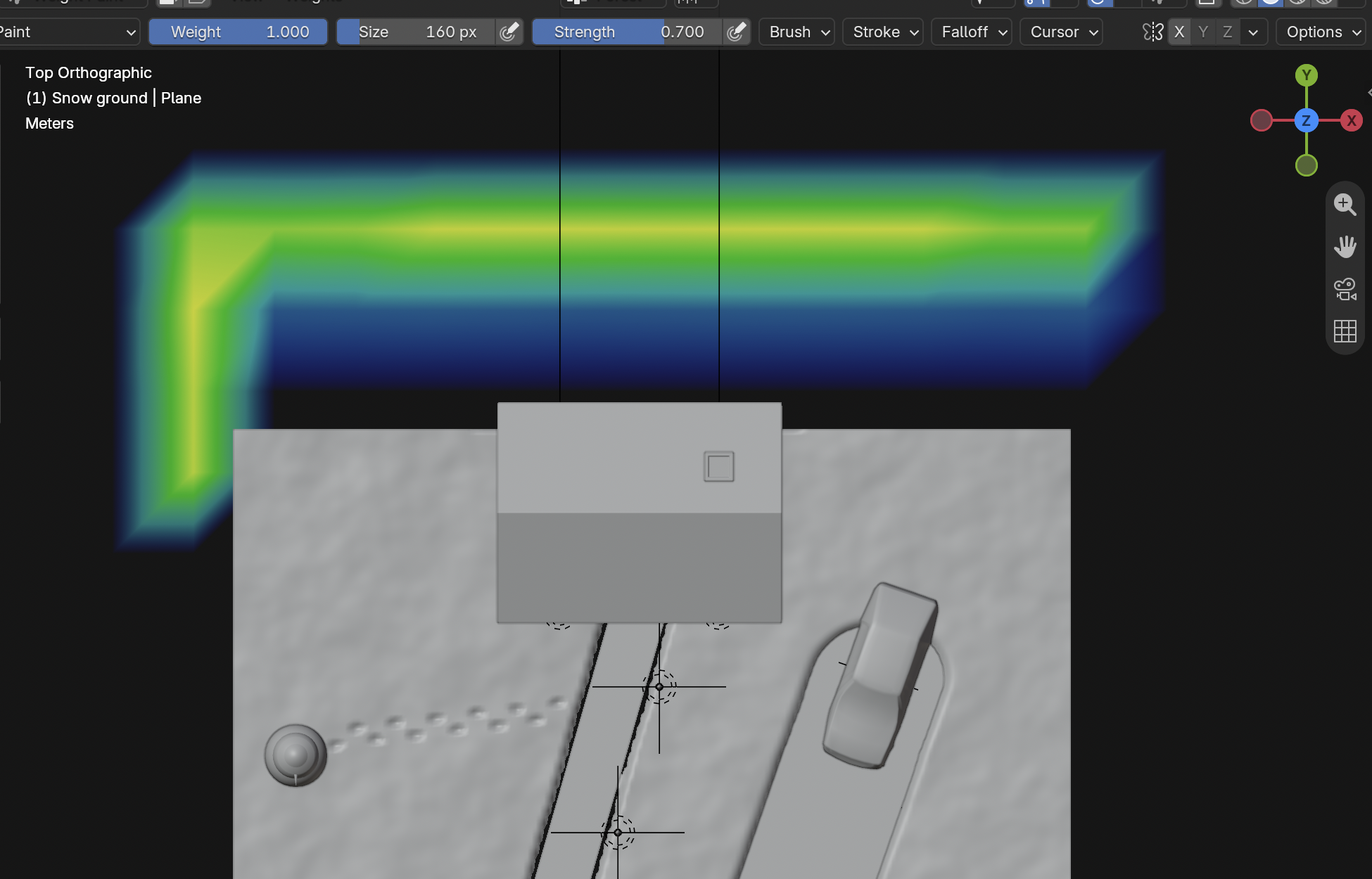
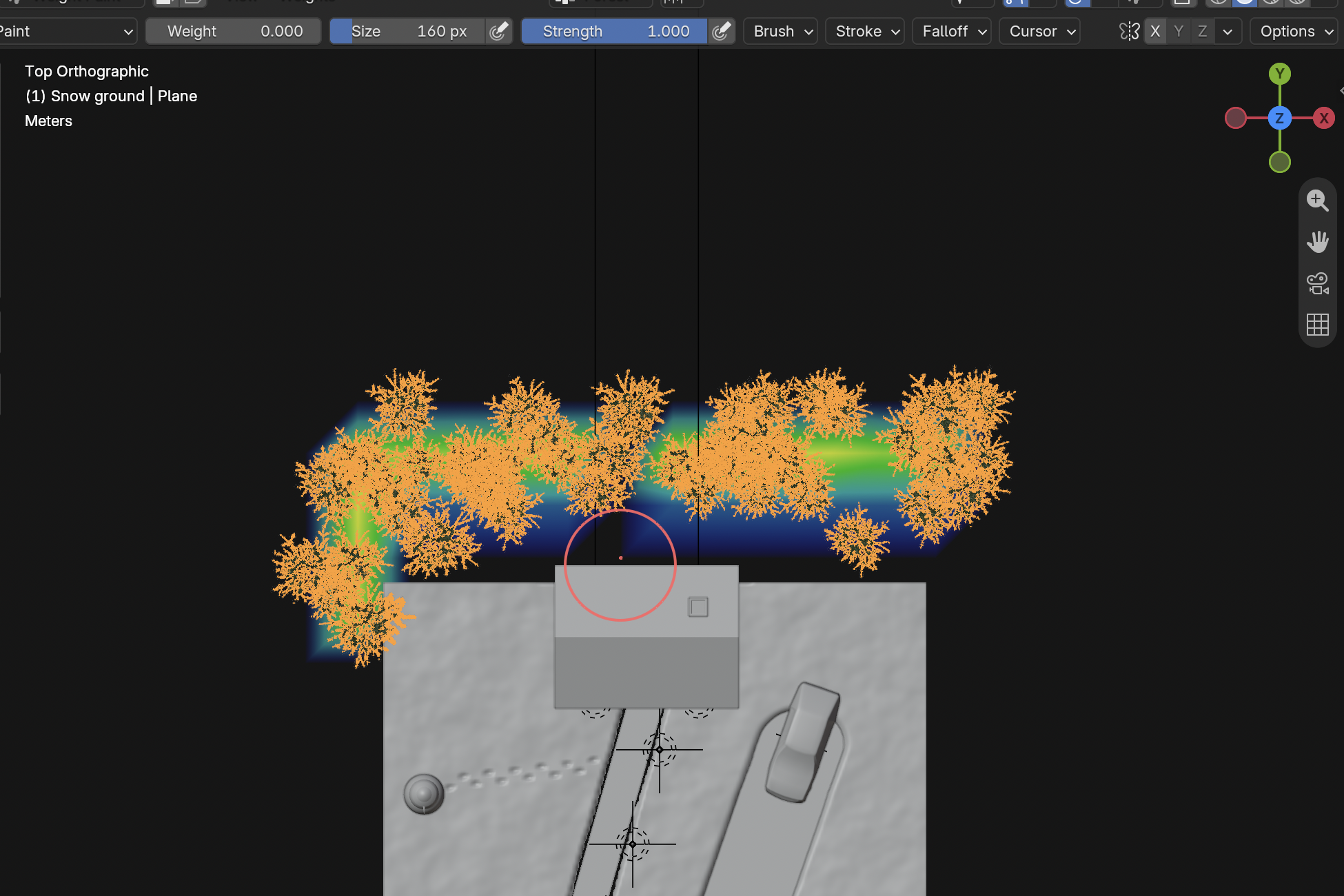
An instance reuses a source model, reducing the cost of repeating a tree. A vertex group stores a weight at each mesh vertex. Weight Paint shows these numbers as colours: blue is zero, red is one. Binding the group to Density uses those weights to control where trees can appear. A material’s painted colour would only change its appearance, not the placement of trees. Keep the cottage approach clear and check tree scale against the building.
Application verification incomplete: actions 1, 2, 3, 4, 5, 6, 7 still need their complete run/capture/result evidence checked. Unproven procedures remain not yet run.
IN SHORTPaint the Forest vertex group; append the CC0 fir; apply the local-Y orientation; scatter 46 upright instances using Density Forest.
READ ALOUD
DOCUMENT: WinterCottage_YourName.blend SELECT: Snow ground, Forest vertex group and the supplied CC0 fir source TOOLS / ROUTE: Weight Paint mode · vertex group · Particle system (Hair › Object) · Density vertex group
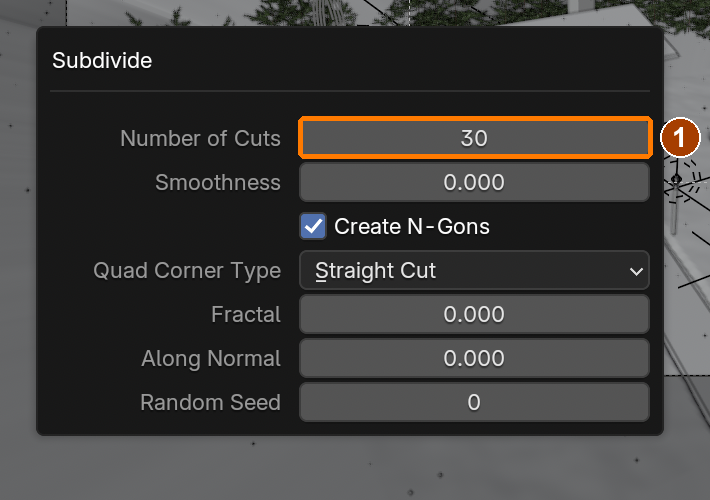
Set Number of Cuts 30 in Adjust Last Operation. This fresh-plane proof uses the same Subdivide control without subdividing the finished ground again.Result in the native demonstration. Check the selected object, state and values against this view.
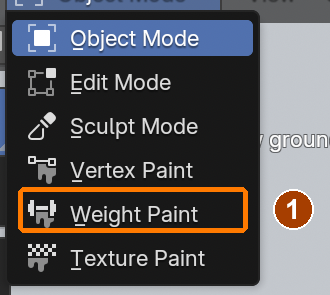
Mode menu: Weight Paint.Result in the native demonstration. Check the selected object, state and values against this view.
Weight 1, Size 160 px, Strength 0.7.Result in the native demonstration. Check the selected object, state and values against this view.
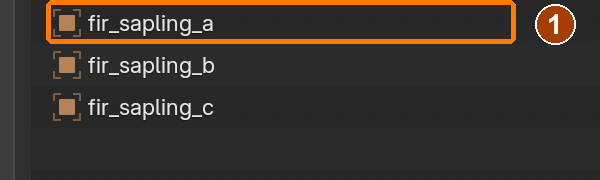
In the supplied blend Object folder select fir_sapling_a.Result in the native demonstration. Check the selected object, state and values against this view.
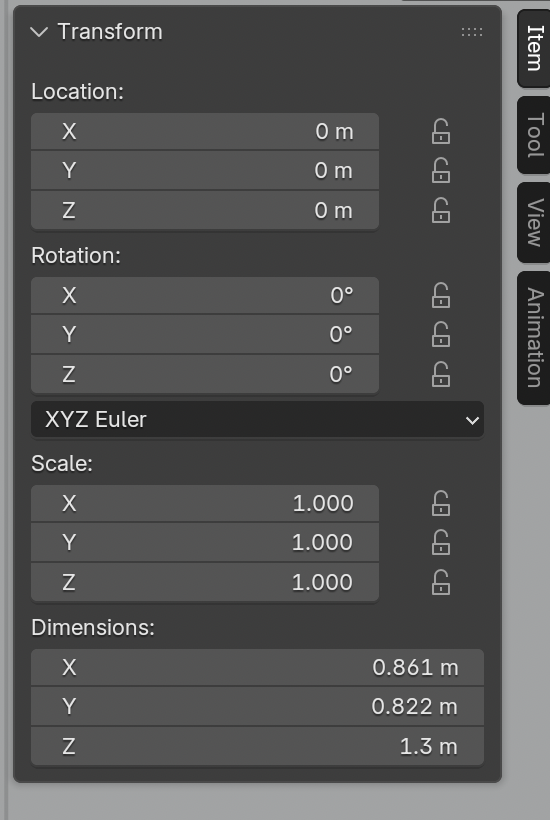
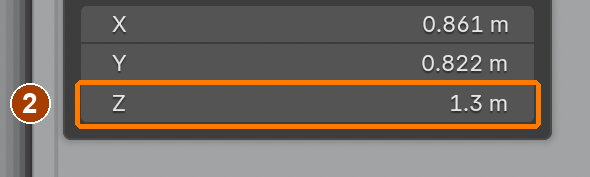
Imported fir height 1.3 m, Scale 1 before enlarging. · Scale.Result in the native demonstration. Check the selected object, state and values against this view.
Imported fir height 1.3 m, Scale 1 before enlarging. · Dimensions.Result in the native demonstration. Check the selected object, state and values against this view.
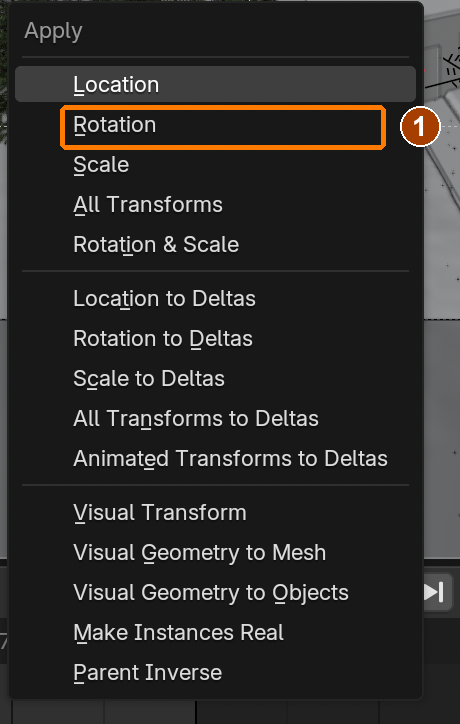
Apply menu: Rotation, with Fir instance active.Result in the native demonstration. Check the selected object, state and values against this view.
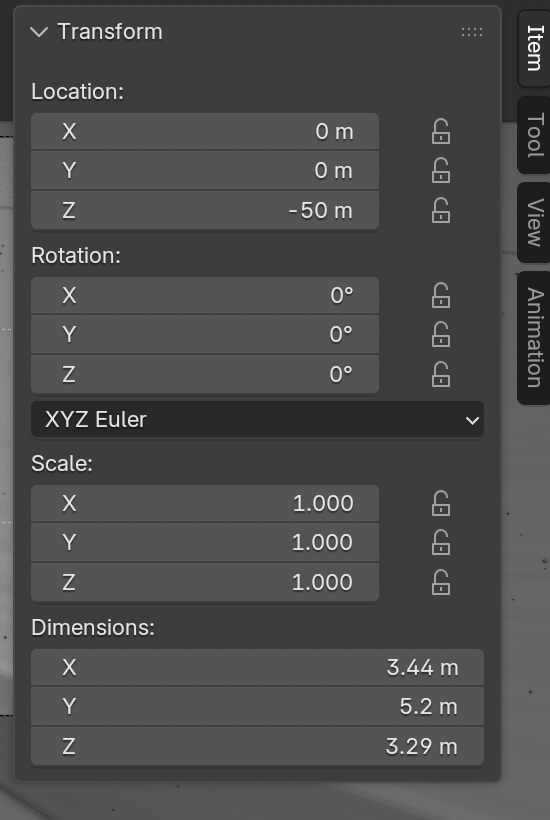
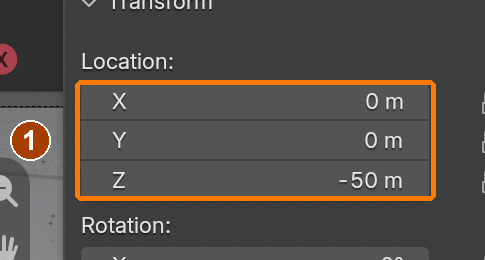
Applied fir: Location Z -50, Rotation 0, Scale 1, local Y extent 5.2 m. · Location.Result in the native demonstration. Check the selected object, state and values against this view.
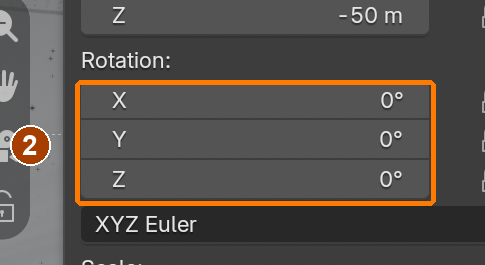
Applied fir: Location Z -50, Rotation 0, Scale 1, local Y extent 5.2 m. · Rotation.Result in the native demonstration. Check the selected object, state and values against this view.
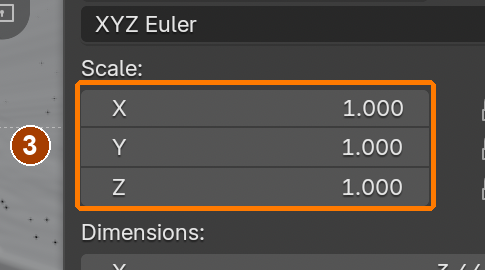
Applied fir: Location Z -50, Rotation 0, Scale 1, local Y extent 5.2 m. · Scale.Result in the native demonstration. Check the selected object, state and values against this view.
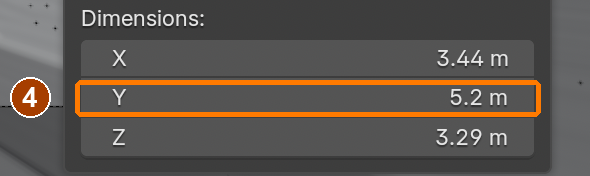
Applied fir: Location Z -50, Rotation 0, Scale 1, local Y extent 5.2 m. · Dimensions.Result in the native demonstration. Check the selected object, state and values against this view.
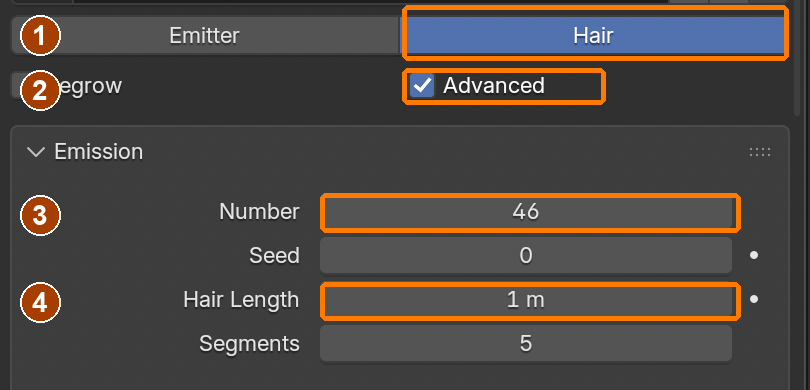
Hair, Advanced, Number 46, Hair Length 1 m.Result in the native demonstration. Check the selected object, state and values against this view.
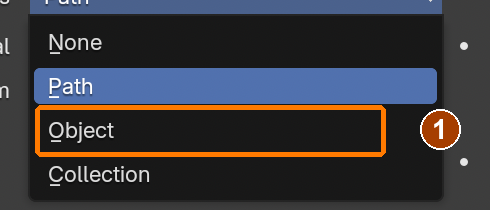
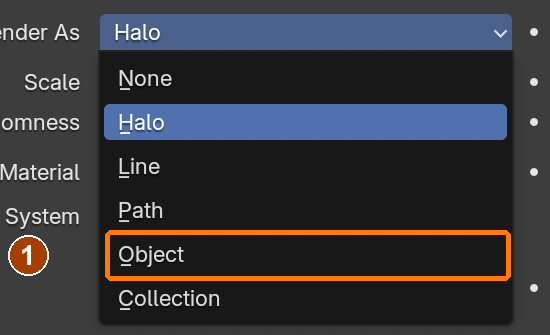
Render As dropdown: Object.Result in the native demonstration. Check the selected object, state and values against this view.
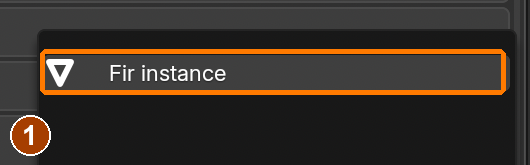
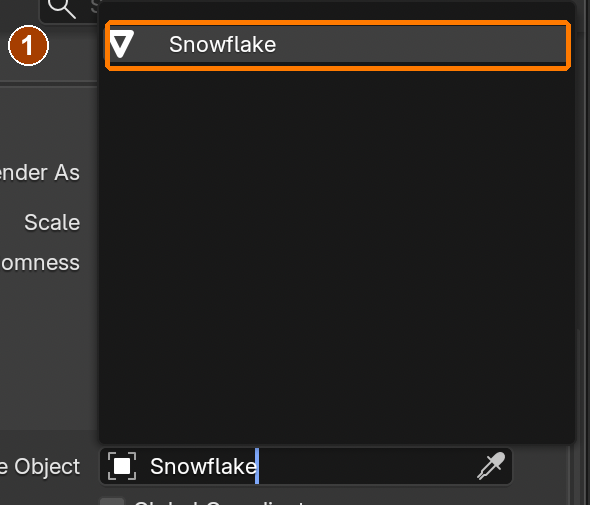
Instance Object picker: Fir instance.Result in the native demonstration. Check the selected object, state and values against this view.
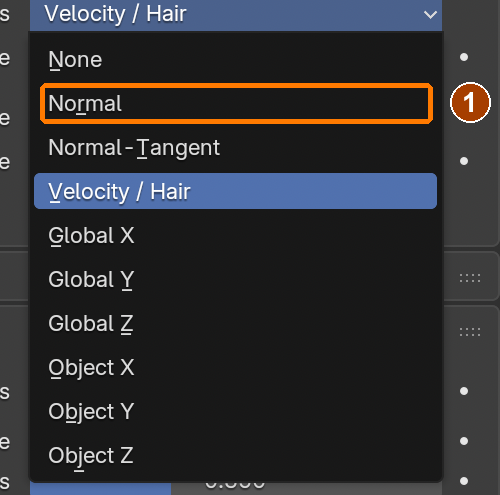
Rotation > Orientation Axis dropdown: Normal.Result in the native demonstration. Check the selected object, state and values against this view.
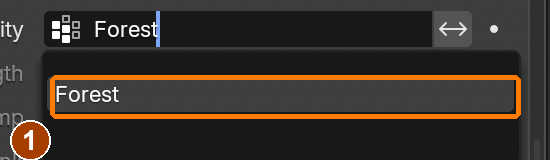
Vertex Groups > Density dropdown: Forest.Result in the native demonstration. Check the selected object, state and values against this view.
Changed-condition practice: Weight 0, Size 160 px, Strength 1.Result in the native demonstration. Check the selected object, state and values against this view.
EXPLANATION FRAMESThe Forest group controls ___. A weight of zero leaves ___ because ___.
STEP CHECKLIST
Tick each action beside its instruction after checking the result. Ticks record progress on this device; they do not establish achievement.
GLOSSARY
Weight paint: Painting values from 0 (blue) to 1 (red) onto vertices
Vertex group: A named set of vertices with weights
WHYWeight painting stores a value on every vertex. Here it controls particle density; later it controls how a character’s skin bends with its bones (rigging).
CHECKThe Forest group controls where 46 upright fir instances appear; trunks meet the ground and the cottage approach stays clear.
FIXTrees lie sideways? Check the instance origin and rotation route against the demonstrated native result. A red weight map only works after Forest is bound to Density.
WORKED EXAMPLE · DIFFERENT OBJECTDifferent scattering task: a Meadow group paints a red border and a blue central path. Assigning that group as particle Density leaves the path clear. Painting a material colour would not affect density.
STRETCH (AFTER THE CHECK PASSES)Add a second tree type (a bare birch) as a second particle system with its own weight group.
Method basis: B4 · B5. Values and sequence are authored for this project.
Session F · Lesson 6 · mm12-26-s06-d06
Particles: falling snow and chimney smoke.
Two effects bring the scene to life: snow drifting down, and smoke rising from the chimney.
A particle system emits many small moving elements from a surface. The emitter produces them; the instance object defines what each looks like; lifetime controls how long each survives. Velocity, gravity and wind determine motion. Starting emission before frame 1 lets snow already occupy the shot at the opening. A cache stores the simulated result. Test playback and the saved cache rather than assuming a single still proves the effect.
Recall first (from last lesson, no peeking):
What does a Displace modifier need before it can show footprints?
In your painted image, what does black do to the snow?
What does red mean in Weight Paint mode?
Say or write your answers, then check them against your file.
Application verification incomplete: actions 1, 2, 3, 4, 5, 7 still need their complete run/capture/result evidence checked. Unproven procedures remain not yet run.
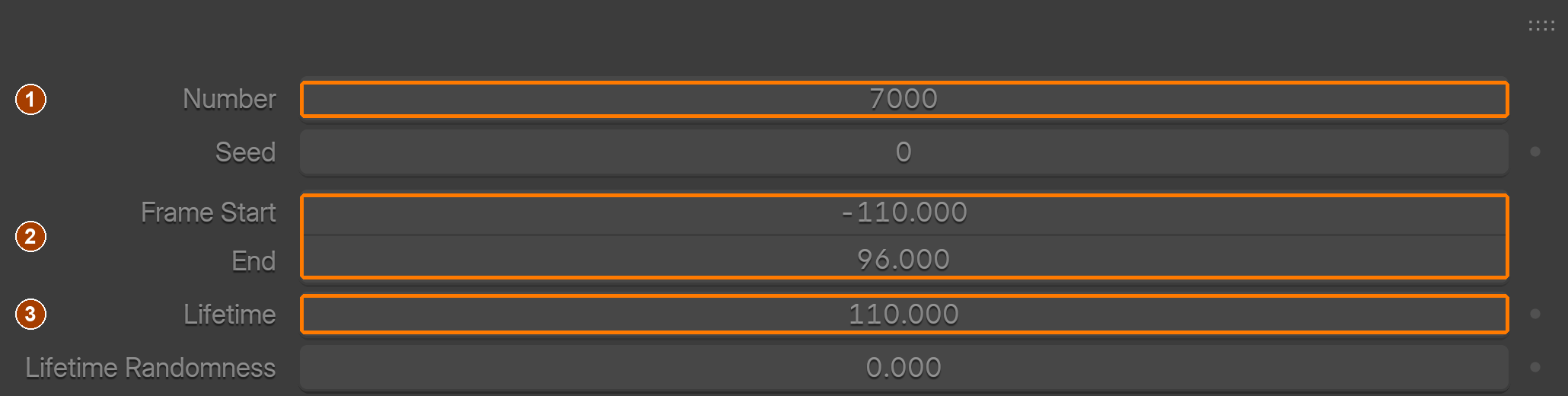
IN SHORTUse 7000 particles emitted from frame -110 with Lifetime 110; instance .035 m flakes with their own Emission material; set Normal velocity -2, Gravity 0.05, Brownian motion and wind; bake the particle cache.
READ ALOUD
DOCUMENT: WinterCottage_YourName.blend SELECT: An emitter plane above the scene, a snowflake TOOLS / ROUTE: Particle system (Emitter) · Render As Object · Field Weights · Add › Force Field › Wind
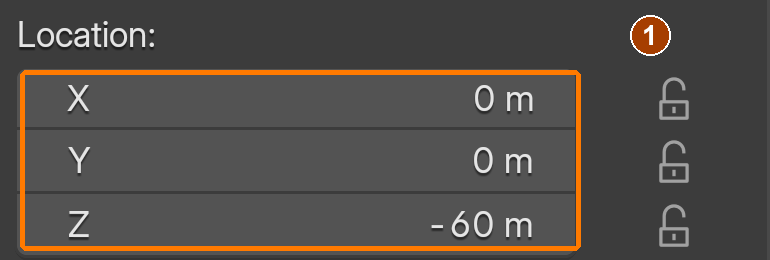
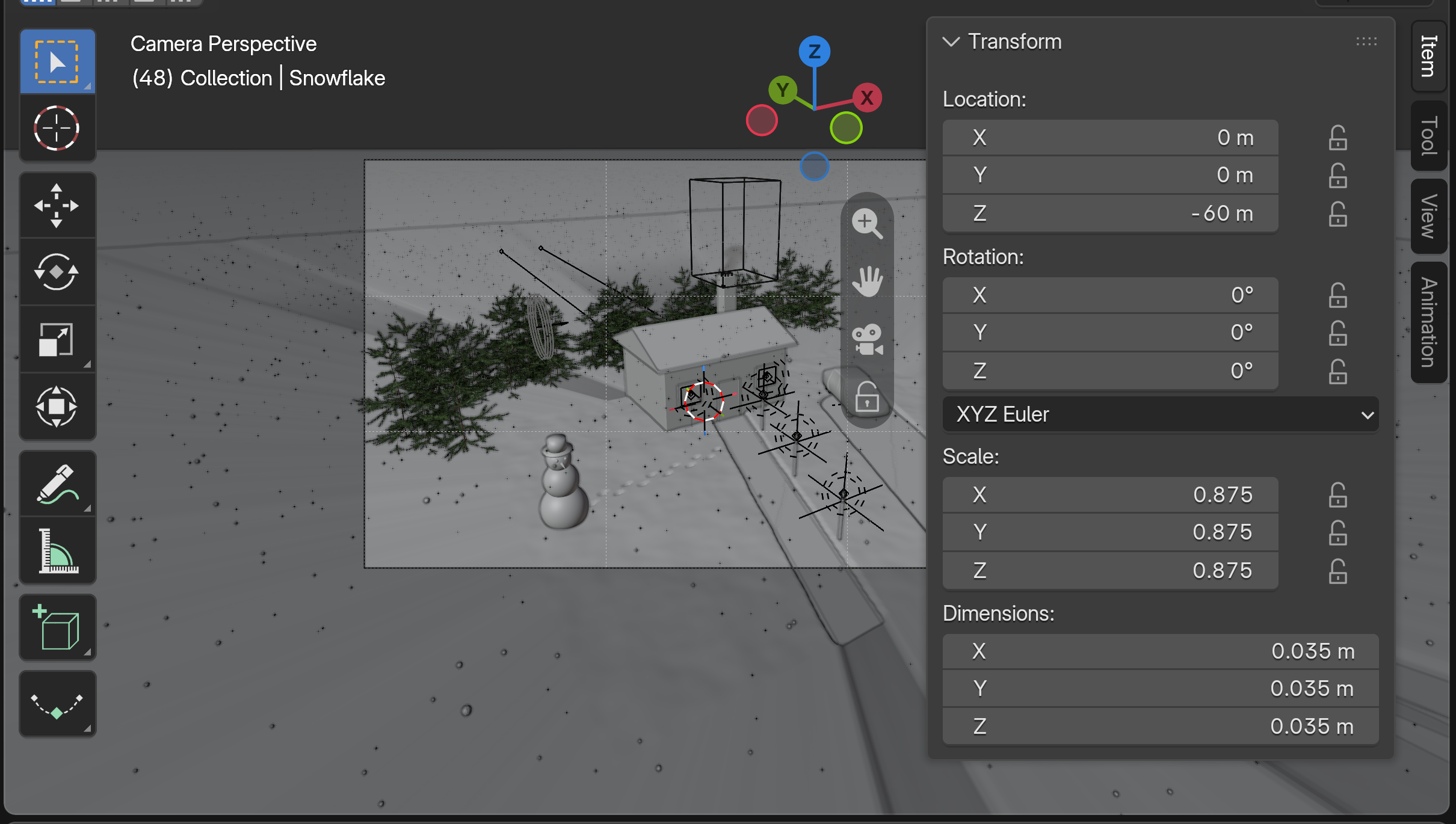
Snowflake: Location Z -60 m, far below the scene so the original flake is never seen. · Location.Result in the native demonstration. Check the selected object, state and values against this view.
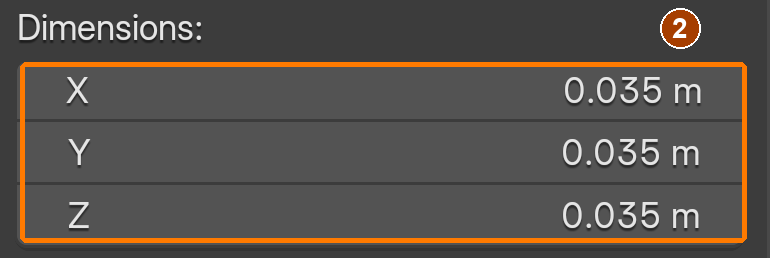
Snowflake: Dimensions 0.035 m on all axes. · Dimensions.Result in the native demonstration. Check the selected object, state and values against this view.
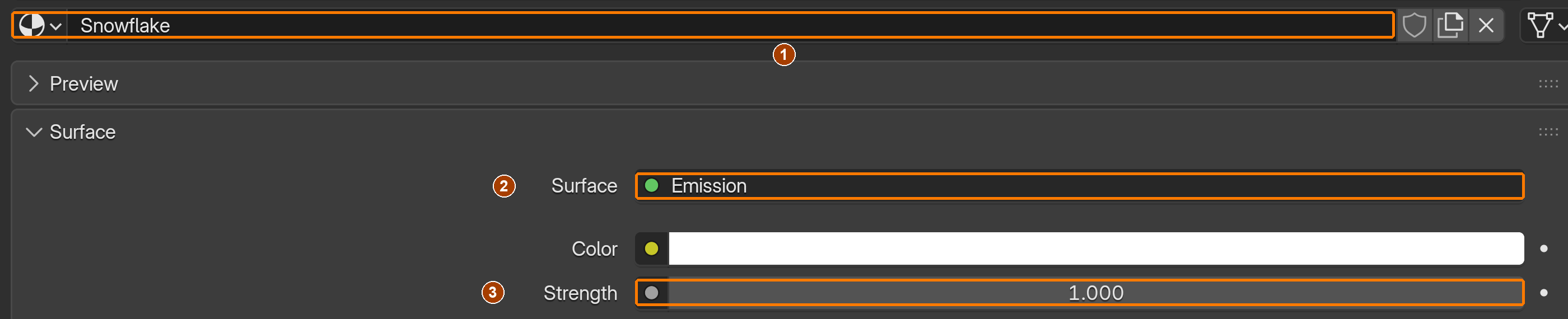
Snowflake has its own material named Snowflake: Surface is Emission, Color white, Strength 1.000.Result in the native demonstration. Check the selected object, state and values against this view.
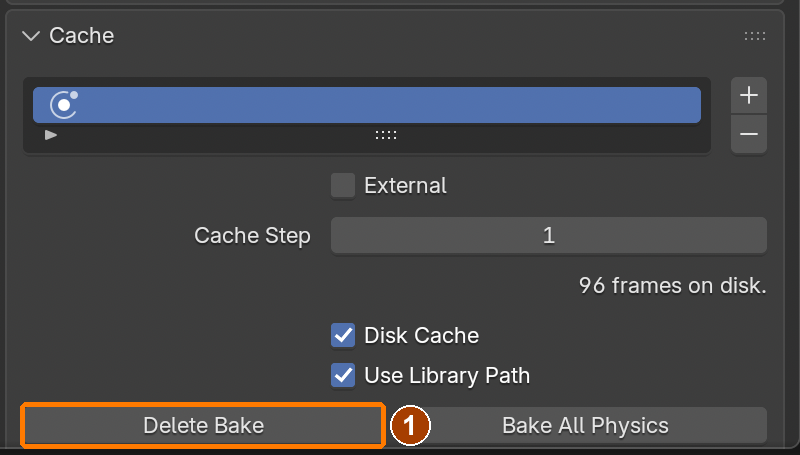
Emission: Number 7000; Frame Start -110 and End 96; Lifetime 110. (Fields look grey because this cache is baked; click Delete Bake before changing them, then Bake again.)Result in the native demonstration. Check the selected object, state and values against this view.
Velocity: Normal -2 m/s. The minus sign sends flakes downwards from the emitter.Result in the native demonstration. Check the selected object, state and values against this view.
Physics › Forces: Brownian 0.400.Result in the native demonstration. Check the selected object, state and values against this view.
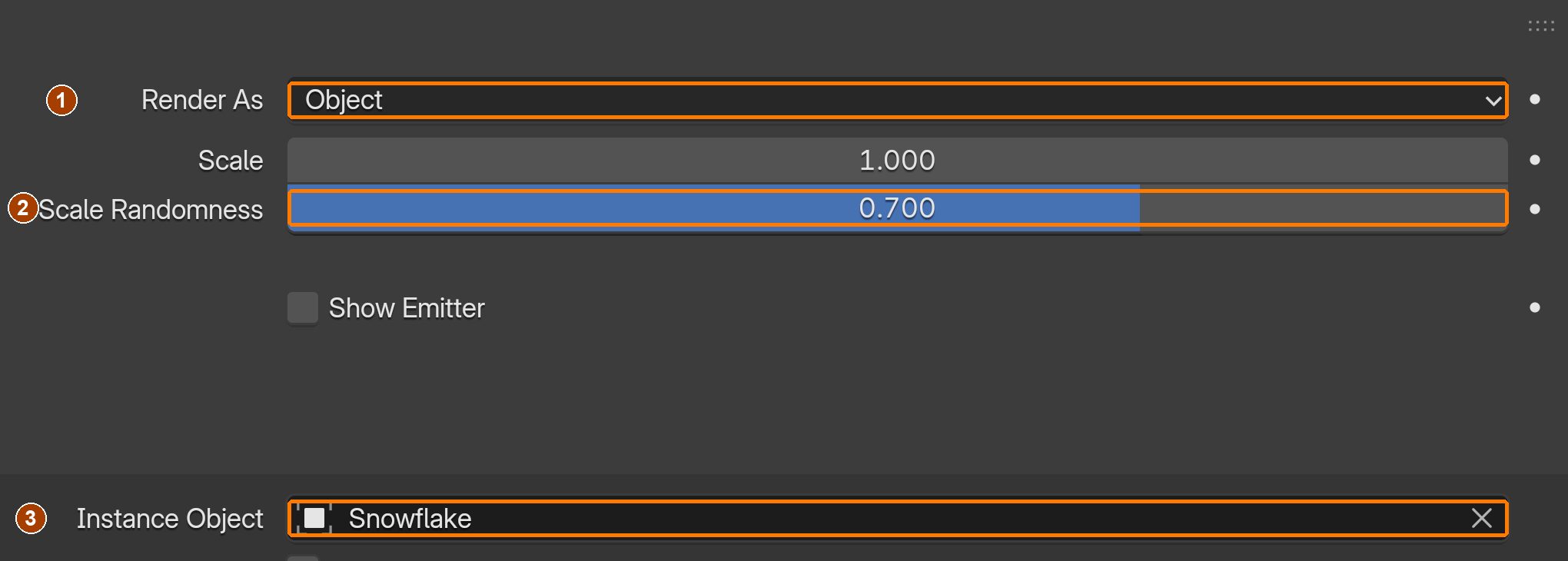
Render: Render As Object; Scale Randomness 0.700; Instance Object Snowflake.Result in the native demonstration. Check the selected object, state and values against this view.
Render As dropdown: choose Object.Result in the native demonstration. Check the selected object, state and values against this view.
Instance Object dropdown: choose Snowflake.Result in the native demonstration. Check the selected object, state and values against this view.
Field Weights: Gravity 0.050.Result in the native demonstration. Check the selected object, state and values against this view.
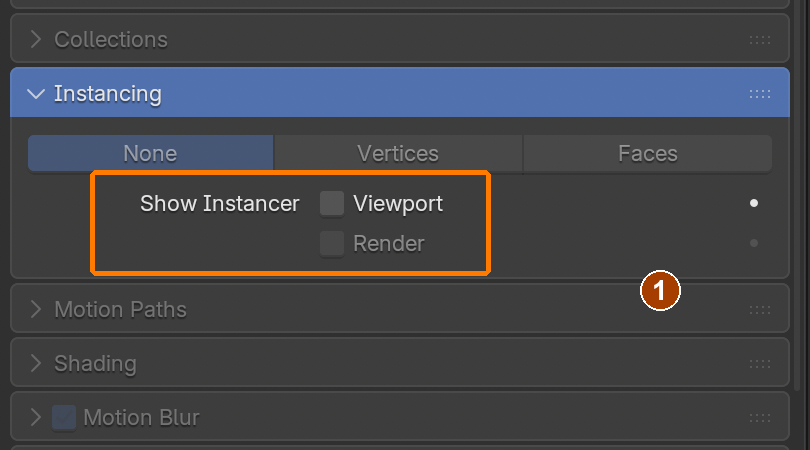
Turn Render off first, then Viewport under Show Instancer; both stay off.Result in the native demonstration. Check the selected object, state and values against this view.
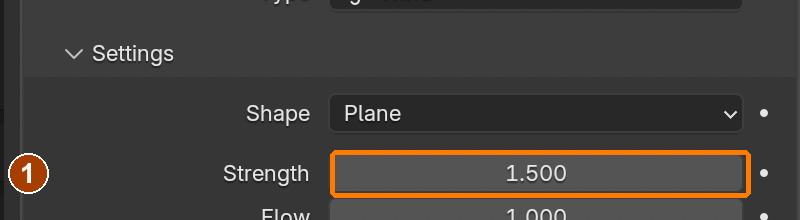
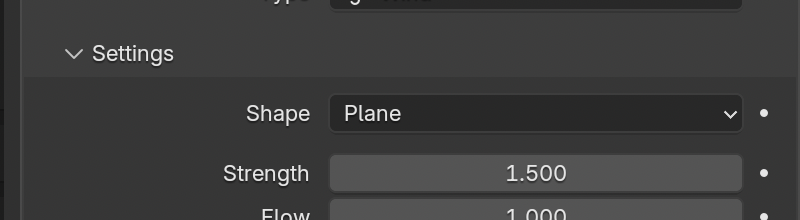
Physics › Force Fields › Settings: Strength 1.500.Result in the native demonstration. Check the selected object, state and values against this view.
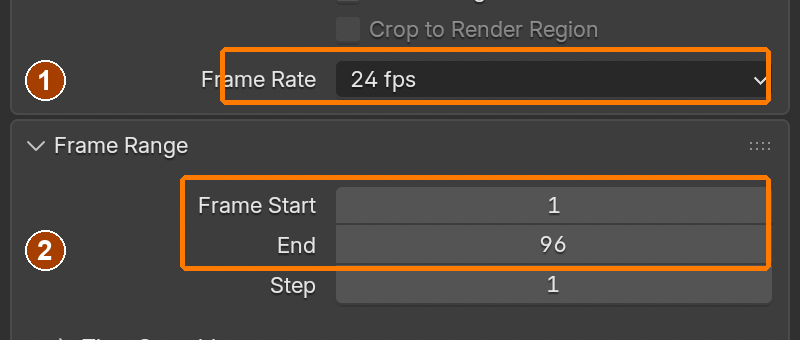
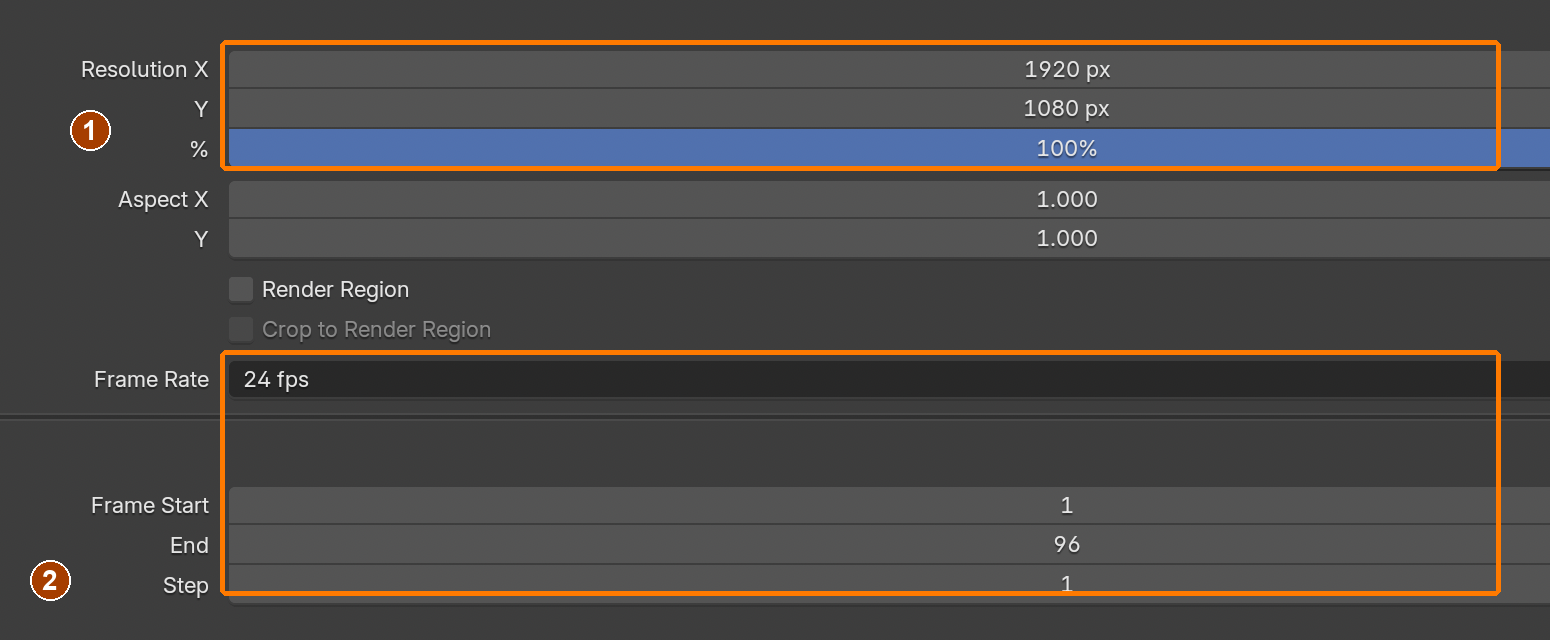
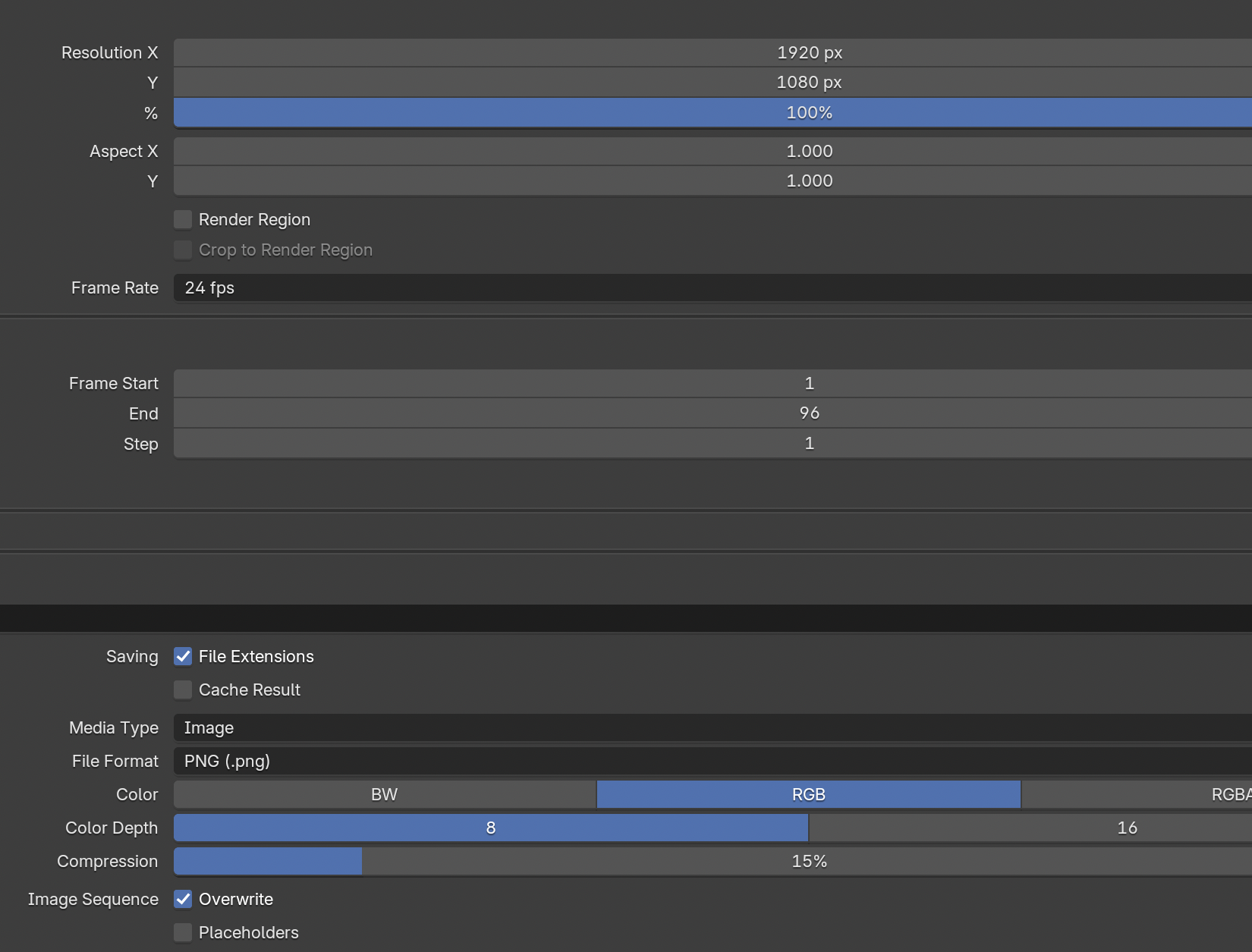
Scene frame rate 24 fps, Start 1, End 96.Result in the native demonstration. Check the selected object, state and values against this view.
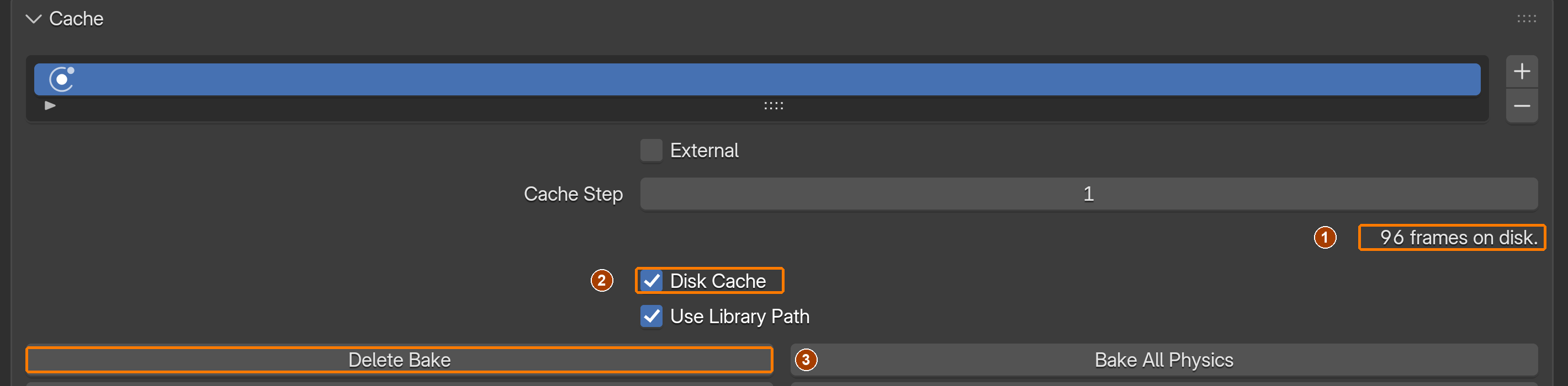
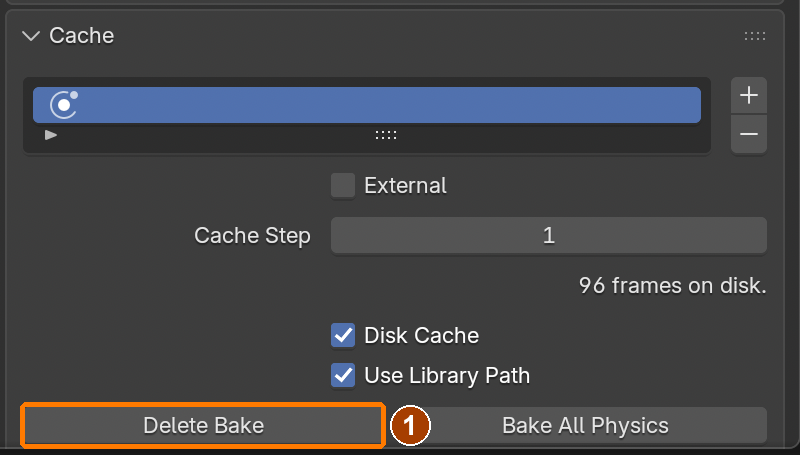
Completed particle cache: 96 frames on disk, Disk Cache enabled, Delete Bake visible. Do not delete a completed cache.Result in the native demonstration. Check the selected object, state and values against this view.
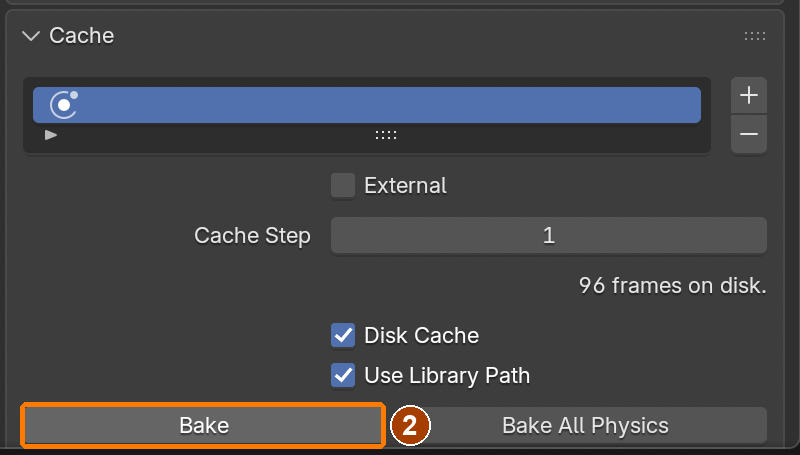
If snow disappears after Save As: Snow emitter > Particle Properties > Cache > Delete Bake. This was the actual failed renamed-copy test.Result in the native demonstration. Check the selected object, state and values against this view.
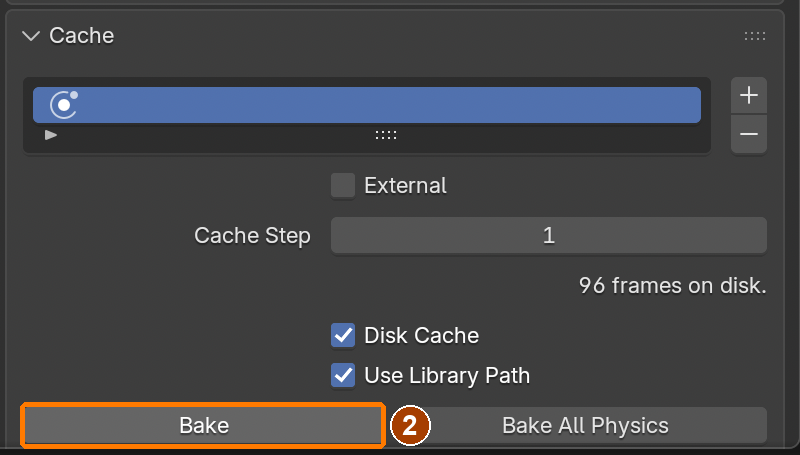
Click Bake after deleting the old bake. Wait for 96 frames on disk, then save.Result in the native demonstration. Check the selected object, state and values against this view.
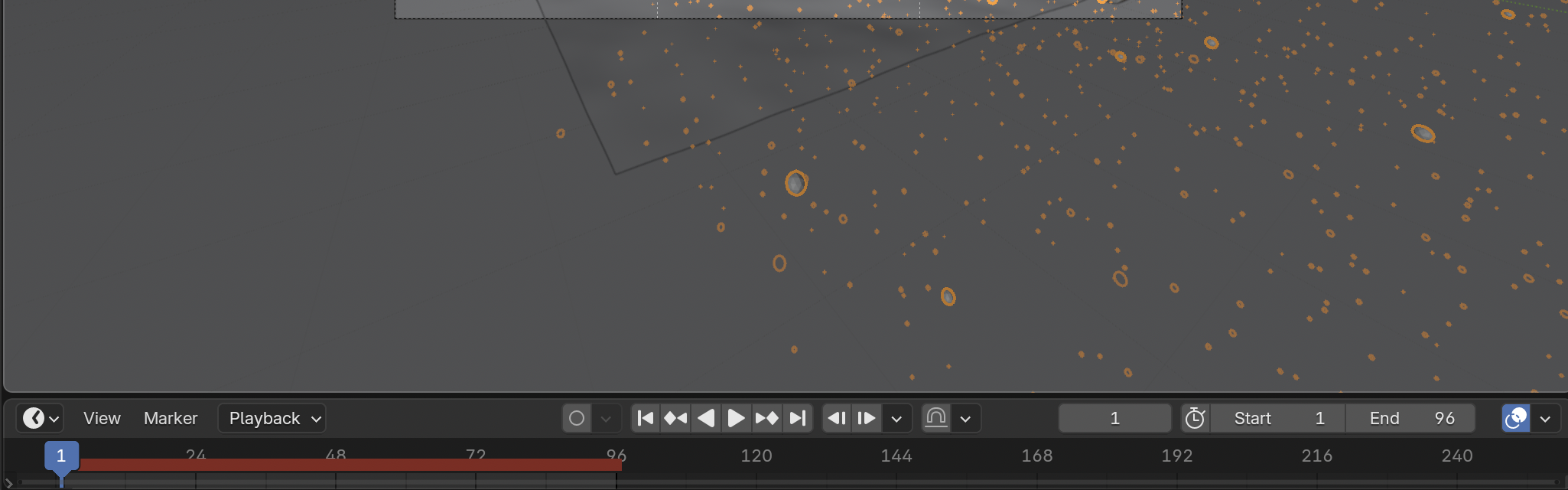
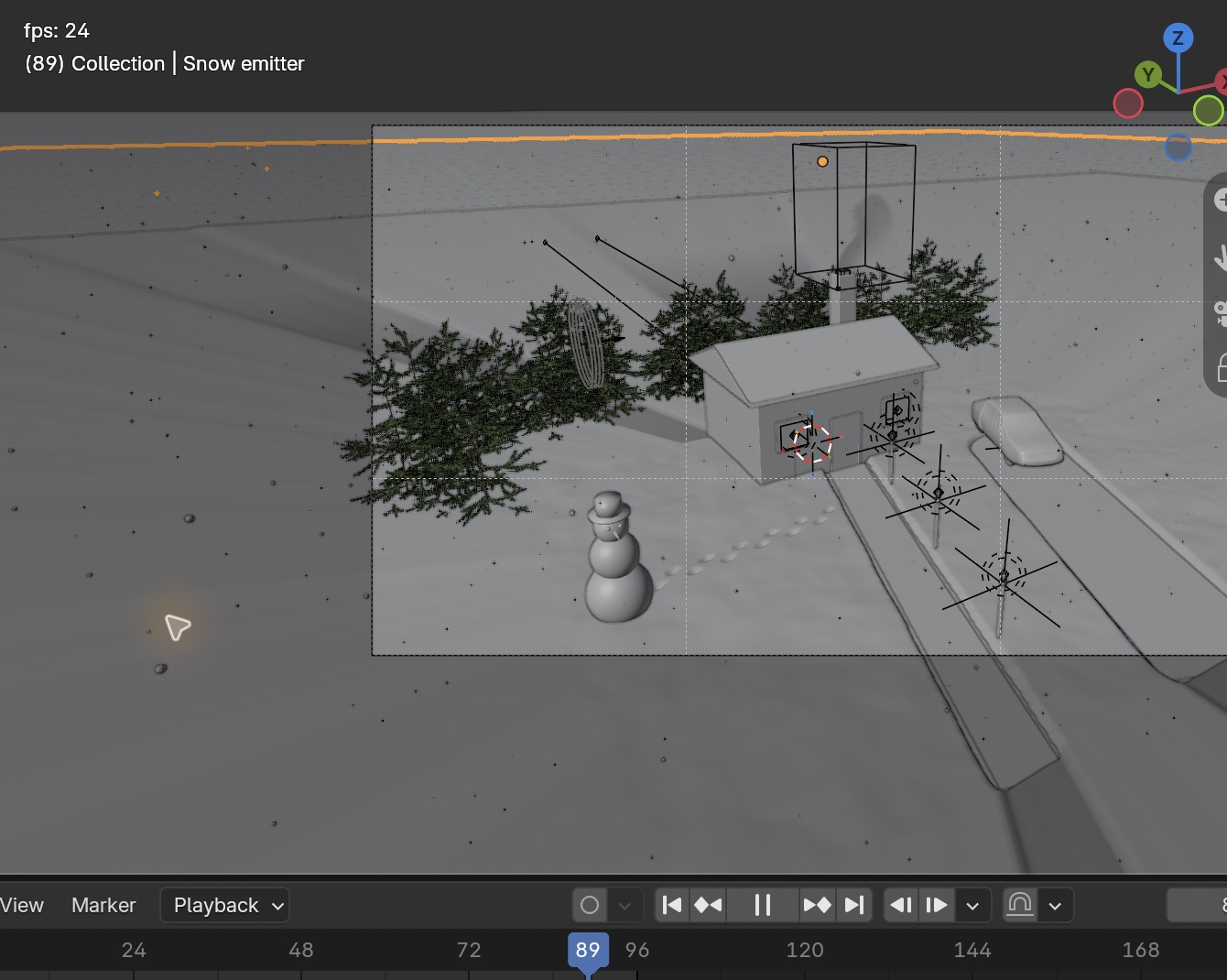
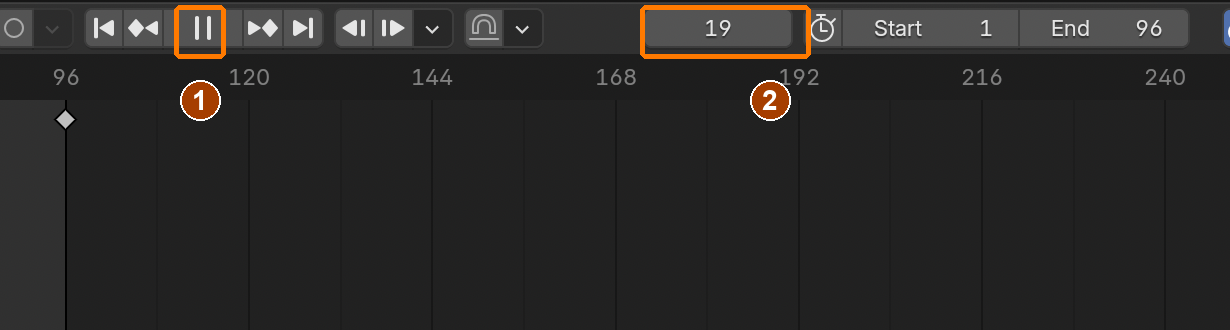
Timeline: Jump to First Frame, then Play. Play becomes Pause while playback runs. Keyboard alternatives: Shift+Left, then Space.Result in the native demonstration. Check the selected object, state and values against this view.
EXPLANATION FRAMESMy start frame is ___ so that ___. My particle cache check was ___.
A mistake from the actual build
Wrong · The first fir instances lay sideways because the source orientation did not match the particle axis.Right · Rotating the source X -90° and applying Rotation made the trees upright. This orientation test precedes the final density-mask placement.
Diagnose: intended result → observed mismatch → likely cause → one change → test.
A mistake from the actual build: snow you could not see
Wrong · 3000 flakes with Lifetime 400, sharing the yard’s snow material. Most had already fallen below the ground, and the rest rendered as dim grey specks. The settings were all “correct” and the cache was baked, but the snow did not read.Right · 7000 flakes, Lifetime 110, already falling at -2 m/s, with their own white Emission material. Same frame, same camera.
Diagnose: intended result → observed mismatch → likely cause → one change → test. A baked cache and a particle count do not prove an effect is visible. Render a frame and look.
STEP CHECKLIST
Tick each action beside its instruction after checking the result. Ticks record progress on this device; they do not establish achievement.
GLOSSARY
Particle system: Generates many copies of something over time
Force field: An invisible force (wind, turbulence) that pushes particles
WHYParticle systems generate thousands of objects from one setting. Adjusting gravity, randomness and wind makes them feel like weather, not rain.
CHECKFalling snow from frame 1 through 96, invisible emitter and a separately completed particle cache.
FIXSnow hard to see? The flake needs its own Emission material (Strength 1), and Lifetime must be about 110 so flakes are in the air, not under the ground. No snow at frame 1? Check emission Start -110. After Save As, select Snow emitter › Particle Properties › Cache › Delete Bake, then Bake and save. Reopen and test again. Baking smoke does not bake snow.
WORKED EXAMPLE · DIFFERENT OBJECTDifferent effect: drifting dust uses an object particle with Normal velocity 0 and low gravity. A settled starting frame requires earlier simulation time or a valid bake; jumping directly to a frame does not establish either.
STRETCH (AFTER THE CHECK PASSES)Add a second, slower layer of big soft flakes close to the camera for depth.
Method basis: B5. Values and sequence are authored for this project.
13
Make smoke rise from the chimney
A smoke source, a domain and a cache
The flow source adds smoke. The domain is the volume in which Blender simulates it; smoke outside that volume cannot continue. Resolution controls the simulation grid, affecting detail and memory. A volume material describes the smoke’s appearance. Baking stores the calculated simulation on disk. Changing the source, domain or forces invalidates that result, so free the old cache and bake again before judging the change.
Application verification incomplete: actions 1, 2, 3, 4, 5, 6, 7, 8 still need their complete run/capture/result evidence checked. Unproven procedures remain not yet run.
IN SHORTEnclose the smoke source in a Gas domain; verify Inflow; set its volume material and wind weight; bake All and test the reopened cache.
READ ALOUD
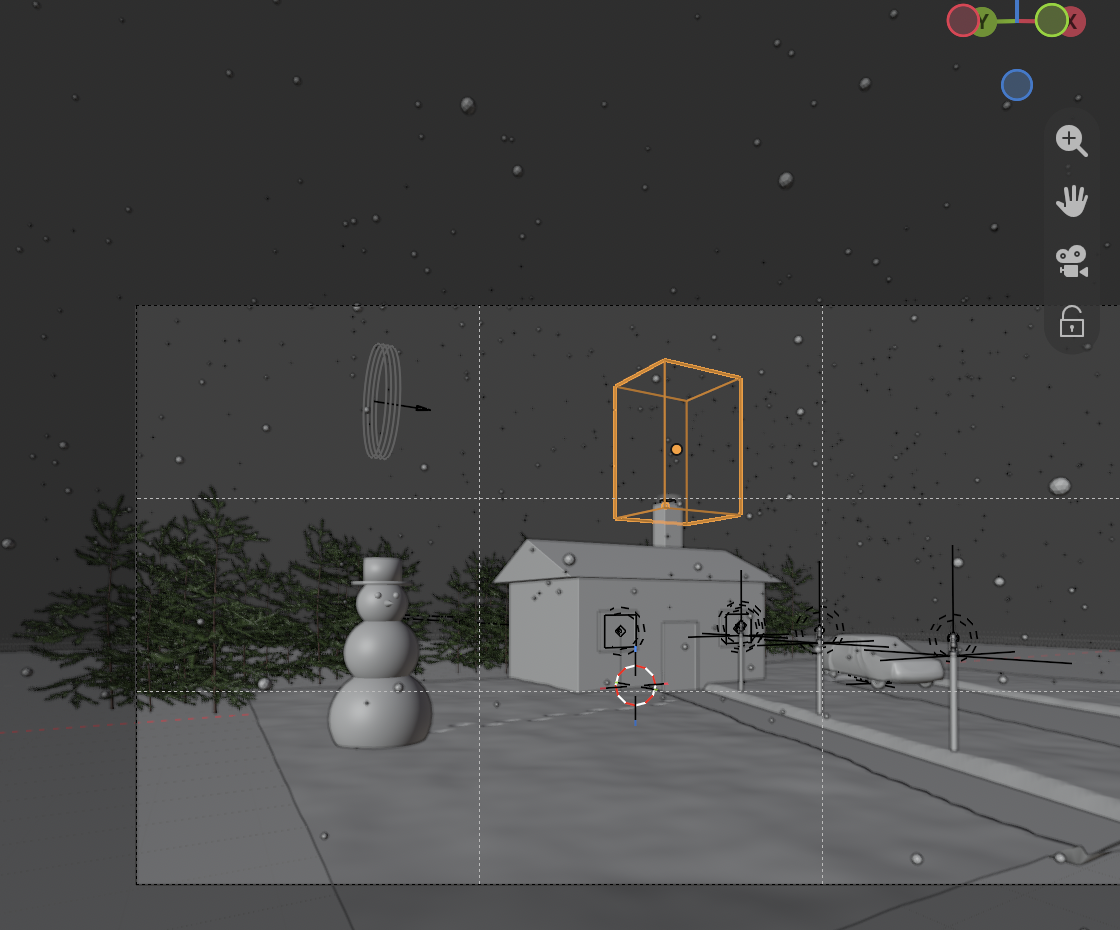
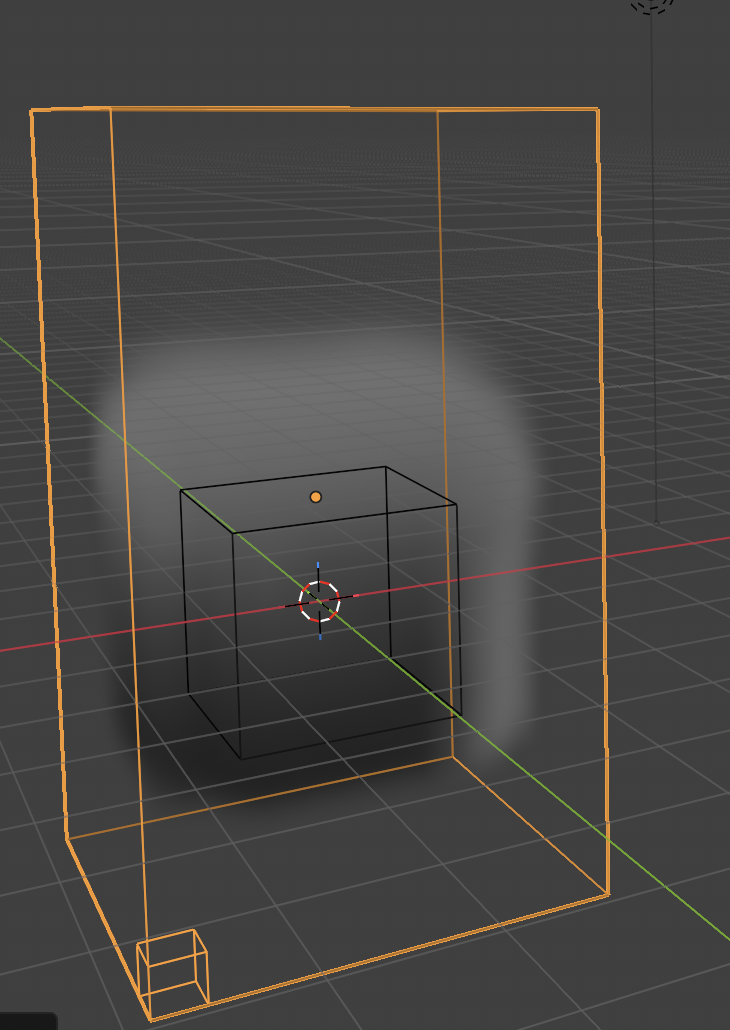
DOCUMENT: WinterCottage_YourName.blend SELECT: A small cube inside the chimney top TOOLS / ROUTE: Object › Quick Effects › Quick Smoke · Domain settings · Bake
F3 search: choose Object › Quick Effects › Quick Smoke.Result in the native demonstration. Check the selected object, state and values against this view.
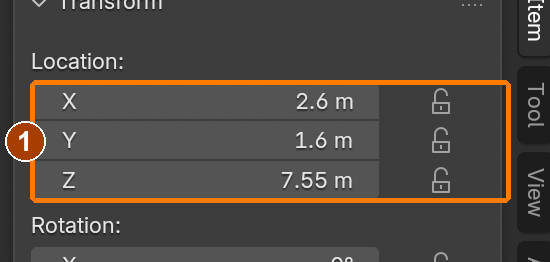
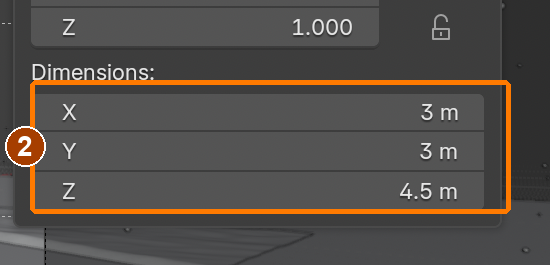
Smoke Domain Location (2.6,1.6,7.55), Dimensions (3,3,4.5), applied Scale 1. · Location.Result in the native demonstration. Check the selected object, state and values against this view.
Smoke Domain Location (2.6,1.6,7.55), Dimensions (3,3,4.5), applied Scale 1. · Dimensions.Result in the native demonstration. Check the selected object, state and values against this view.
Gas domain: Resolution Divisions 48.Result in the native demonstration. Check the selected object, state and values against this view.
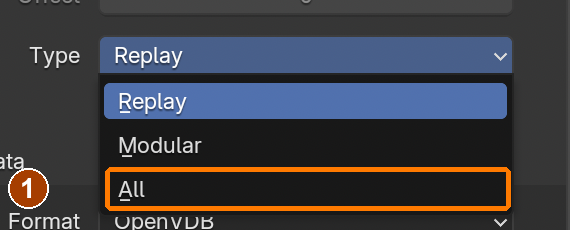
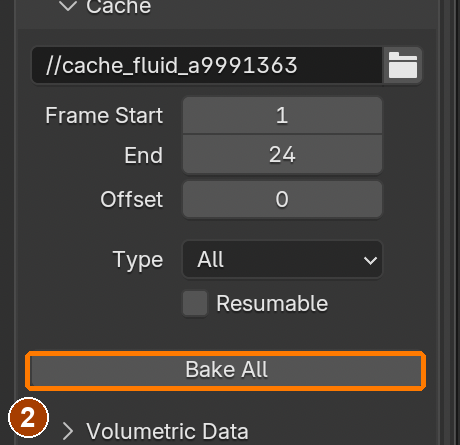
Cache Type dropdown: choose All.Result in the native demonstration. Check the selected object, state and values against this view.
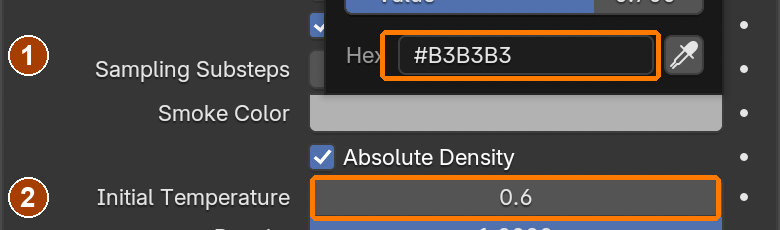
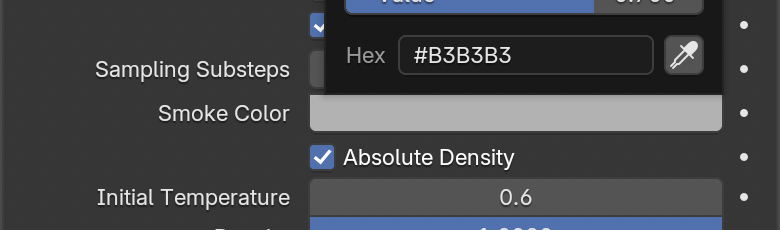
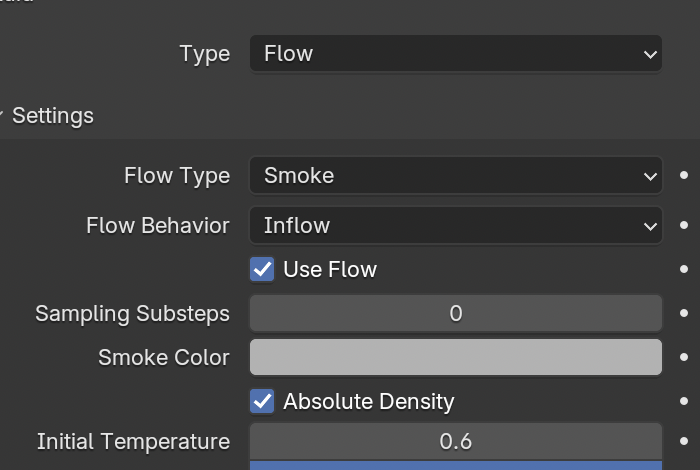
Flow Smoke Color #B3B3B3 and Initial Temperature 0.6.Result in the native demonstration. Check the selected object, state and values against this view.
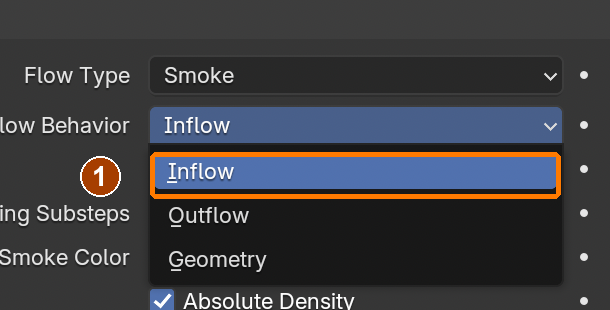
Verify Flow Behavior Inflow. Choosing Inflow keeps smoke entering for the shot; Quick Smoke already supplies this default.Result in the native demonstration. Check the selected object, state and values against this view.
Smoke Domain Field Weights: Wind 0.120.Result in the native demonstration. Check the selected object, state and values against this view.
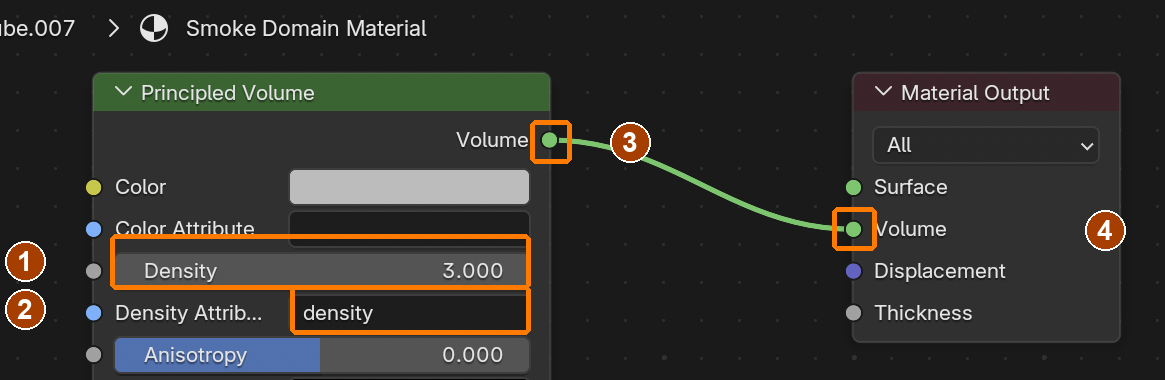
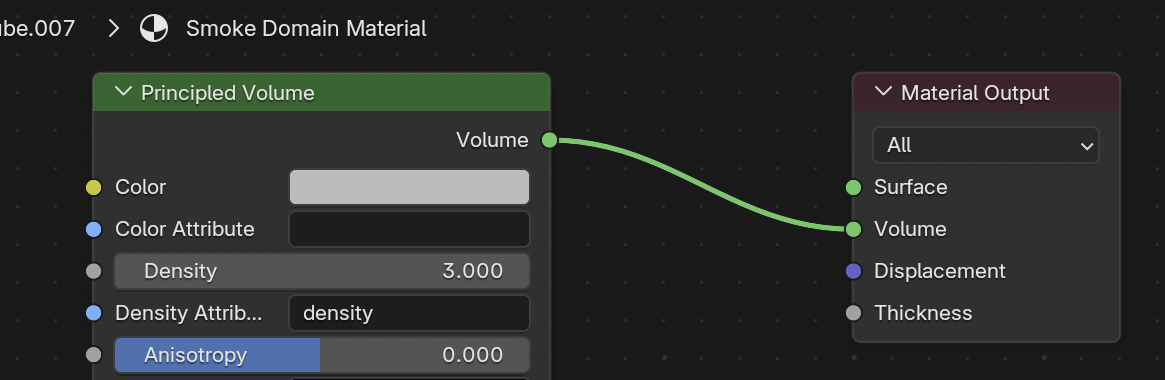
Principled Volume Density 3, Density Attribute density, Volume output linked to Material Output Volume. Surface stays empty.Result in the native demonstration. Check the selected object, state and values against this view.
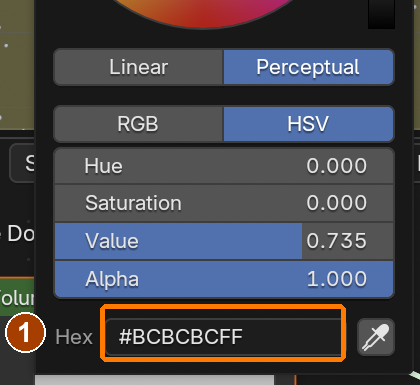
Principled Volume colour picker Hex #BCBCBCFF.Result in the native demonstration. Check the selected object, state and values against this view.
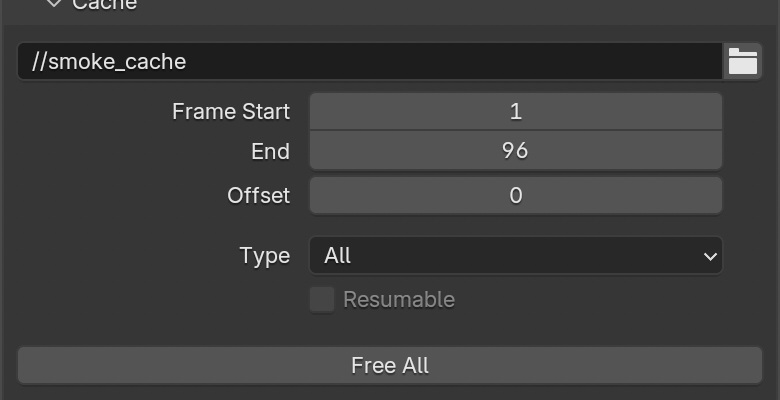
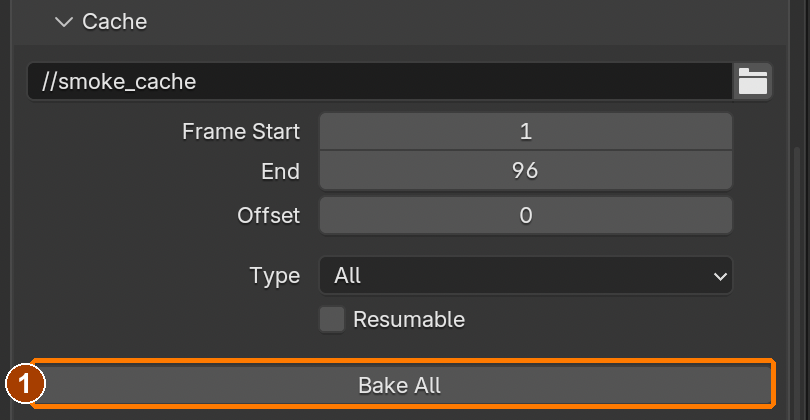
After saving and setting Cache Type All: click Bake All.Result in the native demonstration. Check the selected object, state and values against this view.
Play the saved simulation, then inspect early, middle and late frames. Keep the domain large enough to contain the plume.Result in the native demonstration. Check the selected object, state and values against this view.
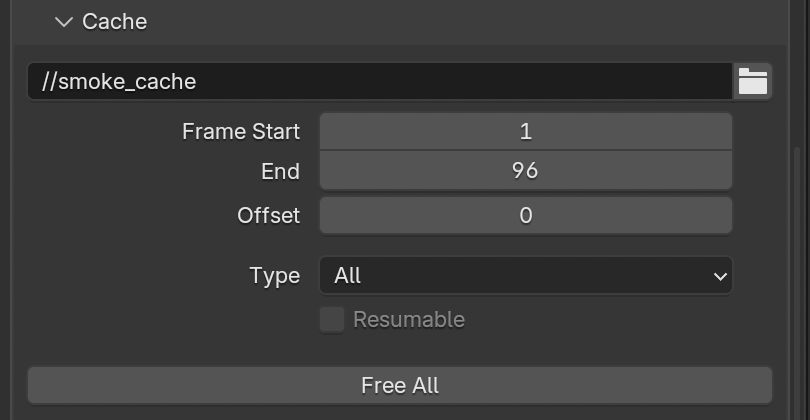
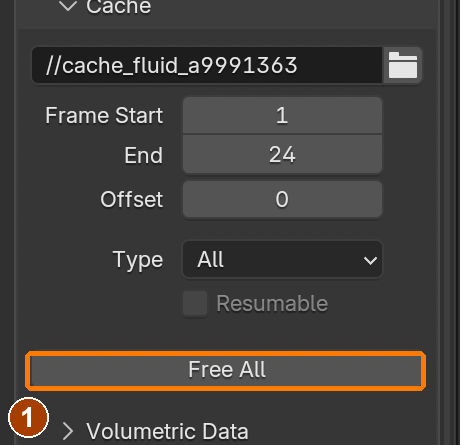
Separate cache practice: Free All clears the previous bake before a simulation change.Result in the native demonstration. Check the selected object, state and values against this view.
Separate cache practice: Bake All rebuilds the cache after changing the domain.Result in the native demonstration. Check the selected object, state and values against this view.
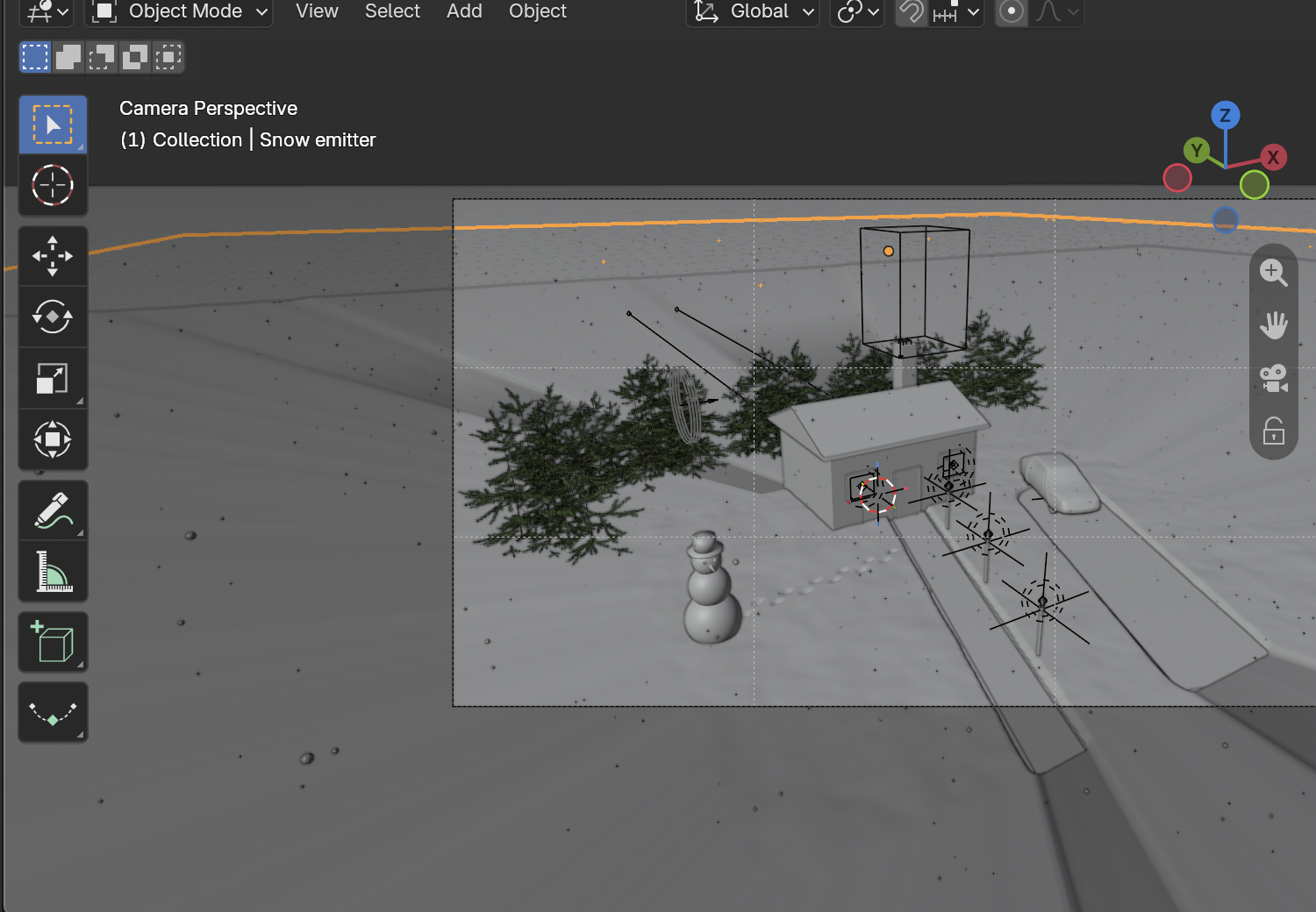
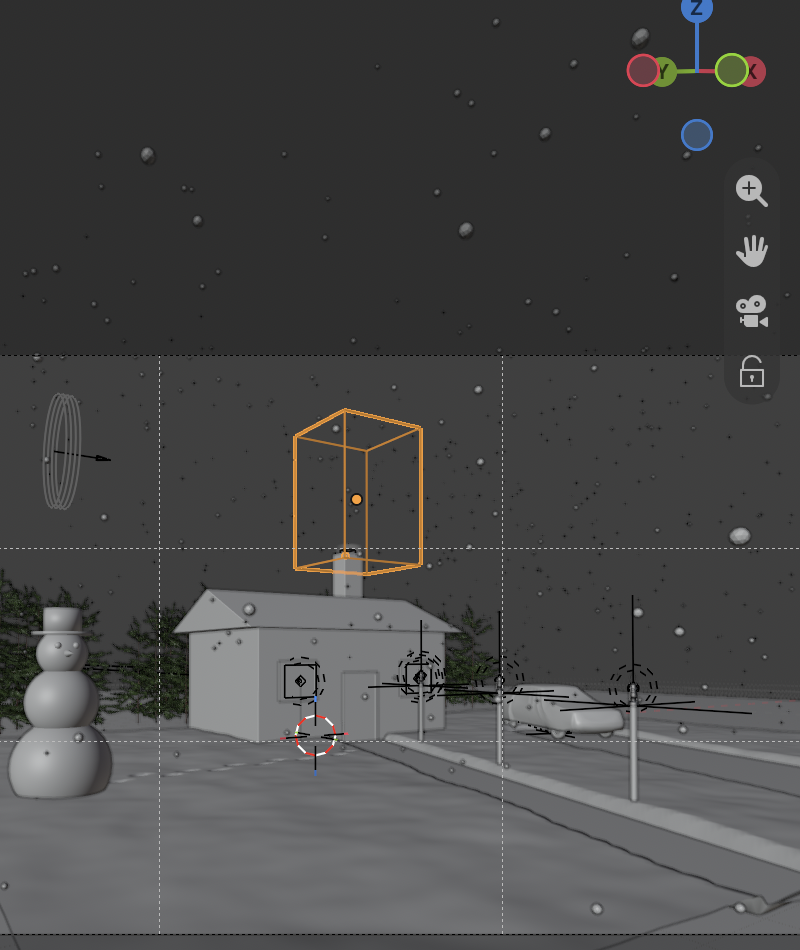
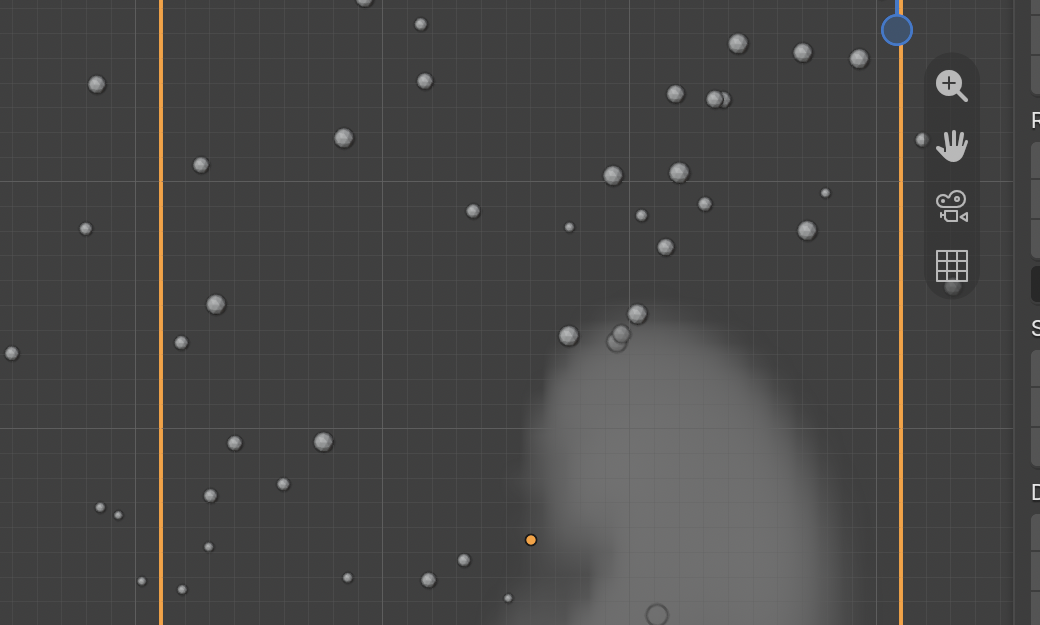
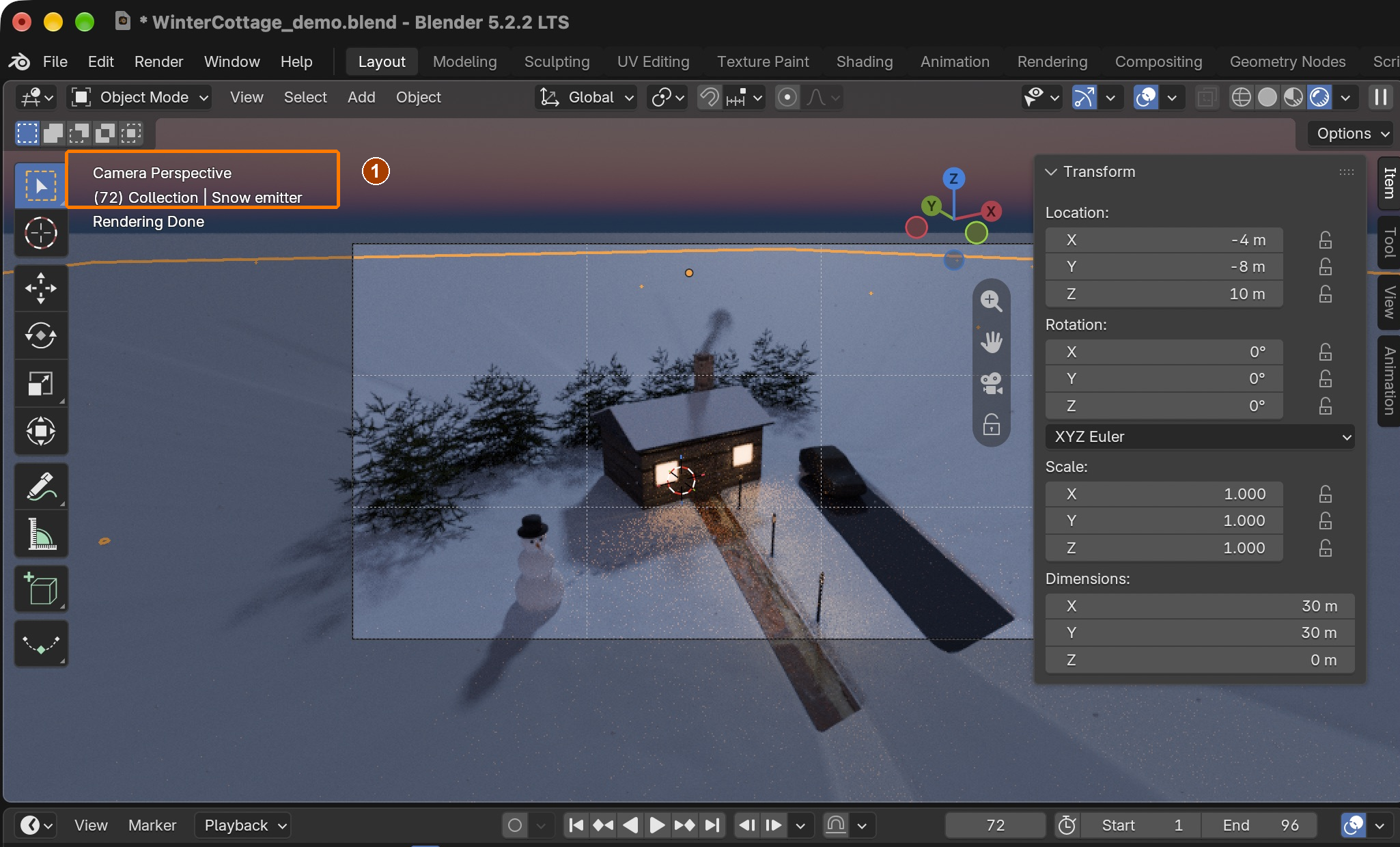
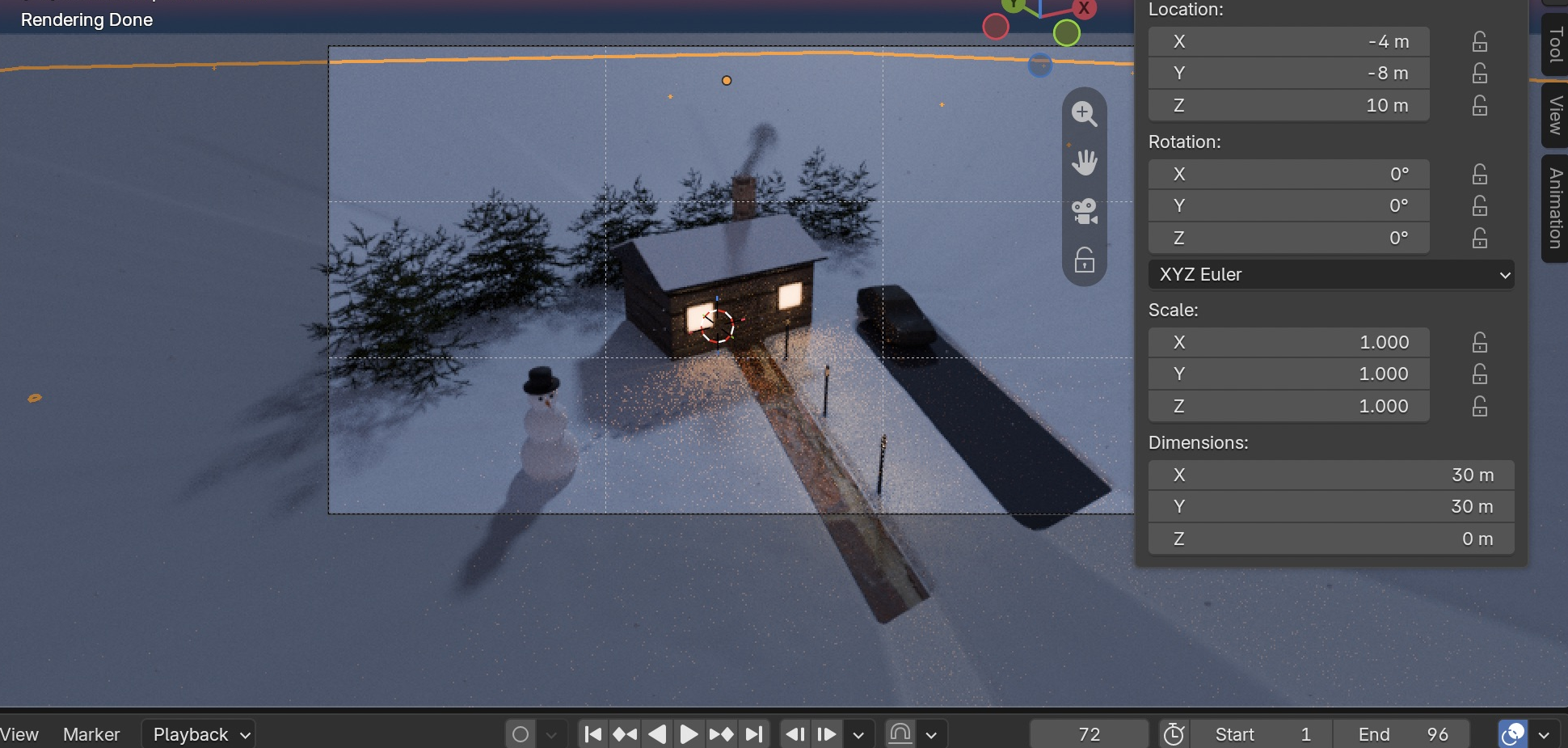
Saved scene reopened at a later frame: inspect the chimney plume and falling snow in the camera view.Result in the native demonstration. Check the selected object, state and values against this view.
EXPLANATION FRAMESThe source lies ___ the domain. I changed ___, which required ___ before retesting.
STEP CHECKLIST
Tick each action beside its instruction after checking the result. Ticks record progress on this device; they do not establish achievement.
GLOSSARY
Domain: The box where a simulation happens
Bake: Calculating a simulation and saving it to disk
WHYBlender’s fluid simulation calculates real smoke movement. A low resolution bakes fast; the domain box limits where smoke can exist.
CHECKA baked smoke plume curling out of the chimney and drifting gently in the wind, visible in the Rendered view.
FIXEmpty smoke? Check source inside domain, Gas domain, Smoke/Inflow source, valid cache path and Bake All completion. Changed a simulation value? Free and rebake before testing again.
WORKED EXAMPLE · DIFFERENT OBJECTDifferent simulation: steam from a mug is inside a gas domain. If its source lies outside the box, increasing resolution cannot fix it. Move the bounds to contain the source, free the cache and rebake.
STRETCH (AFTER THE CHECK PASSES)Turn on Noise in the domain for finer wisps (slower to bake).
Method basis: B6. Values and sequence are authored for this project.
Session G · Lesson 7 · mm12-26-s06-d07
Keyframes and compositing.
Make the scene move with keyframes, then finish the image the way studios do, in the compositor.
TODAYKeyframes (30 min), compositing (30 min).
14
Animate with keyframes: a camera push-in and flickering lanterns
Keyframes and interpolation
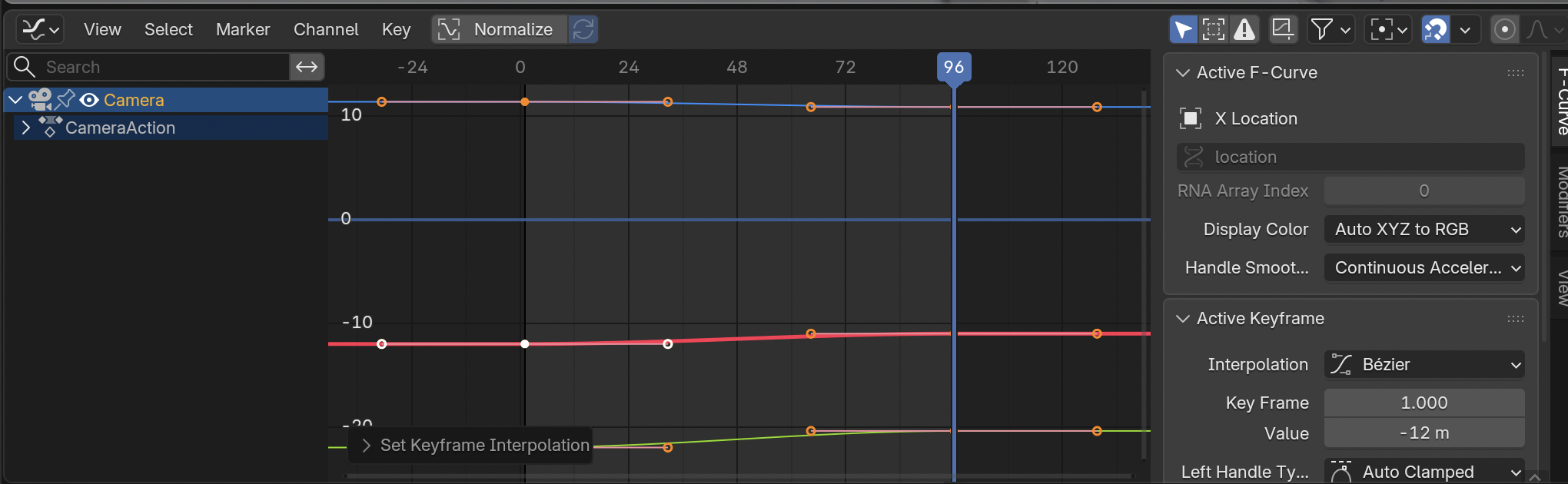
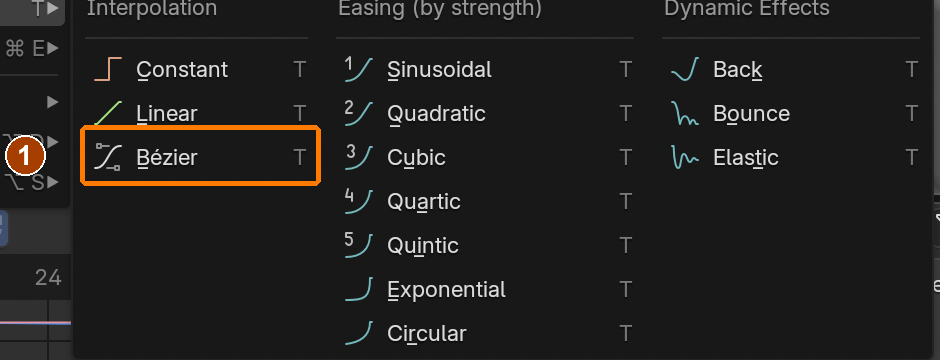
A keyframe stores a property’s value at a particular frame. Interpolation determines the values between keys: Linear makes a constant rate; Bezier can ease into and out of movement. At 24 frames per second, 96 frames produce four seconds. Key only the properties you intend to change. A camera Location key moves the camera, while a light Power key changes illumination; the correct selection and editor context determine which property is recorded.
Recall first (from last lesson, no peeking):
Why does the snow start at frame −300?
What is the Domain in a smoke simulation?
What does Bake do?
Say or write your answers, then check them against your file.
Application verification incomplete: actions 1, 2, 3, 4, 5, 6, 7 still need their complete run/capture/result evidence checked. Unproven procedures remain not yet run.
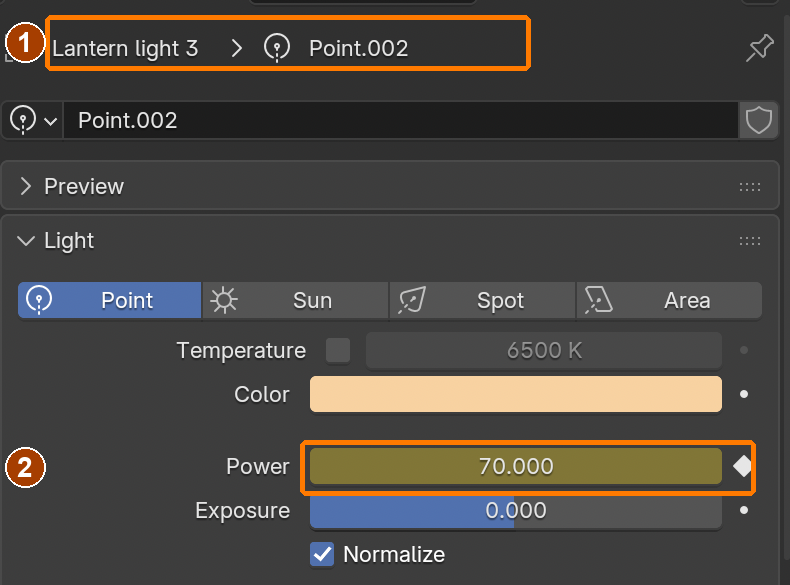
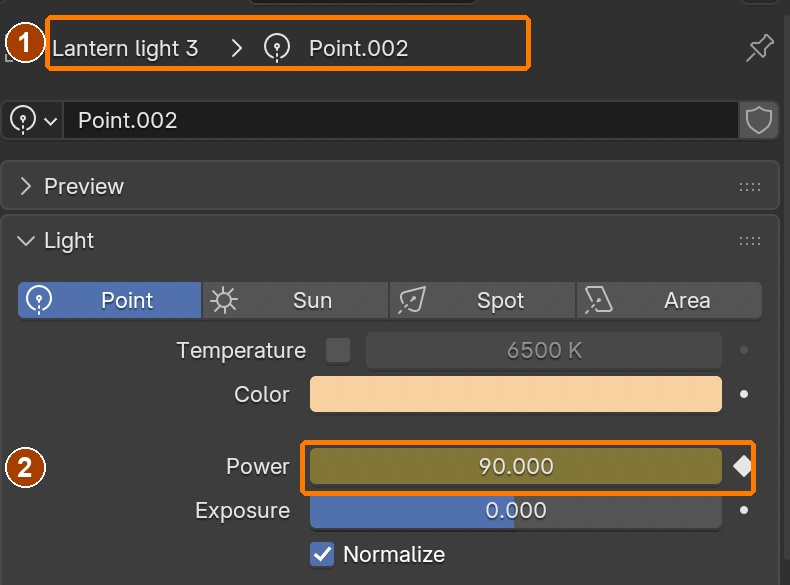
IN SHORTKey Camera Location with K; inspect Bezier interpolation; key each light Power field separately; reopen and play; practise on a sphere.
READ ALOUD
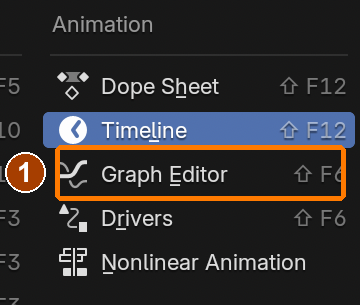
DOCUMENT: WinterCottage_YourName.blend SELECT: Camera location; lantern light power TOOLS / ROUTE: K › Location in viewport · I over Power field · Timeline · Graph Editor
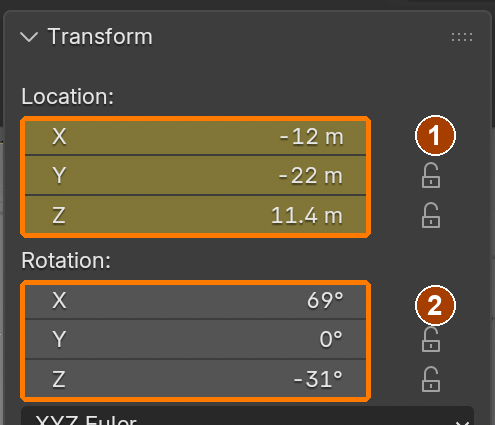
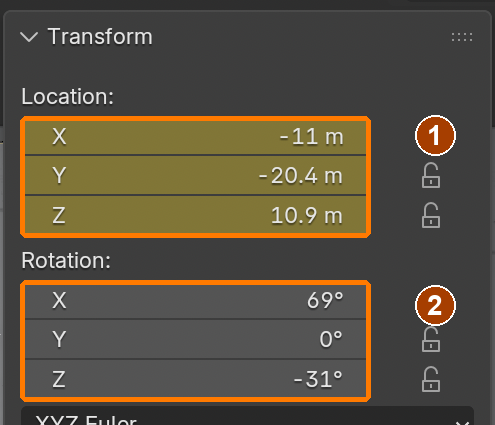
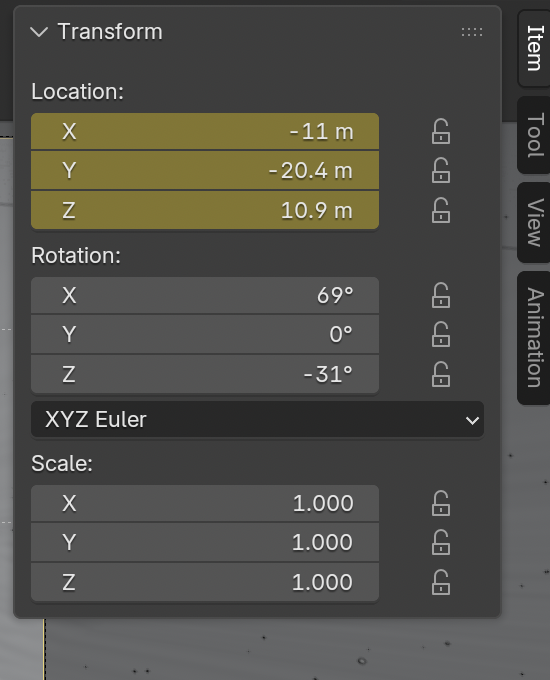
Camera keyed Location and unkeyed RotationResult in the native demonstration. Check the selected object, state and values against this view.
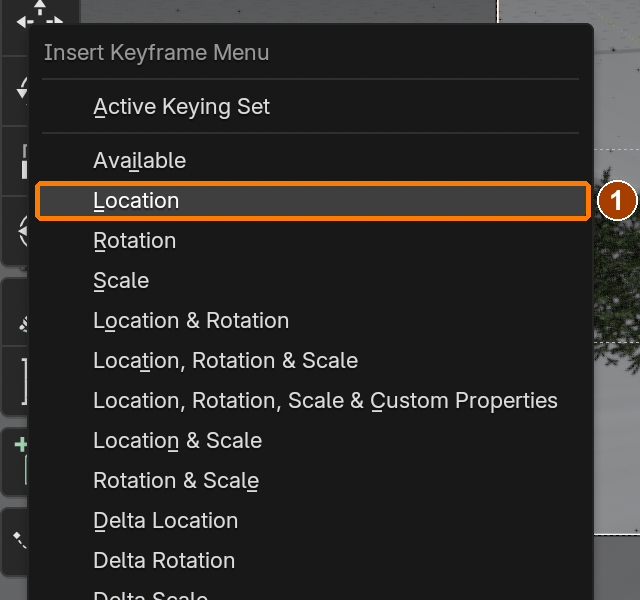
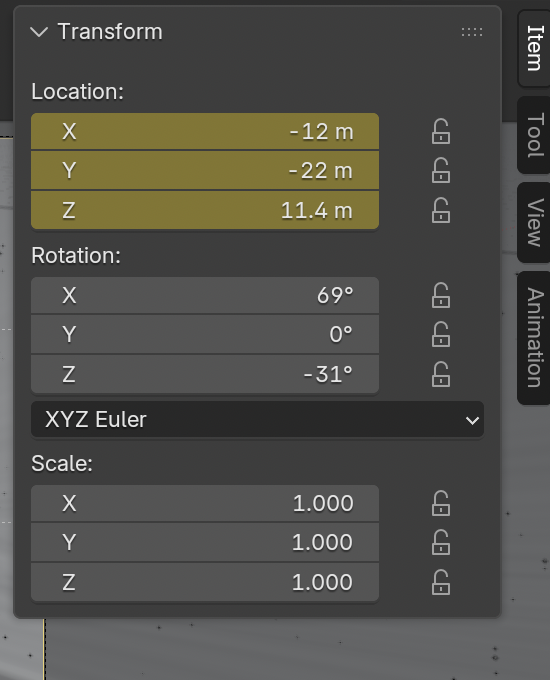
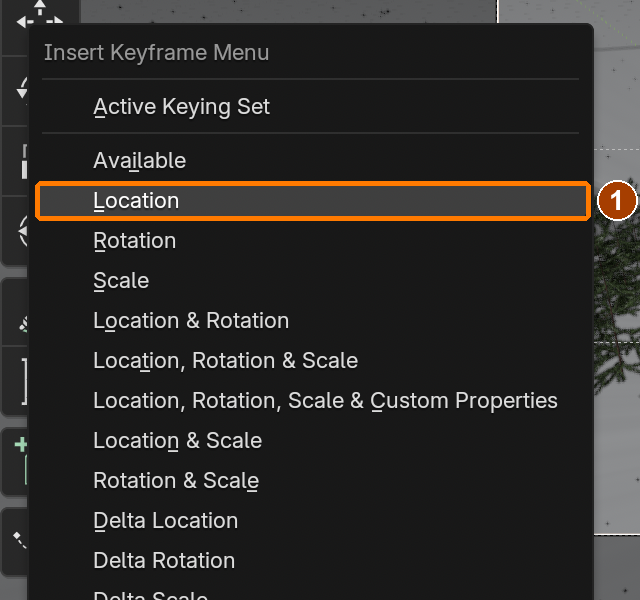
Press K without Shift, then choose Location in Insert Keyframe Menu. Frame 1 uses (-12,-22,11.4); rotation remains unkeyed.Result in the native demonstration. Check the selected object, state and values against this view.
Camera keyed Location and unkeyed RotationResult in the native demonstration. Check the selected object, state and values against this view.
At frame 96 press K without Shift, then Location. Location only is yellow at (-11,-20.4,10.9).Result in the native demonstration. Check the selected object, state and values against this view.
Timeline editor selector: choose Graph Editor.Result in the native demonstration. Check the selected object, state and values against this view.
Key › Interpolation Mode: Bezier.Result in the native demonstration. Check the selected object, state and values against this view.
Graph Editor View menu: Frame All.Result in the native demonstration. Check the selected object, state and values against this view.
Lantern light 1: at frame 1, hover Power and press I to key 80 W. Check the light name before editing.Result in the native demonstration. Check the selected object, state and values against this view.
Lantern light 1: at frame 30, hover Power and press I to key 70 W. Check the light name before editing.Result in the native demonstration. Check the selected object, state and values against this view.
Lantern light 1: at frame 36, hover Power and press I to key 90 W. Check the light name before editing.Result in the native demonstration. Check the selected object, state and values against this view.
Lantern light 1: at frame 60, hover Power and press I to key 75 W. Check the light name before editing.Result in the native demonstration. Check the selected object, state and values against this view.
Lantern light 1: at frame 96, hover Power and press I to key 80 W. Check the light name before editing.Result in the native demonstration. Check the selected object, state and values against this view.
Lantern light 2: at frame 1, hover Power and press I to key 80 W. Check the light name before editing.Result in the native demonstration. Check the selected object, state and values against this view.
Lantern light 2: at frame 37, hover Power and press I to key 70 W. Check the light name before editing.Result in the native demonstration. Check the selected object, state and values against this view.
Lantern light 2: at frame 43, hover Power and press I to key 90 W. Check the light name before editing.Result in the native demonstration. Check the selected object, state and values against this view.
Lantern light 2: at frame 65, hover Power and press I to key 75 W. Check the light name before editing.Result in the native demonstration. Check the selected object, state and values against this view.
Lantern light 2: at frame 96, hover Power and press I to key 80 W. Check the light name before editing.Result in the native demonstration. Check the selected object, state and values against this view.
Lantern light 3: at frame 1, hover Power and press I to key 80 W. Check the light name before editing.Result in the native demonstration. Check the selected object, state and values against this view.
Lantern light 3: at frame 44, hover Power and press I to key 70 W. Check the light name before editing.Result in the native demonstration. Check the selected object, state and values against this view.
Lantern light 3: at frame 50, hover Power and press I to key 90 W. Check the light name before editing.Result in the native demonstration. Check the selected object, state and values against this view.
Lantern light 3: at frame 70, hover Power and press I to key 75 W. Check the light name before editing.Result in the native demonstration. Check the selected object, state and values against this view.
Lantern light 3: at frame 96, hover Power and press I to key 80 W. Check the light name before editing.Result in the native demonstration. Check the selected object, state and values against this view.
Playback running after reopen: Pause shows playback is active, and the current-frame value advances. Stop with Space before entering a frame.Result in the native demonstration. Check the selected object, state and values against this view.
EXPLANATION FRAMESI keyed the ___ channel at ___ and ___. The interpolation makes the motion ___.
A mistake from the actual build
Wrong · During the native control test I accidentally sent Shift+K, selected a keying set, and left the fresh sphere’s Location grey: no key had been inserted.Right · Plain K opened Insert Keyframe Menu. Choosing Location made only its three Location fields yellow. Release Shift and check the menu title before choosing.
Diagnose: intended result → observed mismatch → likely cause → one change → test.
STEP CHECKLIST
Tick each action beside its instruction after checking the result. Ticks record progress on this device; they do not establish achievement.
GLOSSARY
Keyframe: A saved value at a moment in time
Easing: How motion speeds up and slows down between keys
WHYKeyframes record a value at a moment in time; Blender fills in the frames between. The same idea animates cameras, lights, characters and anything else.
CHECKA smooth 4-second camera push-in and lanterns that flicker slightly out of time with each other.
FIXChanged camera values turn orange? Update that frame with K → Location before rendering; existing animation can restore the old values. Wrong channels? Undo viewport I and use K → Location. For lamp flicker, select the intended light and key over its Power field.
WORKED EXAMPLE · DIFFERENT OBJECTDifferent animation: a ball is at X 0 on frame 1 and X 2 on frame 24. K → Location stores only its travel. Hovering over a light’s Power and pressing I stores that property instead. Inspect channels before assuming the correct thing was keyed.
STRETCH (AFTER THE CHECK PASSES)Animate the snowman’s hat tipping off in the wind at frame 70.
Method basis: B1. Values and sequence are authored for this project.
15
Finish it in the compositor: glow and colour
Finishing the rendered image
The compositor processes the rendered image through connected nodes. Bloom spreads bright light into nearby pixels; colour balance adjusts tonal colour. These effects do not repair missing geometry, misplaced lights or a broken simulation. Mute and unmute the finishing nodes on the same rendered frame to compare their contribution. Keep snow detail and the colour of the windows readable.
Application verification incomplete: actions 1, 2, 3, 4, 5 still need their complete run/capture/result evidence checked. Unproven procedures remain not yet run.
IN SHORTCreate the compositor group; connect Bloom and Color Balance to Group Output; rerender the same frame with both effects bypassed and restored.
READ ALOUD
DOCUMENT: WinterCottage_YourName.blend SELECT: The compositor node tree TOOLS / ROUTE: Compositing workspace · Glare (Bloom) · Color Balance · Viewer
Compositor header: New creates the scene node group.Result in the native demonstration. Check the selected object, state and values against this view.
Glare: Bloom, Threshold 1.6, Strength .25, Size .5. · Bloom type.Result in the native demonstration. Check the selected object, state and values against this view.
Glare: Bloom, Threshold 1.6, Strength .25, Size .5. · Threshold 1.6.Result in the native demonstration. Check the selected object, state and values against this view.
Glare: Bloom, Threshold 1.6, Strength .25, Size .5. · Strength 0.25.Result in the native demonstration. Check the selected object, state and values against this view.
Glare: Bloom, Threshold 1.6, Strength .25, Size .5. · Size 0.5.Result in the native demonstration. Check the selected object, state and values against this view.
Lift colour picker: Linear, RGB; Red .98, Green .99, Blue 1.01. Click outside to commit.Result in the native demonstration. Check the selected object, state and values against this view.
Gain colour picker: Linear, RGB; Red 1.02, Green 1.01, Blue .99. Click outside to commit.Result in the native demonstration. Check the selected object, state and values against this view.
Only Glare and Color Balance are muted; each bypass wire is visible. Render the same frame again.Result in the native demonstration. Check the selected object, state and values against this view.
Both finishing nodes are restored; render the same camera and frame for comparison.Result in the native demonstration. Check the selected object, state and values against this view.
EXPLANATION FRAMESCompared with the same raw frame, the finishing changes ___. I reduced ___ because ___.
A mistake from the actual build
Wrong · My first mute attempt bypassed Color Balance but left Glare active. It could not show a comparison with both finishing effects removed.Right · I selected both nodes and muted them. Each has its own bypass wire. Rerendering the same frame then produced a valid comparison.
Diagnose: intended result → observed mismatch → likely cause → one change → test.
STEP CHECKLIST
Tick each action beside its instruction after checking the result. Ticks record progress on this device; they do not establish achievement.
GLOSSARY
Compositor: Blender’s node-based tool for finishing rendered images
Bloom: A soft glow around the brightest parts of an image
WHYStudios finish every shot in compositing. Small, deliberate adjustments to glow and colour make a render feel cinematic.
CHECKA subtle bloom only on the brightest lights and a gentle warm/cool balance, visibly better than the raw render.
FIXNo colour change? Check the non-default Lift/Gain values and every image link to Group Output. Compare the same frame with nodes muted and unmuted.
WORKED EXAMPLE · DIFFERENT OBJECTDifferent finish: a neon sign test uses the same frame with Glare muted and unmuted. If lettering becomes unreadable, reduce Strength rather than declaring stronger glow better. Comparison needs the same camera and light values.
STRETCH (AFTER THE CHECK PASSES)Add a Lens Distortion node with a little dispersion for a camera-lens feel.
Method basis: B7. Values and sequence are authored for this project.
Session H · Lesson 8 · mm12-26-s06-d08
The studio changes the brief.
The producer loves the scene, then changes one thing. You decide how to deliver it.
TODAYIndependent changed brief (60 min).
16
Practical check: the producer changes the brief
Using tools to communicate
The guided scene demonstrates methods. The director’s card gives a communication problem that you must interpret. Plan alternatives, choose your own treatment, and use tests and audience feedback to justify a revision. The result is assessed through what your choices communicate and the evidence of your process. A support can help you access a tool or explain your reasoning while leaving those decisions yours.
Recall first (from last lesson, no peeking):
What does a keyframe store?
Which node made the glow, and which setting stopped the snowflakes glowing?
How do you mute a node to compare?
Say or write your answers, then check them against your file.
Application verification incomplete: actions 2 still need their complete run/capture/result evidence checked. Unproven procedures remain not yet run.
IN SHORTInterpret a director card; plan alternatives; make your own decisions in a new copy; test, collect feedback, revise and explain.
READ ALOUD
DOCUMENT: Your scene · the producer’s card SELECT: Whatever the card requires TOOLS / ROUTE: Your own decisions
Give the copy a new _v2.blend filename; commit the name and click the blue Save As button. The author used demo_review_v2; students use their own name.Result in the native demonstration. Check the selected object, state and values against this view.
EXPLANATION FRAMESMy audience needs ___. I considered ___ and ___. I selected ___ because my test showed ___.
Director’s card
Commission and viewing context
Success criteria
1 · Blizzard
Fictional client: North Road weather drama. A viewer sees a four-second establishing shot on a cinema screen before a storm sequence. Communicate a building that offers shelter in severe weather.
The changed weather reads immediately; the house remains readable; motion and simulations stay consistent across the whole shot.
2 · Midnight
Fictional client: Lantern Lane winter festival. A quiet four-second website opening shot introduces the grounds after the visitors leave. Communicate a late hour while keeping a welcoming destination.
The time of day and welcome are legible; important surfaces retain detail; the selected treatment survives both still and moving review.
3 · Visitor
Fictional client: Hearth House accommodation. A four-second social-media establishing shot suggests someone has just arrived. Communicate a convincing arrival story without adding a person.
Spatial evidence supports the arrival story; a viewer can infer it without an explanation; continuity, light and scale remain convincing.
4 · New angle
Fictional client: Snowman’s Winter animated short. A four-second shot should feel as though the audience is seeing the cottage from the snowman’s position.
The viewpoint communicates the requested relationship; the framing still has a clear focal point; camera motion and effects support the encounter.
All four clients are teaching inventions. Deliver a 1920 × 1080 still, a four-second 24 fps MP4, editable source, credits, two alternative plans and tested revision evidence. Use the supplied licensed assets, your own original assets or credited equivalents. No particular composition, palette or effect stack is required. A proposed alternative client must offer an equivalent feasible communication problem.
STEP CHECKLIST
Tick each action beside its instruction after checking the result. Ticks record progress on this device; they do not establish achievement.
GLOSSARY
Iteration: Improving a design through repeated changes
WHYA scene built with modifiers, particles and keyframes can be changed quickly. Doing it on your own shows you understand how the parts fit together.
CHECKA v2 scene that meets the card, a render, and an explanation naming the tools you chose.
FIXStuck? Change one system at a time and render after each. (Independent step: the Coach can explain tools but not decide your changes.)
WORKED EXAMPLE · DIFFERENT OBJECTDifferent commission: a gallery needs an inviting entrance shot for a daytime visitor. One proposal emphasizes the approach; another emphasizes the doorway. The artist compares audience feedback before selecting a direction. Neither is a solution to these director cards.
STRETCH (AFTER THE CHECK PASSES)Take two cards at once.
Method basis: B1. Values and sequence are authored for this project.
Session I · Lesson 9 · mm12-26-s06-d09
Render the shot. Licence 3.
Render the 4-second animation, screen it and defend your choices.
TODAYRender (25 min), screening and defence (35 min).
17
Render the animation and defend it. Licence 3.
Frames, encoding and delivery
Rendering creates images of the scene; encoding combines those images into a playable movie. A numbered PNG sequence preserves completed frames if rendering stops. Frame rate determines playback time, so the scene and editing file must agree. MP4 is the container and H.264 is the video codec used here. Test the exported movie in a player: a successful render command alone does not prove that the deliverable plays correctly.
Recall first (from last lesson, no peeking):
Which card did you get, and which parts of the scene did it touch?
Name one thing you changed without rebuilding anything.
What would you polish next?
Say or write your answers, then check them against your file.
Application verification incomplete: actions 2, 3, 4, 5, 6, 7 still need their complete run/capture/result evidence checked. Unproven procedures remain not yet run.
IN SHORTRender numbered PNGs; encode them in a separate editing file as MPEG-4/H.264; watch the whole movie and review sampled frames; defend the actual files.
READ ALOUD
DOCUMENT: WinterCottage_YourName_v2.blend SELECT: Your animated scene TOOLS / ROUTE: Numbered PNG frames · Video Editing image sequence · MPEG-4 / H.264 · whole-clip review
Missing flakes in a renamed final file: select Snow emitter and click Cache > Delete Bake.Result in the native demonstration. Check the selected object, state and values against this view.
Click Bake. The completed cache must show 96 frames on disk; save before reopening.Result in the native demonstration. Check the selected object, state and values against this view.
File > Save writes the rebuilt cache state in the renamed review copy.Result in the native demonstration. Check the selected object, state and values against this view.
Revert reloads the saved file for the author reopen test. Save first: Revert discards unsaved changes.Result in the native demonstration. Check the selected object, state and values against this view.
After reopening, click Play. The actual test shows moving flakes at frame 24.Result in the native demonstration. Check the selected object, state and values against this view.
1920 × 1080, 100%, 24 fps, frames 1–96Result in the native demonstration. Check the selected object, state and values against this view.
File Format PNG, Color RGB and 8-bitResult in the native demonstration. Check the selected object, state and values against this view.
Output folder //frames-framed/Result in the native demonstration. Check the selected object, state and values against this view.
Render > Render Animation starts numbered PNG rendering. The complete author sequence used the disclosed Blender command-line render shortcut.Result in the native demonstration. Check the selected object, state and values against this view.
Move Strips off; Start Frame 1; Channel 1; Relative Path on; Set View Transform on; Import As Image Sequence. These are the successful native import values.Result in the native demonstration. Check the selected object, state and values against this view.
With the pointer over the file list, A selects the numbered PNGs; confirm all 96 files, from 0001.png to 0096.png.Result in the native demonstration. Check the selected object, state and values against this view.
Click Add Image Strip after confirming the import settings. The result must be one 96-frame strip at frame 1.Result in the native demonstration. Check the selected object, state and values against this view.
Save first, then File > Revert reopens the saved editing file for a path/settings check. Unsaved edits would be discarded.Result in the native demonstration. Check the selected object, state and values against this view.
After saving the 3D scene, File > New > Video Editing creates the separate editing workspace.Result in the native demonstration. Check the selected object, state and values against this view.
Import As: choose Image Sequence, then use the separate placement-settings screenshot to turn Move Strips off and set Start Frame1.Result in the native demonstration. Check the selected object, state and values against this view.
Output Properties: Media Type Video, Color RGB, Encoding Container MPEG-4. These values survived save/reopen.Result in the native demonstration. Check the selected object, state and values against this view.
Video Codec H.264, Color Depth 8, Output Quality High Quality, Encoding Speed Good.Result in the native demonstration. Check the selected object, state and values against this view.
Render > Render Animation in the separate editing file encodes the PNG strip; it does not render the 3D scene again.Result in the native demonstration. Check the selected object, state and values against this view.
Encoding Container: choose MPEG-4 from the open dropdown.Result in the native demonstration. Check the selected object, state and values against this view.
Video Codec: choose H.264 from the open dropdown.Result in the native demonstration. Check the selected object, state and values against this view.
Output Quality: choose High Quality. The old Medium selection is shown before this change.Result in the native demonstration. Check the selected object, state and values against this view.
Watch the exported MP4 from start to end. This actual QuickTime test reached 00:04; frame sheets complement playback.Result in the native demonstration. Check the selected object, state and values against this view.
EXPLANATION FRAMESThe encoded clip contains ___ frames at ___ fps. I found ___ during playback and verified ___ after repair.
A mistake from the actual build
Wrong · A frame-31 render had a dark band because the 100 m camera Clip End cut off the distant snow.Right · After setting Clip End 20000 m, a fresh frame-31 render removed the band. Further framing changes are shown in the final reference, not this diagnostic comparison.
Diagnose: intended result → observed mismatch → likely cause → one change → test.
Render guide: make it believable, and make it finish
Believable comes from the scene, not the sample count. Check these before you touch a render setting.
What to check
What to do in this scene
Why it reads as real
One main light
The Moon is the key light. Keep the World dim. Lanterns and window lights are accents.
Real places have one dominant light and clear shadows.
Warm against cool
Warm windows and lanterns, cool blue snow and sky.
Colour contrast gives depth and tells the eye where to look.
Surfaces
Colour, roughness and normal maps on wood, brick and roof. Bevel hard edges.
Nothing real is perfectly flat or perfectly sharp.
Glow that lights things
An Emission surface glows but hardly lights its surroundings. Add a real light beside it, as you did for the windows.
Light spilling on the snow is what sells the window.
Things you must see
Snowflakes need their own bright material, or they vanish against the yard.
An effect that is technically there but invisible is not there.
View transform
Color Management: AgX.
Bright windows roll off gently instead of burning to flat white.
Efficient means spending time only where it shows.
Setting
Where
Use
Resolution %
Output Properties › Format
50 % for every test: about a quarter of the time. 100 % only for the final.
Noise Threshold and Max Samples
Render Properties › Sampling › Render
0.05 and 64 here. Cycles stops early on parts of the picture that are already clean.
Denoise
Render Properties › Sampling › Render
On. It removes the remaining grain, so you need far fewer samples.
Time Limit
Render Properties › Sampling › Render
Set a cap per frame when you have a fixed amount of class time.
GPU Compute is usually faster if the computer has a supported graphics card. CPU always works.
Max Bounces
Render Properties › Light Paths
Lower values render faster and slightly darker. Try 4 total for tests.
Persistent Data
Render Properties › Performance › Final Render
For animations: Blender keeps the scene loaded between frames instead of rebuilding it each time.
Bake first
Particle and smoke Cache panels
Bake snow and smoke before rendering so every frame reads a saved result.
PNG frames, then a movie
Output Properties › Output
If a render stops at frame 60 you keep 59 frames. A movie file would be lost.
Budget before you start. Render one frame, read its time in the render window, and multiply by 96. If that is longer than you have, lower Resolution % or Max Samples and test again.
Measured on the Mac used to build this guide (Apple M5), one 1920 × 1080 frame of the finished scene at these settings took about 3½ minutes on the CPU and a little over 1 minute on the GPU: roughly 5½ hours against 2 hours for all 96 frames. The classroom PCs have not been timed, so measure your own. This table is a reference from the Blender manual; the Time Limit, Max Bounces and Persistent Data controls were not used in the demo and have no screenshots.
STEP CHECKLIST
Tick each action beside its instruction after checking the result. Ticks record progress on this device; they do not establish achievement.
GLOSSARY
Render animation: Calculate a numbered image for each frame
Encode: Combine rendered images into a movie using a codec
WHYFinishing and presenting is part of the job. Explaining choices with the right vocabulary shows you can direct a shot, not only follow steps.
CHECKA verified four-second MP4, an editable reopened project, valid caches, full playback and frame-sheet review.
FIXMP4 will not play? Recheck MPEG-4 plus H.264, frame rate and actual encoded duration. Missing frames or reset smoke must be fixed in the image sequence before re-encoding.
WORKED EXAMPLE · DIFFERENT OBJECTDifferent deliverable: a 48-frame product turntable renders to PNGs first. A crash at frame 30 leaves frames 1–29 usable. Encoding the completed sequence at 24 fps gives two seconds; playing the resulting MP4 tests delivery.
STRETCH (AFTER THE CHECK PASSES)Make a 10-second version with a second camera angle (the close-up of the footprints) and cut between them in the Video Editing workspace.
Method basis: B1. Values and sequence are authored for this project.
Before you submit
Student QA.
Evidence conversation
Keep it short and specific.
SENTENCE FRAMESI used ___ so that ___. · The forest grows only where ___ because ___. · For the producer card I changed ___ using ___.
Bricks 097 (texture set) · ambientCG (Lennart Demes) · CC0 · source. Processed as stated in each caption.
Wood Siding 008 (texture set) · ambientCG (Lennart Demes) · CC0 · source. Processed as stated in each caption.
Roofing Tiles 013A (texture set) · ambientCG (Lennart Demes) · CC0 · source. Processed as stated in each caption.
Covered Car (3D model) · MP / Poly Haven · CC0 · source. Processed as stated in each caption.
Lantern 01 (3D model) · Rajil Jose Macatangay / Poly Haven · CC0 · source. Processed as stated in each caption.
Fir Sapling (3D model and textures) · Poly Haven — Rico Cilliers and Rob Tuytel · CC0 · source. Processed as stated in each caption.
Figures marked Illustration are drawn, not screenshots. Step values are starting points authored for this project. Draft for teacher review; not yet classroom-piloted.